

Getting started
This guide takes you from a new company account to your first sign-in. If a colleague invited you to an existing workspace, start with Sign in.
Create a company account
Section titled “Create a company account”Your company gets its own workspace. The person who creates it becomes its owner.
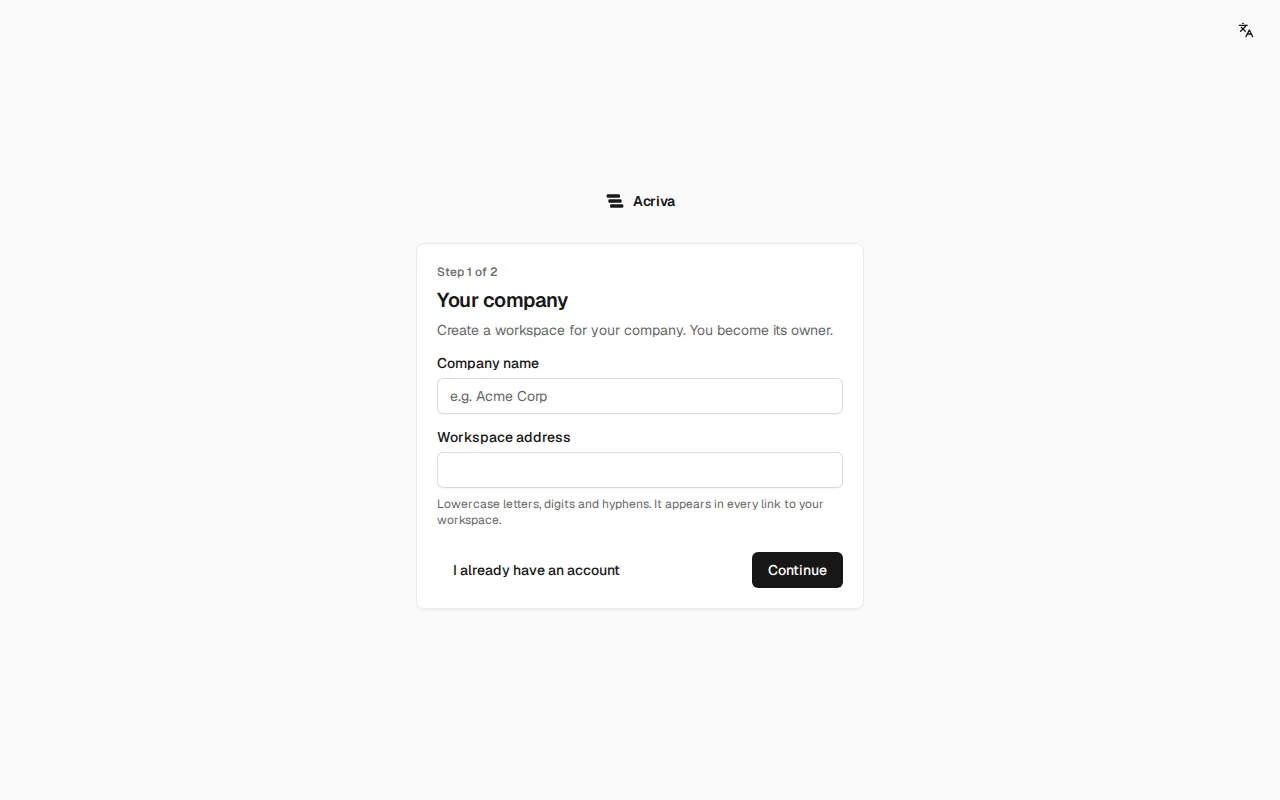
- Open the app and select Create a company account under “New here?”.
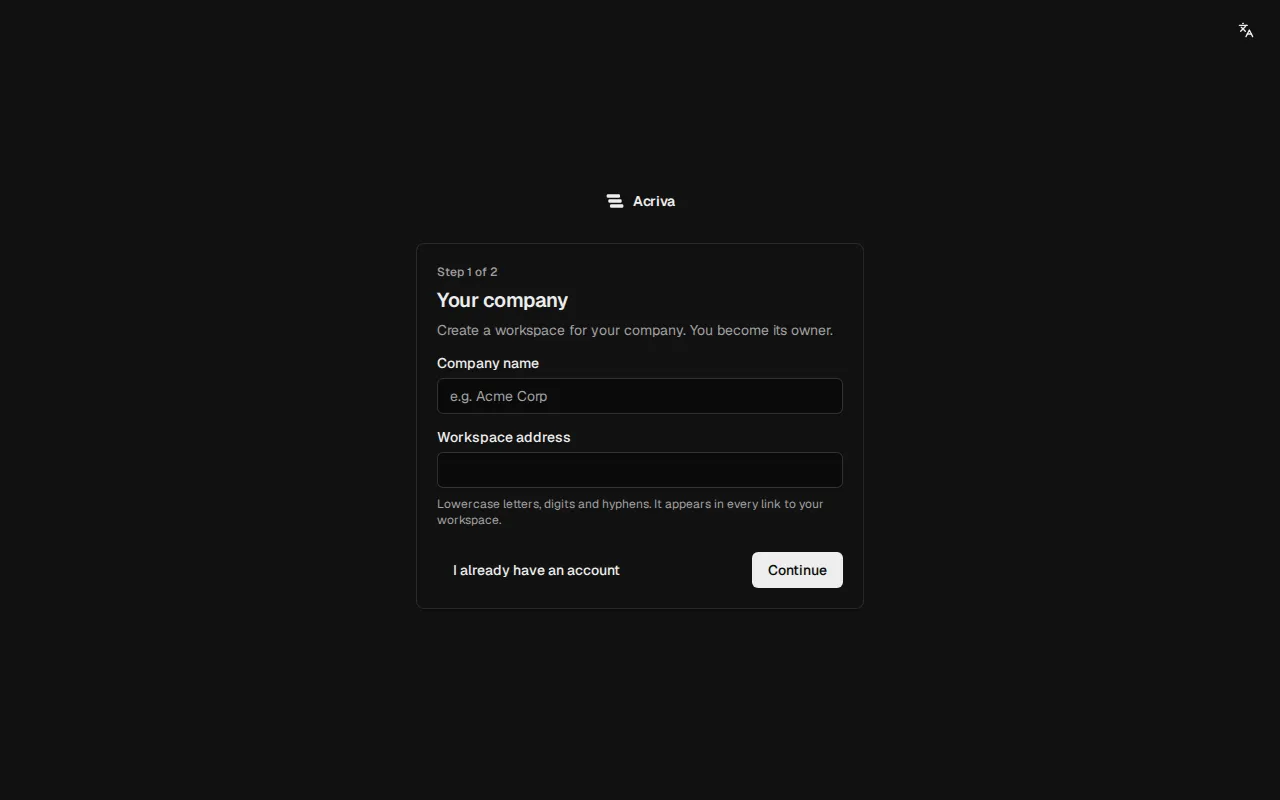
- Under Your company, enter the Company name and the Workspace address. The address appears in every link to your workspace. Use 3 to 40 lowercase letters, digits or hyphens, starting with a letter. The form tells you right away whether the address is available.
- Select Continue.
- Under Your account, enter your First name, Last name and Work email. You sign in with this email address and password.
- Choose a Password with at least 12 characters, which must not be your email address, and repeat it under Confirm password. Choose your Language.
- Select Create account.
When you see Check your inbox, your workspace is ready. Select Continue to sign-in.
Verify your email address
Section titled “Verify your email address”On your first sign-in, the app sends you an email with a verification link, and the page Verify your email asks you to open it. Open the link in the email to continue. If the email doesn’t arrive, check your spam folder or select Send again.
Sign in
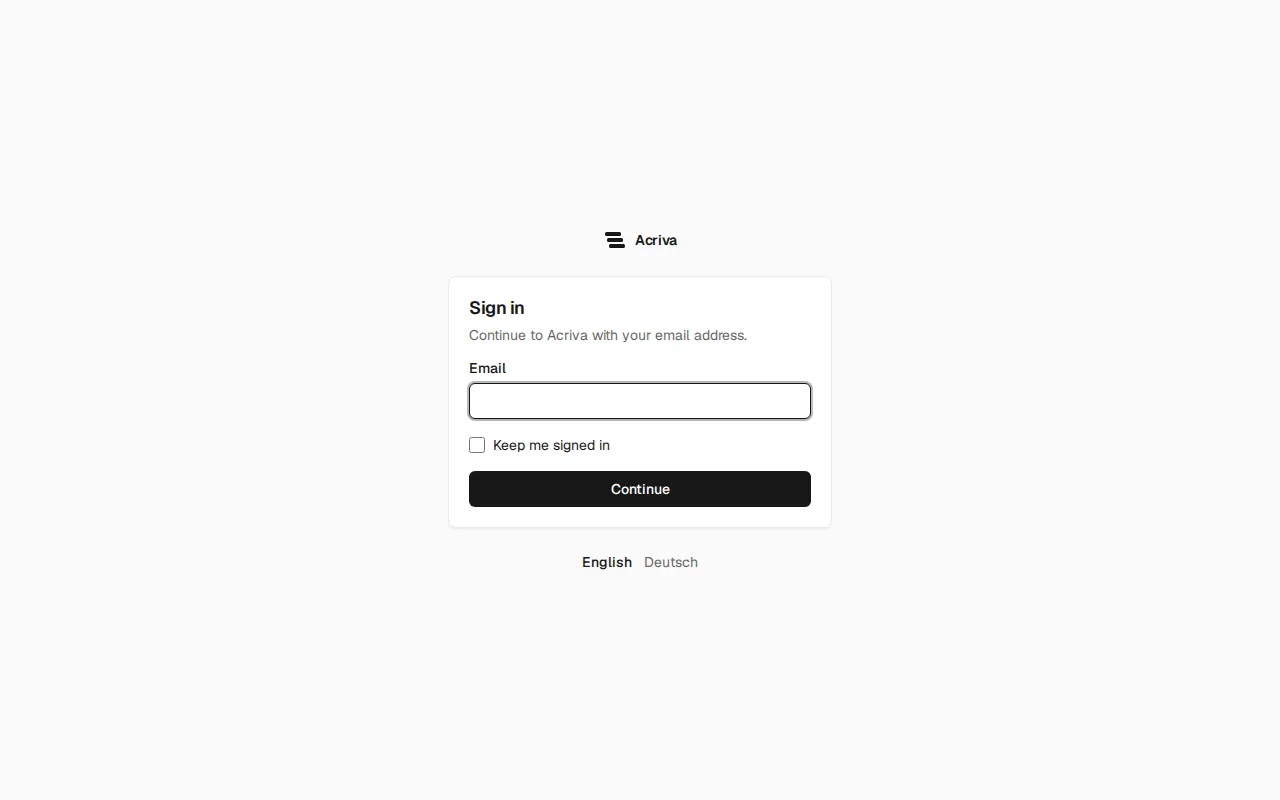
Section titled “Sign in”- Open the app and select Sign in.
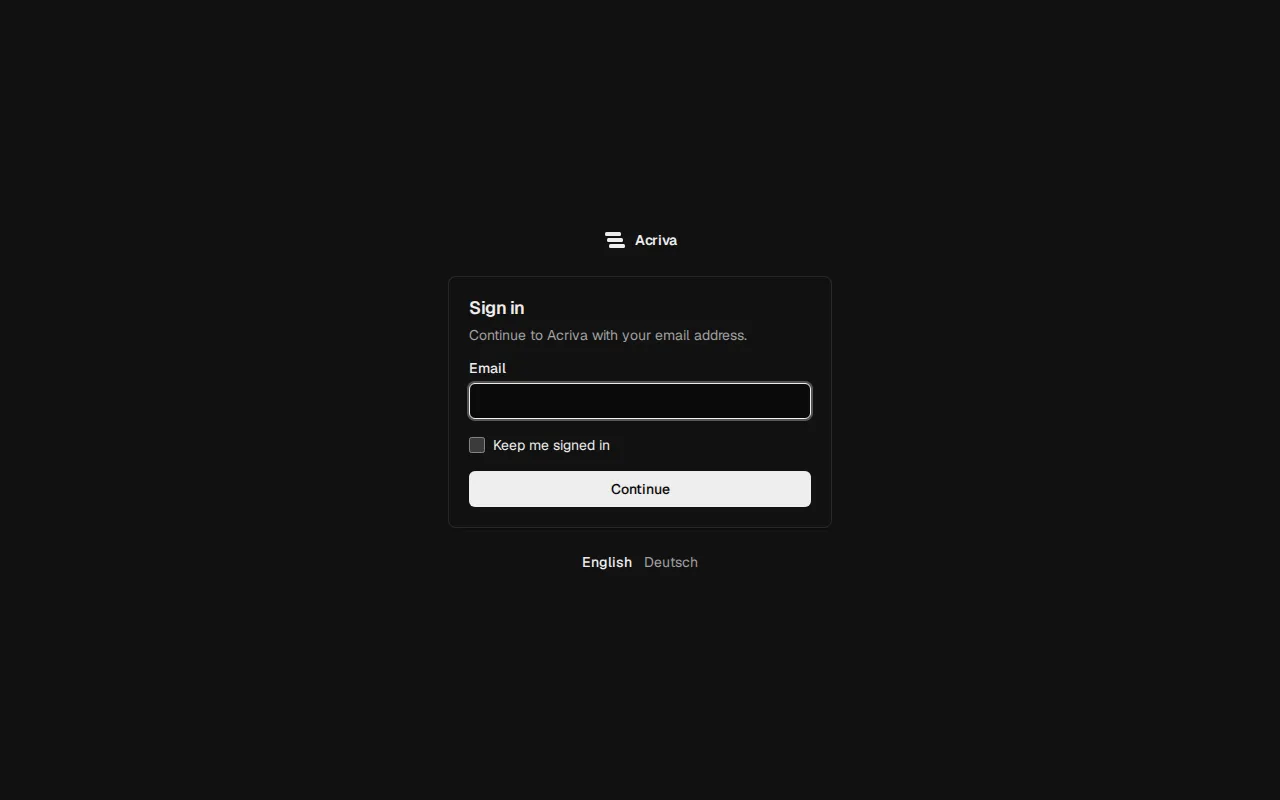
- Enter your Email and select Continue.
- Enter your Password and select Sign in. Choose Keep me signed in on a device that only you use.
After you sign in, the app opens your workspace on the first page your role allows, usually Members. If you forgot your password, select Forgot password? and follow the link in the email.
To sign out, open the account menu (your initials at the top right) and select Sign out.
Switch the workspace
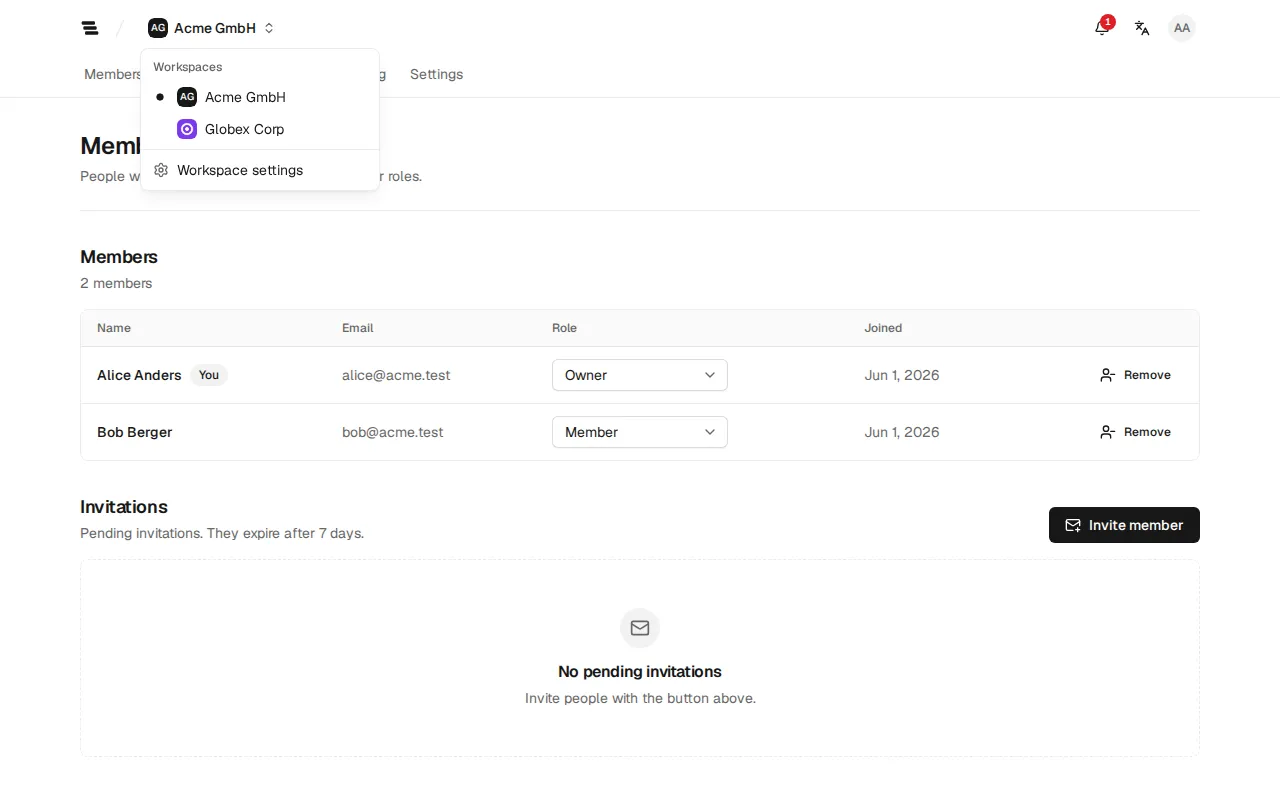
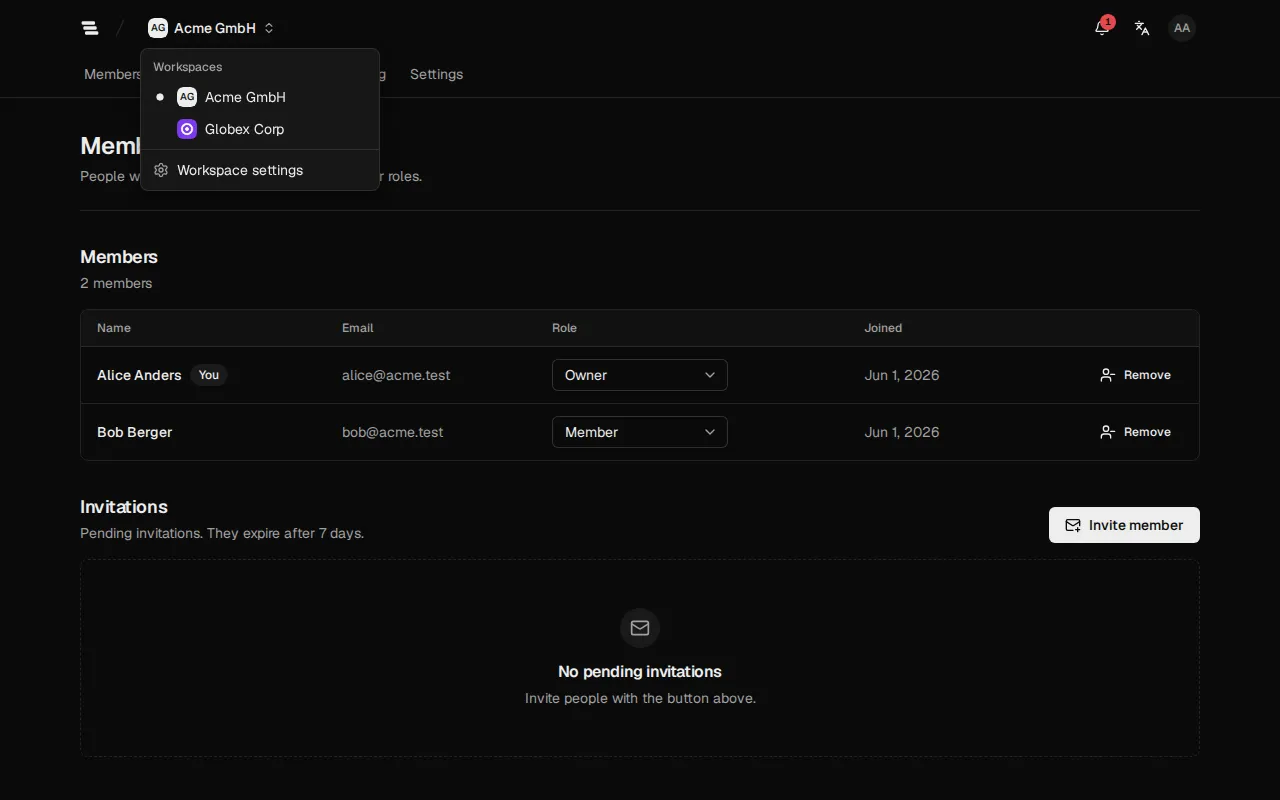
Section titled “Switch the workspace”You can be a member of several workspaces, for example when you work for more than one company. The name of the current workspace is at the top left.
- Select the workspace name at the top left.
- Under Workspaces, select the workspace you want to open.
Each workspace has its own members, roles and notifications. If your account doesn’t belong to any workspace yet, you see No workspaces yet: ask an administrator to invite you.
Choose the language
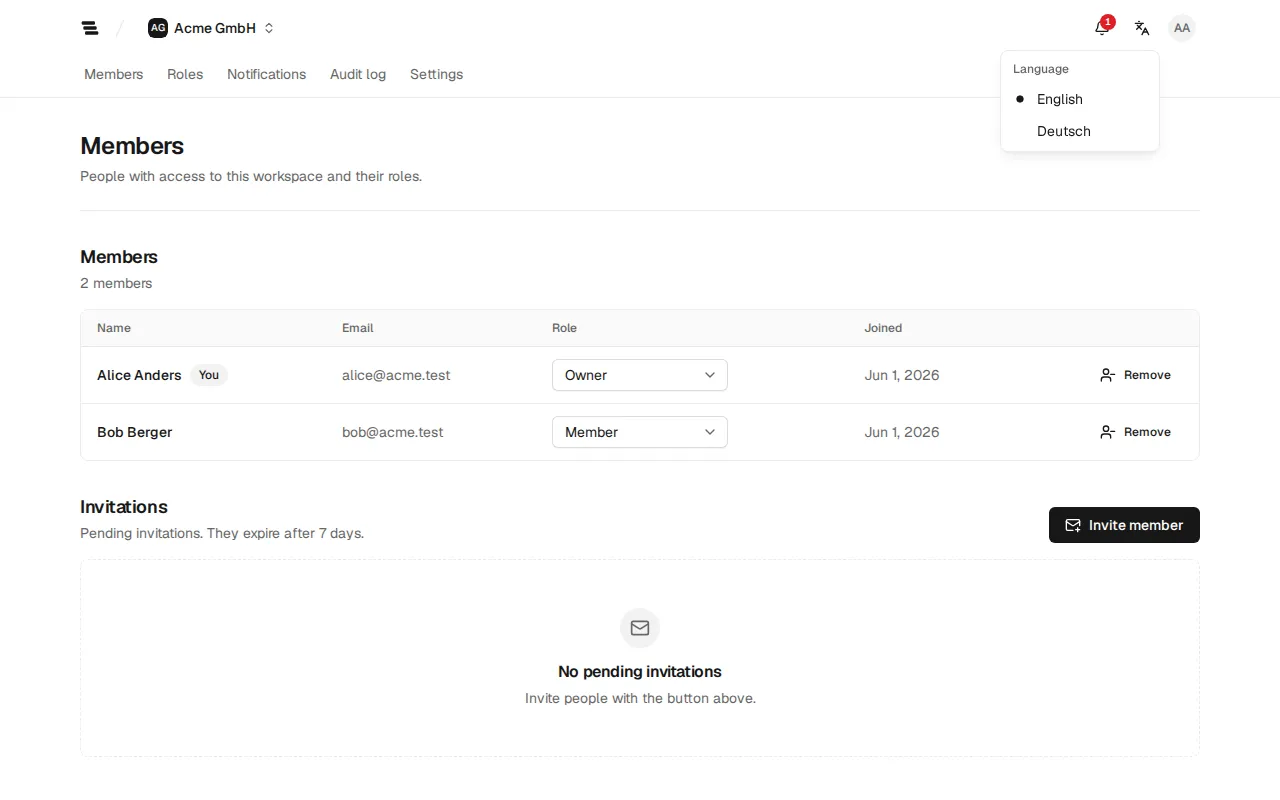
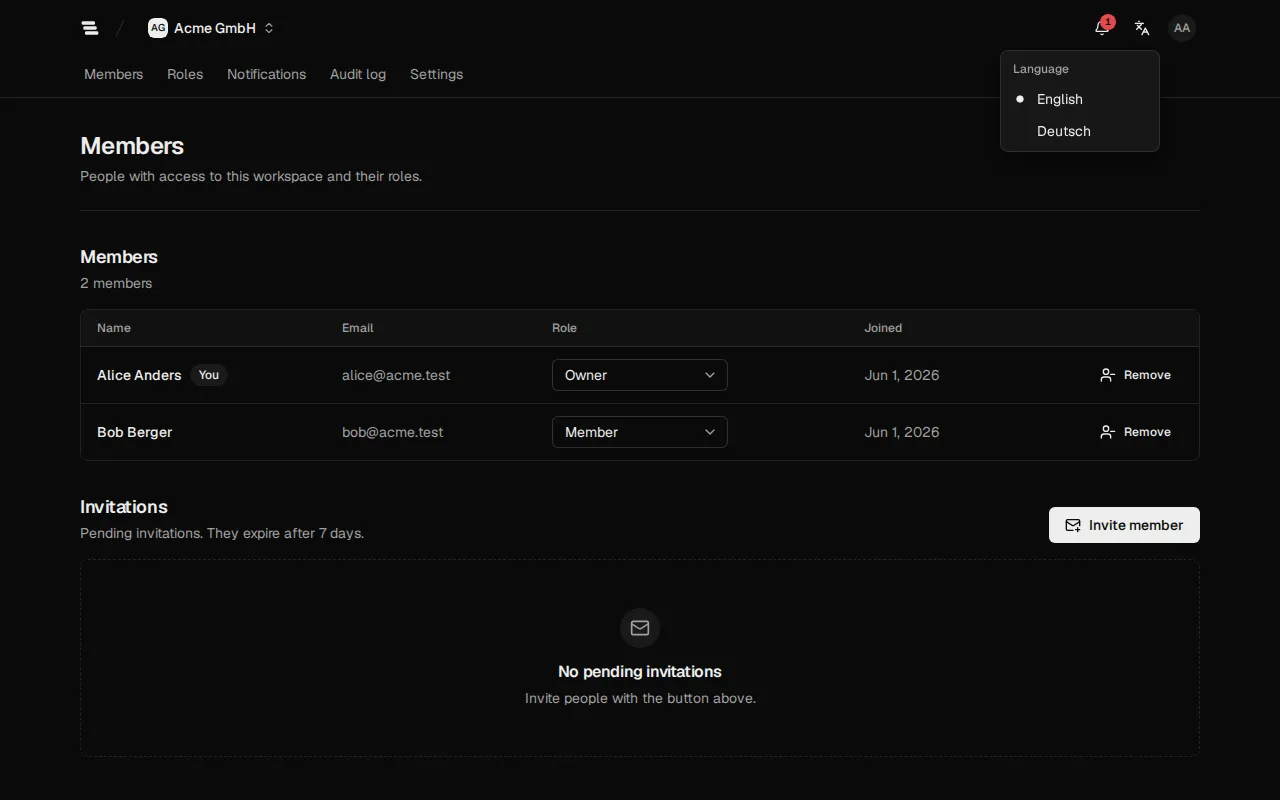
Section titled “Choose the language”The app is available in English and German.
- Select Language at the top of the page and choose English or Deutsch. You can also change it in the account menu under Language.
- When you are signed in, the app saves your choice in your profile. The sign-in pages and the emails you receive then use the same language.
Until you choose a language, the app uses the Default language of your workspace, or the language of your browser.
Choose light or dark mode
Section titled “Choose light or dark mode”Open the account menu and choose Light, Dark or System under Appearance. System follows the setting of your device.
Next steps
Section titled “Next steps”Continue with Notifications.