

DATEV export
With the Accounting export you hand approved incoming invoices to your tax advisor: Acriva creates an export package with a booking batch in the DATEV format and the documents that belong to it. You download the package and pass it on. Acriva doesn’t sign in to DATEV and transfers nothing itself.
Before you export, you need three things:
- your tax advisor’s details under DATEV connection,
- vendors, G/L accounts, cost centers and tax keys in the finance master data,
- invoices in the state Approved with a complete allocation (see Incoming invoices).
DATEV connection
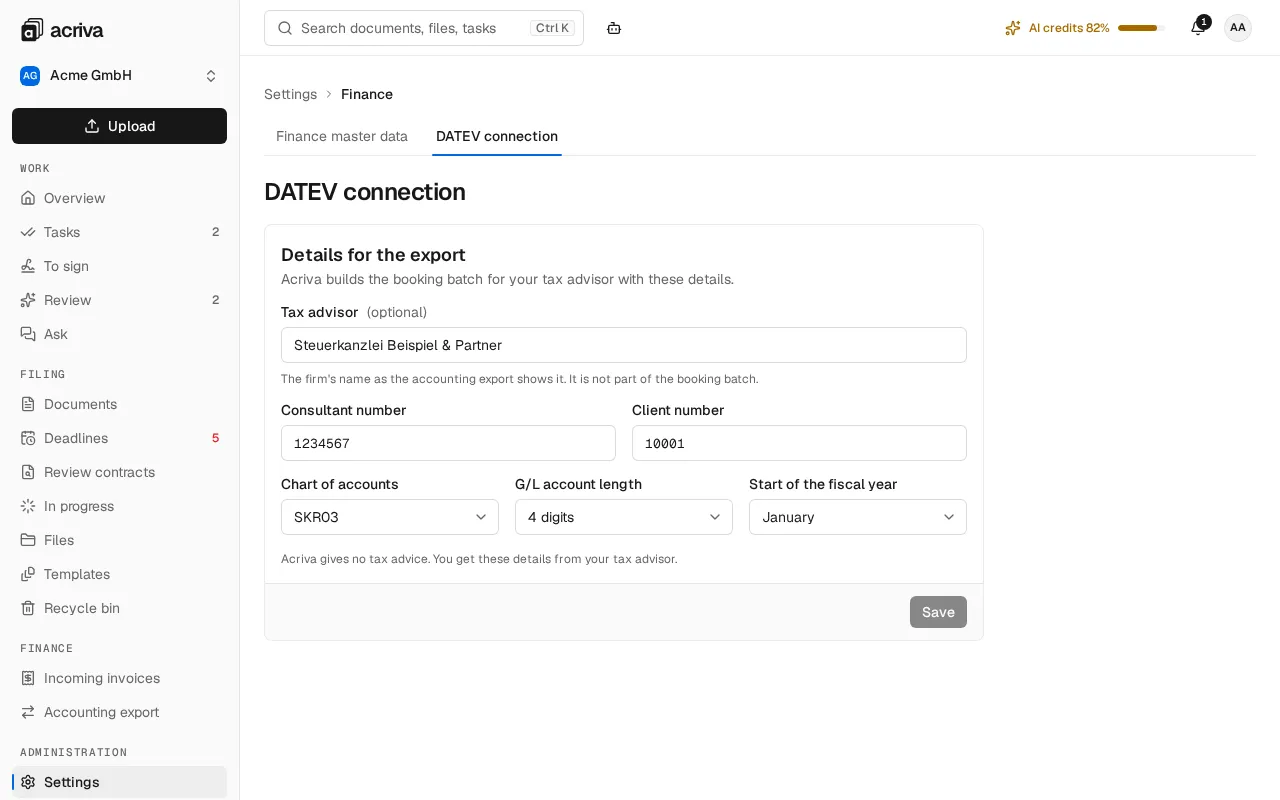
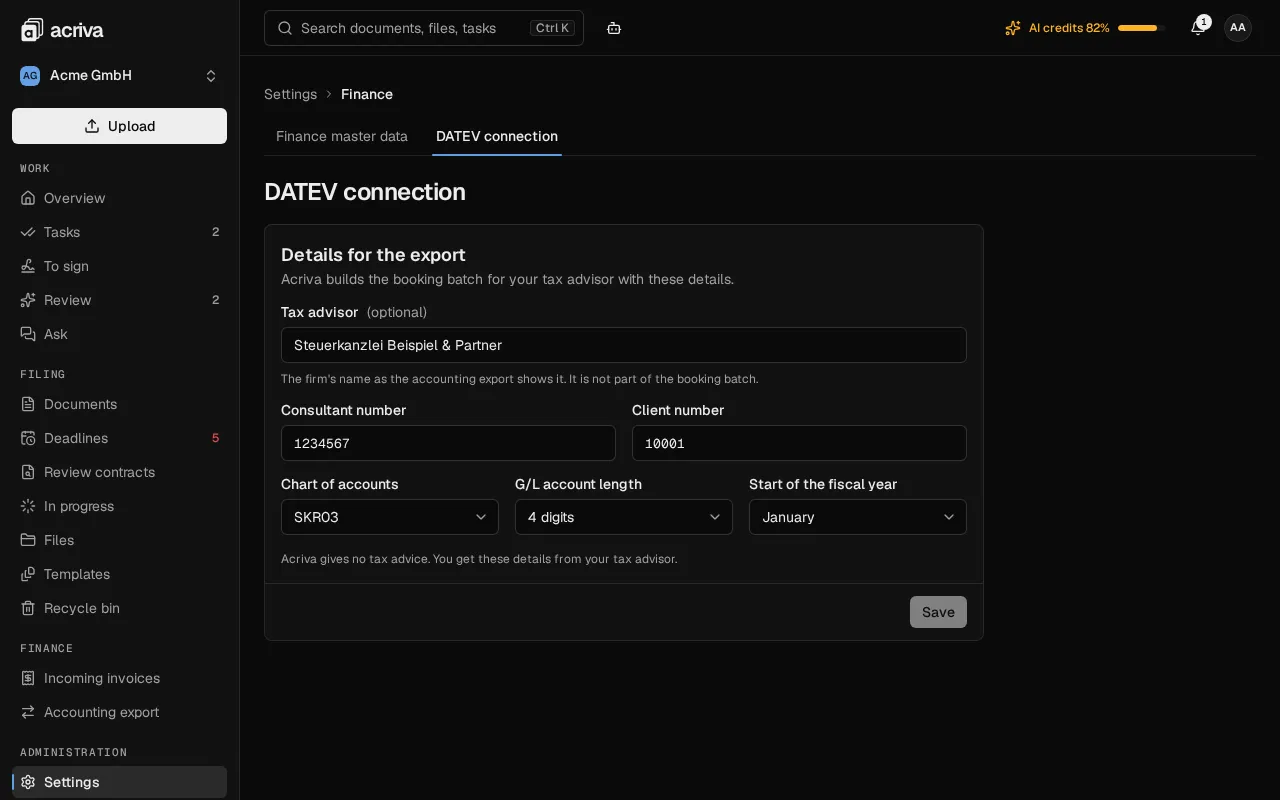
Section titled “DATEV connection”You find the page DATEV connection in the Settings, in the category Finance. The card Details for the export holds the details Acriva builds the booking batch with. You get them from your tax advisor.
Everyone who may read finance data sees the page; the built-in roles Owner, Admin and Member may. The settings are in the sidebar only when you may manage something; a Member reaches the page through its address. Only someone who may manage finance master data and settings can change the details: the built-in roles Owner and Admin. For everyone else the card shows the fields disabled and the note An administrator can change these details.
| Field | Meaning |
|---|---|
| Tax advisor | The firm’s name, at most 200 characters. The field is optional. The name appears on the page Accounting export and is not part of the booking batch. |
| Consultant number | Your tax advisor’s consultant number at DATEV, a number from 1,001 to 9,999,999, for example 29098. |
| Client number | The number your tax advisor keeps your company under, a number from 1 to 99,999, for example 10442. |
| Chart of accounts | SKR03 or SKR04. A new workspace starts with SKR03. |
| G/L account length | How many digits a G/L account has, 4 to 8. A new workspace starts with 4 digits. |
| Start of the fiscal year | The first month of your fiscal year. A new workspace starts with January. The month decides which periods you can export, and the quarters the page offers. |
While the Consultant number or the Client number is missing, the card says: The consultant number or the client number is still missing. The accounting export is possible only once both are entered.
The G/L account length can change only while no G/L account has another length. Otherwise Acriva refuses the save and names the reason at the field.
Change the details
Section titled “Change the details”- Open Settings and select DATEV connection.
- Enter the details. The card’s footer counts what you changed, for example 2 unsaved changes.
- Select Save. Acriva confirms with DATEV details saved. With Discard you put the card back to the saved state instead.
When someone else saved the details while you had the card open, Acriva doesn’t save your changes and says: Someone else has changed the details in the meantime. The card now shows the current state. Check the new state and enter your changes again.
A package you have already created keeps the details that applied when it was created. A later change affects new packages only.
Accounting export
Section titled “Accounting export”The page Accounting export is in the sidebar, in the group Finance. You see it only with the permission to use the export; of the built-in roles, Owner and Admin have it.
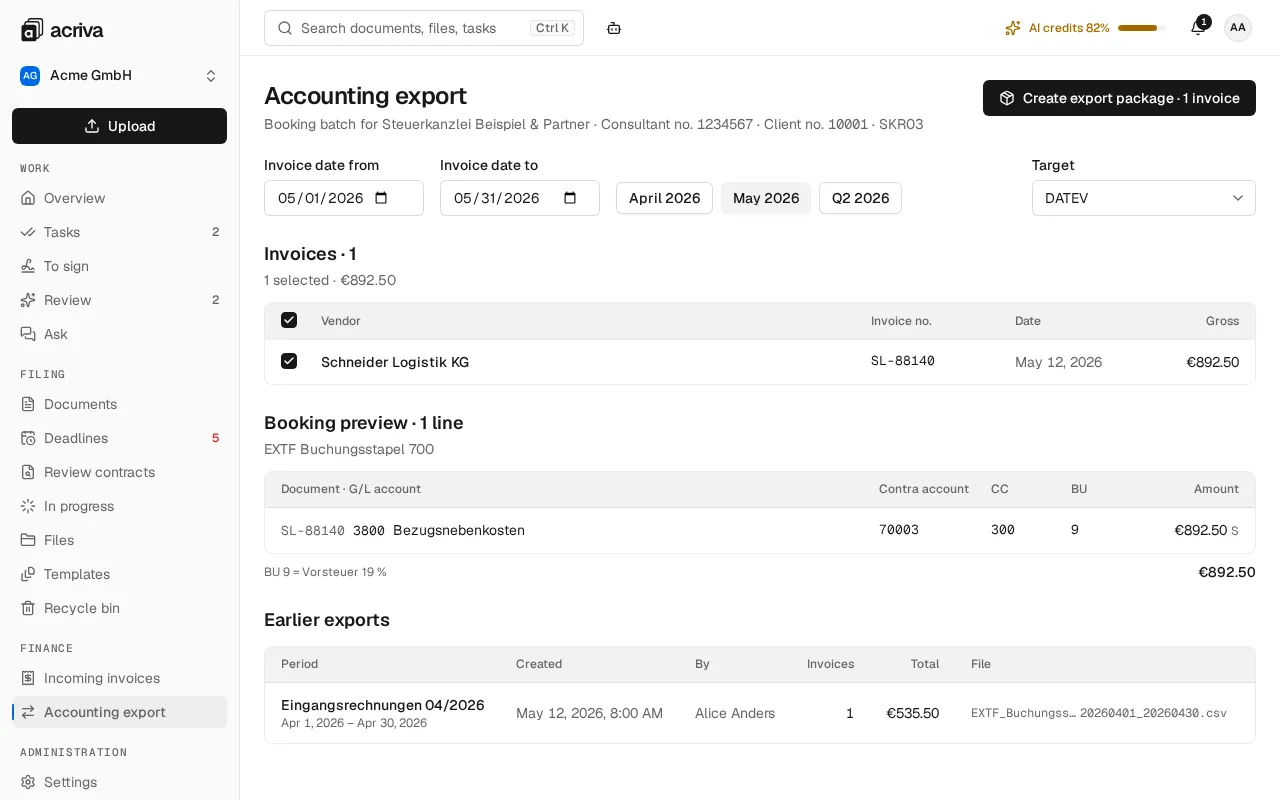
Below the title are the details of the DATEV connection, for example Booking batch for Kanzlei Muster · Consultant no. 29098 · Client no. 10442 · SKR03. When the consultant or the client number is missing, the page shows DATEV details are missing with the button Go to the DATEV connection instead of the period, the list and the preview. The earlier exports stay visible.
Under Target, DATEV is selected. The other targets of the list are marked (from version 1.0) and can’t be chosen yet.
Choose the period
Section titled “Choose the period”The period refers to the invoice date, not to the day of the approval or of the arrival.
- Enter Invoice date from and Invoice date to, or
- select one of the buttons beside them: the month before last, the last month, or the quarter the last month lies in.
Without your choice the page shows the last month. Quarters count from the Start of the fiscal year of the DATEV connection. When your fiscal year starts in January, the button reads Q3 2026, for example; otherwise it names the quarter’s months.
A period must lie within one fiscal year. Otherwise the page shows no invoices but: The period crosses a fiscal year. A booking batch covers one fiscal year: export the two parts separately. When the end lies before the start, the note reads The period ends before it starts.
Which invoices the export takes
Section titled “Which invoices the export takes”The list Invoices shows the candidates of the period with Vendor, Invoice no., Date and Gross. A credit note is marked Credit note. A candidate is an invoice
- that is in the state Approved,
- whose invoice date lies in the period,
- that is not exported yet,
- that is not in the recycle bin, and
- whose document you may read. Invoices you may not read don’t appear, aren’t counted and go into no package you create.
Open and rejected invoices don’t appear. When there is no candidate, the list shows No approved invoices in this period.
Every exportable invoice starts selected. Take single ones out with their checkbox, or clear and select all with the checkbox in the table header. Above the list you see how many invoices are selected and their total, for example 12 selected · €8,431.20. In the total, a credit note counts against the invoices.
What the export refuses
Section titled “What the export refuses”An approved invoice that can’t be exported is in the list as well. Its checkbox is disabled, and below the vendor it says Not exportable: with every reason:
| Reason in the list | What is behind it |
|---|---|
| no allocation | The invoice has no allocation line. |
| the allocation doesn’t add up to the gross amount | The amounts of the allocation lines don’t add up to the invoice’s gross amount. |
| the invoice number is missing | The booking batch needs the invoice number as the document number. |
| the invoice number holds no character DATEV allows | DATEV allows only certain characters in the document number. None of this invoice number would be left. |
| the invoice date is missing | Without an invoice date the invoice belongs to no period. Such an invoice is at the end of the list for every period until the date is entered. |
| net and VAT don’t add up to the gross amount | Net and tax of the invoice don’t add up to its gross amount. |
| the currency is not euro | The export takes invoices in euro only. |
| no vendor linked | The invoice is linked to no vendor of the finance master data. |
| the vendor is not confirmed | The vendor was created but not confirmed yet. |
| the vendor has no vendor account | The vendor lacks the number it is booked under. |
| the vendor account is not valid for DATEV: digits, at most one digit longer than a G/L account, not only zeros | Correct the vendor’s vendor account in the finance master data. |
| a G/L account is not made of digits of the G/L account length, or is only zeros | A G/L account of the allocation doesn’t have the length of the DATEV connection. Correct the account or the account length. |
| a cost center’s number holds a character DATEV doesn’t accept | Correct the cost center’s number in the finance master data. |
| a tax key has no number of one to four digits | Correct the tax key’s number in the finance master data. |
| the payment is on hold because of its IBAN | Resolve the notes under Payment on hold: IBAN on the invoice: add the IBAN to the vendor, accept another vendor’s account, or release the checked version. Until then the invoice can’t be marked as approved either. |
| four eyes: you or the person who approved it added, accepted or released an IBAN of this invoice in the last 30 days; another person exports it | Another person exports the invoice, or another person approves it. |
| the document has a new version since the approval: approve it again | Approve the invoice again on the current version. |
| the document is larger than 20 MB | Acriva hands over only files up to 20 MB. |
| Acriva doesn’t hand over this file type (only PDF, XML, TIF, JPG and PNG) | Upload the document in one of these file types as a new version. |
| for another reason | A reason this version of the app can’t name yet. |
Fix the reason on the invoice or in the finance master data. After that the invoice can be selected.
The booking preview
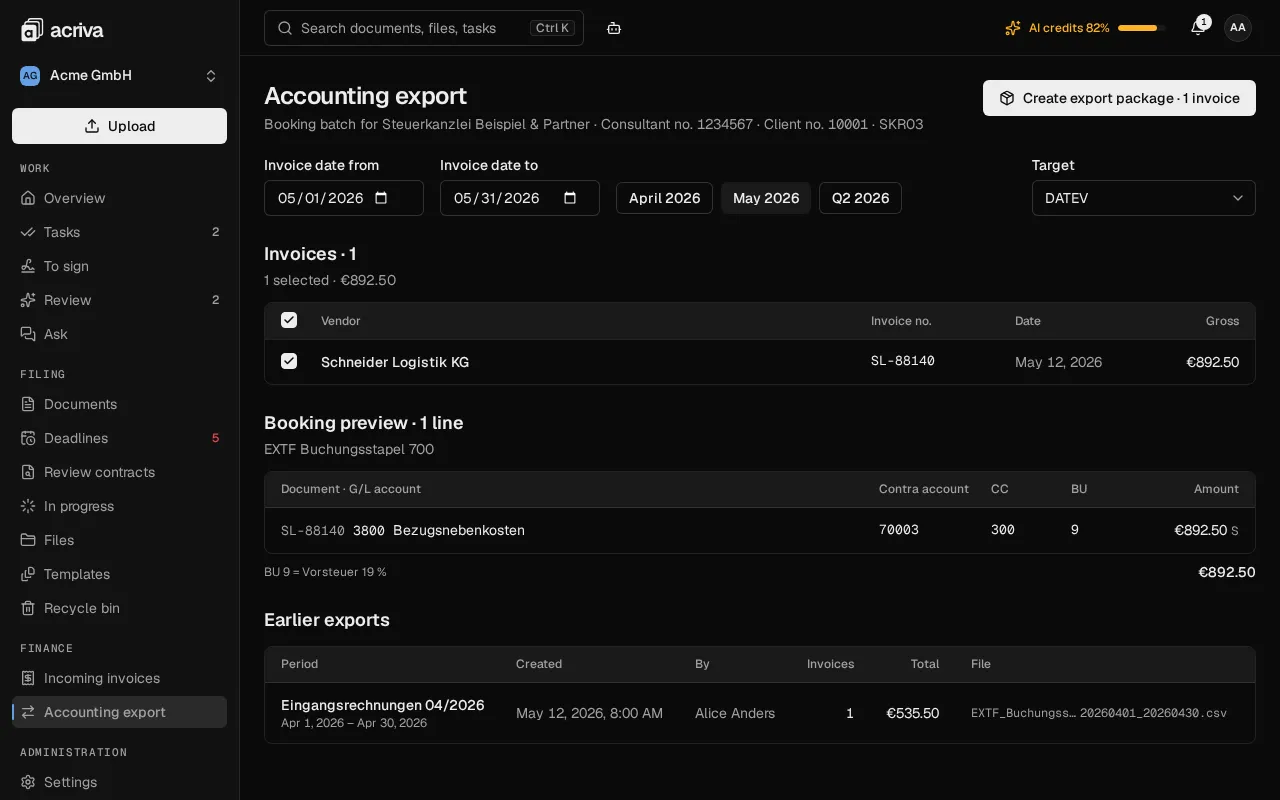
Section titled “The booking preview”Beside the list, the Booking preview shows the lines of the booking batch for your selection, exactly as the package will hold them. Every allocation line of an invoice becomes one booking line. The heading names their number, for example Booking preview · 18 lines, and below it is the format EXTF Buchungsstapel 700.
| Column | Content |
|---|---|
| Document · G/L account | The document number as DATEV receives it, and the line’s G/L account with number and name. |
| Contra account | The vendor’s account. |
| CC | The cost center’s number, when the line has one. |
| BU | The line’s tax key. For an automatic account the column stays empty, because the account carries its tax itself. |
| Amount | The line’s gross amount with S (debit) for an invoice or H (credit) for a credit note. |
Below the table are the names of the tax keys in use and the total of the selection. The document number can differ from the invoice number: “RE 2026/0042-Ä” becomes “RE2026/0042-AE”, for example, because DATEV takes no blanks and no umlauts there. The invoice number as written on the invoice is kept in the booking text.
The preview reloads shortly after you changed the selection. While it doesn’t match the selection, it is dimmed and the package can’t be created. When nothing is selected, it says Select invoices to see the booking lines.
Create the export package
Section titled “Create the export package”- Choose the period and check the selection and the Booking preview.
- Select Create export package at the top right. The button names the number of invoices, for example Create export package · 12 invoices.
- Read the question Create the export package for …? and confirm with Create export package.
- Acriva marks the invoices as Exported, says for example Export package with 12 invoices created and starts the download. The package is a ZIP file with a name like
DATEV-Export_20260901_20260930.zip.
If the download doesn’t start, you find the package under Earlier exports.
An export succeeds as a whole or not at all. When someone else has exported or changed one of the invoices in the meantime, no package is created, and Acriva says: Someone else has exported or changed one of the invoices in the meantime. Nothing was exported; the list now shows the current state. Check the list and create the package again.
Limits of a package
Section titled “Limits of a package”An export package takes at most 2,000 invoices and 1 GB of documents; a single document may be at most 20 MB.
- When more than 2,000 invoices are selected, the page says above the list: An export package takes at most 2,000 invoices. Choose a shorter period or fewer invoices. The preview and the button are disabled then.
- The list shows at most 2,000 invoices. When the period holds more, it says: The period holds more invoices than the list shows. Choose a shorter period. The heading then names no number.
- When the documents of the selection together are larger than 1 GB, no package is created: the preview shows The booking preview could not be loaded, and on creating Acriva says The selection is too large: at most 2,000 invoices and 1 GB of documents per package. Choose a shorter period.
In these cases, export several shorter periods one after another.
Exported invoices
Section titled “Exported invoices”An exported invoice carries the mark Exported and is in the list of incoming invoices under the tab Exported. It appears in no further export.
On an exported invoice, the allocation, the vendor, the tax lines and the cash discount can no longer be changed. Its section Booking says: The invoice is exported and can no longer be changed. The details that come from the document’s fields (invoice number, vendor name, invoice date, due date and gross amount) still follow the document: when someone changes them there, they change on the exported invoice too. The export package doesn’t change with that, because Acriva stores its booking lines when the package is created. So your tax advisor has the exported values.
So that this doesn’t go unnoticed, the section Booking of such an invoice shows the notice The document was changed after the export. It names every detail that differs, with the exported and the current value, for example “Gross amount: exported €1,428.00, now €1,430.00”. In the list of incoming invoices, Changed then stands under Exported. If your tax advisor should get the new values, reset the export mark (below) and export the invoice again; the notice offers Reset export mark for that. Whoever may not run the accounting export sees that they should ask someone who may. Invoices exported before this change show no notice: Acriva didn’t keep their exported values.
Earlier exports
Section titled “Earlier exports”Earlier exports lists the packages created so far, newest first, with Period, Created, By, Invoices, Total and File (the name of the booking batch in the package). Load more shows older packages.
To download a package again, select the download icon at the end of its row. The booking batch is the same at every download: Acriva stores the booking lines when the package is created and builds the file from them alone. Later changes to master data or to the DATEV connection don’t change an existing package.
You see a package only when you may read every document in it. Every download is recorded in the audit log per document, the first and each later one.
Reset the export mark
Section titled “Reset the export mark”When an exported invoice must be corrected and handed over again, reset its export mark. Whoever may use the export may do that: of the built-in roles, Owner and Admin.
- Open the exported invoice (see Incoming invoices).
- In the section Booking, select Reset export mark.
- Under Reason, enter why you reset it, in at most 500 characters. As the field says, everyone who can read the invoice sees the reason. Without a reason the dialog says Enter a reason.
- Select Reset.
The invoice counts as Approved again: its allocation can be changed, and it goes out with the next export package. The earlier package stays as it was and still holds the invoice. The reset is in the audit log. The reason then stands on the invoice: the section Booking shows when the export mark was reset and why, until the invoice is exported again. Everyone who may read the invoice sees it.
When someone else has changed the invoice or already reset it in the meantime, Acriva says Someone else has changed the invoice in the meantime. or The invoice is no longer marked as exported. and shows the current state.
What the package holds
Section titled “What the package holds”The export package is a ZIP file with two kinds of entries:
| Entry | Content |
|---|---|
EXTF_Buchungsstapel_<from>_<to>.csv |
The booking batch in the DATEV format: one booking line per allocation line, with amount, G/L account, vendor account, tax key, document date, document number, booking text, cost center and the link to the document. |
Belege_01.zip, Belege_02.zip, … |
DATEV document packages: the originals of the invoices and a file document.xml that describes them. A new document package starts at about 100 MB. |
Unpack the export package and give your tax advisor every file in it. The document packages themselves stay packed.
Your tax advisor imports the booking batch into DATEV Rechnungswesen and transfers the document packages to DATEV Unternehmen online. Every booking line carries a link to its document (Beleglink). With both files imported for the same client, the tax advisor should be able to open the invoice from the booking; Acriva can’t check that, and the first real import has not confirmed it yet.
What you and your tax advisor should know:
- The booking batch is not fixed (“festgeschrieben”). The tax advisor checks it in DATEV and fixes it there.
- The due date, the cash discount and the service date are not in the booking batch.
- Acriva doesn’t fill the additional DATEV columns for bookings with an EU reference or under § 13b UStG; the tax advisor completes them in DATEV.
- Acriva replaces characters the DATEV format doesn’t know: “Łukasz” arrives as “Lukasz”.
- Acriva checks the files with a checker of its own against DATEV’s format description. An import into DATEV itself is not confirmed yet; it is done first with a pilot customer and their tax advisor. Arrange a test import with your tax advisor for your first package.
Every column and every rule of the format is under DATEV export format.