

Single sign-on (SSO)
With single sign-on, the people of your company sign in to Acriva with their company account at Microsoft Entra ID or Google Workspace, without a password of their own at Acriva. Owners and admins set it up under Settings, in the category Security & access, on the page Single sign-on. The page is there on the Business and Enterprise plans and during the trial (Subscription).
Microsoft Entra ID connects through Acriva’s own app: an administrator of your Microsoft directory consents once for the whole directory, and Acriva reads the domains Microsoft has confirmed for it, so you need no app registration and no DNS record. Google Workspace connects with an OAuth client of yours and a TXT record that confirms your domain. Your workspace has one connection, of one provider.
Connect Microsoft Entra ID
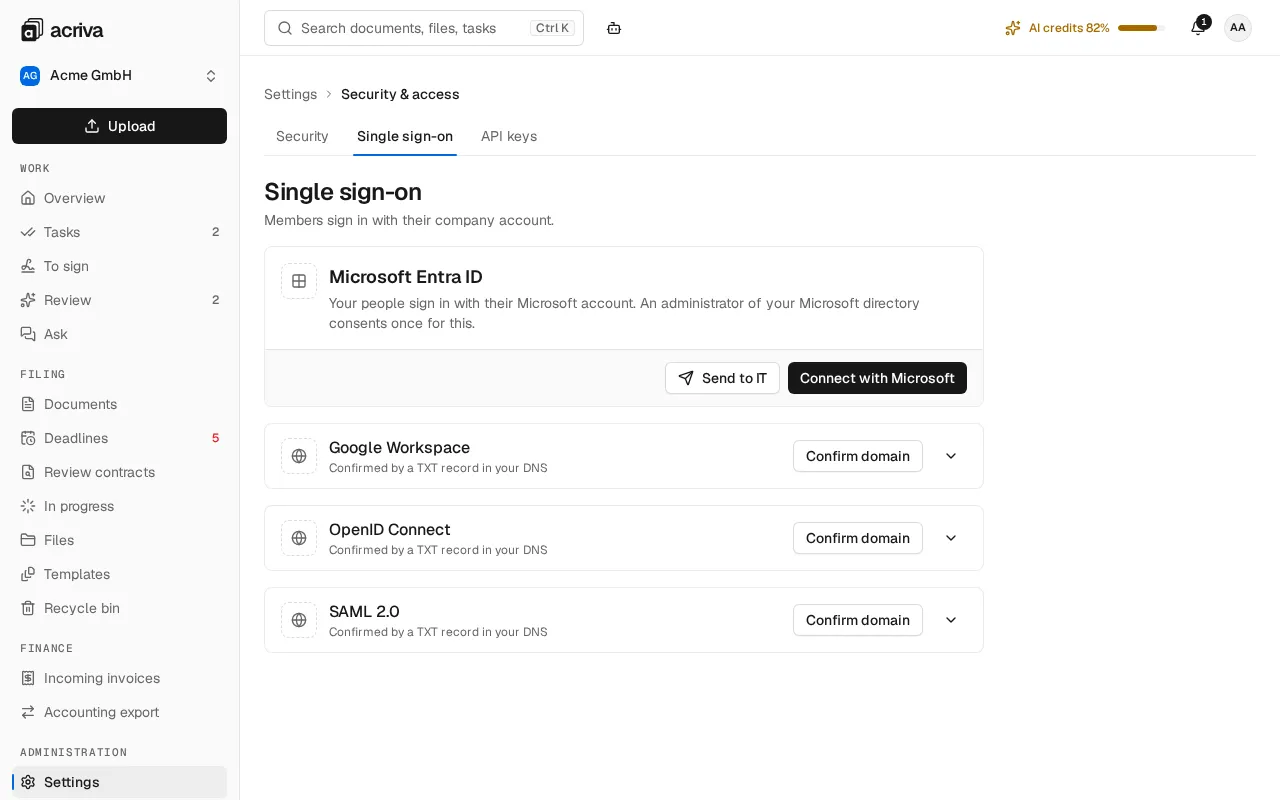
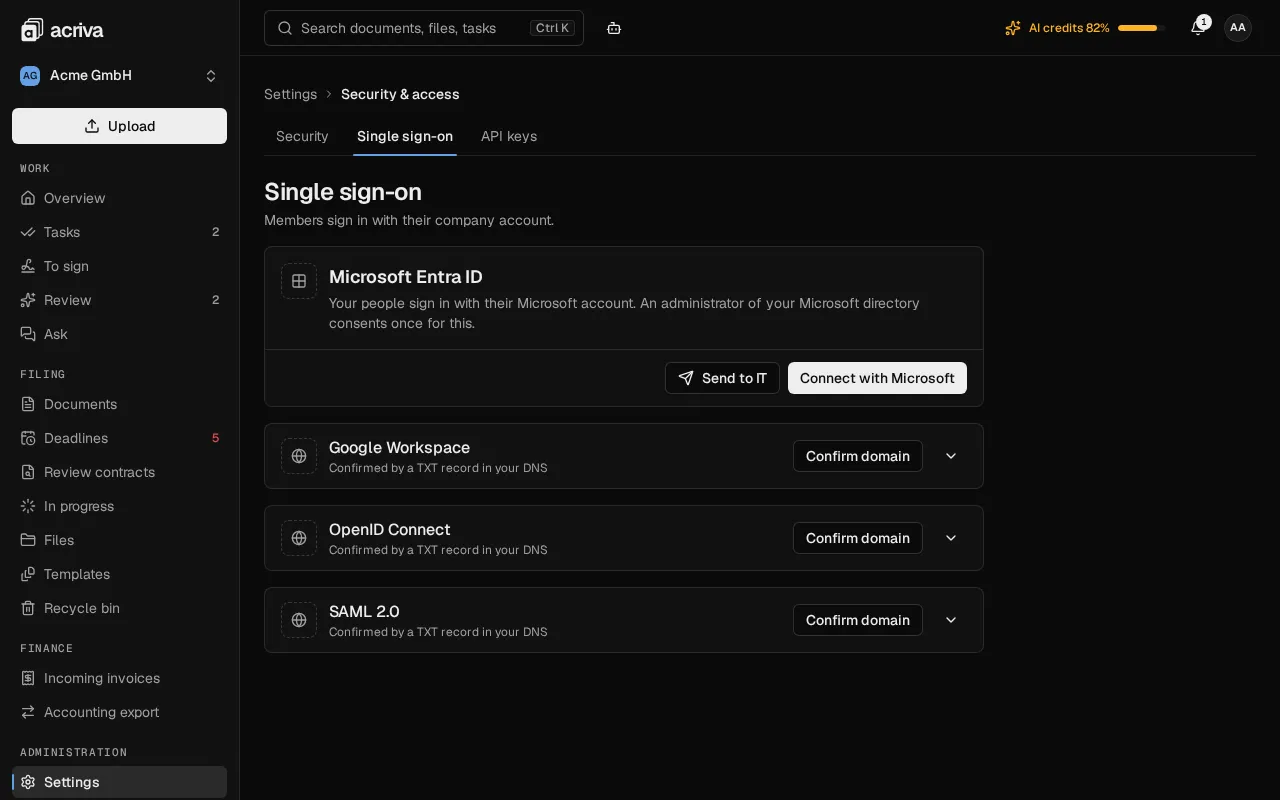
Section titled “Connect Microsoft Entra ID”The card Microsoft Entra ID leads through the connection. Its badge says where it stands: Waiting for consent, Consent given or Connected.
- If you administer your Microsoft directory yourself, select Connect with Microsoft. Microsoft asks you to consent for the whole directory and then to sign in once, so that Acriva can confirm the directory and your role in it. Otherwise select Send to IT (below).
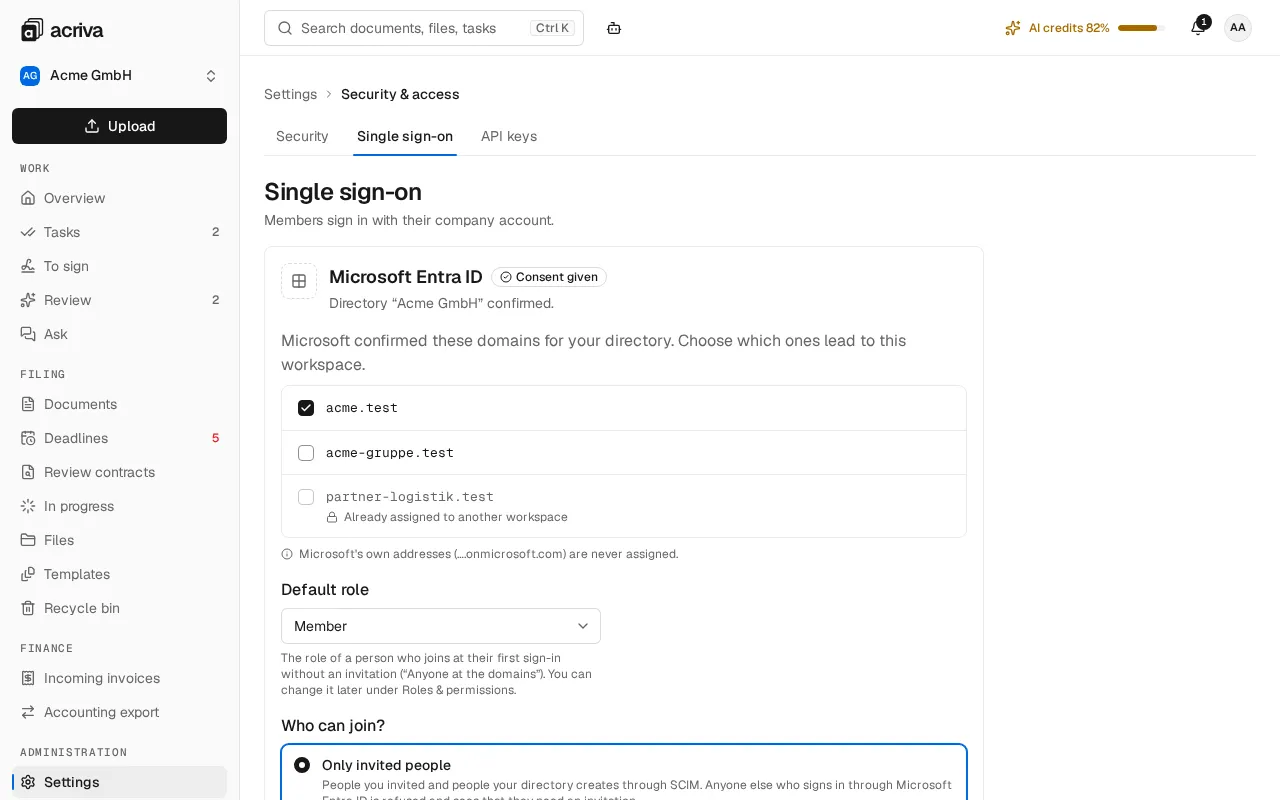
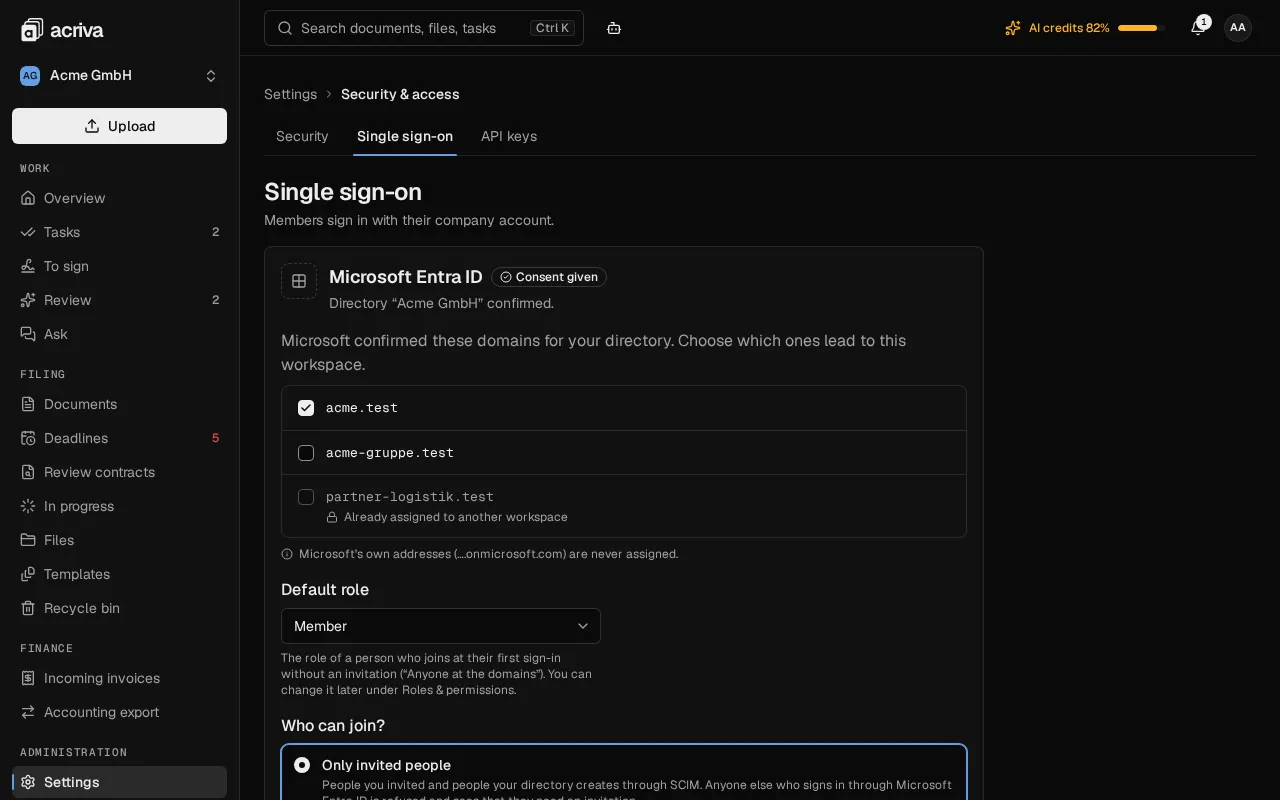
- Back in Acriva, the card says Directory “…” confirmed. and lists the domains Microsoft confirmed for your directory. Tick the ones that lead to this workspace. A domain marked Already assigned to another workspace can’t be ticked; Microsoft’s own addresses (….onmicrosoft.com) are never assigned.
- For a first connection, choose the Default role (at first Member) and, under Who can join?, who can become a member through Microsoft (at first Only invited people, below), then select Save.
After that sign-in, Microsoft’s way back shows Allow the connection to Acriva?: the directory and the Acriva workspace that receives it, by name. Only Allow connection with “…” connects it; whoever doesn’t know the workspace, or didn’t expect the request, chooses Don’t allow. Only the browser that signed in sees this step.
Only Microsoft’s tenant-wide consent connects: the consent of a single employee doesn’t. Whoever signs in at Microsoft for the confirmation must be a Global, Privileged Role, Application or Cloud Application Administrator of the directory. Only the person who started the connection can save it; another administrator of the workspace sees the domains without Save and can Start again.
Send the link to your IT
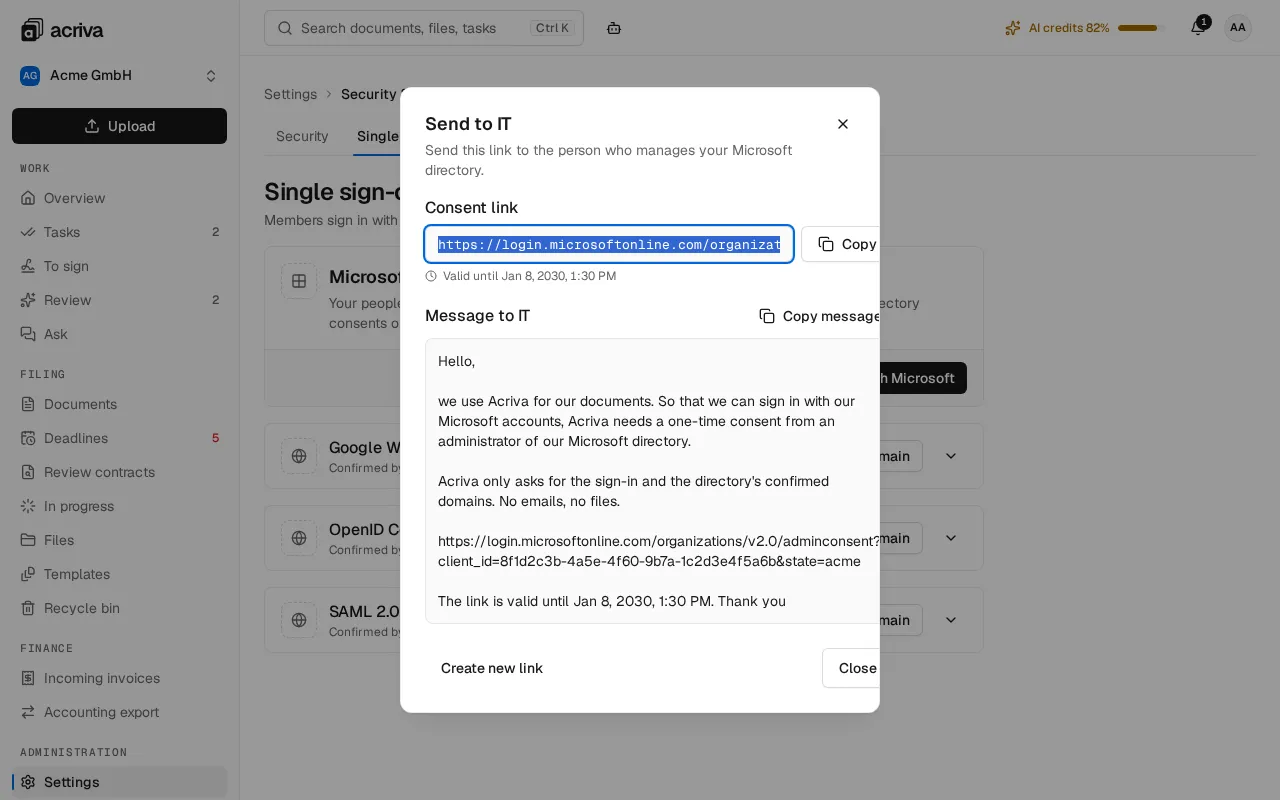
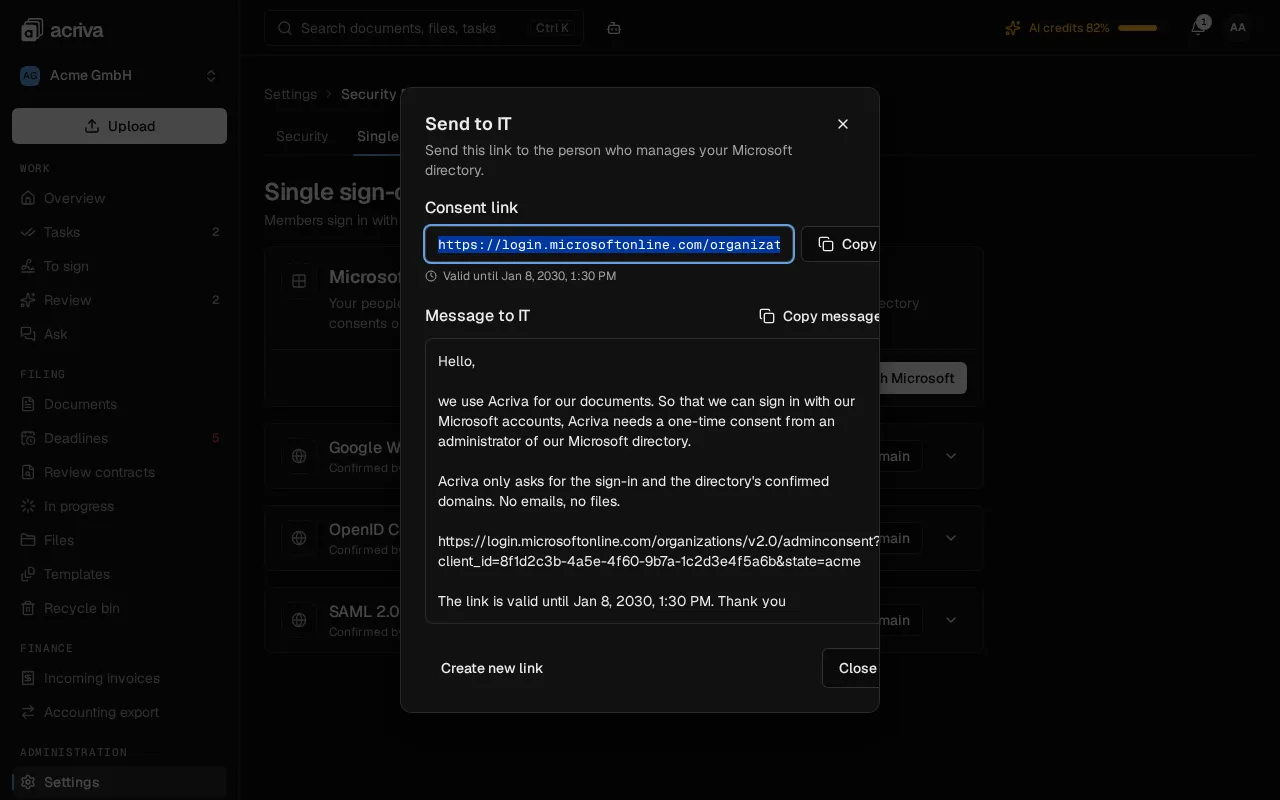
Section titled “Send the link to your IT”Send to IT opens a dialog with the Consent link for the person who manages your Microsoft directory, how long it is valid (7 days), and a Message to IT to send with it. Copy and Copy message put them on the clipboard. Create new link makes a new link, and the previous one stops working.
While the link is out, the card says Waiting for consent, when the link was sent and until when it is valid. Copy link again makes a new link (Acriva doesn’t keep the old one) and Cancel withdraws it. Once your IT has consented and signed in, the card shows the domains for you to choose. If the sign-in at Microsoft was broken off after the consent, the card says Consent given: Sign in with Microsoft finishes it.
After Microsoft, the browser lands on a page of Acriva that says how it went, for example Consent given or No permission to consent. In your own browser it offers Continue to single sign-on; your IT sees only the outcome and that the window can be closed.
Connected
Section titled “Connected”The card shows the Directory, the Directory ID with a copy button, the Domains that lead
to the workspace, and when Acriva last checked them. Right after the first connection, Microsoft needs
a few more minutes before the sign-in through Acriva works; until then the card names the time from
which you can test the sign-in. Trying earlier shows Microsoft’s error AADSTS50011; just sign in
again a little later. Acriva checks every night whether Microsoft
still names each domain for your directory; a domain Microsoft no longer names stops routing on the
second night. Everyone who may manage single sign-on then gets a notification and an email naming
the domain: the owners, the administrators and anyone with a custom role that has this permission.
The domain doesn’t come back by itself: once Microsoft names it again, tick it again under Change
domains. Change domains asks Microsoft for the directory’s current domains again (a sign-in of
an administrator, as above) and opens the choice. Disconnect asks first (Disconnect directory
“…”?): your people can no longer sign in with Microsoft, and accounts and memberships stay.
An Entra connection set up before with an app registration of your own keeps working. Its card says Please confirm once with Microsoft – until then, sign-in works as before.; Confirm now moves it to Acriva’s app with the steps above.
The default role
Section titled “The default role”When Who can join? is set to Anyone at the domains (below), whoever signs in through single sign-on for the first time without an invitation becomes a member with the Default role: for Microsoft Entra ID the one chosen at the first connection, for Google Workspace the one the card Connection shows, at first Member. To choose another, open the role under Roles & permissions and select Make default for single sign-on. The list of roles marks it Default for single sign-on. Owner, Auditor and Tax advisor can’t be the default role.
Seats and roles through Microsoft
Section titled “Seats and roles through Microsoft”The default role also decides the seat a person without an invitation takes at their first sign-in (Seat types). Member, Admin and every custom role of your workspace take a full seat, which costs money; Approver takes a free approver seat, and Read only takes no seat. When the connection lets Anyone at the domains join, the first people who sign in fill your booked full seats. Once they are all taken, nobody else joins with such a role until a seat is free or you extend the plan (Plan and seats); the person then sees No full seat available.
To keep control of the seats:
- Leave Who can join? at Only invited people, the setting of every new connection (below): only the people you invite or your directory creates through SCIM become members, with the invitation’s role and seat.
- Or set Assignment required? at Microsoft (below): Microsoft then signs in to Acriva only the people you assign to the application, directly or through a group.
- Or choose a default role without a full seat, for example Read only, and give individual people a role with a full seat by hand under Members (Change a role or the seat).
Signing in through Microsoft grants nothing: Acriva reads no roles or groups of your Microsoft directory at a sign-in. What a person may do in Acriva comes only from their Acriva role: the default role, a role a mapped directory group grants (Directory groups, with SCIM), or a role an owner or an administrator gives by hand.
Connect from Microsoft’s gallery
Section titled “Connect from Microsoft’s gallery”Acriva is also in Microsoft Entra’s application gallery (Enterprise applications › New application › Browse Microsoft Entra Gallery). Its sign-up button takes you to a page of Acriva outside the app. The connection itself is the same as above:
- Sign in to Acriva. Without a workspace, Create a workspace (free for 14 days) creates one.
- Choose a workspace lists the workspaces where you are an owner or an administrator. Pick one, then Connect with Microsoft. If single sign-on isn’t part of the workspace’s plan, the page says so there.
- At Microsoft you consent and sign in, then you allow the connection on Acriva’s page, as described above.
- Consent given: choose the domains, then Save and go to Acriva. You land on the workspace’s Single sign-on page.
If you are an owner or an administrator nowhere, the page shows You don’t have permission for this and a Link for the owner to pass on. If the directory is already connected with another workspace, it shows Directory already connected, without naming that workspace, and a Reference for support. If you were invited but this account has no workspace yet, I was invited – sign in signs you out, so you sign in with the invited account.
Notes for your Microsoft administrator
Section titled “Notes for your Microsoft administrator”This section is for the person who manages your Microsoft directory: what the connection with Acriva sets up in Microsoft Entra ID, what Acriva reads from Microsoft, and what you can set there.
What the consent grants
Section titled “What the consent grants”Your consent is for Acriva’s app and your whole directory. Microsoft asks for the four delegated permissions that Acriva’s app declares at Microsoft. Delegated means: Acriva acts only when a person signs in, and with that person’s rights. Acriva asks for no application permission, which would let it reach your directory without a sign-in.
| Permission | What Microsoft calls it | What Acriva needs it for |
|---|---|---|
openid |
Sign users in | the sign-in |
profile |
View users’ basic profile | the person’s name |
email |
View users’ email address | the person’s address |
User.Read |
Sign in and read user profile | at the setup: your directory’s name and domains |
The names in the middle column come from Microsoft’s documentation; Microsoft’s consent page may word them a little differently.
At the setup, and when someone later chooses Change domains or Confirm now, Acriva reads, when the consenting person signs in at Microsoft:
- from their sign-in token your directory’s ID (
tid), their object ID (oid), their name and their roles in the directory (wids), to check that they may consent for the whole directory; - through Microsoft Graph
GET /organization: your directory’s name and the domains Microsoft confirmed for it. Acriva uses the token for this one call only and doesn’t store it.
At every sign-in of a person, Acriva reads from Microsoft’s sign-in token their address (email),
their name, their user name (preferred_username), their identifier for Acriva’s app (sub), your
directory’s ID (tid) and their object ID (oid). The token also names their roles in the directory
(wids); Acriva doesn’t use them at a sign-in. Acriva asks Microsoft for nothing else at a sign-in, and
it stores no token from Microsoft with the accounts.
Acriva stores:
- for the workspace, your directory’s ID and name, the ticked domains, and who saved the connection in Acriva and when;
- for the consent, the name (or user name) and the object ID of the person who consented at Microsoft, and the verified domains Microsoft named then; the workspace’s audit log records the connection with that object ID;
- for each person, their account with address and name, the link with Microsoft by their identifier
(
sub) and their user name, and your directory’s ID and their object ID.
Acriva never reads email, files, calendars, or other users or groups of your directory. Acriva calls Microsoft Graph only in the cases above, for the directory’s name and domains.
Every person needs an email address
Section titled “Every person needs an email address”Acriva signs a person in through Microsoft only when Microsoft sends their address (email) and the
address is at one of the domains you ticked for the workspace. Microsoft takes the address from the
person’s Email field. People without a mailbox, for example without an Exchange Online licence,
often have none there. Enter it in the Microsoft Entra admin center under Users, at the person, in
Properties › Contact Information › Email. If the person comes from your on-premises Active
Directory, enter the address there.
If the address is missing or at another domain, the sign-in stops with an error message: Acriva makes no account, links none and doesn’t add the person to the workspace. That is also why guests of your directory don’t sign in through Microsoft: their addresses are at none of the ticked domains (How your people sign in). On top of that, Acriva’s app is set up at Microsoft so that Microsoft doesn’t send an address at a domain your directory hasn’t verified at all.
Acriva’s enterprise application
Section titled “Acriva’s enterprise application”With the consent, Microsoft adds an enterprise application for Acriva’s app to your directory. You find it in the Microsoft Entra admin center under Enterprise applications.
- Assignment required? Set it to Yes under Properties, and Microsoft signs in to Acriva only the people you assign to the application under Users and groups, directly or through a group (groups need Microsoft Entra ID P1 or P2). Microsoft turns away a person without an assignment itself; Acriva makes nothing for them. Otherwise Microsoft signs in every person of your directory, and Acriva takes those at the ticked domains. Which of them become members is also up to Who can join? (below); the assignment at Microsoft applies before it either way.
- Sign-in logs: the sign-ins to Acriva through Microsoft are in your directory’s sign-in logs, at this application.
Multifactor authentication and conditional access at Microsoft
Section titled “Multifactor authentication and conditional access at Microsoft”Your conditional access policies and multifactor authentication (MFA) at Microsoft apply to the sign-in at Microsoft, also when the person is on their way to Acriva. In Acriva:
- Second factor required (The workspace’s rule) and Admins only with passkey (there) ask nobody who signed in through this workspace’s connection: for them the sign-in at Microsoft counts. So require MFA at Microsoft.
- Whoever set up a second factor of their own in Acriva still gives it after Microsoft (Your own second factor).
- Acriva’s own Conditional access (there) applies to sign-ins through Microsoft too. When it asks for a confirmation, for example for a new device, Acriva sends the person back to Microsoft to sign in again.
Addresses for proxies and firewalls
Section titled “Addresses for proxies and firewalls”For the sign-in through Microsoft, your people’s browsers need:
app.acriva.de(Acriva),auth.acriva.de(Acriva’s sign-in),login.microsoftonline.com(the sign-in at Microsoft).
Microsoft’s sign-in page loads further addresses of Microsoft’s. Acriva’s servers talk to
login.microsoftonline.com and graph.microsoft.com themselves; you allow nothing for that.
Who may consent
Section titled “Who may consent”The person who consents at Microsoft must be a Global, Privileged Role, Application or Cloud Application Administrator of your directory. Acriva checks this by the roles in their sign-in token and knows only these four built-in roles. Whoever has none of them, including someone who may consent only through a custom role, sees No permission to consent, and nothing is connected in Acriva. The consent at Microsoft and the enterprise application still exist then; remove them there if you need to.
The nightly check of the domains
Section titled “The nightly check of the domains”Every night Acriva asks Microsoft for each ticked domain which directory it belongs to. For that it reads Microsoft’s public sign-in configuration of the domain and needs neither a permission nor a sign-in. If Microsoft no longer names your directory for a domain from the second night on, the domain no longer leads to this workspace, everyone who may manage single sign-on gets a notification and an email naming the domain (see Connected), and the workspace’s audit log records it. The people of that domain lose their link with Microsoft; if no domain is left, the sign-in through Microsoft is off. If Microsoft doesn’t answer, nothing changes.
End the connection
Section titled “End the connection”Disconnect in Acriva first (Disconnect, Connected). Acriva then removes the sign-in through Microsoft and your people’s links with Microsoft. Accounts and memberships stay; whoever has no password of their own sets one with Forgot password?. The enterprise application stays in your directory until you delete it at Microsoft.
If you only delete the enterprise application or revoke the consent at Microsoft, Acriva doesn’t notice: the connection stays in Acriva until someone disconnects it. Whether your people can still sign in through Microsoft afterwards depends on your settings at Microsoft, for example whether users may consent to an app themselves. So disconnect in Acriva.
Connect Google Workspace
Section titled “Connect Google Workspace”Google Workspace is the row below the Entra card. Confirm domain or the arrow opens it; while the workspace is connected with Microsoft Entra ID, it stays closed. In the card Connection, enter:
- Domain: your members’ email domain, for example
muster-handel.de. Only addresses of this domain sign in through Google; - the Client ID and the Client secret of the OAuth client.
Then select Save. Once the connection is saved, the card shows the Redirect URI with a copy button: enter it at Google. Acriva never shows the client secret again. When you change other settings later, leave the field empty (“Saved – leave empty to keep it”), and the stored secret stays; another client ID needs the secret again, because a stored secret is only ever sent to the client it was entered for. A change of the domain or the client ID has to be confirmed again before it takes a sign-in (Confirm the domain), and Enforce SSO is switched off until you switch it on again.
- In the Google Cloud console, open APIs & Services › OAuth consent screen and choose the user type Internal.
- Under Credentials, create an OAuth client ID of the type Web application.
- Under Authorized redirect URIs, enter the redirect URI from the Acriva page.
- Copy the client ID and the client secret, and enter both in Acriva.
Connect the primary domain of your Google Workspace: Acriva accepts only accounts of that Workspace, never a private Google account with an address of your domain.
Connect an OpenID Connect provider
Section titled “Connect an OpenID Connect provider”Any provider that speaks OpenID Connect (Okta, Keycloak or Authentik, for example) is the row OpenID Connect below Google Workspace. Confirm domain or the arrow opens it; while the workspace is connected with another provider, it stays closed. Connect it like this:
- At your provider, create a confidential client for the authorization code flow and enter the Redirect URI from the Acriva page.
- In Acriva, enter the Discovery URL: the issuer’s address followed by
/.well-known/openid-configuration, for examplehttps://login.muster-handel.de/.well-known/openid-configuration. - Enter the Client ID and the Client secret and select Save.
When you save, Acriva reads the provider’s document and its signing keys itself; it reads only https addresses on the internet, no internal or private addresses, and follows no redirect. The provider must sign with RS256, PS256 or ES256. The card then shows the Issuer, the number of signing keys and when the document was last read under Provider’s document. Every save reads it again.
Acriva checks the document every night. New keys of the same issuer at the same addresses are taken by themselves; when all earlier keys are replaced, every admin gets a notice. When the document names another issuer or another address, Acriva takes nothing: the page warns, every admin gets a notice once, and only your next save reads the document. Another discovery URL or another issuer has to be confirmed again (Confirm the domain); then, and for another address of the code exchange, enter the client secret again too.
Acriva accepts only addresses of your confirmed domain, whatever the provider says about the address. So connect only a provider where your company alone hands out the addresses of your domain. Set up Google and Microsoft as Google Workspace or Microsoft Entra ID, not through OpenID Connect. Acriva doesn’t accept providers where anyone can create an account: Apple, Microsoft accounts (login.live.com), LinkedIn, Yahoo, Facebook, Salesforce (login.salesforce.com), Zoho, PayPal and Amazon.
Connect a SAML 2.0 provider
Section titled “Connect a SAML 2.0 provider”A provider that speaks SAML 2.0 (AD FS, Okta or Shibboleth, for example) is the row SAML 2.0 below OpenID Connect. Confirm domain or the arrow opens it; while the workspace is connected with another provider, it stays closed. Connect it like this:
- In the row SAML 2.0, enter the Domain and your provider’s Metadata URL, and select Save. SAML has no client secret.
- Add Acriva as a service provider (an application) at your provider: with Acriva’s entity ID and the Redirect URI as the assertion consumer service (ACS), both from the card.
- Have your provider sign its assertions, name people by a persistent NameID (
persistent) and send the address in an attribute, for exampleemailormail.
Acriva reads the metadata and the signing certificates itself, as for OpenID Connect, and checks them every night. The card shows the provider’s entity ID and how long its certificate is valid under Provider’s document. Another metadata URL or another entity ID has to be confirmed again. Metadata with only expired certificates isn’t accepted. Everyone who manages the security hears of the certificate 30 and 7 days before it expires and on the day, and the card warns from 30 days before. Then ask whoever runs the provider for a new certificate.
Acriva keeps a person’s SAML link only on a persistent NameID. If your provider answers with another format (an address or a value that changes), Acriva keeps no link, the person confirms with their password at each sign-in, and the card asks you to set NameID-Format persistent at the provider.
Because SAML doesn’t secure the address the way OpenID Connect does, Acriva makes no account through SAML: invite your people to the workspace first (Members). With the invitation, each person sets a password; at their first sign-in through SAML they confirm with it once that the account is theirs, and after that they sign in through SAML directly. Whoever comes through the provider with an address outside your confirmed domain becomes no member. That’s why, for SAML, the card Who can join? always shows Only invited people (below).
Confirm the domain
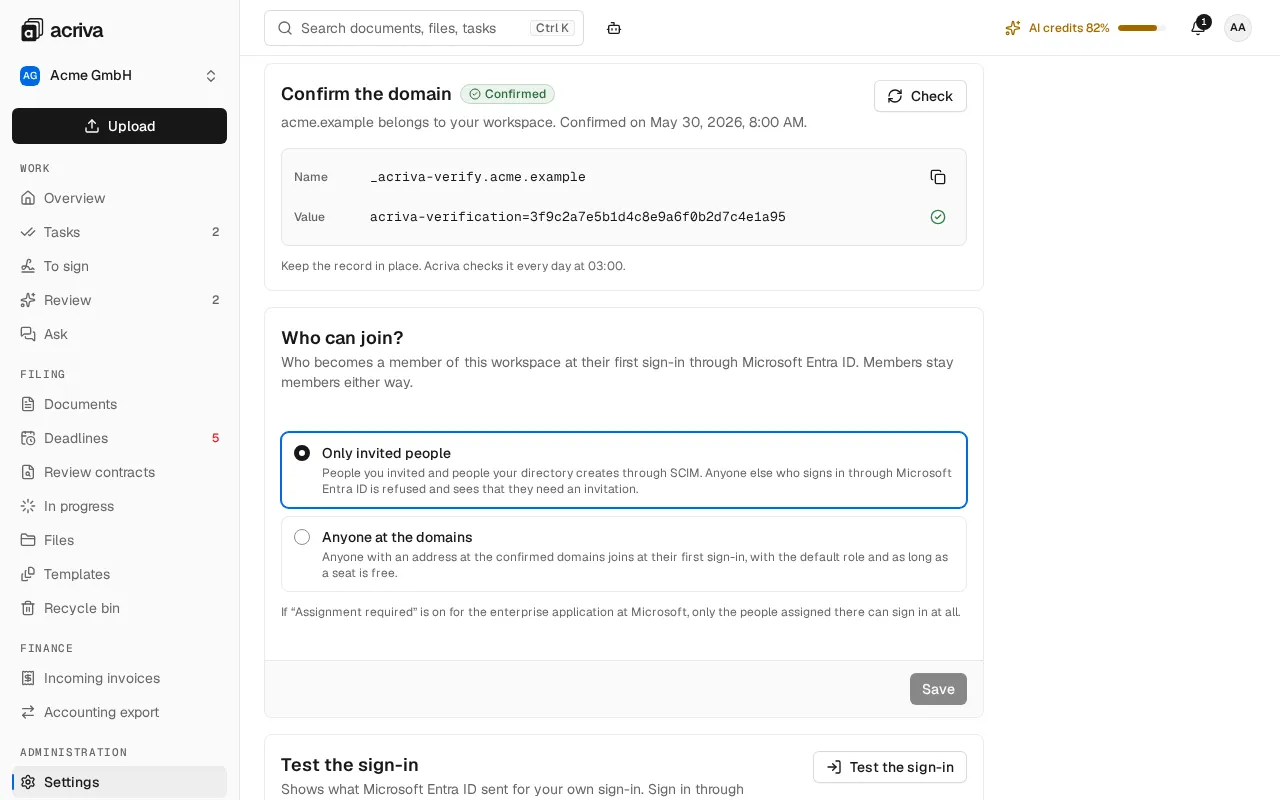
Section titled “Confirm the domain”Acriva turns the provider on only for a domain that is confirmed as yours. For Microsoft Entra ID through Acriva’s app, Microsoft confirms the domains (above). For Google Workspace, and an Entra connection set up before with an app registration of your own, you confirm it: after saving, the card Confirm the domain shows the TXT record to create at your DNS provider, with Copy name and Copy value:
| Name | Type | Value |
|---|---|---|
_acriva-verify.<domain> |
TXT | acriva-verification=<token> |
Then select Check. Once Acriva finds the record, the card says Confirmed, and shortly after, the provider takes sign-ins. Until then it says Pending; select Check again once the record has had time to show, which can take up to 24 hours. If the DNS doesn’t answer, try again in a moment. A domain can be confirmed by one workspace only: “Another workspace has already confirmed this domain.”
Keep the record in place. Acriva checks a confirmed domain every day at 03:00. If it is missing on a second night, the card says Not found: sign-in through the provider is off until Check or the next daily check finds the record again. In the meantime members sign in with a password; whoever has none sets one with Forgot password?. While the record is missing, the domain is released, so another workspace could confirm it.
From the moment the domain is confirmed:
- nobody can create a new workspace with an address of the domain. The sign-up says “Your company signs in through single sign-on. Sign in instead of signing up.”;
- an account at Acriva with an address of the domain whose address was never confirmed loses its password, so nobody can take over a colleague’s account by signing up with their address first.
Who can join?
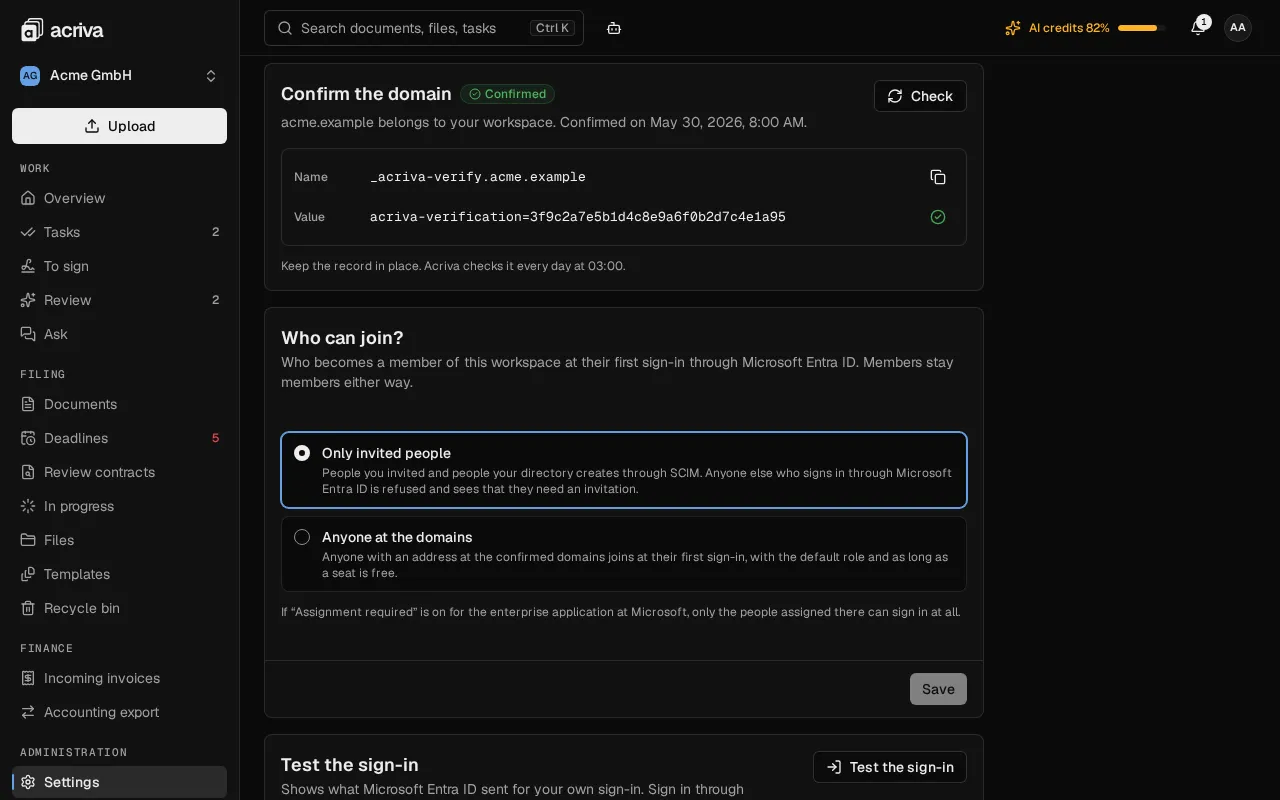
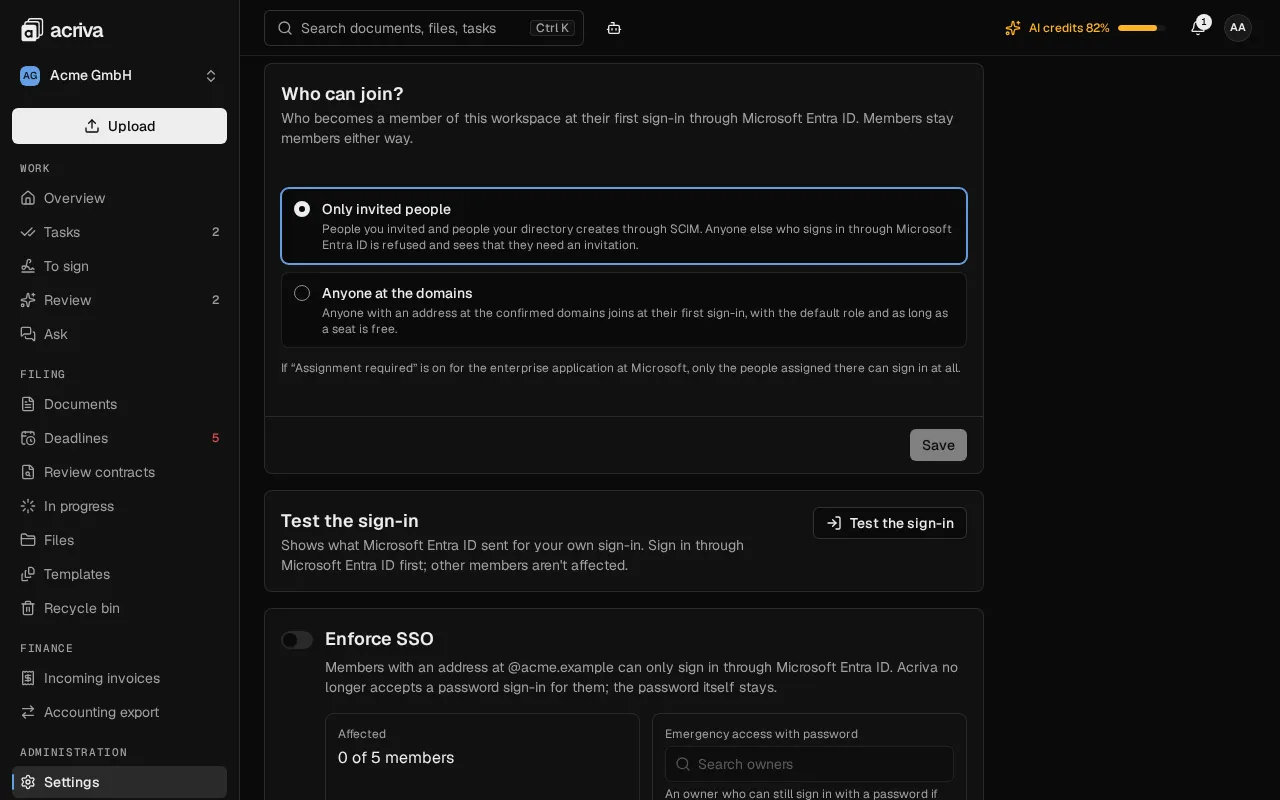
Section titled “Who can join?”The card Who can join? sets who becomes a member of the workspace at their first sign-in through the provider. It appears once the connection is saved: for Microsoft Entra ID below the directory’s card, for Google Workspace, OpenID Connect and SAML 2.0 in the opened row. People who are already members stay members either way.
- Only invited people (the setting of every new connection): only people you invited (Members) or your directory creates through SCIM (Provisioning with SCIM) become members. Anyone else who signs in through the provider is refused.
- Anyone at the domains: anyone with an address at the confirmed domains joins at their first sign-in with the default role, as long as a seat is free.
Choose the setting, then select Save. Anyone at the domains asks first (Let anyone at the domains join?, Let them join). Every change is in the workspace’s audit log as “Who can join?” changed, and when you let anyone at the domains join, everyone who manages security gets a notification and an email. For SAML 2.0 the card always shows Only invited people.
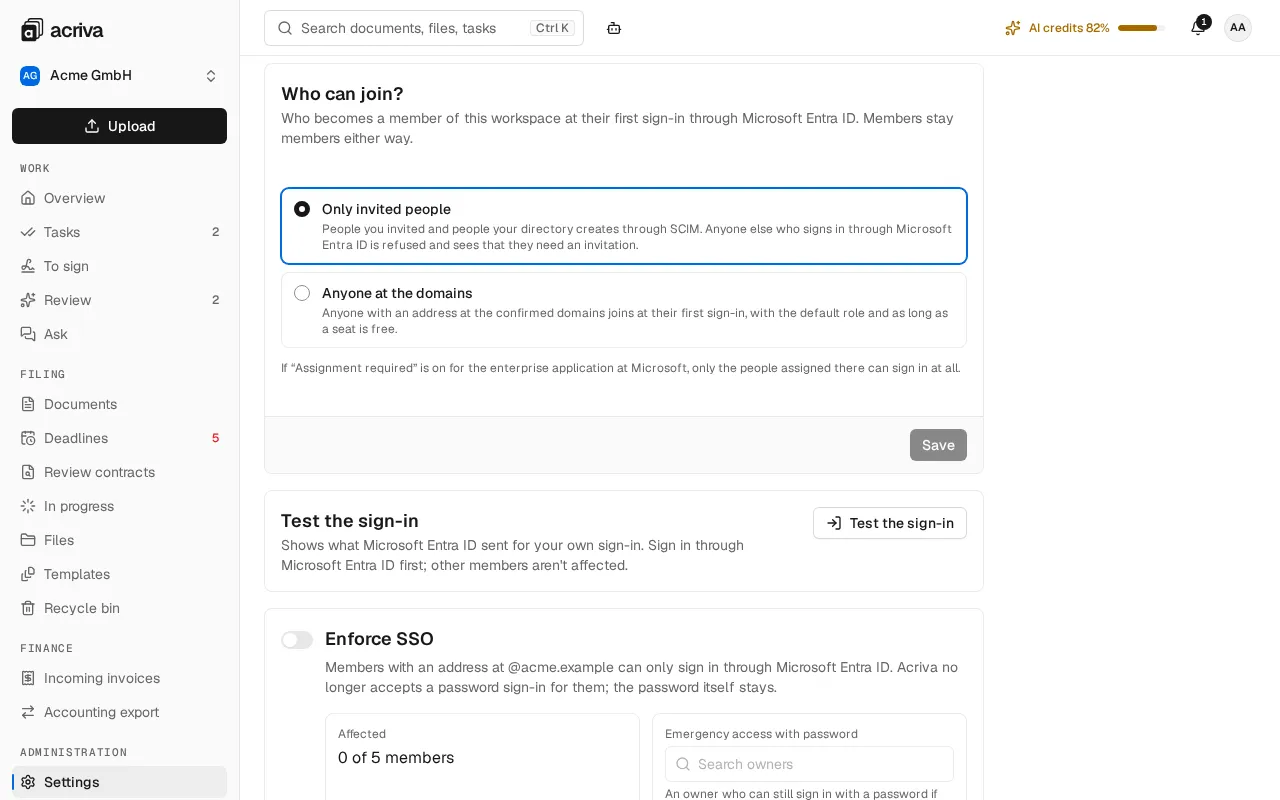
For Microsoft Entra ID, Assignment required? of the enterprise application applies on top (above): Microsoft then signs in only the assigned people, and of them Who can join? decides who becomes a member.
What a refused person sees. Whoever signs in through the provider without being allowed to join sees No access to this workspace: they haven’t been given access to the workspace and should ask an administrator for an invitation. Sign out ends the session. Acriva makes no membership. The workspace’s audit log notes the attempt at most once a day per person as Single sign-on refused a person without an invitation, with their address. Invite the person, and they join with the invitation’s role at their next sign-in.
Connections from before. Anyone at the domains used to join. Since the setting exists, every connection lets in only invited people, the ones from before too. Everyone who may manage single sign-on got a notification and an email about it once. To let anyone at the domains join again, choose Anyone at the domains under Settings › Single sign-on at Who can join?.
How your people sign in
Section titled “How your people sign in”On the sign-in page, a person enters their address. For an address of a confirmed domain, the page says, for example, “muster-handel.de signs in through Microsoft Entra ID.” and forwards to the provider after 3 seconds. Cancel stops the forwarding, and Sign in with a password below still offers the password.
- A person who signs in through the provider for the first time gets an account. They become a member when you invited them or your directory created them through SCIM; otherwise only when Who can join? is set to Anyone at the domains (above), then with the default role. If that role needs a full seat and every full seat is occupied, they can’t join until one is free (Subscription).
- A person who already has an account at Acriva with the same address is linked to it. If the account has a password of its own, the first time the person confirms that the provider is added to their existing account and enters that account’s password once, then their own second factor if they set one up. So nobody can take over a person’s account through the provider alone. After that, the provider’s sign-in is enough. The person gets an email that their account was linked, and the workspace’s audit log records it. A member of the workspace keeps their role.
- Invitations work as before: an invited person joins with the role of the invitation.
- With Microsoft Entra ID through Acriva’s app, only addresses at your confirmed domains sign in with Microsoft. Guests of your directory (addresses outside those domains) can’t sign in with Microsoft, not even after an invitation. Invite such a person as an ordinary member instead: they sign in with their password or passkey. An existing account that has neither its own password nor a second factor isn’t linked through Microsoft: the person signs in as usual, or sets a password with Forgot password and then signs in with Microsoft again.
- A person who has set up a second factor of their own in Acriva is asked for it after the provider’s sign-in too (Your own second factor).
Test the sign-in
Section titled “Test the sign-in”Test the sign-in shows what the provider sent for your own sign-in: Signed in as (the address), Name and Groups. The test reads your current session, so it needs a session that came through the provider. If yours came with the password, the card says so and offers Sign in through Microsoft Entra ID (or Google Workspace): it ends this session, signs you in again through the provider and brings you back to the page, where you run the test again. Other members aren’t affected. The test needs a confirmed domain.
Enforce SSO
Section titled “Enforce SSO”With Enforce SSO on, members with an address at the domain can only sign in through the provider. Acriva no longer accepts a password sign-in for them; the password itself stays. The card shows how many members are Affected.
- Switch on Enforce SSO. The switch is available once the domain is confirmed.
- Under Emergency access with password, choose an owner who can still sign in with a password if the provider is down.
- Select Save and confirm Enforce single sign-on? with Enforce.
- Members with another address, such as your tax advisor, keep signing in with their password.
- It applies from the next request: members of the domain who are signed in with a password are sent to sign in through the provider, at most a minute later on every server.
- Choosing another owner for the emergency access asks first (Change the break-glass person?). Switching it off is saved without a question.
- Where Acriva requires it, the emergency access confirms its sign-in with a hardware key, a FIDO2 key such as a YubiKey 5, and not with the authenticator app or an ordinary passkey. Acriva’s support tells you before and sends the owner a link to set up two keys, one of them as a spare.
- The person for the emergency access is the workspace’s Emergency owner and needs a passkey or hardware key for it. Only the Owner role chooses another person for it. When you switch Enforce SSO off, they stay the emergency owner.
- While the domain is not found, the rule holds nobody.
Remove the connection
Section titled “Remove the connection”For Microsoft Entra ID this is Disconnect on its card (Connected). For Google Workspace, Remove connection removes the provider from Acriva and releases the domain: confirm Remove the single sign-on connection? with Remove. Nobody can sign in through the provider any more, and another workspace can confirm the domain again. Members sign in with a password again; whoever has none sets one with Forgot password?.
Acriva keeps the links of your members to the provider. When you set the connection up again, it links the same people first, by their identity at the provider and not by their email address. A former member’s account that had no password of its own gets one nobody knows when the provider is removed: whoever holds that email address at the provider later can’t take over the account. The person sets their own password with Forgot password?.