

Workflows and approvals
A workflow takes a document through its steps, for example an invoice approval: one person approves for the cost center, then management approves larger amounts. When a step needs a person, the workflow gives them a task. Your tasks wait for you under Tasks in the sidebar. The number next to it says how many tasks are open for you.
You only see tasks on documents you may read, and only those count. You need the permission to work on your own workflow tasks; the built-in roles Owner, Admin, Member and Approver have it. A task for a role goes to every member of the role. The Owner also gets the tasks of the Admin role, so a workspace whose only administrator is its owner still has someone to approve.
Your tasks
Section titled “Your tasks”Tasks lists the workflow steps waiting for you, the oldest first. Each row shows:
- Task: the document, the kind of task (Approval, Review, Acknowledgement or Correction) and, for an invoice, the vendor. Escalated marks a task that nobody completed in time, so it went to the escalation target as well;
- Workflow · Step: the workflow, for example Invoice approval, a workflow drawn in the Workflow designer by its own name, and the step in words, for example Approval, First approval or Second approval. A step the app has no name for shows Step;
- Due: the day the task escalates. It shows the date, Today, or Since a date when it is overdue. A task whose step has no escalation shows No due date;
- Amount: the invoice’s gross amount, or a dash when the document has none;
- Assigned: You, or Substitute for a colleague when the task went to you because its assignee is away. When the app can’t show you the name, it says Substitute.
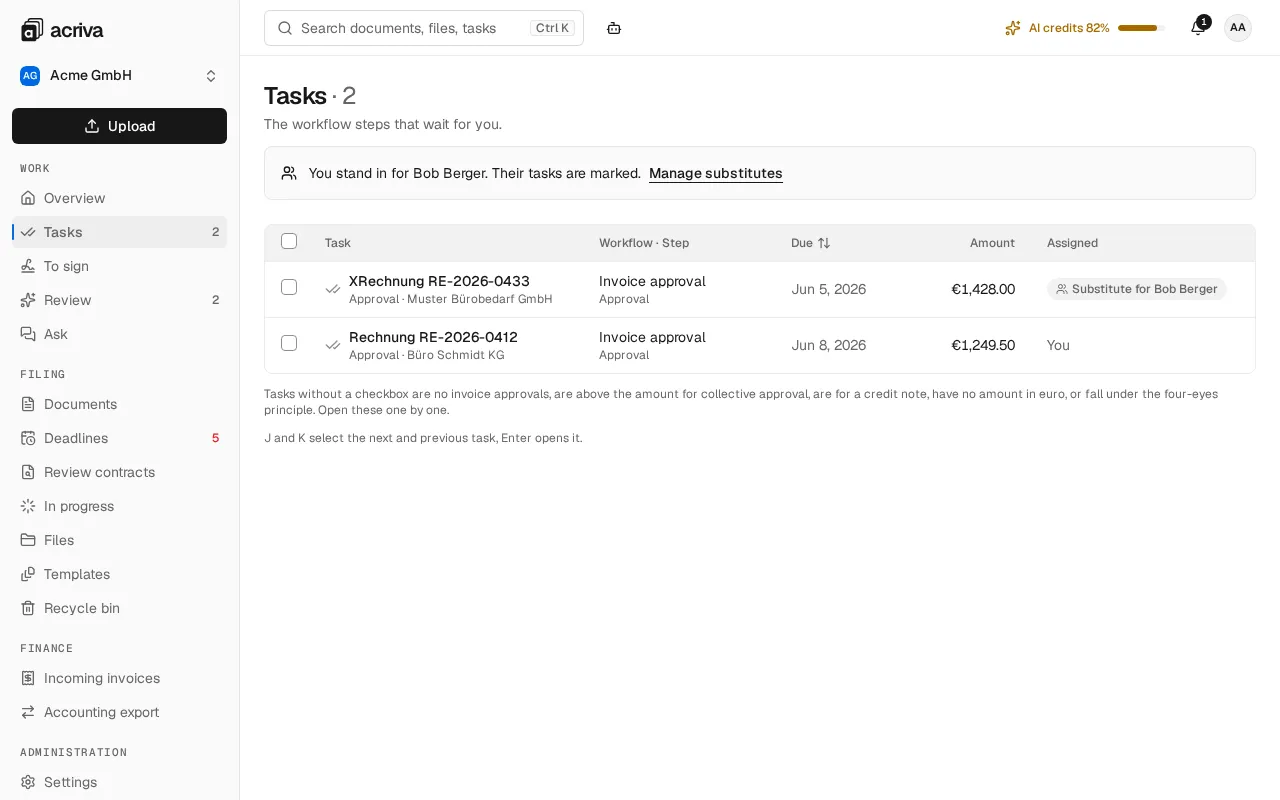
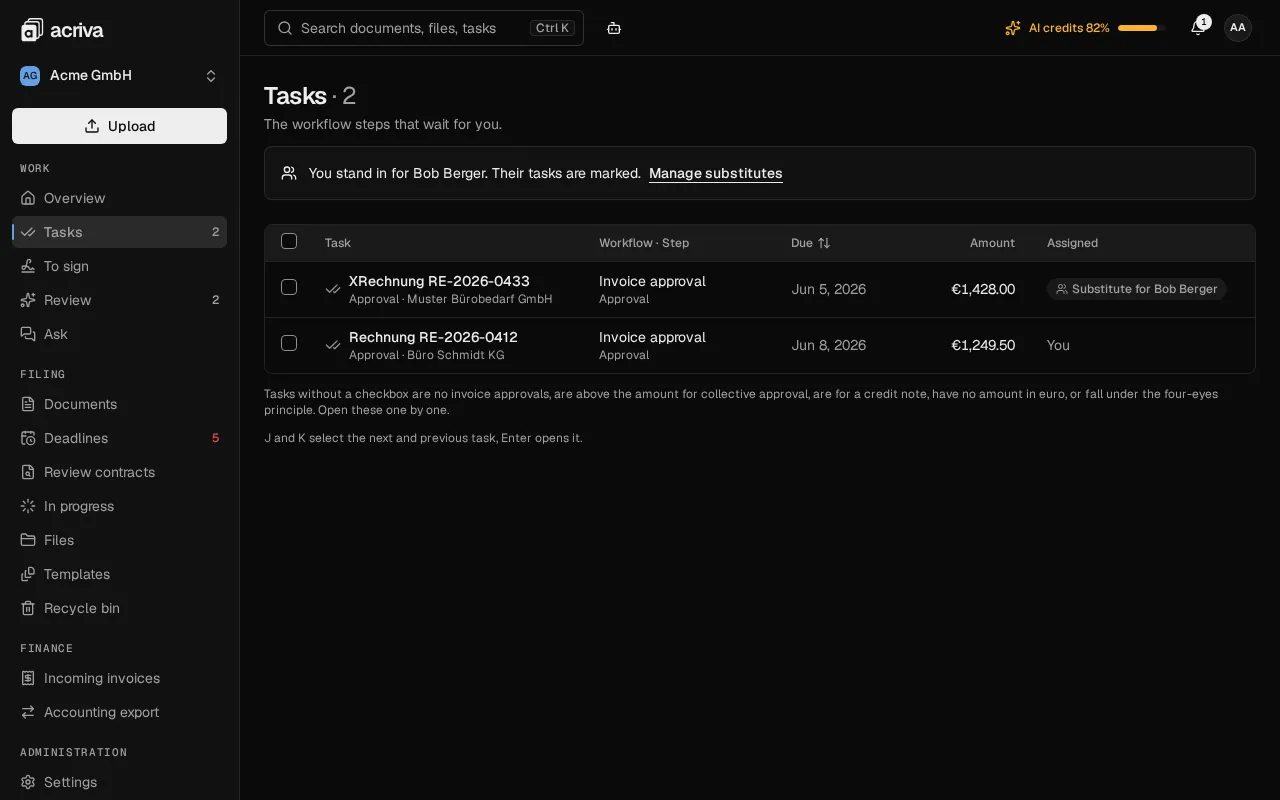
Select the Due column heading to see the task due next first; tasks without a due date come last. Select it again for Oldest first.
With a keyboard, J and K select the next and the previous task, and Enter opens it.
While you stand in for someone, a note above the list says whom you stand in for and until when, and that their tasks are marked. When the app can’t show you the names, it says you stand in for colleagues. Administrators find Manage substitutes next to it, which opens the absences in the workflow settings (see Absences of others); everyone else finds My absence, which opens their own absence in the profile (see Your absence).
Longer lists have pages: the arrows below the list go forward (Next page) and back (Previous page). When no task waits, the page says All done.
To find a task by its document’s title, use the search at the top of the app: its Tasks group lists your open tasks whose title matches (see Search with Ctrl K).
Collective approval
Section titled “Collective approval”With a collective approval you approve several small invoices in one step. It is there when the Invoice approval template allows it (see Invoice approval). When the page of the task list then has at least one task that fits, the list gets a column of checkboxes at the front.
A task has a checkbox when all of this holds:
- It is an open approval in an invoice approval.
- Its step is Approval. The four-eyes principle covers the steps First approval and Second approval; open those tasks one by one.
- The invoice’s gross amount is in euro, not negative and at most the amount the template names for collective approval. An invoice without an amount, in another currency or with a negative amount has no checkbox.
Below the list, the app says: Tasks without a checkbox are no invoice approvals, are above the amount for collective approval, are for a credit note, have no amount in euro, or fall under the four-eyes principle. Open these one by one.
To approve several invoices:
- Select the checkboxes of the invoices. The checkbox in the header row selects every task of this page that can be approved together.
- A bar appears above the list with the number of selected tasks and the total of their amounts, for example 3 selected and €1,284.50. It also names the amount up to which the template allows collective approval per invoice. When no total can be formed, it says no common total.
- In the bar, select Approve 3 invoices; the button names the number. Cancel clears the selection.
- The confirmation Approve 3 invoices? lists every invoice with its title and amount and names the total. Check the list and select Approve.
The selection covers the page you see, so at most 25 tasks: when you go to another page or change the sort order, it starts empty. When a selected task is no longer in the list, for example because someone else completed it, the app takes it out of the selection and says so.
Afterwards the app shows the result above the list, for example 2 of 3 invoices approved, with one line per invoice:
- Approved: the task is completed and the workflow continues with its next step.
- Not approved: the line names the reason, for example This task can’t be approved together with others. Open it on its own., Someone else completed this task in the meantime. or The four-eyes principle keeps you from completing this task. The title opens the task.
- Not found: This task no longer exists for you.
- No result: the app doesn’t know what became of the task. Check it in the task list.
Select Close the result to hide the result. When every invoice was approved, the app also reports how many there were.
Each invoice is approved on its own, as with a single approval: each approval is recorded in its invoice’s history under your name. A collective approval is not all or nothing: a task that can’t be approved doesn’t stop the others and undoes none. Before each approval, the app checks again whether the task still fits a collective approval. You can’t add a comment to a collective approval; open the task on its own for that.
A collective approval is always a person’s decision: AI never approves, and not several invoices at once either.
Work on a task
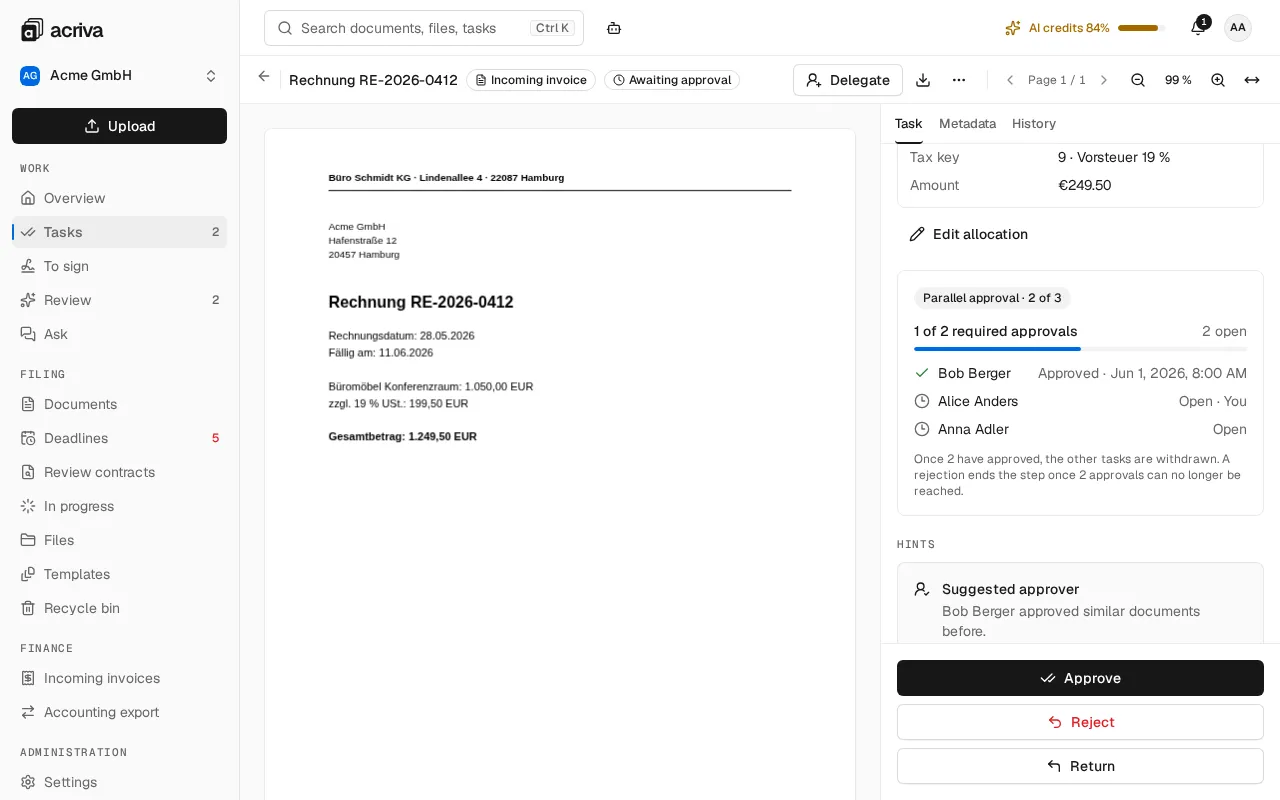
Section titled “Work on a task”Select a document in the list to open the task. The document is on the left, the task on the right.
The bar above them shows the way back to Tasks, the document’s title and type, and the task’s state, for example Awaiting approval, In review, To acknowledge or Being fixed. On its right are Delegate (see Delegate), Download for the document’s original, and More actions with Open document, which opens the document’s own page.
An e-invoice shows in the same viewer as on the document page, with its readable view, the XML and the validation report (see E-invoices).
The task has three tabs:
- Task: the workflow and when the task is due, the step and the kind of task, who assigned and requested it, the facts to decide on, the hints and the comments.
- Metadata: the document’s fields, read-only.
- History: what happened in the workflow so far, with who did it and when.
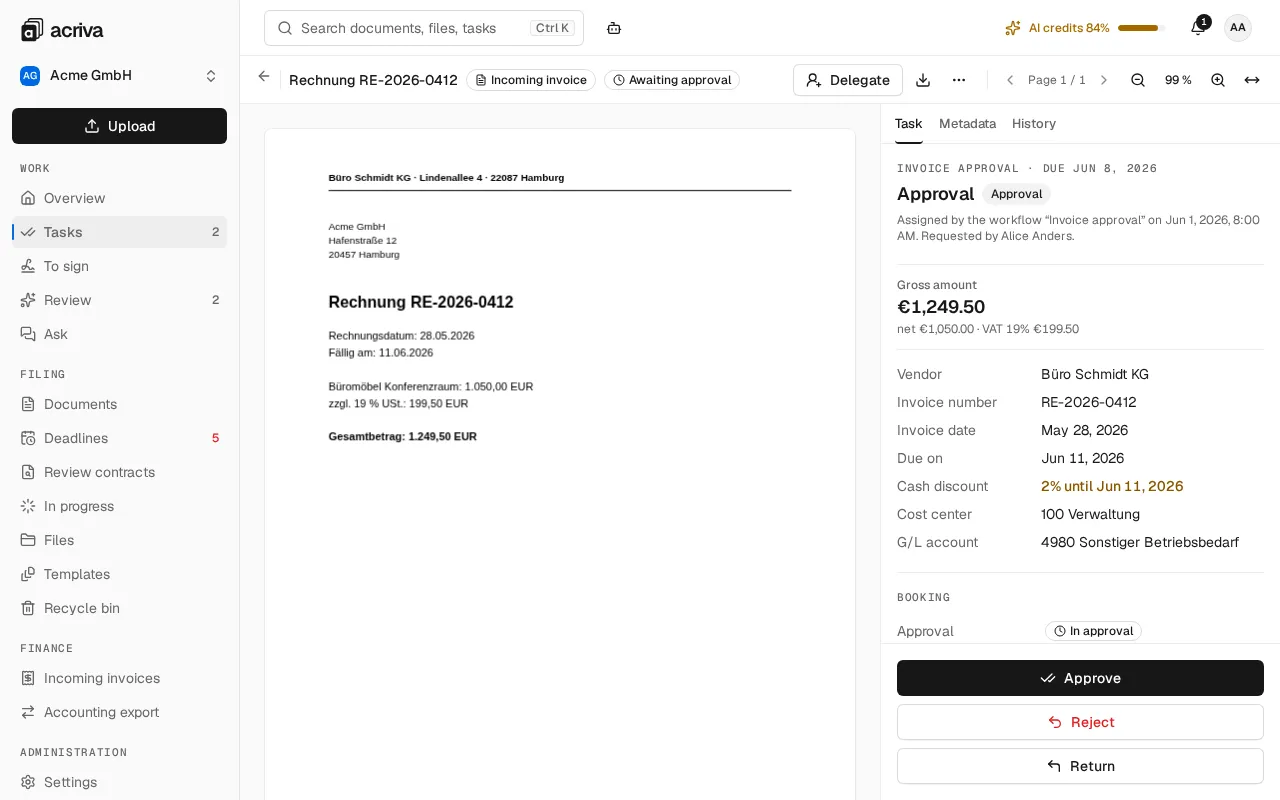
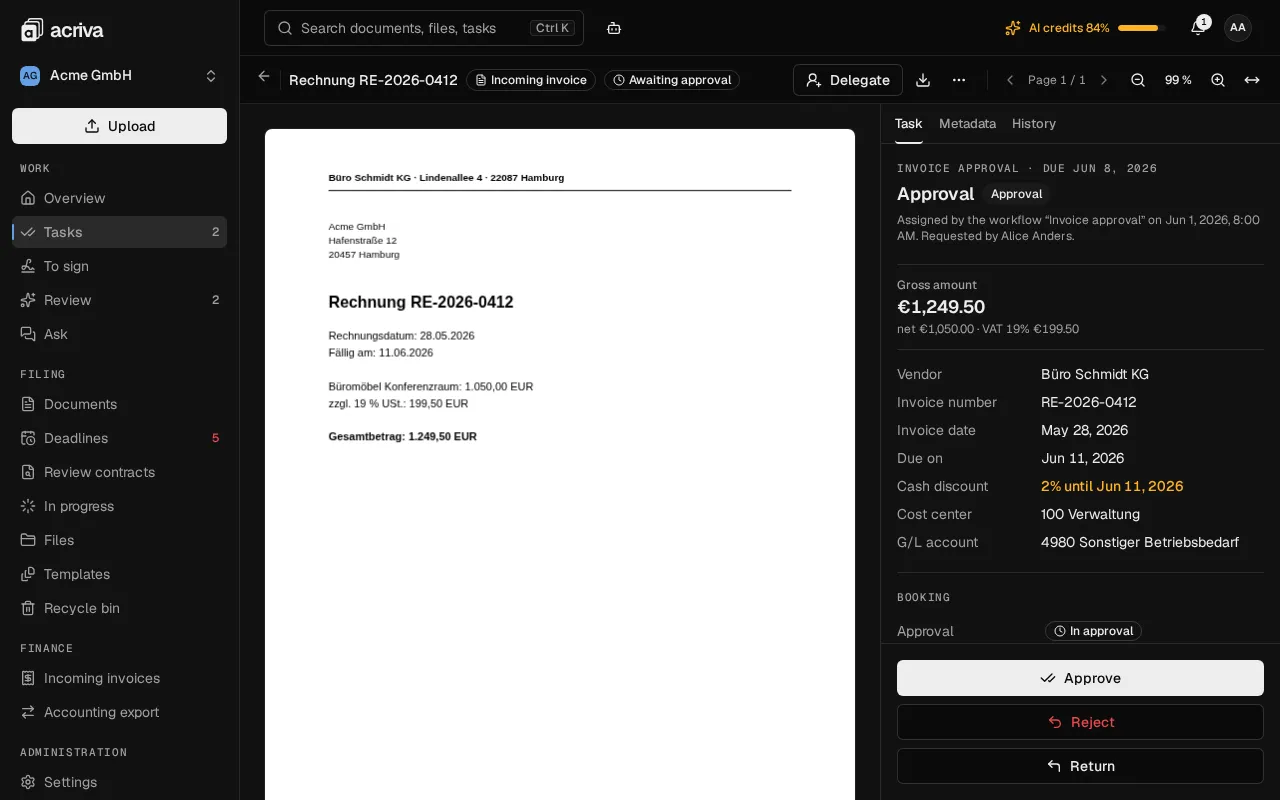
The facts come first: the Gross amount, below it the net amount and the VAT when the document has both, then the Vendor and up to six more fields the document has filled in.
For an incoming invoice, the facts also show what Acriva holds as the invoice of the document, as far as it is there:
- below the gross amount, the invoice’s net amount and VAT, with the rate when there is exactly one tax rate, for example “net €1,000.00 · VAT 19% €190.00”;
- Due on: the day the invoice is due;
- Cash discount: the rate and, when known, the day until which it applies, for example “2% until Mar 14, 2027”. As long as that day hasn’t passed, the value is highlighted;
- Cost center and G/L account: number and name from the invoice’s allocation. When the allocation has several lines, the G/L account is that of the line with the largest amount, and the cost center that of the largest line with a cost center.
As an approver you see these facts without a permission for the finance data, because you may read the document. In the task list, the vendor and the gross amount are what shows of the invoice.
When you may see the finance data, the section Booking follows below the facts of an incoming invoice, with the invoice’s approval, vendor, amounts and allocation, as on the document’s page (see Incoming invoices). Without that permission the section isn’t there.
When a newer version of the document was added after the workflow started, the task says which version it is about, and the viewer shows that version.
Under Hints, the steps before your task can point out:
- Suggested approver: the member who approved invoices of the same vendor most often. You see the name when you may see the workspace’s members; otherwise the hint says A member approved similar documents before.
- Possible duplicate: another document looks like the same document. Select Open the other document and check it before you approve. You only see this hint when you may read the other document.
- Plausibility check: what differs from the vendor’s master data or last invoice, such as The IBAN differs from the vendor’s master data., or that nothing stands out. A change of the amount names the workflow’s threshold, never the earlier amount.
- Summary (AI): the AI’s summary of the document, with its version and language.
- Answer of the AI action: what a custom AI action of the workflow answered.
- Hint: mandatory details: which mandatory details of an invoice are missing or implausible, such as Missing details: net and tax lines., whether the recipient differs from your company’s name and address, or that the details checked are present. It is no legal review.
- Order match: whether the invoice matches its order or what differs, such as The gross totals differ by more than the tolerance. It never names the order’s amount.
- Skonto: the invoice’s Skonto rate, Skonto date and Skonto amount, such as “2% Skonto until …”.
- Restricted hint: a hint from a confidential document that you may not open. You see that there is one, not its text.
A workflow that waited for another document, such as the delivery note of an invoice, shows it as Linked document, with the step that linked it and when. You see its title and can open it only when you may read it; otherwise the task says A document was linked that you may not open. An Order match shows the order it found in the same way.
When a task’s reminder and escalation count back from a deadline, such as the Skonto date, the task names the deadline, such as Skonto until with the date.
Capture
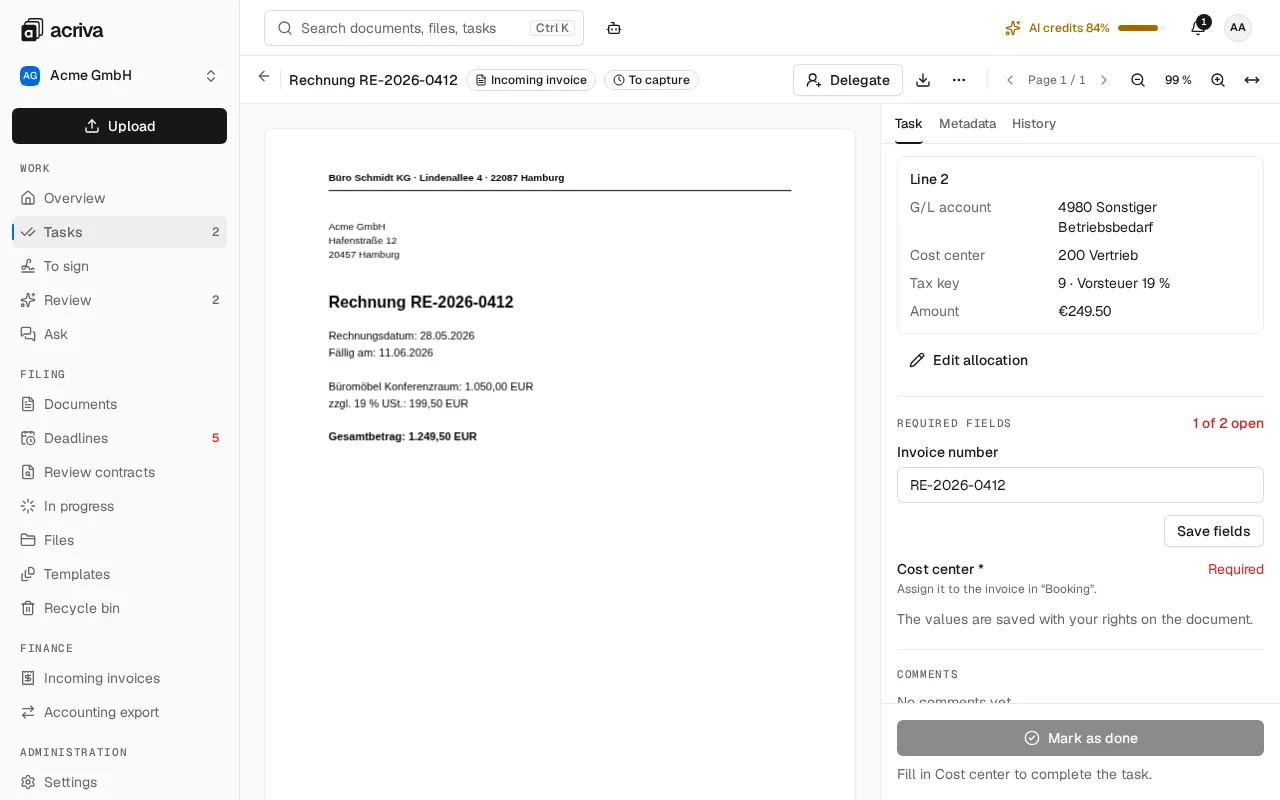
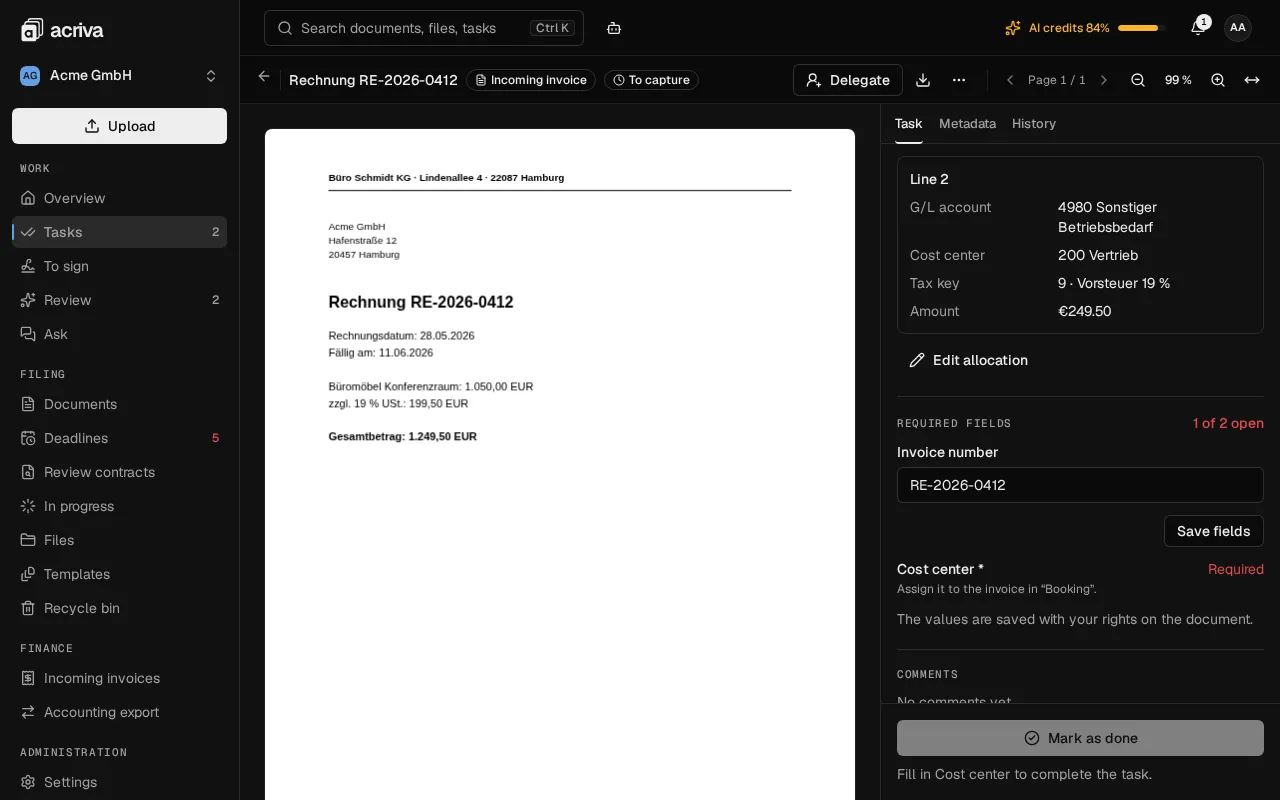
Section titled “Capture”A Capture task asks you to fill in fields before the workflow goes on. Required fields lists them, with how many are still open, and marks each as Required or Filled in. Enter the values and select Save fields: they are saved with your rights on the document. For an incoming invoice’s cost center or G/L account, assign the invoice in Booking. When the task needs a comment, you enter it when you complete the task.
Mark as done stays unavailable until every required field is filled in, and says which ones are missing. If you may not change the fields, the section says so: ask for them to be filled in, or delegate the task.
Approve, reject or return
Section titled “Approve, reject or return”An approval or a review has three actions at the bottom of the task: Approve, Reject and Return. On a phone, Reject and Approve stay side by side at the bottom of the screen while you scroll, with Return below them.
To approve:
- Select Approve.
- The app asks you to confirm and says that the workflow continues with its next step. Add a Comment if you like; it is optional.
- Select Approve again.
On the steps First approval and Second approval of an invoice approval, the confirmation also explains the four-eyes principle (see Four-eyes principle).
To reject or return:
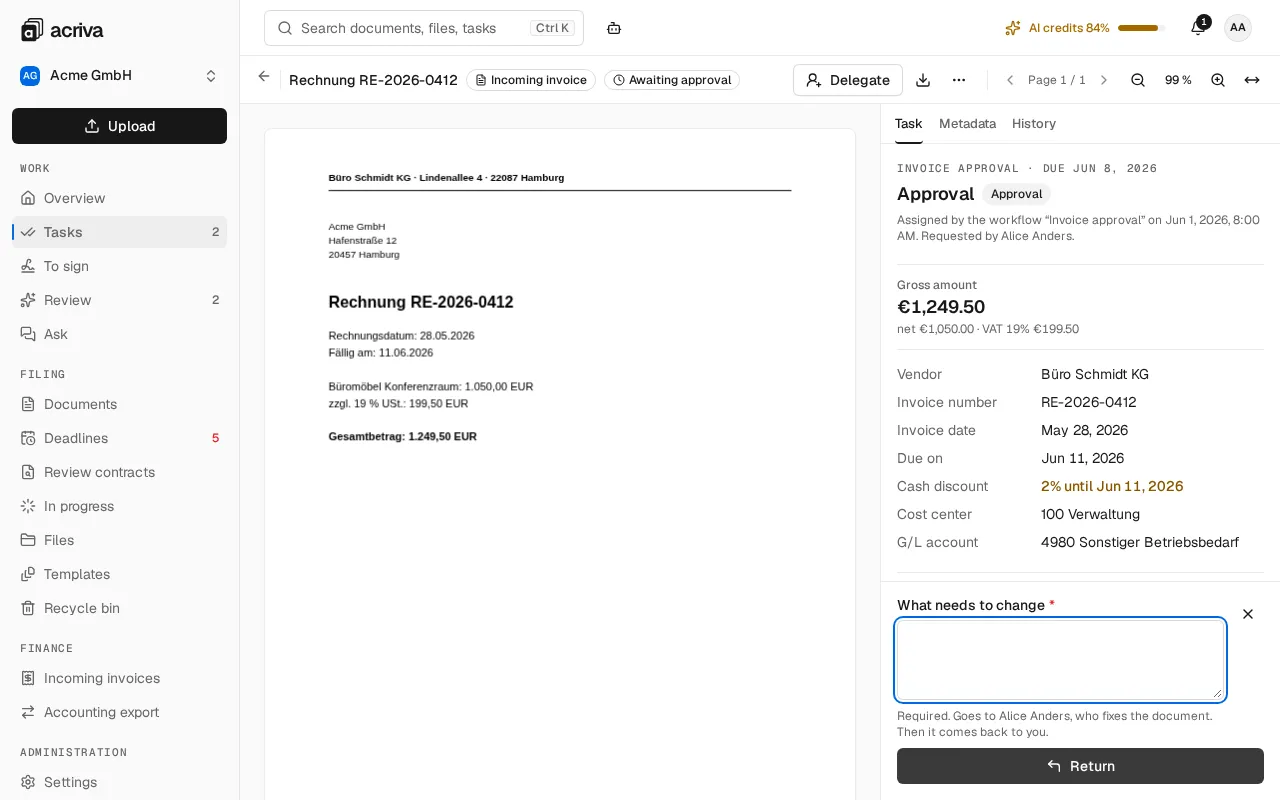
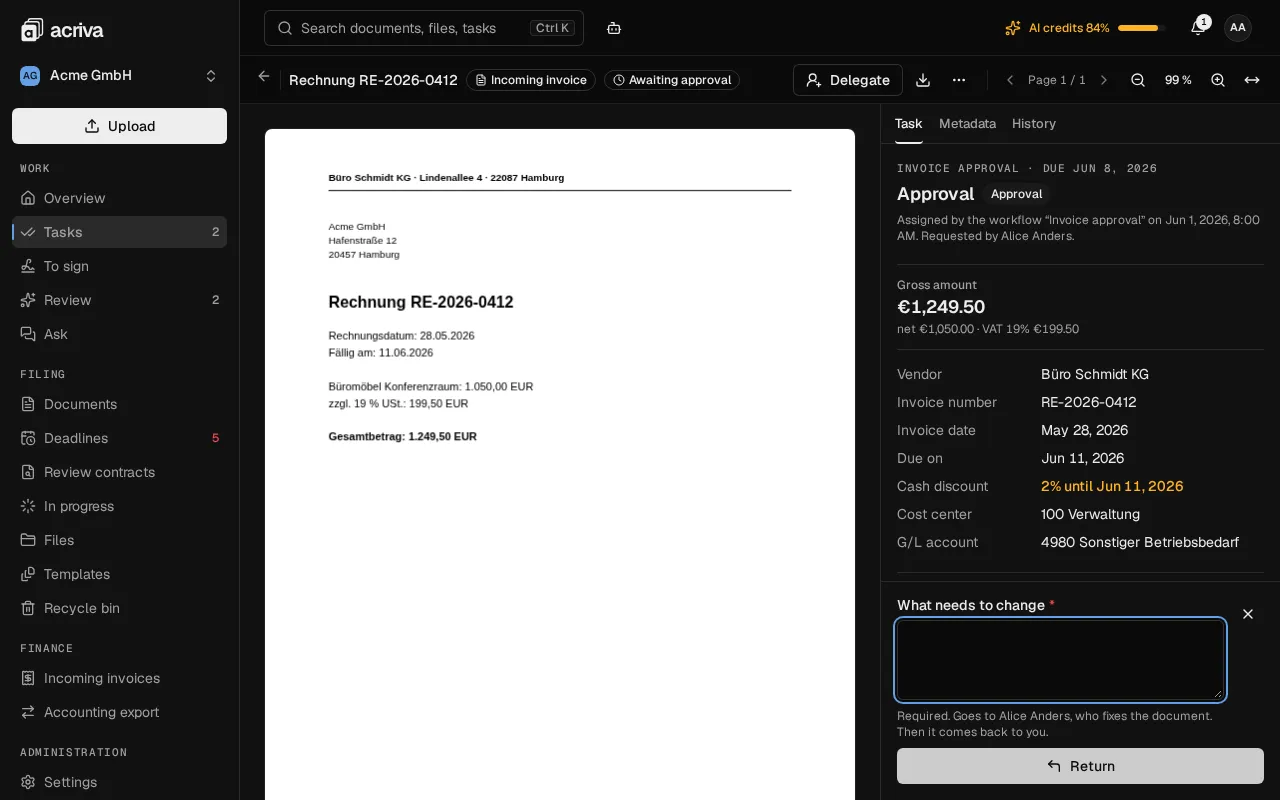
- Select Reject or Return. A field opens at the bottom of the task, in place of the buttons:
- Reason for the rejection: the workflow ends as rejected. The field names who the reason goes to, the person who requested the workflow, and says that the reason shows on the document’s Workflow tab.
- What needs to change: the field names who it goes to. That person gets a task to correct the document, and then it comes back to you for approval.
- Enter the text; it is required.
- Select Reject or Return below the field. There is no further confirmation.
To leave the field without sending anything, select Close the input or press Esc.
An acknowledgement or a correction has one action instead: Mark as done, which you confirm the same way as an approval. After the action, you are back in your task list.
Your decision is recorded in the history with your name. When someone else completed the task first, the app says so and nothing changes.
History
Section titled “History”The History tab lists what happened in the workflow, the newest first, with who did it and when. Entries the workflow made on its own show Workflow. A rejection and a return show the comment they were sent with. Besides the start, the steps and the completed tasks, you find there:
- Task assigned, with the reason when it didn’t go to the planned person: the assignee is away (it went to the substitute), the substitute is away too or not on the confidential document’s list (it went to the escalation target).
- Approver chosen by cost center, when a rule of the invoice approval lets the cost center’s responsible person approve, with the reason (see Approval by the cost center’s responsible person).
- Reminder sent and Task escalated. When the escalation target is away, their substitute gets the task.
- Escalation skipped, the task stayed with its holder: the task stays where it is when the four-eyes principle keeps the escalation target off it, or when they aren’t on the confidential document’s list (for a correction: when they may not edit the document). Nobody is notified then.
- Hint added for each AI step that found something, without naming what it found.
- Step failed, the workflow went on, when an automatic step (filing, a notice, a hint) couldn’t run even after several attempts. Such a step prepares or informs and never decides, so the workflow goes on without it.
Four-eyes principle
Section titled “Four-eyes principle”A workflow can keep the requester and the people of earlier steps off a step, so nobody approves their own document. If it keeps you off a task, the task shows Four-eyes principle and has no actions; another person must complete it. You can still comment.
A task you see without it being assigned to you, for example one that went to your substitute while you were away, or one you already completed, shows that you can’t complete it.
Parallel approval
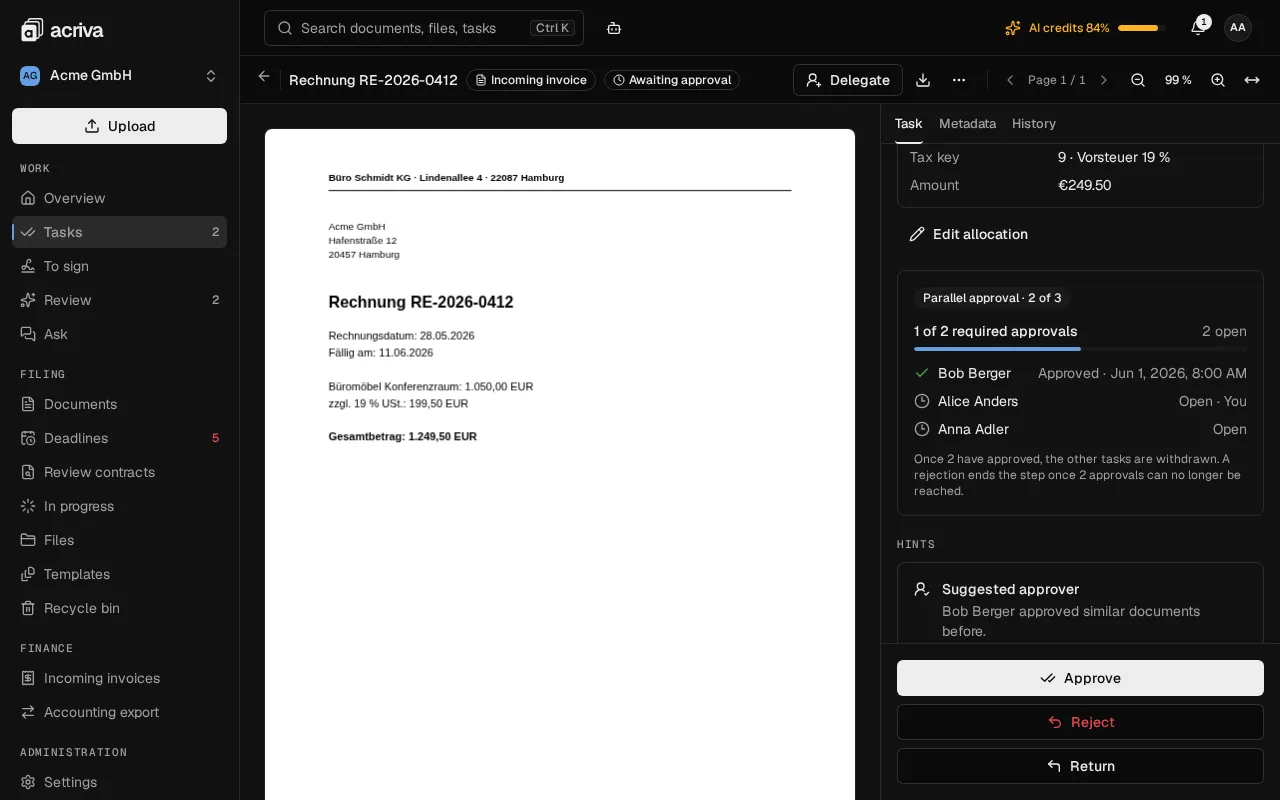
Section titled “Parallel approval”A step can ask several approvers at once. Its task shows Parallel approval with how many approvals the step needs of how many approvers (“2 of 3”), how many it has, and one row per approver with their decision, Open or Withdrawn. Once the step is decided, the tasks still open are withdrawn, and the history says why. You decide once per step: if you already decided on one of its tasks, for example your own and one of your role, the other is refused.
When the invoice changes during its approval
Section titled “When the invoice changes during its approval”If someone changes an invoice’s gross total, net or tax total, kind, currency, vendor, bank account, invoice date or due date while its approval runs, the approvals given so far no longer count: they were given for other values. The workflow starts again from its first step, as after a returned invoice was fixed: it routes by the new values, its open tasks are withdrawn, and its steps run again, Capture tasks and notifications included. Whoever had approved is told by notification and email. The history shows Approvals reset with the reason. If the workflow had already ended as approved, the invoice’s approval is open again instead. Changes the workflow makes itself don’t count: the due date a Set field step writes, and the person working on an open Capture task while they work on it. A change by that person after they completed the task does count. While a returned invoice waits for its fix, nothing is reset: the fix starts the workflow again anyway.
Delegate
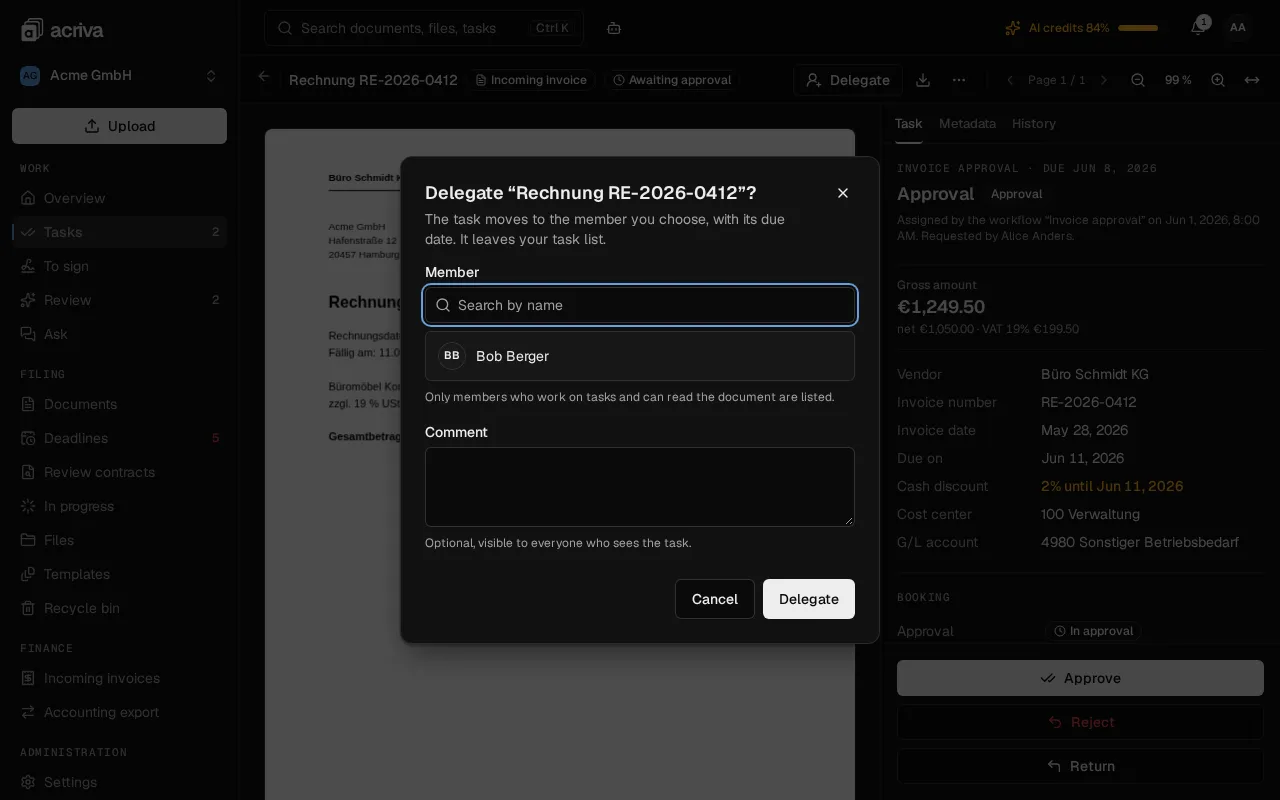
Section titled “Delegate”Select Delegate in the bar above the document to hand the task to another member:
- Choose the Member from the list. It shows only the members who can take the task: they have the permission to work on tasks, can read the document, and aren’t kept off the task by the four-eyes principle. Type part of a name to search, and select Show more for further members.
- Add a comment for them if you like, and select Delegate.
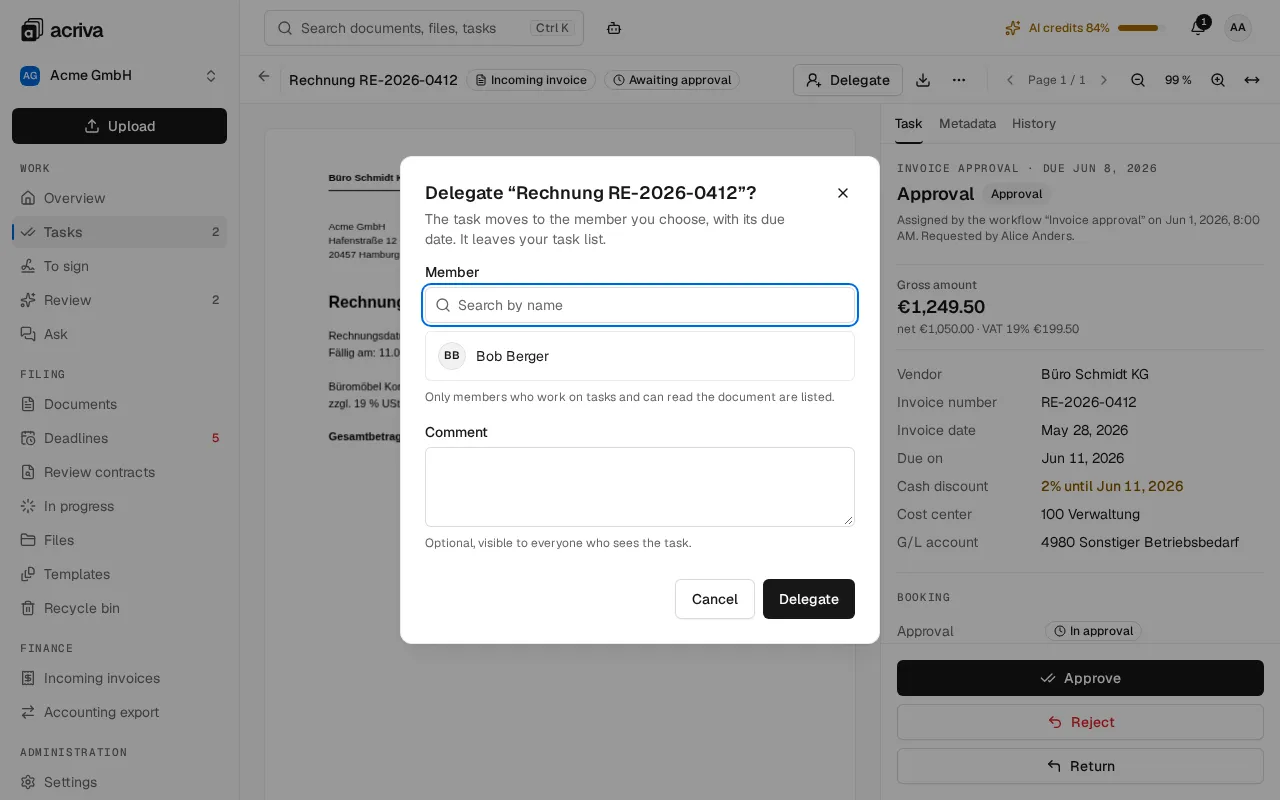
The task moves to them with its due date. Anyone who may complete the task can delegate it, an approver too. Whoever the four-eyes principle keeps off the task can’t delegate it either.
Comments
Section titled “Comments”Under Comments, everyone who sees an open task can write in New comment for the others. A reason for a rejection or a return also appears there, and the correction task shows the comments of the return.
Once the workflow has ended, the task is closed, but the reason for a rejection and the comment of the last return stay readable on the document’s Workflow tab, for everyone who may read the document (see Workflows on a document). Write them with that in mind. All other comments stay with the task.
What the AI steps do
Section titled “What the AI steps do”The invoice approval’s two AI steps run before the approval task opens, and they only add hints. They use no AI credits.
- Suggest an approver looks at who approved earlier invoices of the same vendor and names the member who did it most often, on a tie the one who did it last. It never suggests the requester, learns nothing from confidential invoices, and never suggests someone a confidential invoice’s list leaves out.
- Detect duplicates compares the vendor and the invoice number: it looks for other invoices of the same type with the same vendor and invoice number, up to ten.
What they don’t do: they don’t assign, approve, reject or return a task, and a hint never changes who gets the task. A person always decides.
A workflow drawn in the Workflow designer can have further AI steps: a summary, a plausibility check, reading the document again, and a custom AI action. They add hints too, and what they read differently becomes a suggestion in the document that a person accepts. On a confidential document they are skipped unless the workflow allows it.
Workflows on a document
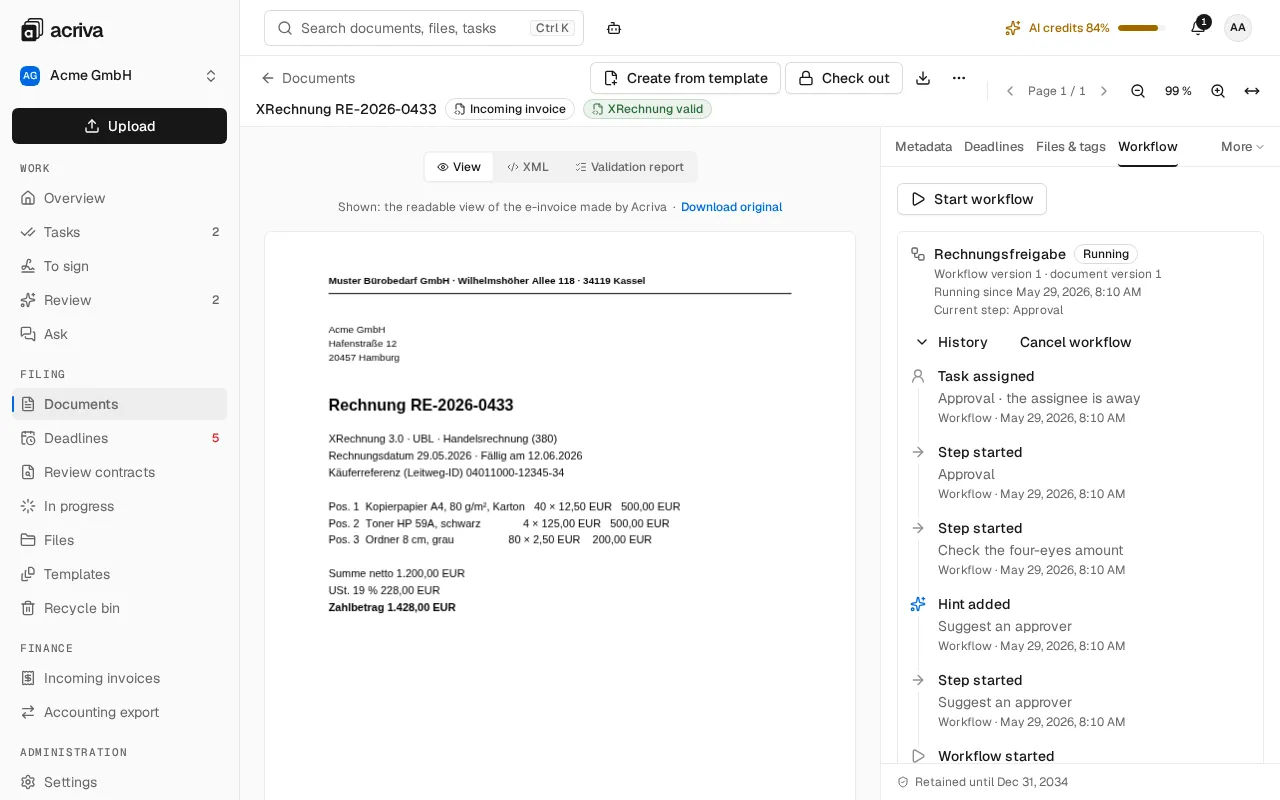
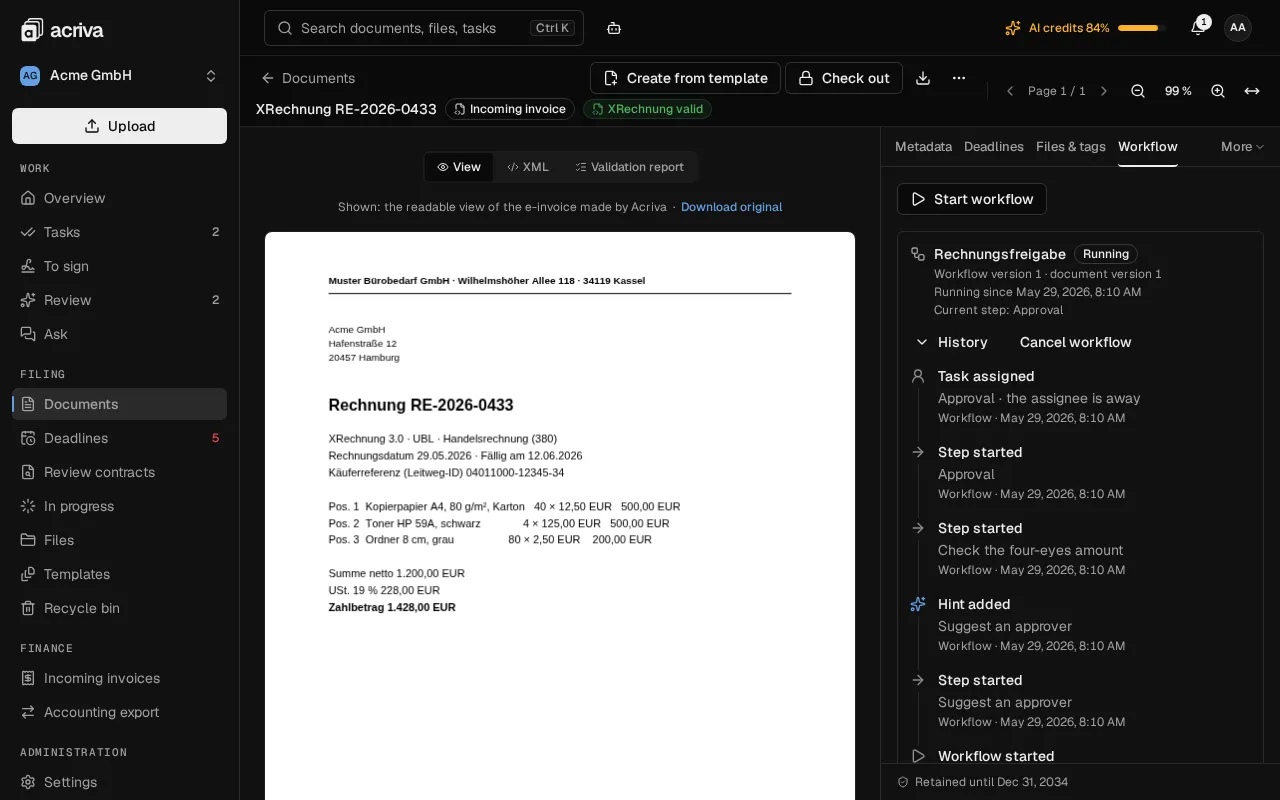
Section titled “Workflows on a document”A document’s Workflow tab, next to History on the right, lists the workflows that ran or run on it, the newest first. You see it when you may work on workflow tasks or start workflows; the list needs the first. Each workflow shows:
- its state in one word: Running, Approved, Rejected, Completed, Cancelled or Failed. A contract review shows Kept or Terminated instead of approved or rejected;
- the workflow and document version it runs on;
- since when it runs, or from when to when it ran;
- for a running one, the Current step, in words.
When a workflow ended with a rejection, Reason for the rejection shows the reason, who wrote it and when. When a document was returned, Last return shows the comment of the latest return. Everyone who may read the document sees these two comments, also after the people of the task lost access to it.
Select History to see what happened, the newest first, with who did it and when; steps the workflow took on its own show Workflow instead of a name.
Start a workflow by hand
Section titled “Start a workflow by hand”A workflow usually starts by itself when a document of its type is processed. To start one yourself:
- Open the document and select the Workflow tab.
- Select Start workflow.
- Choose the Workflow and select Start.
The list offers the active workflows that start for the document’s type, then the active workflows without a document type of their own: those start only by hand, on a document of any type, and keep running when the document’s type changes. The workflow runs on the document’s current version, with you as the requester. A workflow that already runs on the document isn’t offered again. The button is unavailable while the document has no document type.
Cancel a workflow
Section titled “Cancel a workflow”Administrators can stop a running workflow: select Cancel workflow and confirm with Cancel workflow, or select Back to keep it running. The workflow ends as cancelled and its open tasks are withdrawn. This can’t be undone.
Your absence
Section titled “Your absence”When you’re away, a substitute can take over your tasks. Open your Profile from the account menu:
- Under My absence, select Enter absence.
- Enter the First day and the Last day.
- Choose the Substitute. Type part of a name to search; the list shows the names of the members who work on tasks, at most 50. Approvers can choose a substitute this way too.
- Select Save.
Tasks that open between the first and the last day go to your substitute; they see them as Substitute for you in their task list. While you’re away, your substitute also sees the tasks that were already waiting for you by name and can complete them. When your substitute is away on the same day too, a new task goes to the step’s escalation target instead.
Select Change to move the dates or pick someone else, and Remove absence to end it early. Tasks your substitute already got stay with them. The absence holds in the workspace you last worked in: to enter one for another workspace, switch to it first, then open your profile.
Set up workflows
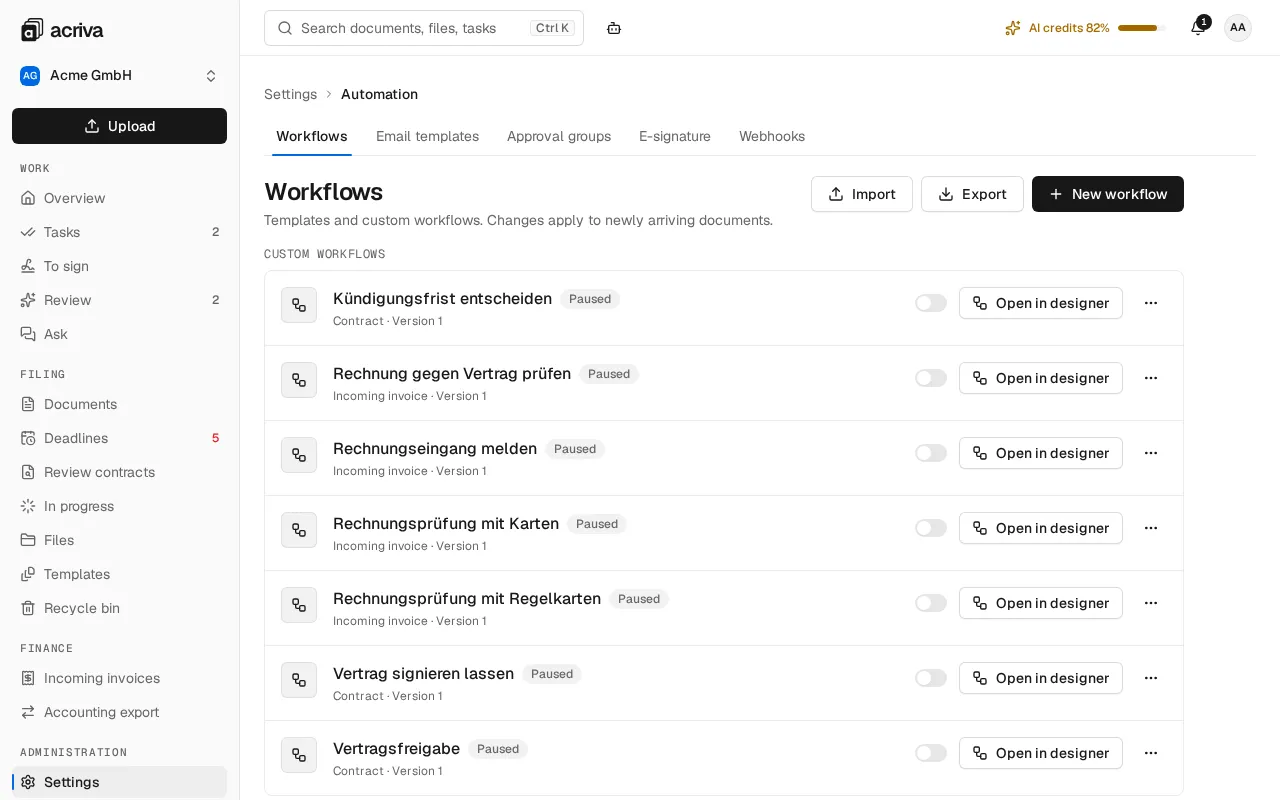
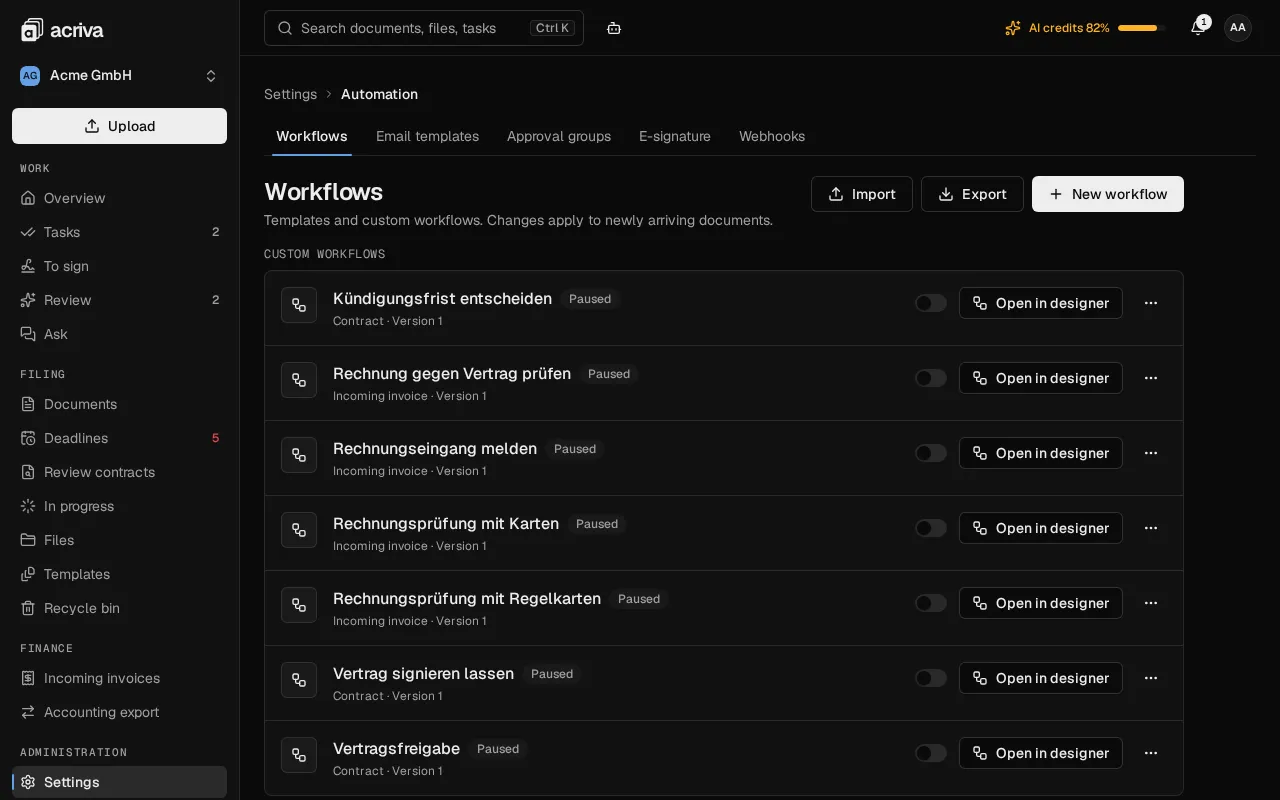
Section titled “Set up workflows”Administrators set up the workflows under Settings › Workflows. The page lists the workflow templates the workspace has set up, each Active or Paused. If you have custom workflows (with the Workflow designer add-on), they come above them. The templates nobody has set up yet wait collapsed below the templates, in a line such as 2 more templates, not set up; select that line to expand it. While no template is set up, the page lists them all, each with Not set up. Below its name, a sentence sums up the template’s rule as it is saved: for an invoice approval, how many rules it has, who approves otherwise and above which amount a second person approves; for the others, who reviews, receives or acknowledges what. Until a template is set up, the sentence says what it is for. Below that you find the document type that starts it and its version, or Not saved yet.
Select Set up or Edit to open a template. Every template has:
- General: the Name (at most 80 characters; a longer name from before stays until you change it) and the document type the workflow Starts for. A document of this type starts the workflow once it’s processed.
- Reminder & escalation: after how many working days the assignee is reminded, and after how many the task escalates to a role or member. Working days are Monday to Friday; public holidays count as working days. Leave a number empty for no reminder or no escalation.
Then select Save. Each save creates a new version; workflows that already run stay on the version they started with. Until the first save, the form shows the defaults, and saving them turns the workflow on. Versions lists who saved which version when. When someone else saved the workflow in the meantime, the app says so; select Load the current version and make your change again. Discard drops your changes.
When a value doesn’t fit, the reason appears next to the field, and above Save the app says Check the marked fields. A reason that belongs to no single field appears there instead. Typical reasons: a rule without an amount, a field or a cost center (Give the rule an amount, a field or a cost center, or let the cost center’s responsible person approve.), four-eyes without an amount, a person who is no longer a member, or a mail distribution that names a tag or file that no longer exists (shown as Unknown tag or Unknown file).
Invoice approval
Section titled “Invoice approval”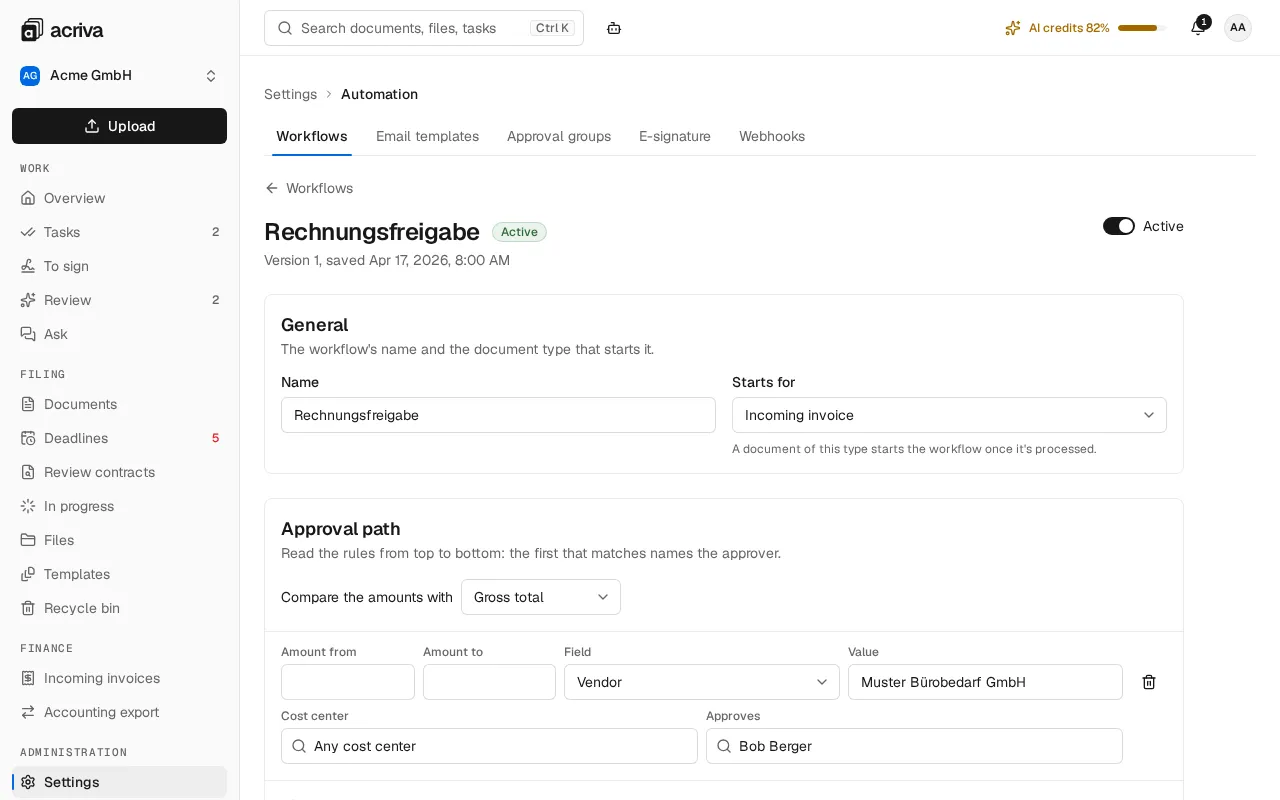
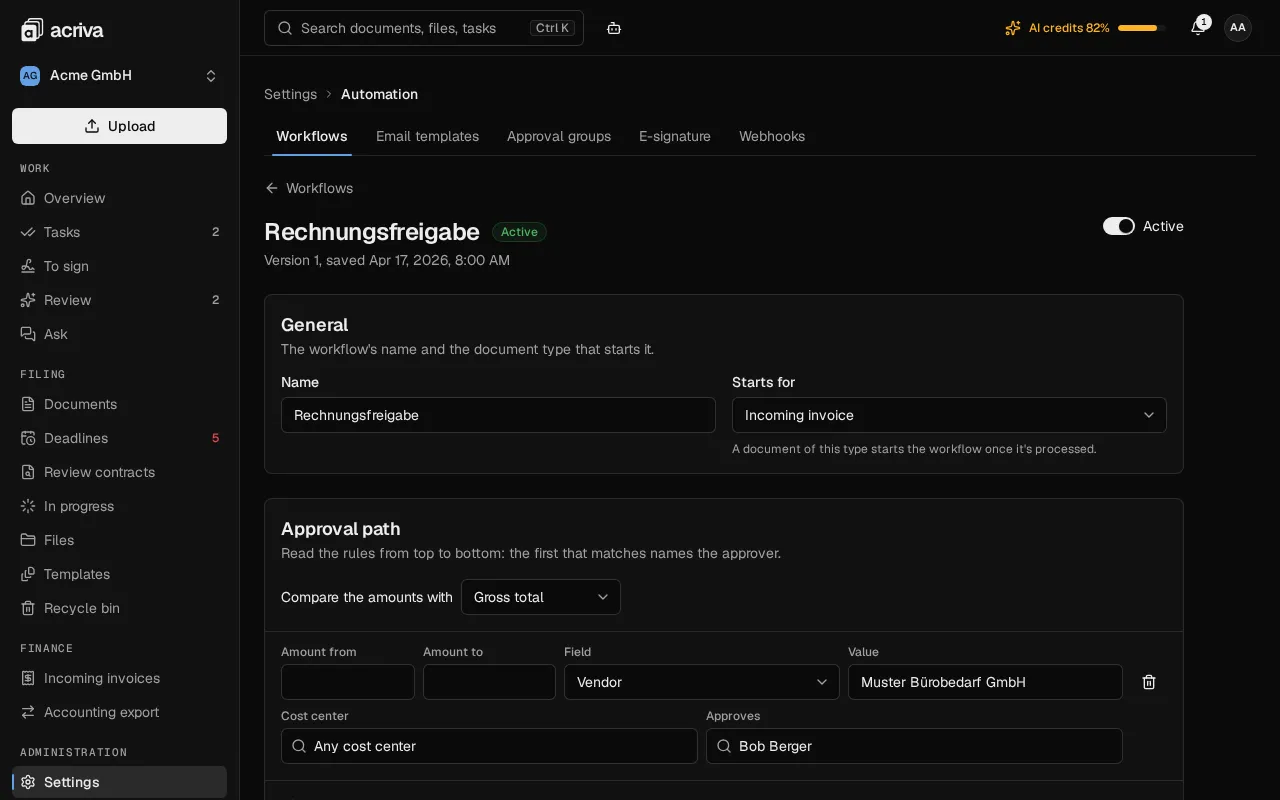
Under Approval path, the rules decide who approves. Read them from top to bottom: the first that matches names the approver. A rule matches by amount (Amount from, Amount to, both included), by a field’s Value, by the invoice’s Cost center, or by several of these; then all of them must match. Under Approves, you choose who approves the rule’s invoices. Select Add rule for another one, up to 20. Otherwise names who approves an invoice no rule matches.
Under Cost center, you limit a rule to a cost center of the finance master data; Any cost center leaves it open. You need the permission to see the finance master data for that. Without it, the rule shows only Set or Any cost center, and cost centers that are already set are kept when you save.
Turn on the Four-eyes principle, enter the amount and choose the Second approver: above the amount, a second person approves as well, and neither approval may come from whoever requested it. The second approval can’t come from the person who gave the first. At or below it, one approval is enough and the requester may give it. An invoice without an amount takes the four-eyes path.
Turn on Collective approval and enter the amount (Up to … € per invoice.), so invoices up to this gross amount can be approved together in the task list (see Collective approval). The amount is required while the switch is on, is above 0 and has at most two decimals. While it is off, the task list has no checkboxes. Invoices that the four-eyes principle covers are always left out. The template’s last saved version counts, also for tasks of workflows that started with an earlier version.
Under AI steps, Suggest an approver and Detect duplicates add hints to the task (see What the AI steps do). Suggest the allocation suggests the G/L account and cost center from the vendor’s master data, otherwise from its earlier invoices; the tax key follows the invoice’s tax rate. Only a person accepts the suggestion, and which tax key applies is for your tax advisor to say (see Incoming invoices).
In a workspace with no active approval workflow for incoming invoices, a person with the permission for the accounting export marks an open invoice as approved by hand; a paused workflow counts as not active (see Mark as approved).
Approval by the cost center’s responsible person
Section titled “Approval by the cost center’s responsible person”In a rule, you can choose the cost center’s responsible person under Approves in place of a role or a member. Then the person or role entered as Responsible on the invoice’s cost center approves. You enter them under Finance master data › Cost centers (see Finance master data). Such a rule needs no other criterion. The choice isn’t offered for Otherwise, the Second approver and the escalation: there you always choose a role or a member.
The invoice’s cost center is that of the allocation line with the largest amount among the lines that have a cost center. When no line has one, the vendor’s default cost center counts.
The task goes to the person or role under Otherwise when
- the invoice has no cost center, or
- the cost center has no responsible person. That also holds when the person entered is no longer an active member or the role entered no longer exists.
With Approver chosen by cost center, the history names the reason: the cost center of the largest allocation line decides the approver, the vendor’s default cost center decides the approver, the invoice has no cost center, so the approver for invoices that no rule matches got the task or the cost center has no responsible person, so the approver for invoices that no rule matches got the task.
Who approves is fixed when the task opens. When someone changes the allocation afterwards, the task stays where it is; delegate it if needed (see Delegate). After a return, the app determines the person again for the new approval task. Absence, the confidential document’s list and the four-eyes principle apply to the person determined this way as to anyone else.
Contract review, mail distribution and HR file intake
Section titled “Contract review, mail distribution and HR file intake”- Contract review: a number of days before the notice date, a person reviews the contract. The task offers Keep and Terminate in place of approve and reject: Keep asks you to confirm and lets the contract go on; Terminate asks for the Reason for the termination, the same way as a rejection. The workflow then shows Kept or Terminated. A contract without a notice date ends at once, without a task. The template doesn’t change the contract’s status. A workflow that starts at the reminder of the notice deadline, sets the status Terminated and starts again after each renewal can be drawn in the designer: see the recipe Decide before the notice deadline and Contracts and deadlines.
- Mail distribution: the first rule whose tags, files and field value all match files and tags the document as the rule says and sends its recipient a task to acknowledge it. Mail no rule matches goes to the person you choose, or to nobody. The steps show the rule’s number, for example Acknowledge by rule 1.
- HR file intake: a person acknowledges each new HR document and files it. In the task, select Mark as done, then choose the File the document belongs in; it is required. The list shows the open files you may see; type part of a name or number to search. The document is filed with your rights: when you lack write access, the app files nothing and tells you so. To choose the file, you need read access to documents; without it, the confirmation says so.
Workflow designer
Section titled “Workflow designer”With the Workflow designer add-on, which the trial includes, administrators draw their own workflows on a canvas, check them, try them on documents in a test run and publish them, and open a template in the designer. They are listed under Settings › Workflows in Custom workflows. How it works is described on the page Workflow designer.
Pause a workflow
Section titled “Pause a workflow”Turn off the switch next to a workflow, in the list or on its page, and confirm with Pause workflow to pause it. A paused workflow starts no new instances; the ones that run go on. Turn it on again to resume.
Absences of others
Section titled “Absences of others”Under Absences on the same page, administrators see everyone who is away or will be, with the substitute and the period, Active or Planned. Select Add absence to enter one for a member, the pencil to change one, and the bin to remove it. An absence applies to all workflows.
Coming soon
Section titled “Coming soon”- Personal automations