

Administration
Everything an administrator sets up is under Settings in the sidebar. The entry shows for every role that may open at least one settings page.
The settings overview
Section titled “The settings overview”Settings opens an overview with a card for each category: Workspace, Documents & filing, Intake & processing, Automation, AI, Finance, Security & access and Compliance. A card names what the category holds and links each of its pages that your role may open. Owners and admins also see the state of each category on its card, such as 2 files in quarantine, DATEV set up or SSO not set up; a state that needs a look is marked, and a card without a state shows its description only.
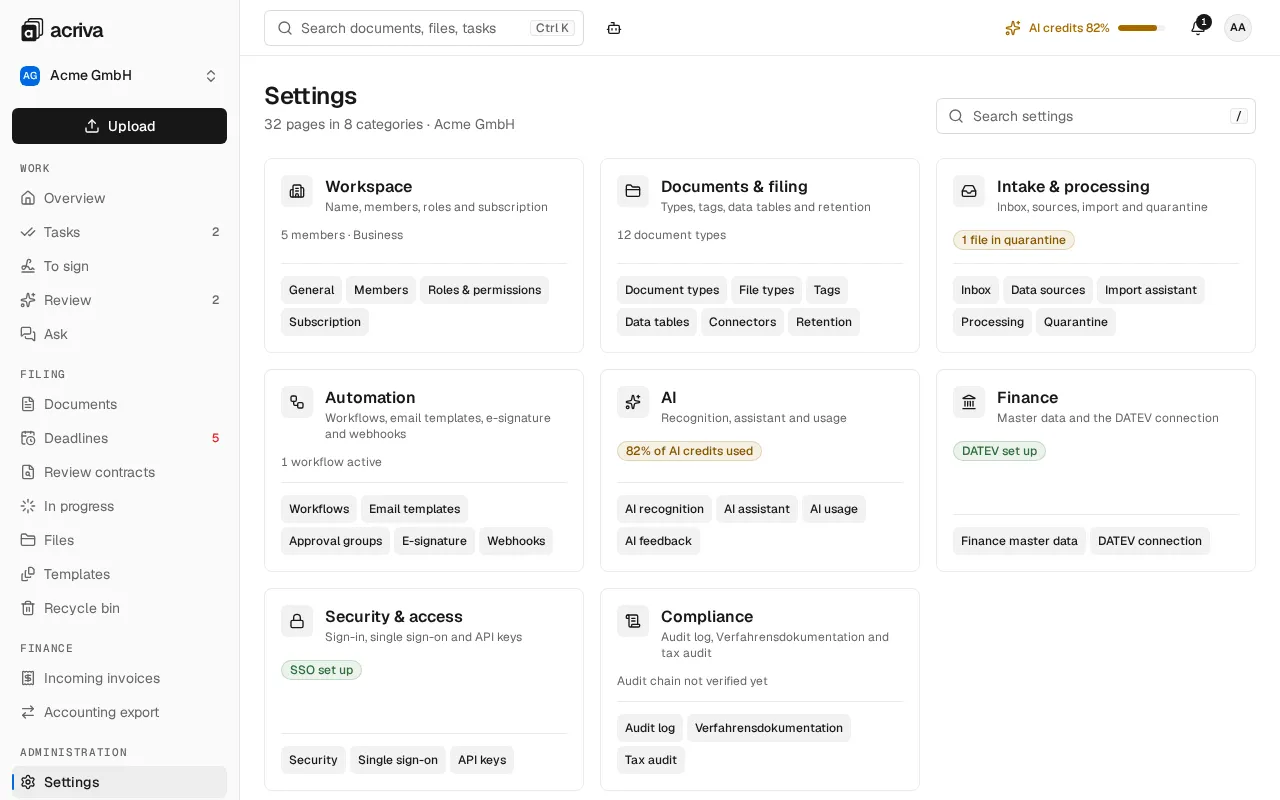
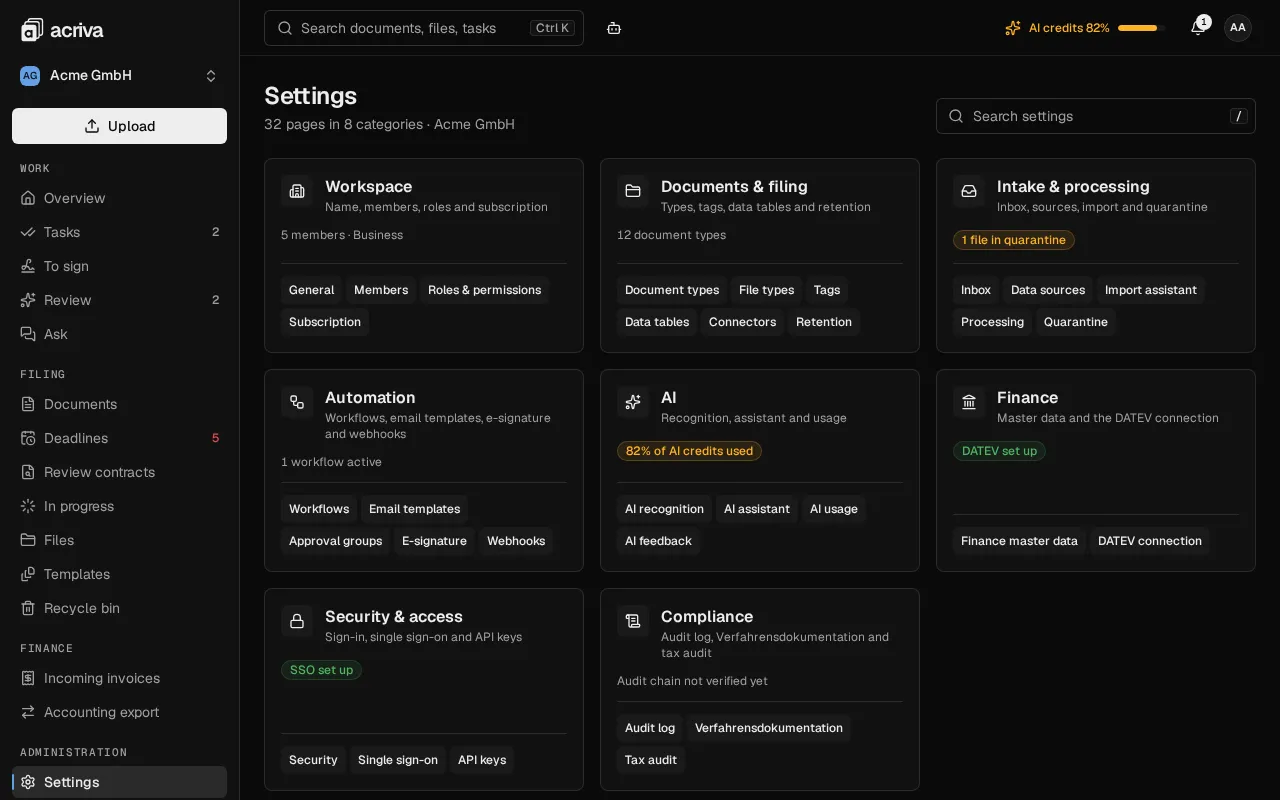
Search settings above the cards finds a page by its name or by a word for what it holds, such as
two-factor, discount or virus. Press / to jump into the field, and Esc to clear
it. When nothing matches, Reset search shows all cards again, and Search the help opens these pages.
A member without an administrative permission sees only the cards with the pages their role may open, with the number of pages instead of a state, and a note who manages the other settings.
On a page, the path Settings › category above the title leads back to the overview, and the category’s pages sit in a row of tabs. On a phone the overview is a list of the categories, and a page has a back link to the overview and tabs that scroll sideways.
A page whose add-on your workspace hasn’t booked, such as AI assistant, stays in the list for owners and admins with a lock, and says how to add the add-on in the subscription. Members don’t see it.
The settings pages
Section titled “The settings pages”| Category | Page | What it is for | Guide |
|---|---|---|---|
| Workspace | General | name, address, default language, company name and address, logo and accent colour | below |
| Members | invite people, change their role and seat | Members, Tax advisors | |
| Roles & permissions | what each role may do and which documents it reads | below | |
| Subscription | the plan and what the workspace uses this month | Subscription | |
| Documents & filing | Document types | the kinds of documents and their fields | Document types and access |
| File types | the kinds of Akten, their key fields and number series | Document types and access | |
| Tags | create, rename, merge and delete tags | Document types and access | |
| Data tables | reference tables for workflows, in plans with them | Data tables | |
| Retention | retention rules, legal holds and deletion | Archive and compliance | |
| Intake & processing | Inbox | the email addresses of the workspace | Inbox |
| Data sources | the sources the workflows’ scripts read | Data sources | |
| Import assistant | bring an existing archive over | Import assistant | |
| Processing | the processing runs and their errors | Processing and quarantine | |
| Quarantine | files in which the virus scan found something | Processing and quarantine | |
| Automation | Workflows | approval workflows and their templates | Workflows and approvals |
| Email templates | the emails workflows send to people outside the workspace | Email templates | |
| E-signature | how e-signatures are set up | E-signature settings | |
| Webhooks | the addresses workflows may call | Webhooks | |
| AI | AI recognition | what the AI recognizes and when a person checks | AI recognition |
| AI assistant | whether the assistant is on, its areas and roles | AI assistant | |
| AI usage | the AI credits used, by month | AI recognition | |
| AI feedback | the ratings of the AI’s answers | AI recognition | |
| Finance | Finance master data | vendors, cost centers, G/L accounts and tax keys | Finance master data |
| DATEV connection | the settings of the DATEV export | DATEV export | |
| Security & access | Security | the second factor of the workspace | Security |
| Single sign-on | sign-in through your identity provider, in plans with it | Single sign-on (SSO) | |
| API keys | keys for other systems | API keys | |
| Compliance | Audit log | who did what, and the check of its chain | Audit log |
| Verfahrensdokumentation | the procedure documentation of your workspace | Verfahrensdokumentation | |
| Tax audit | the tax auditor’s access and the export | Tax audit |
When the trial has ended without a plan, or our team has suspended the workspace, see Read-only and suspended workspaces.
General
Section titled “General”General holds what your team sees of the workspace itself. You need the permission to change the workspace settings, which the built-in roles Owner and Admin have.
Workspace:
- Company name: the name of the workspace, as the workspace switcher and the emails show it.
- Default language: applies to members who have not chosen a language in their profile, and to their emails. Browser language follows each person’s browser.
- Workspace address: the part of every link after
/t/, in lower-case letters, digits and hyphens. Enter the new address and select Save; once you confirm with Change address, links with the old address keep working and lead to the new one. Update bookmarks when you can.
The card counts your unsaved changes; Save saves them and Discard drops them.
Company name and address: as your company appears on the invoices it receives: Legal company
name, Street and number or PO box, Postcode, City and Country (as a two-letter code,
such as DE). The workflow step Check mandatory details compares an invoice’s recipient with these
details: when the name and the postcode (or city) don’t match, its hint names the recipient as
different. Without them, the step only checks that the invoice names a recipient with an address.
Save company name and address saves them; the change is in the audit log. The
company name the AI uses to recognise your own invoices stays under AI recognition.
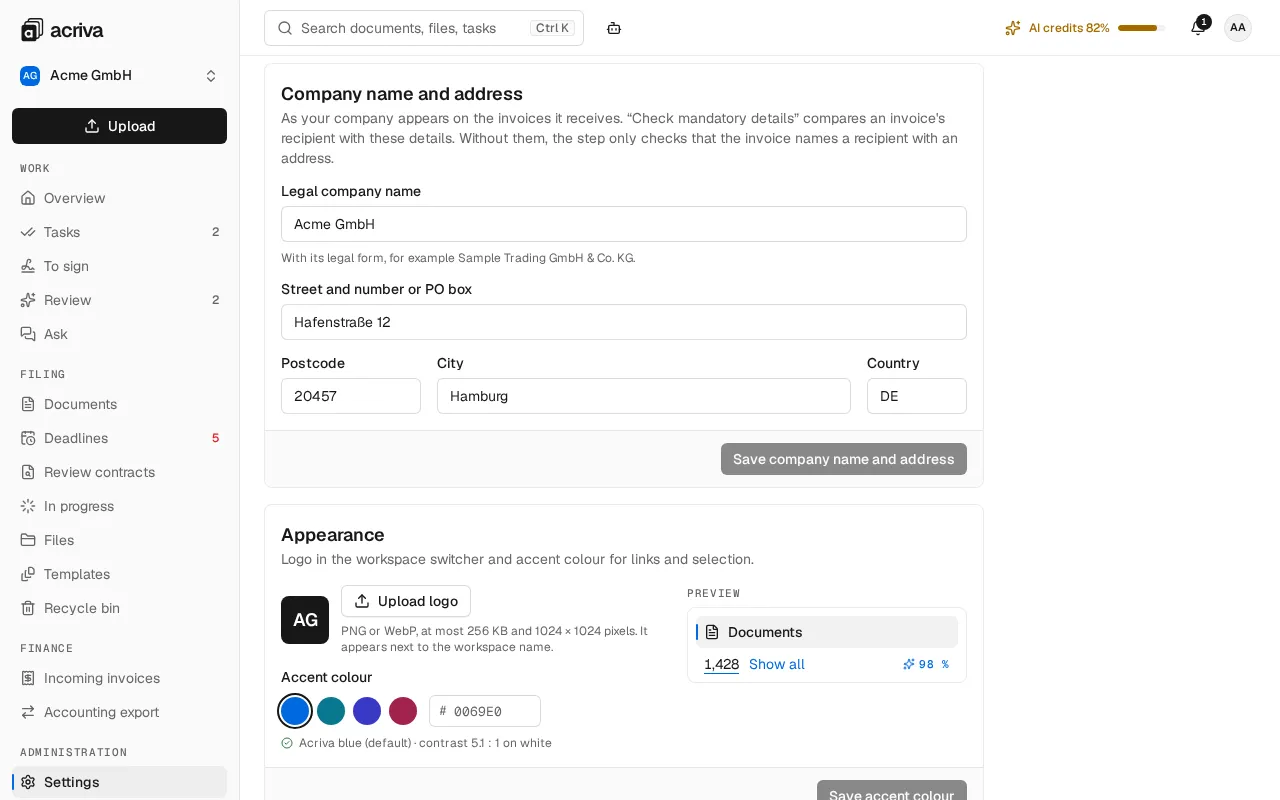
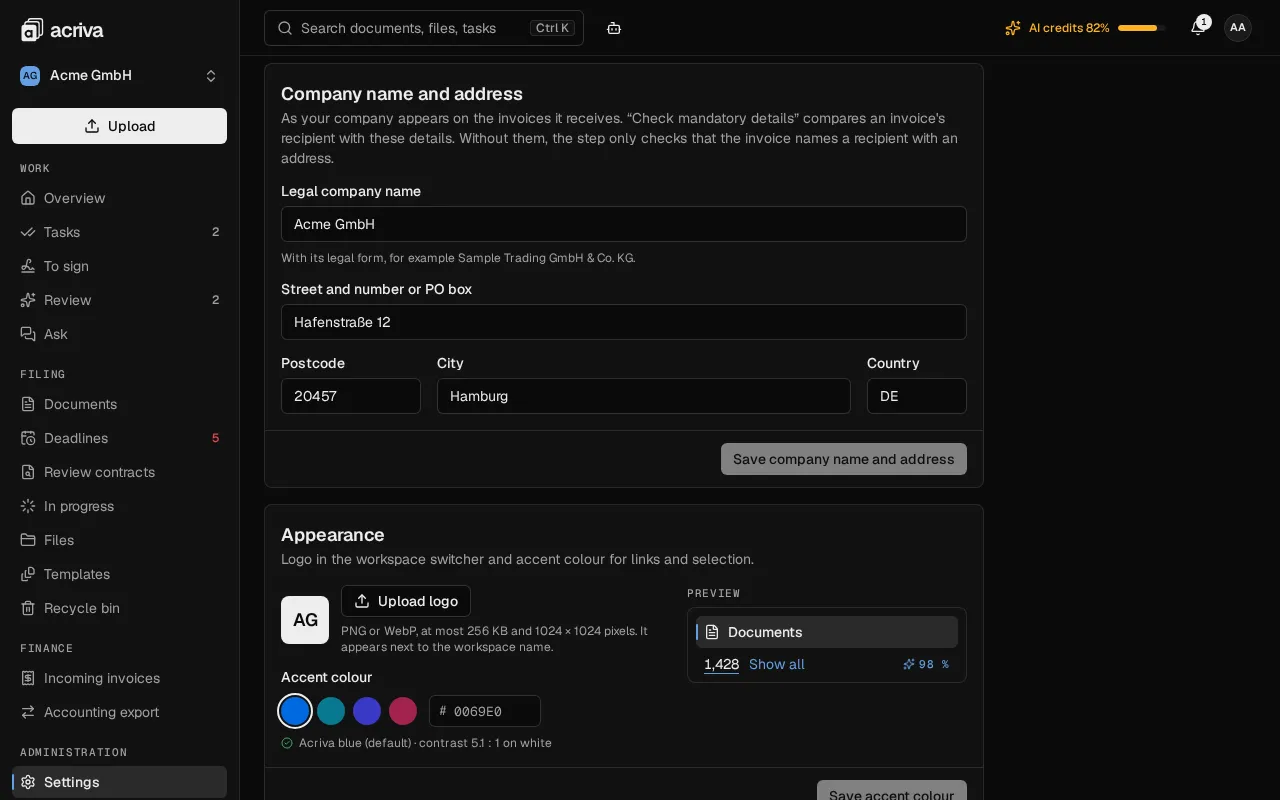
Appearance:
- Logo: Upload logo takes a PNG or WebP file of at most 256 KB and 1024 × 1024 pixels. It appears next to the workspace name. Remove takes it away again, and the workspace shows its initials instead.
- Accent colour: the colour of links and selections. Choose one of the colours offered, or type a hex value (
#rrggbb) into the field next to them. The line below it shows the contrast on white, and says when Acriva darkens the colour for readable text. Save accent colour saves it.
Calendar subscription: Allow calendar subscriptions lets members subscribe to their open deadlines in their own calendar. It is off until you turn it on, and turning it off revokes every member’s link (see Deadlines: Subscribe in your calendar).
Export workspace
Section titled “Export workspace”Export workspace downloads every document of the workspace with its versions, metadata, Akten and invoices, for example before you leave Acriva. Only the workspace’s Owner sees the card; Acriva refuses everyone else.
- Select Start export and confirm your sign-in again when Acriva asks for it. You can start one export a day; a failed export doesn’t count.
- The export runs in the background. The card shows how many documents it has exported, and you can leave the page meanwhile.
- When the export is ready, the card lists its ZIP parts, one or more per document type and the part
00-workspace.zip, each with its size and SHA-256 checksum. Select Download next to each part, and confirm your sign-in again when Acriva asks for it.
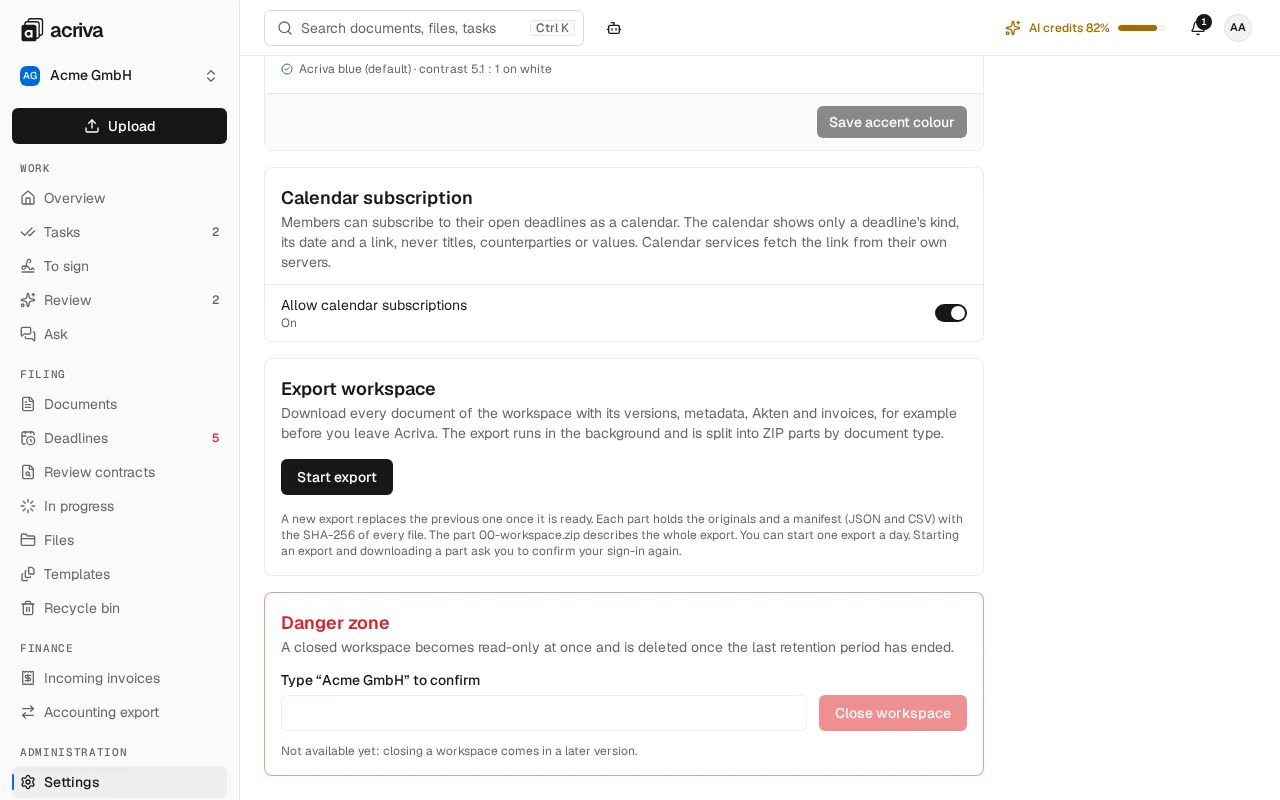
The parts can be downloaded for 14 days, by the Owner who started the export only. Every download of a part is in the audit log, and so is each exported document, as downloaded by you. A new export replaces the previous one once it is ready.
The export holds what you can read. It leaves out, and counts on the card:
- confidential documents whose list doesn’t name you: ask a person on the list to add you if they belong in the export;
- documents in the recycle bin: restore them first if they belong in the export;
- documents in quarantine (see Quarantine);
- versions of exported documents that are quarantined or still being checked: their row is in the export, their file isn’t.
A document that becomes confidential without you, moves to the recycle bin or goes into quarantine while the export runs is left out and counted too.
What the parts hold, file by file, is in Workspace export format. The audit log has its own export (see Audit log).
Closing a workspace is not available yet: the card Danger zone says so.
Roles and permissions
Section titled “Roles and permissions”A role says what its members may do. Roles & permissions lists the roles on the left with the number of their members, and the permissions of the chosen role on the right, by area.
Every workspace has the built-in roles Owner, Admin, Member, Approver, Auditor and Tax advisor. Their permissions can’t be changed.
To give people other rights, create a role of your own:
- Select Create role and enter a Name.
- Tick Allowed for each permission the role should have, and save.
- Assign the role to members on the Members page.
On a role of your own, Rename changes its name, and the menu … offers Delete. Members keep a renamed role. A role can be deleted only when no member and no open invitation has it any more; deleting can’t be undone.
Which documents a role reads and edits is shown in the table of document access below the permissions, if you may manage document access: which document types and Akten the role may read, write or manage (see Document access).