

Notifications
The app notifies you about changes that concern you in a workspace, for example when someone gives you another role. Notifications belong to a workspace: switch the workspace to see the notifications of another one.
See your latest notifications
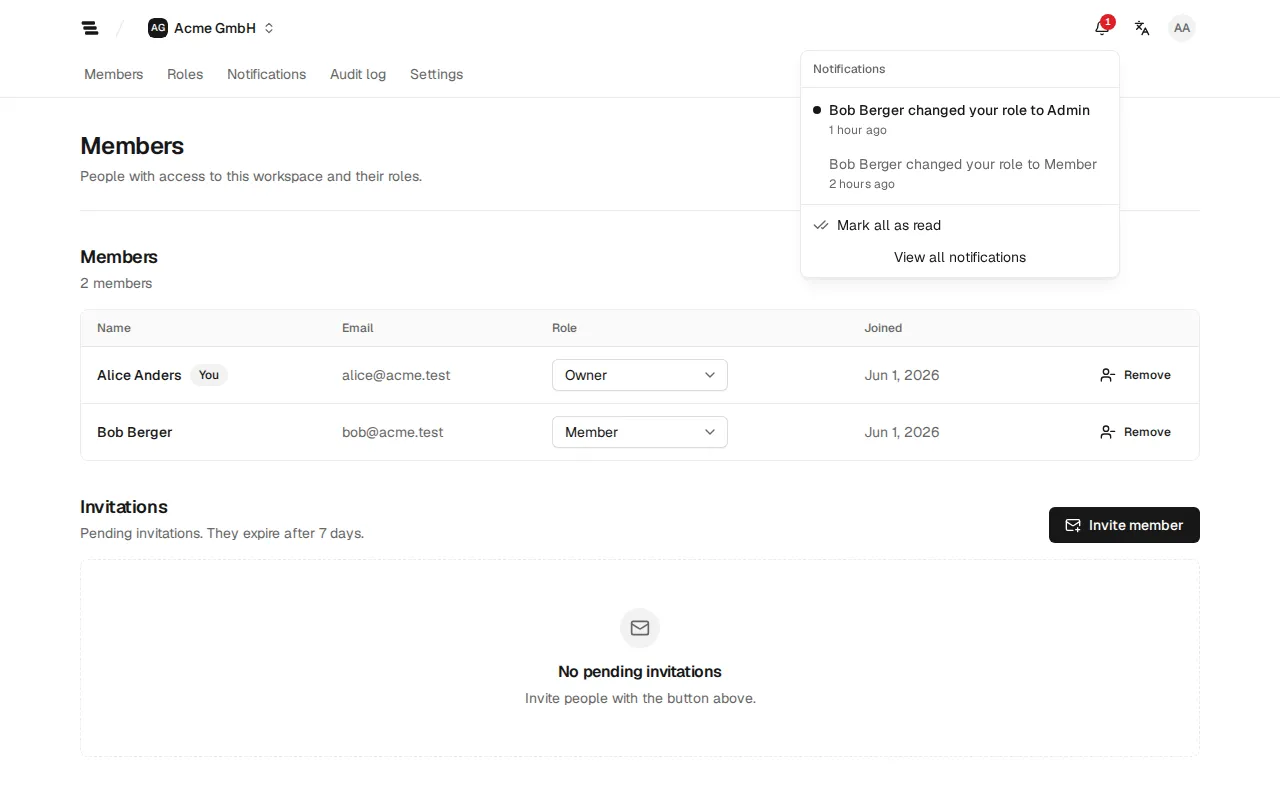
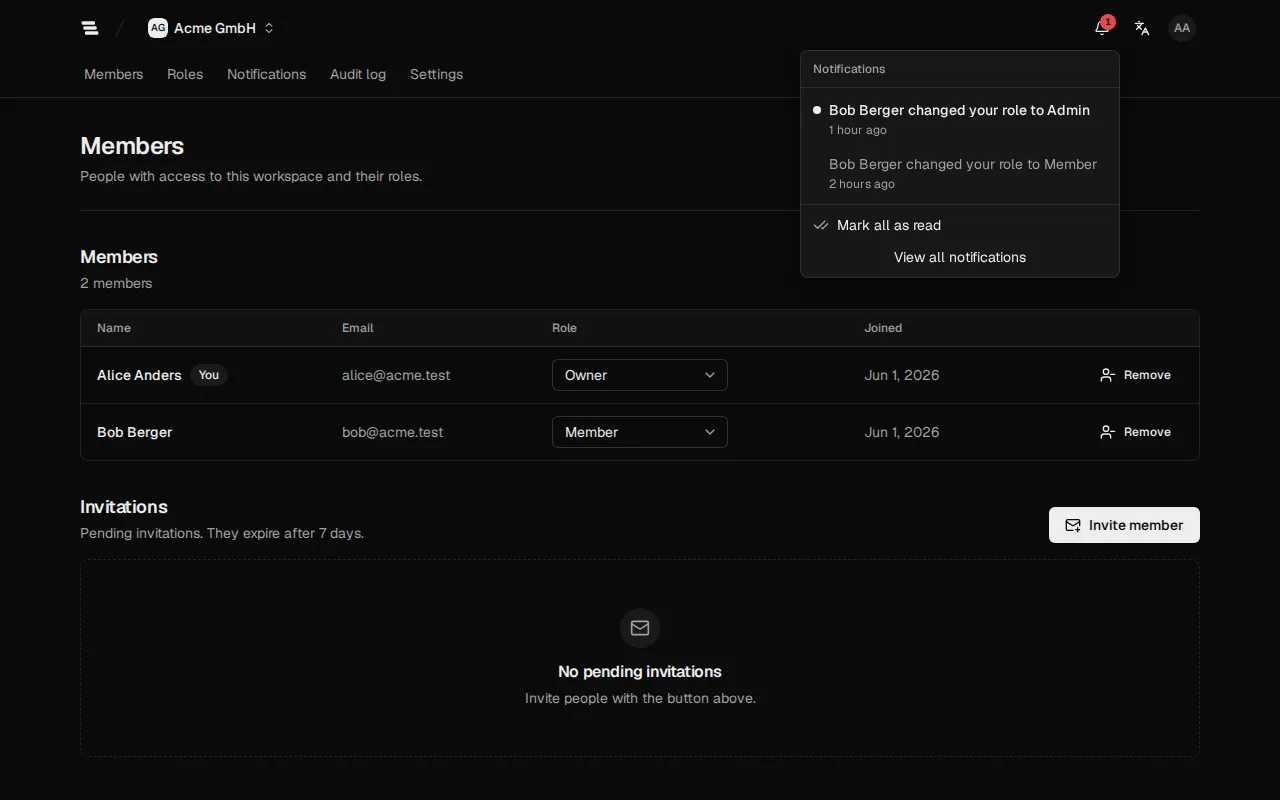
Section titled “See your latest notifications”The bell at the top of the page shows how many notifications you haven’t read yet.
- Select the bell. The menu lists your ten latest notifications, the unread ones in bold.
- Select a notification to open the workspace it belongs to. The notification is marked as read.
A role change reads, for example, “Alice Anders changed your role to Admin”. You also receive an email with a link to the workspace, in the language of your profile.
Open the Notifications page
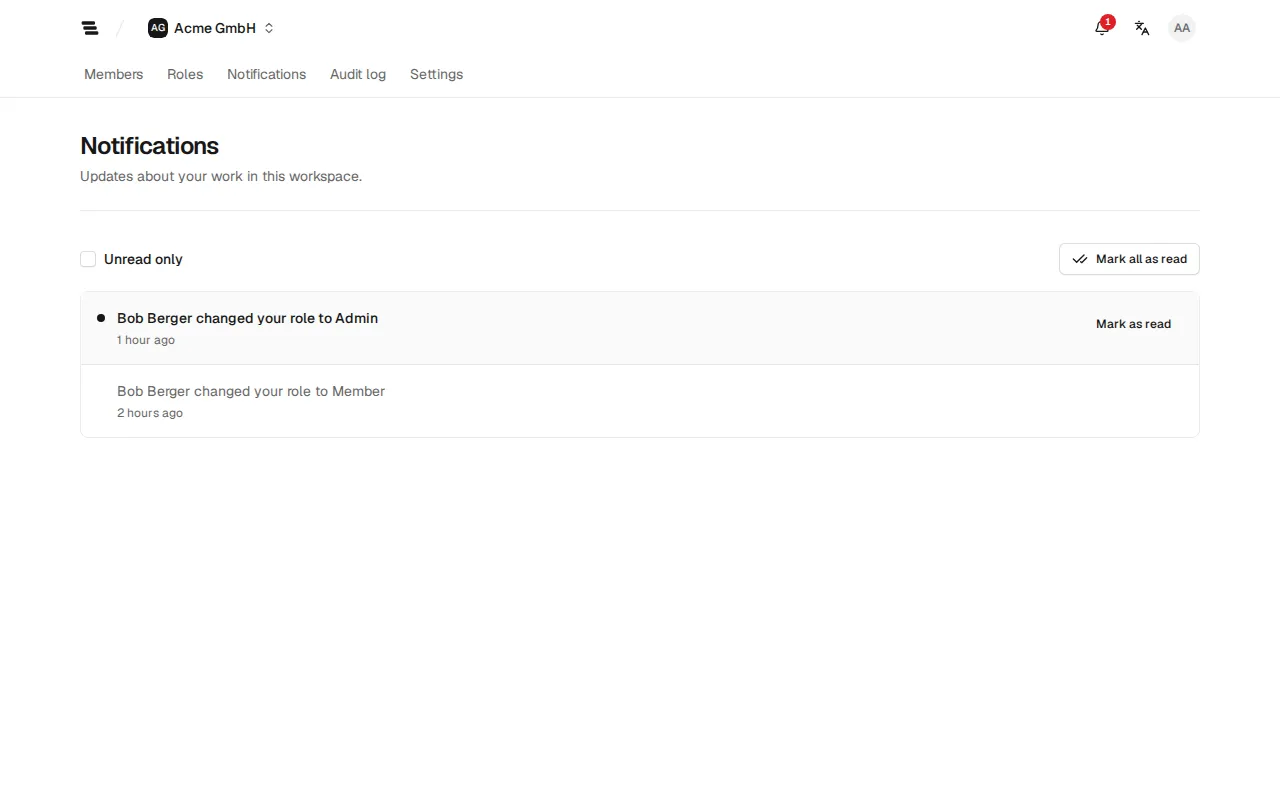
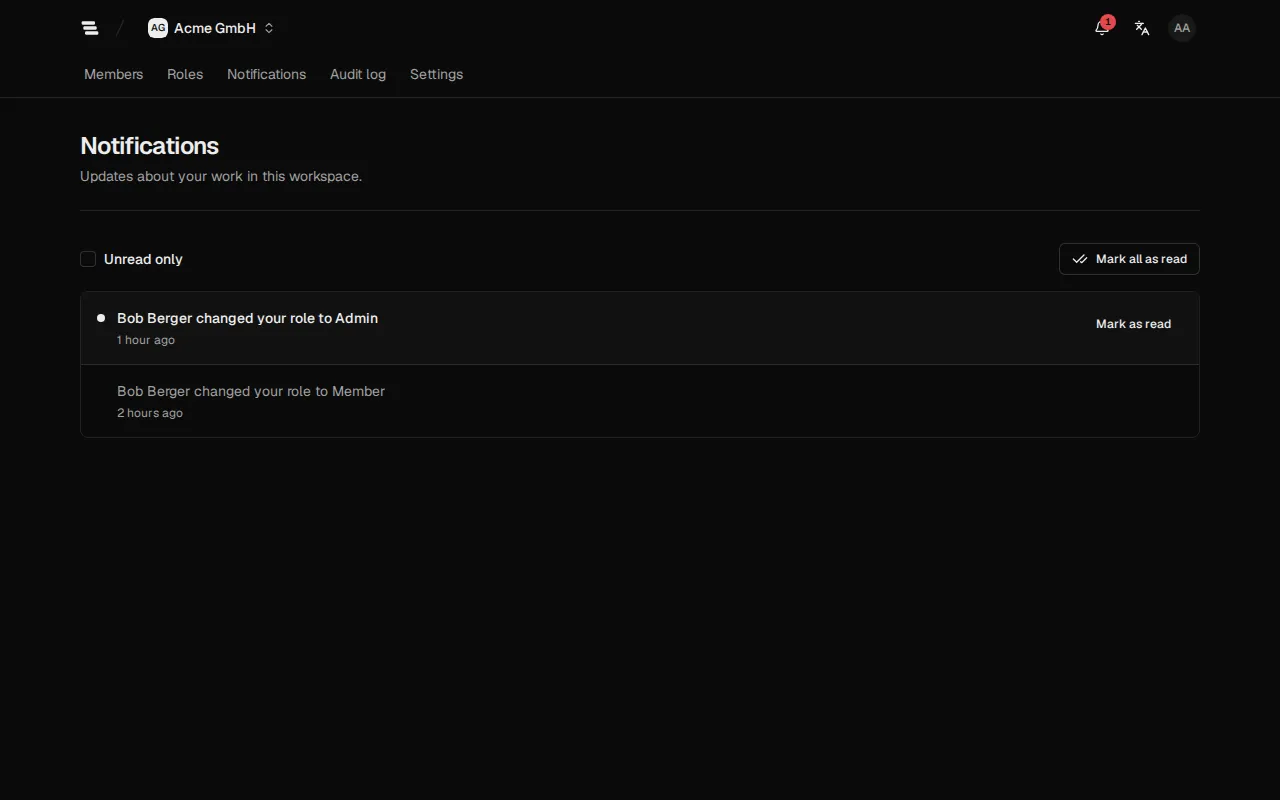
Section titled “Open the Notifications page”Select View all notifications in the menu, or Notifications in the navigation. The page lists every notification of this workspace, newest first.
- Choose Unread only to hide what you have already read.
- Select Mark as read next to a single notification.
- Select Mark all as read to clear the counter.
- Select Load more at the end of the list to see older notifications.
Choose the language of your emails
Section titled “Choose the language of your emails”Notification emails use the language of your profile. Change it under Language in the account menu while you are signed in, and the app saves it to your profile (Choose the language).