

AI recognition
Acriva recognizes the document type and the fields of every new file with AI and suggests tags and Akten (see What AI recognized). The AI never approves anything, and it never overwrites a value a person entered. What the AI steps of an invoice approval do is in Workflows and approvals. Questions about your documents, the chat with one document and summaries are in Ask your documents, and the assistant that explains the app and proposes changes is in AI assistant. Administrators set how the AI recognition works in the workspace settings: select Settings in the sidebar, then AI recognition under Filing or AI usage under Workspace.
What AI does with a document
Section titled “What AI does with a document”A new file goes through these steps after it was received and its text was recognized (see Processing and quarantine). A valid e-invoice and a file without text skip steps 2 to 6: an e-invoice’s type and fields come from the invoice itself, at no AI credit. Each part of a split scan goes through the steps on its own.
- Splitting: a scan of several pages is checked for separator sheets and split at them. If Suggest splitting multi-document scans is on, AI suggests where a scan without sheets holds several documents; a person decides in the review queue.
- Classification: AI chooses one of your active document types, or none. A type a person set stays as it is.
- Reading fields: AI fills in the fields of the type, each with how sure it is. For an incoming invoice it also reads the VAT ID, the IBAN and the VAT lines, to check them.
- Checks: Acriva checks what AI read: the IBAN’s check digits, whether net, VAT and gross add up, whether the dates are plausible, whether an incoming invoice names its vendor, invoice number, invoice date and gross total, and whether the vendor is your own company.
- A second look: when a check failed or AI is unsure, and AI credits are left, AI reads the first three pages once more as images, and Acriva keeps the better result.
- Decision: when AI is at least as sure as your threshold, every check passed and, while Review new vendors is on, the vendor is known, Acriva fills in the document. Otherwise the document waits in the review queue with the reason.
- Suggestions: from the documents you already filed for the vendor, Acriva suggests tags and Akten, and from an e-invoice that isn’t valid or wasn’t checked, field values (see Suggestions).
AI fills in only fields that no person filled in, and a person always completes what waits in review. AI receives the document’s text, for the second look the images of the first pages, the names and fields of your document types and your company details. Acriva sends them through its AI gateway only to AI models that run in the EU, at providers that keep no copy and don’t train on them. Every AI call is recorded in the audit log.
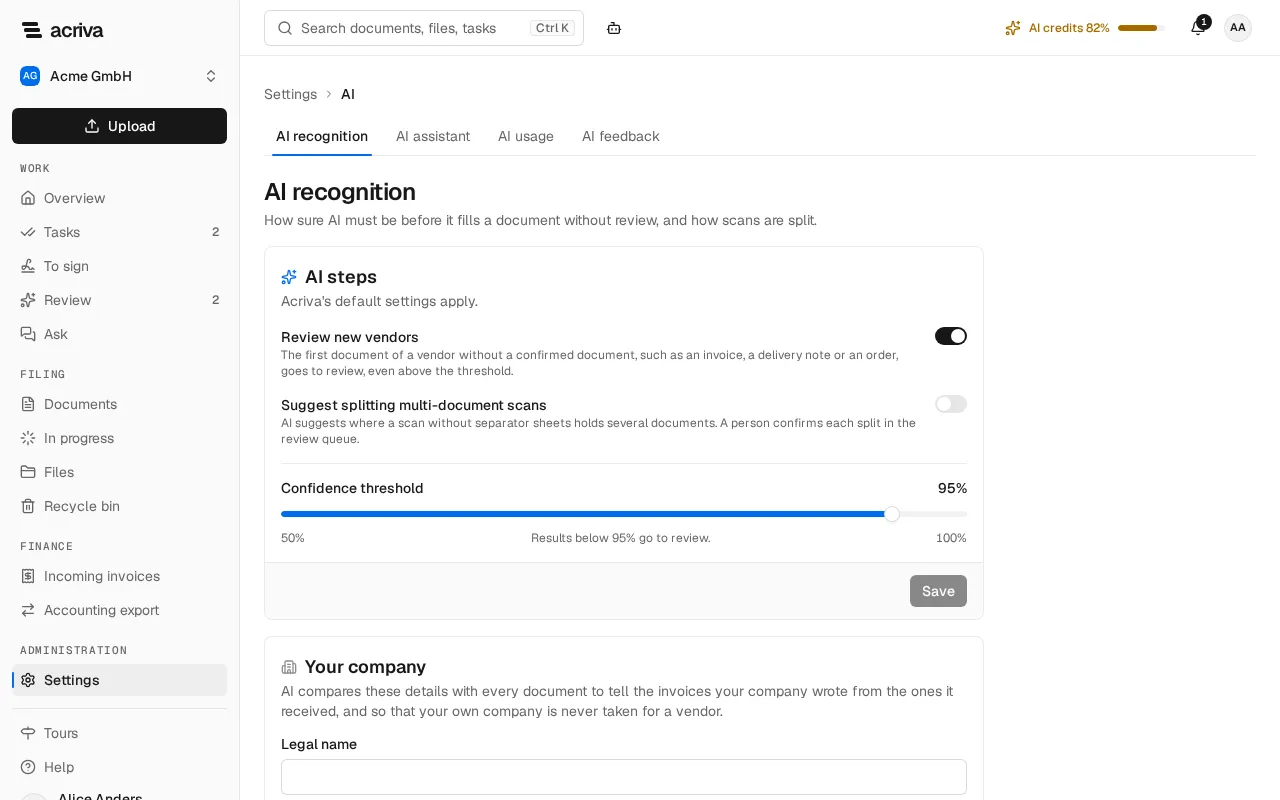
AI steps
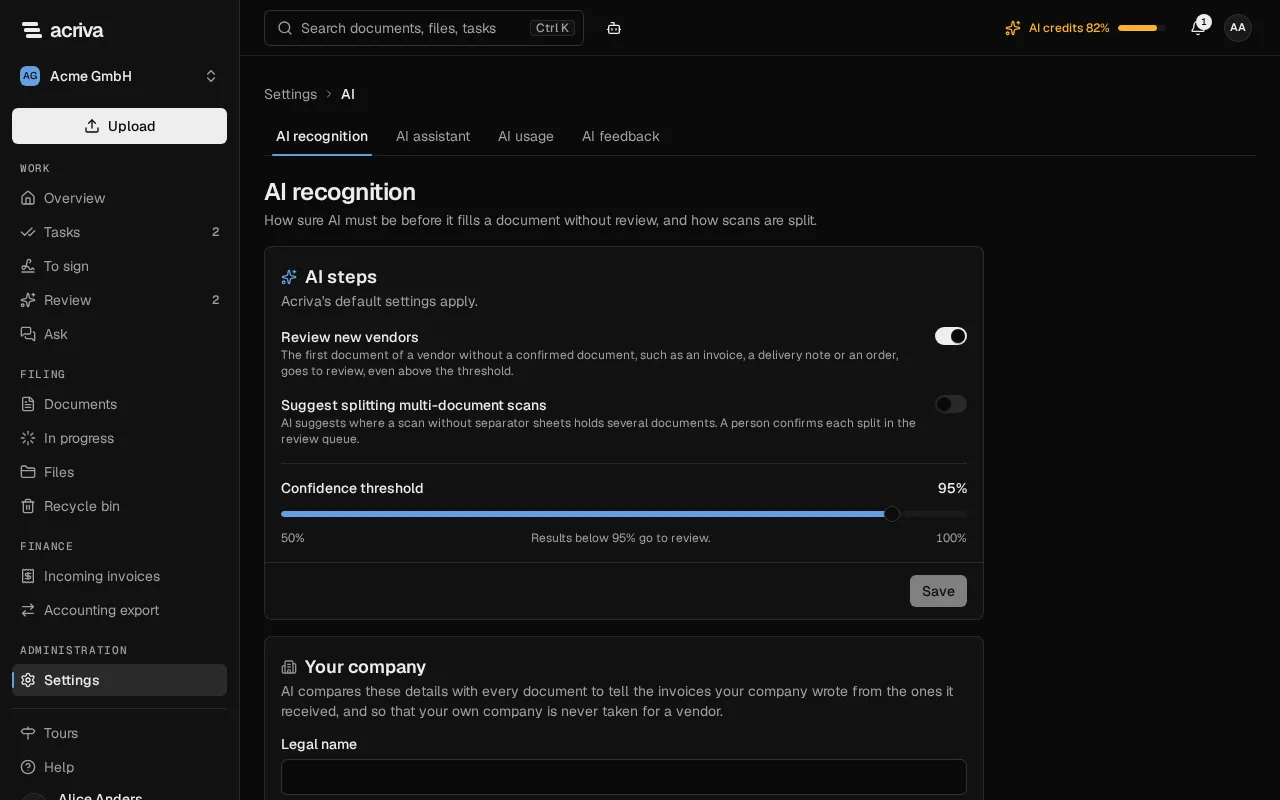
Section titled “AI steps”The card AI steps on the page AI recognition holds three settings. Until someone changes them, it says Acriva’s default settings apply.
- Review new vendors: the first document of a vendor without a confirmed document, such as an invoice, a delivery note or an order, goes to the review queue, even above the threshold.
- Suggest splitting multi-document scans: the AI suggests where a scan without separator sheets holds several documents. A person confirms each split in the review queue. For scans with at least sets the fewest pages a scan needs, from 2 to 500.
- Confidence threshold: from 50% to 100%. Results below it go to review; at 100%, Every result goes to review. A higher threshold means more checking by people and fewer wrong values.
Change the settings and select Save. They apply to the next documents; what the AI already decided stays as it is.
Your company
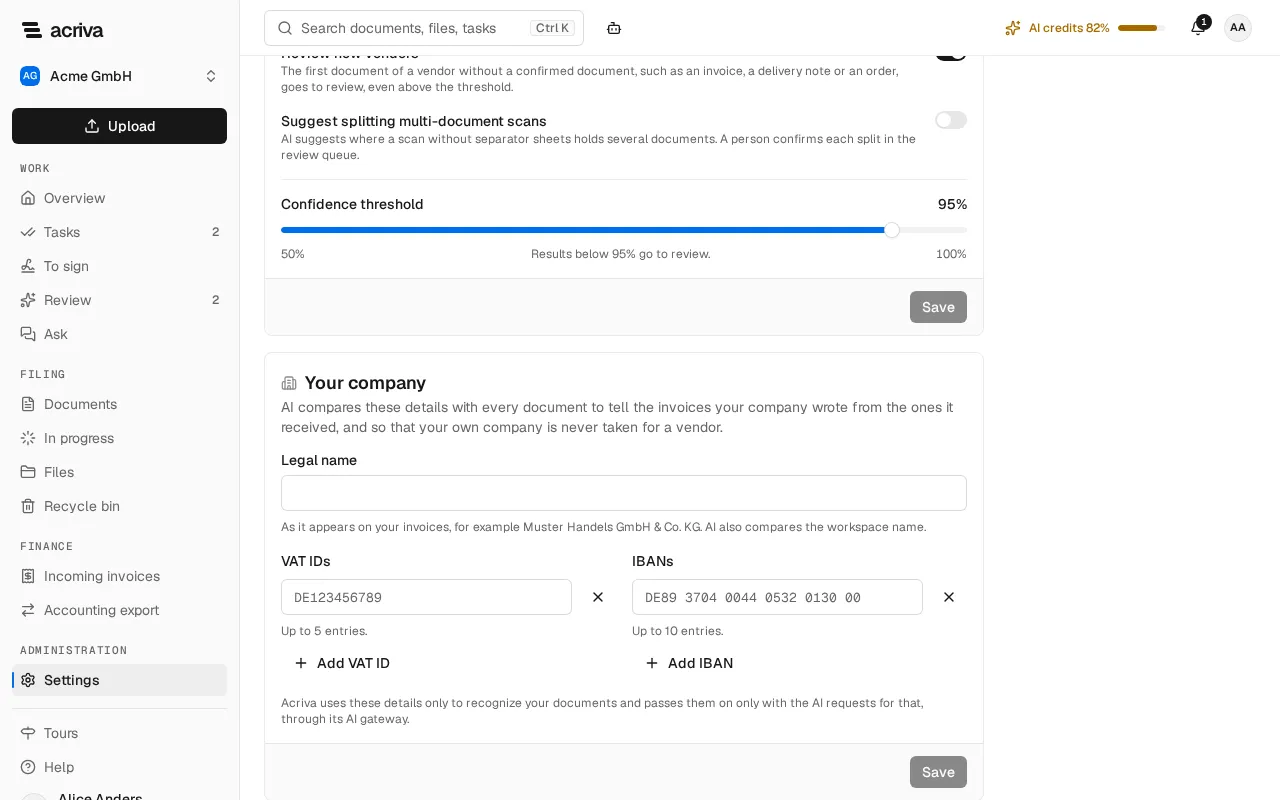
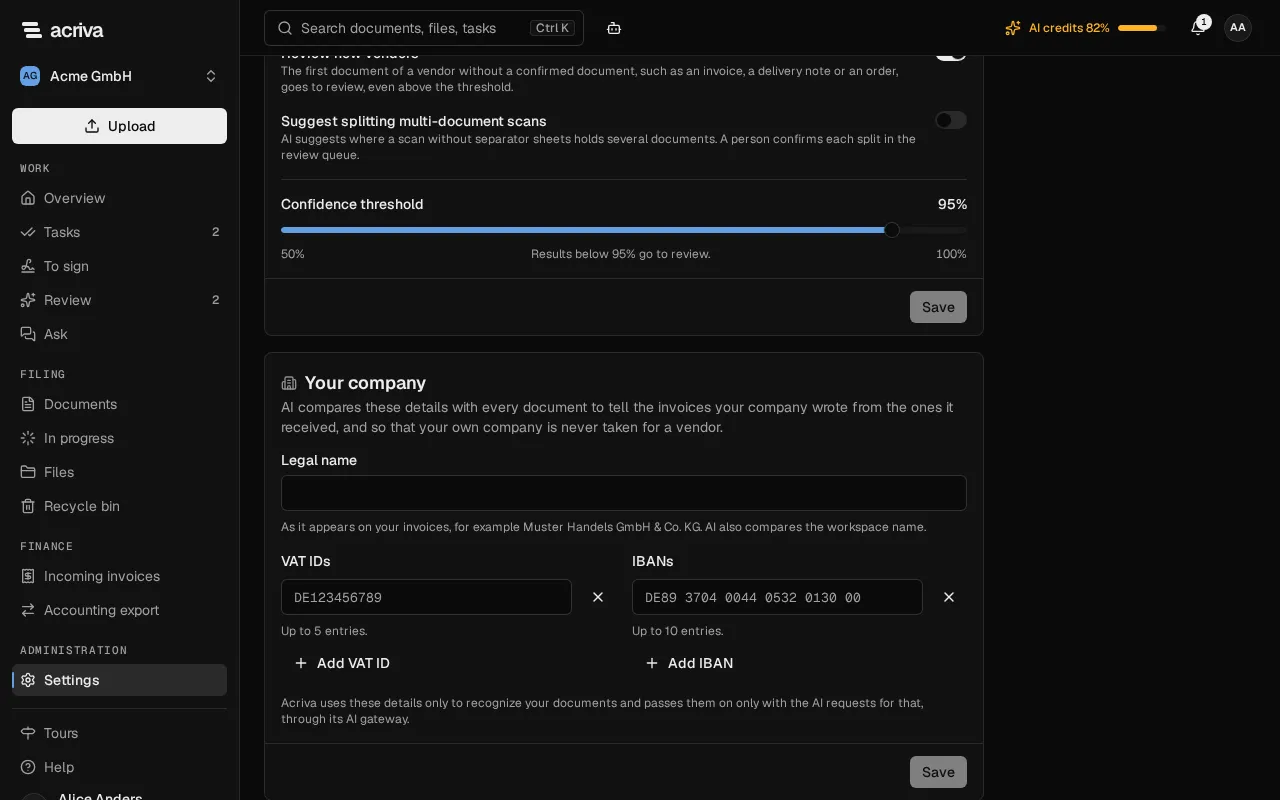
Section titled “Your company”The card Your company tells the AI which company is yours. It compares these details with every document, to tell the invoices your company wrote from the ones it received, and so that your own company is never taken for a vendor. Without them, the AI knows only the name of the workspace.
- Enter the Legal name as it appears on your invoices, for example Muster Handels GmbH & Co. KG.
- Enter your VAT IDs (up to 5) and IBANs (up to 10), one per row. Add a row with Add VAT ID or Add IBAN, and remove one with the cross next to it. Spaces don’t matter.
- Select Save. Discard returns to the saved details.
A VAT ID needs a country code and 2 to 14 letters or digits, for example DE123456789. An IBAN needs valid check digits; the card marks a row it can’t accept before it saves. To delete all VAT IDs or IBANs, remove every row and save. Acriva uses these details only to recognize your documents and passes them on only with the AI requests for that, through its AI gateway.
Separator sheet
Section titled “Separator sheet”Put a printed separator sheet between the documents of a stack before you scan it. Acriva splits the scan at each sheet, makes every part a document of its own and removes the sheets; the scan itself stays archived. Download the sheet under Separator sheet with Separator sheet (German) or Separator sheet (English) and print it as often as you need it.
Search by meaning
Section titled “Search by meaning”With Questions about documents in your plan (see Ask your documents), the search also finds documents by what they mean, not only by their words: rent increase finds a letter that says new monthly rent from 1 May too. On the Search page and in the search of the top bar, the switch By meaning | Exact words chooses. By meaning is preselected.
- By meaning searches once you have stopped typing for a moment, and on the Search page also when you press Enter. The results are sorted by relevance, for example 12 results by meaning for “rent increase”, sorted by relevance, and each shows the passage that fits best. The filters on the left work as for exact words.
- Exact words searches as you type, with the rules of Search all documents: every form of a word, quotes for a phrase, a minus to exclude a word.
A search by meaning costs no AI credit. Like every AI call, it is recorded in the audit log. It finds only documents you may read, and a new document only after its processing is complete. When it isn’t available, because the AI isn’t configured or doesn’t answer, or because none of the documents your search reaches is in the semantic index yet (in a new workspace, for example), the search answers with exact words, and the Search page says Search by meaning isn’t available right now. These results match the exact words.
Ask as a question next to the results asks your words as a question on the page Ask, with an answer and its sources.
AI usage
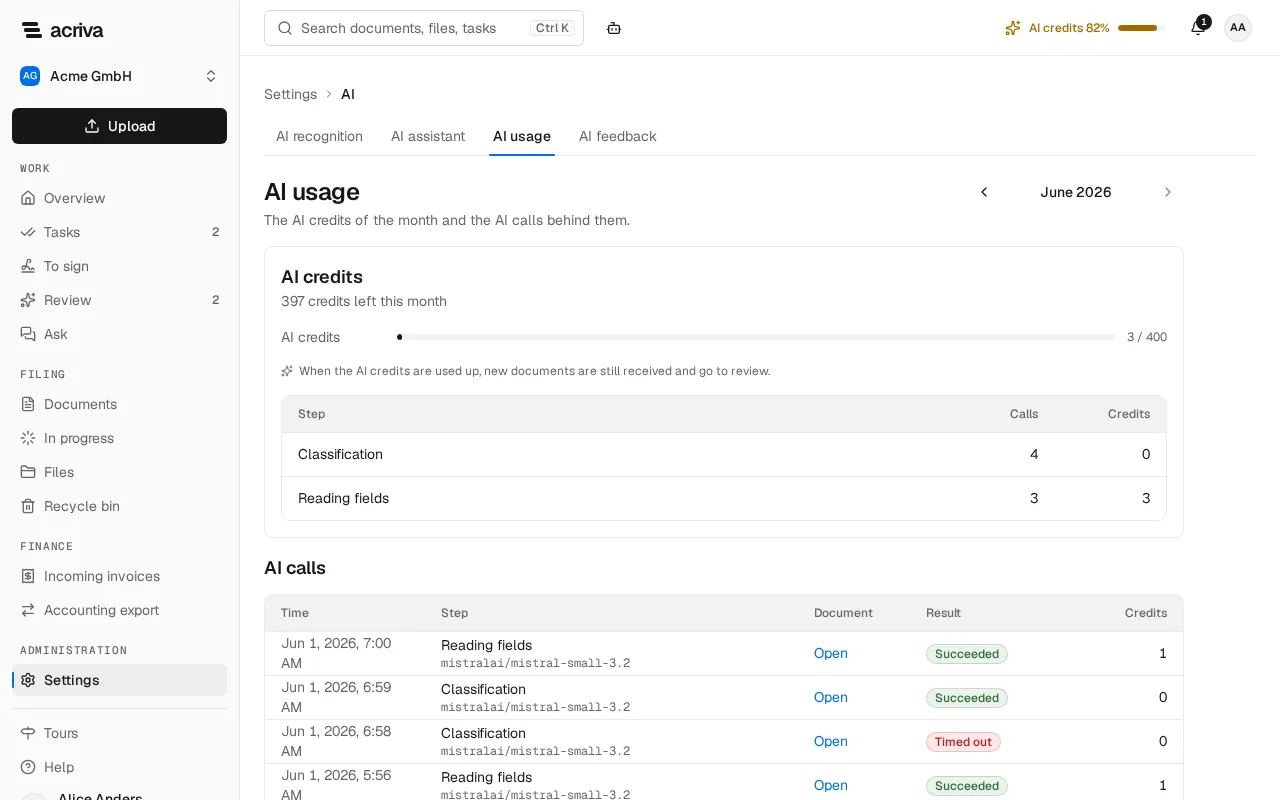
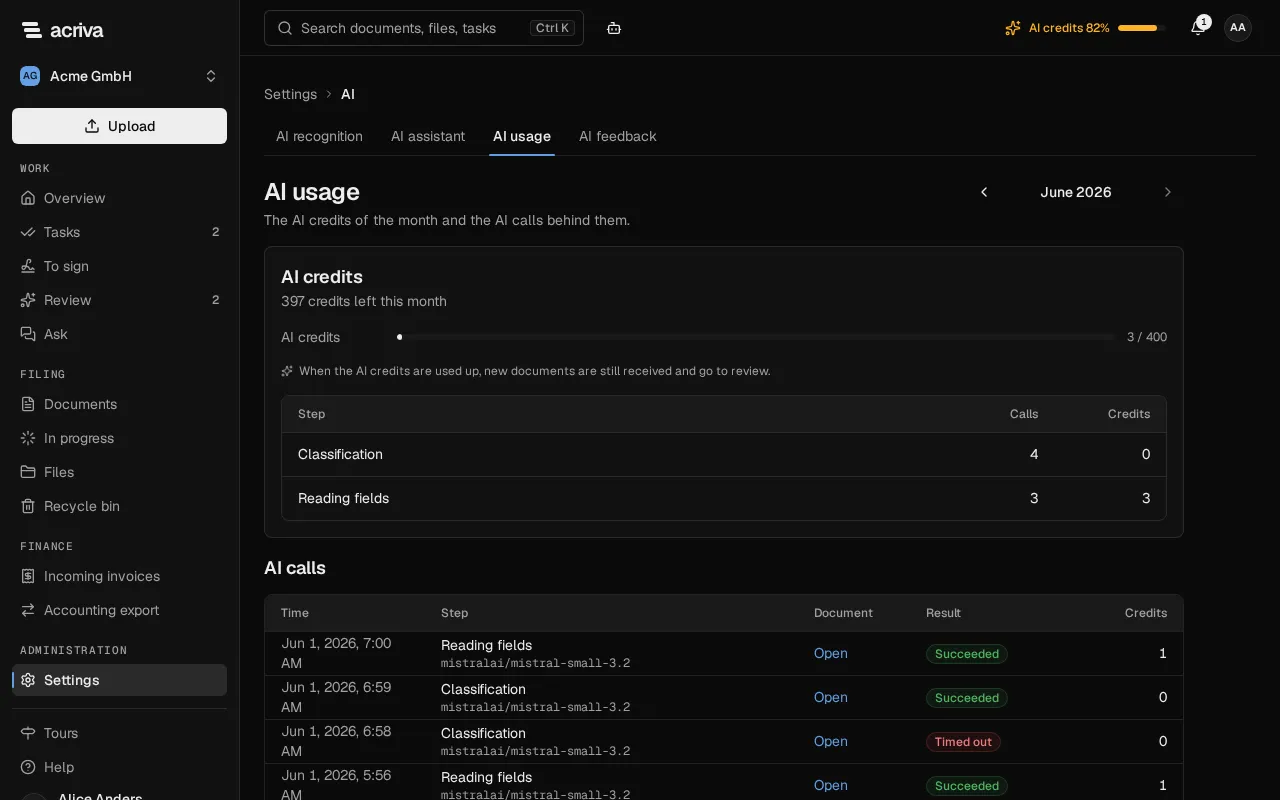
Section titled “AI usage”The page AI usage shows the AI credits of a month: how many your workspace used and how many are left, as a bar that turns orange from 80% and red when the credits are used up. When the AI credits are used up, new documents are still received and go to review. Below are the credits by step and the AI calls of the month, each with its time, step, model, result and credits; Open opens the document. Switch months with Previous month and Next month.
Once more than 80% of the month’s AI credits are used, administrators also see the meter AI credits …% in the top bar, for example AI credits 85%. It leads to this page.
What costs AI credits
Section titled “What costs AI credits”Acriva counts AI credits per step or answer, not per word:
| Step | AI credits |
|---|---|
| Classification and Reading fields of a document, together | 1 |
| Reading fields from page images, the second look | 1 |
| Split detection, a split proposal for a scan without separator sheets | 1 |
| Chat, an answer to a question (see Ask your documents) | 1 |
| Summary of a document, and regenerating it | 1 |
| Assistant, a question to the AI assistant (see AI assistant) | 1 |
| Script editor: write, explain or fix (see Scripts) | 1 |
| Semantic index and the search by meaning, splitting at separator sheets and suggestions | 0 |
A step that failed costs nothing, and when Acriva repeats a step on its own after an error, it doesn’t cost again. When an administrator selects Process again on a document, its steps count again. A new month starts at midnight German time.
Rate AI answers
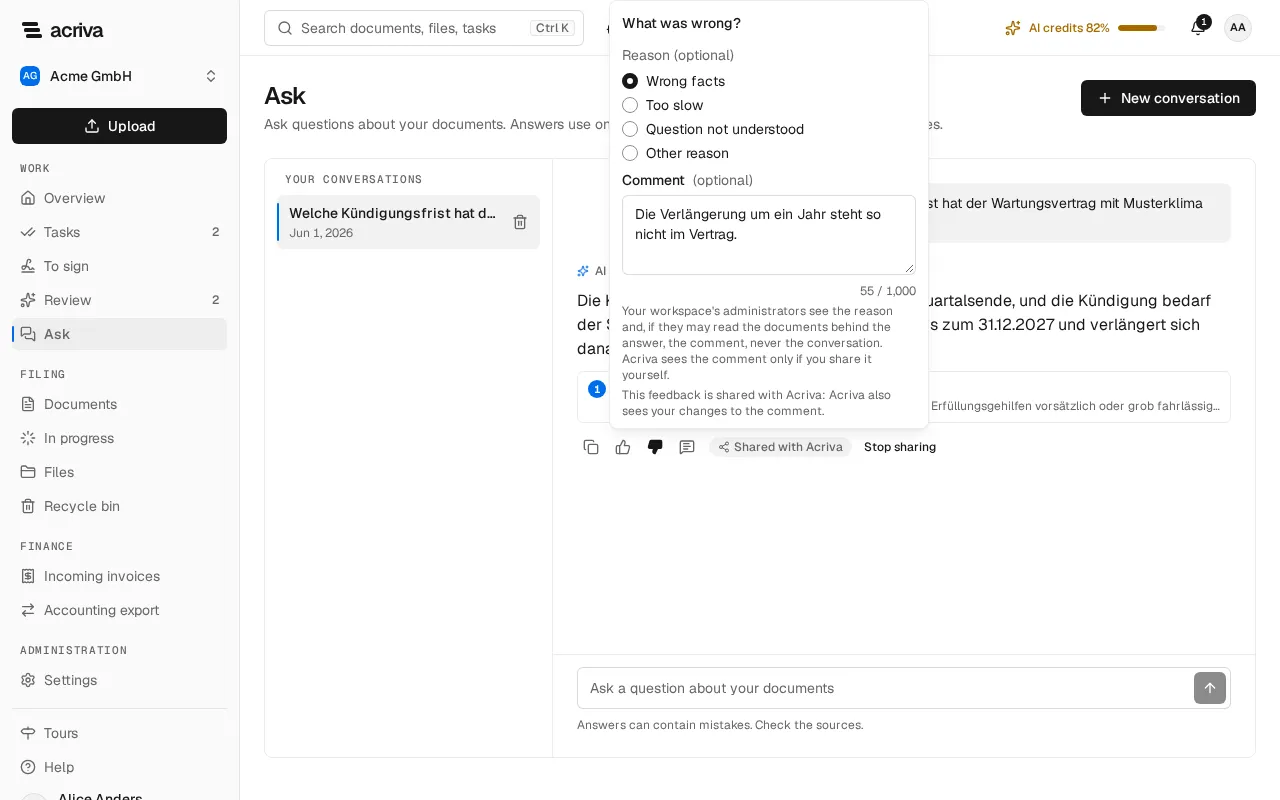
Section titled “Rate AI answers”Under every finished answer of the AI, in Ask, in the tab Chat of a document, in the AI assistant and under a summary, two small buttons let you rate it: Helpful (thumbs up) and Not helpful (thumbs down). Select the same button again to remove your rating. You rate each answer once and can change it at any time.
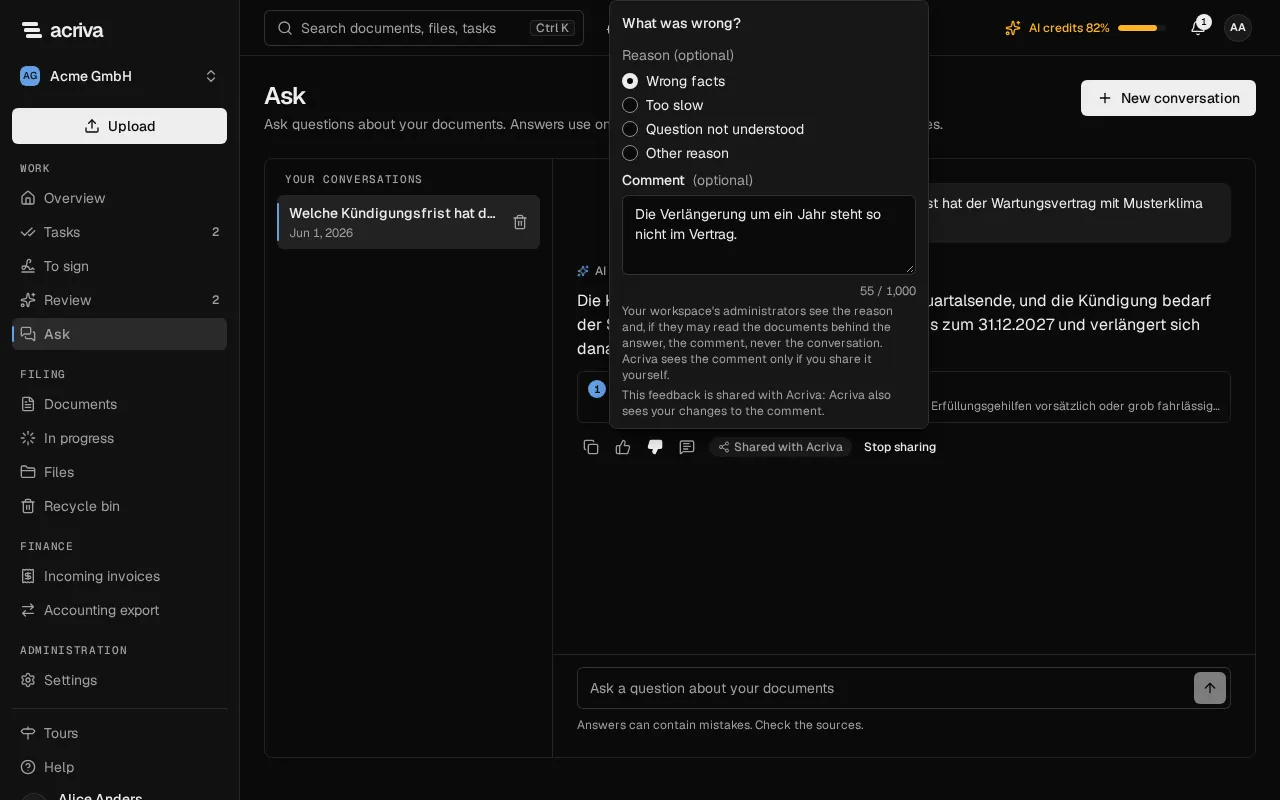
With Not helpful a small form opens, What was wrong?, with an optional Reason and Comment (at most 1,000 characters). Select Send. Reason and comment next to the buttons opens the form again later. Your workspace’s administrators see the reason and the comment, but only if they may read the documents behind the answer, and never your conversation.
Share a rating with Acriva
Section titled “Share a rating with Acriva”A Not helpful rating can help us improve the AI. Share with Acriva… in the form shows exactly what Acriva sees before you share, under Acriva sees::
- the rating, the reason and where the answer was given, with The AI model and the prompt version;
- when you share your own rating: your comment and The question and the answer of this step of the conversation, with the tools used and the sources (without titles or excerpts), or the text of the summary.
The question and the answer stay out when the answer is based on a confidential document, when it is no longer available, or when an administrator shares someone else’s rating. Then the comment stays out too. Acriva doesn’t copy anything: it reads the rating only while it is shared, and it uses invented examples of the same kind to improve the AI. The shared rating shows Shared with Acriva; Stop sharing ends it at once. While a rating is shared, Acriva also sees a comment you change later, as it is then; the form says so. Every share, every end of a share by a person and every time Acriva reads a shared rating is recorded in the audit log. What is stored and for how long is in the privacy notice.
AI feedback
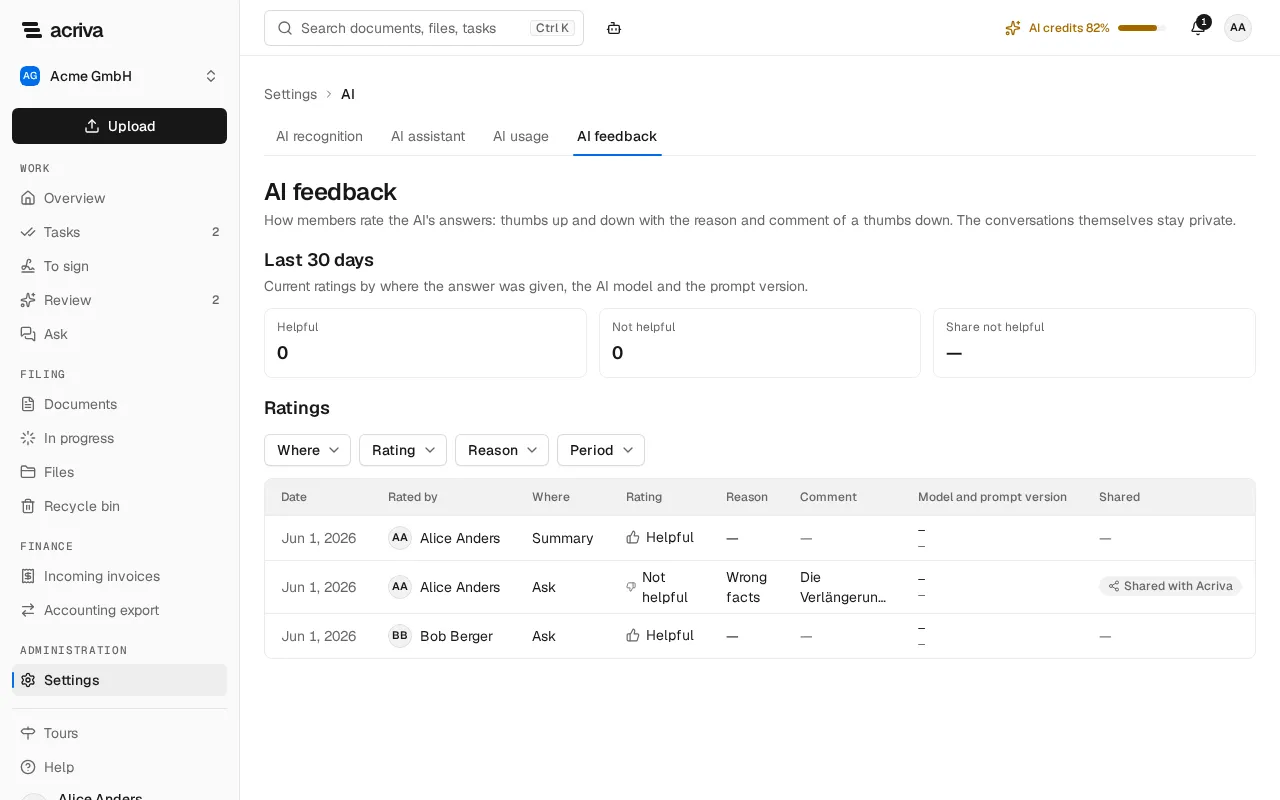
Section titled “AI feedback”Administrators see how the members rate the AI’s answers: select Settings in the sidebar, then AI feedback under Workspace. The top shows the ratings of the Last 30 days by feature, AI model and prompt version, with the share of Not helpful. The table lists every rating with its date, who rated it, the feature, the rating, the reason, the comment, the model and the prompt version; filter it by these. A comment shows only if you may read the documents behind the answer.
In a rating’s menu, Open conversation opens your own conversations only: the conversations of other people stay private. Open document opens the summary’s document if you may read it. Administrators can also share any rating with Acriva, then without the comment and without the question and the answer, and stop any share.
A rating is deleted 90 days after its last change and when its former member is anonymized. A summary’s rating is deleted with the document. When the conversation or another document behind an answer is deleted, its rating loses its comment and its share. The numbers above the table cover at most one year.