

Audit log
The audit log records what happens in a workspace: new and changed document types, files, tags, uploads, views and downloads, role changes, invitations, changes to the workspace settings, and published, paused and resumed workflow templates. Nobody can change or delete an entry, not even the owner of the workspace. Everyone with the permission See the audit log can open it, and so can every built-in role.
A retry of a failed processing run and a request to process a document again are recorded too, as Processing run retried and Reprocessing requested, with who asked, the version and the new run (see Processing and quarantine).
Find a change
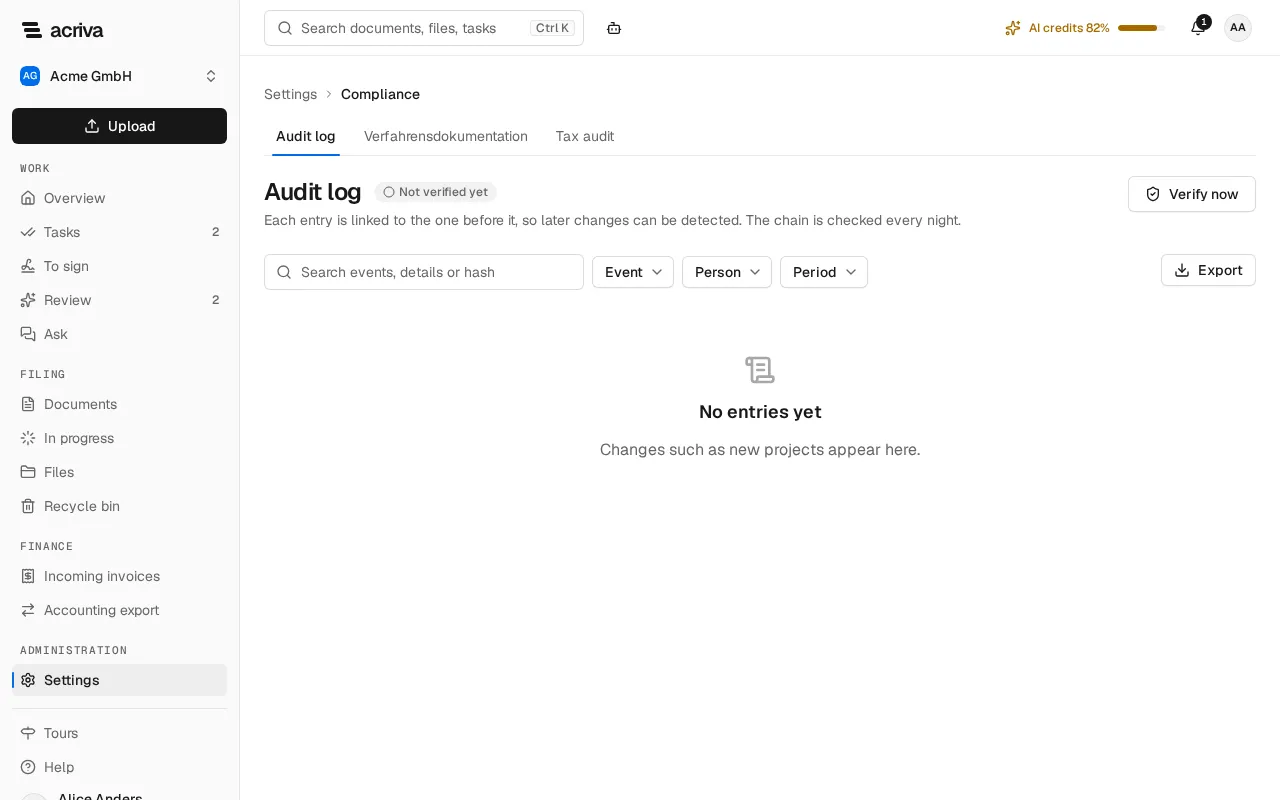
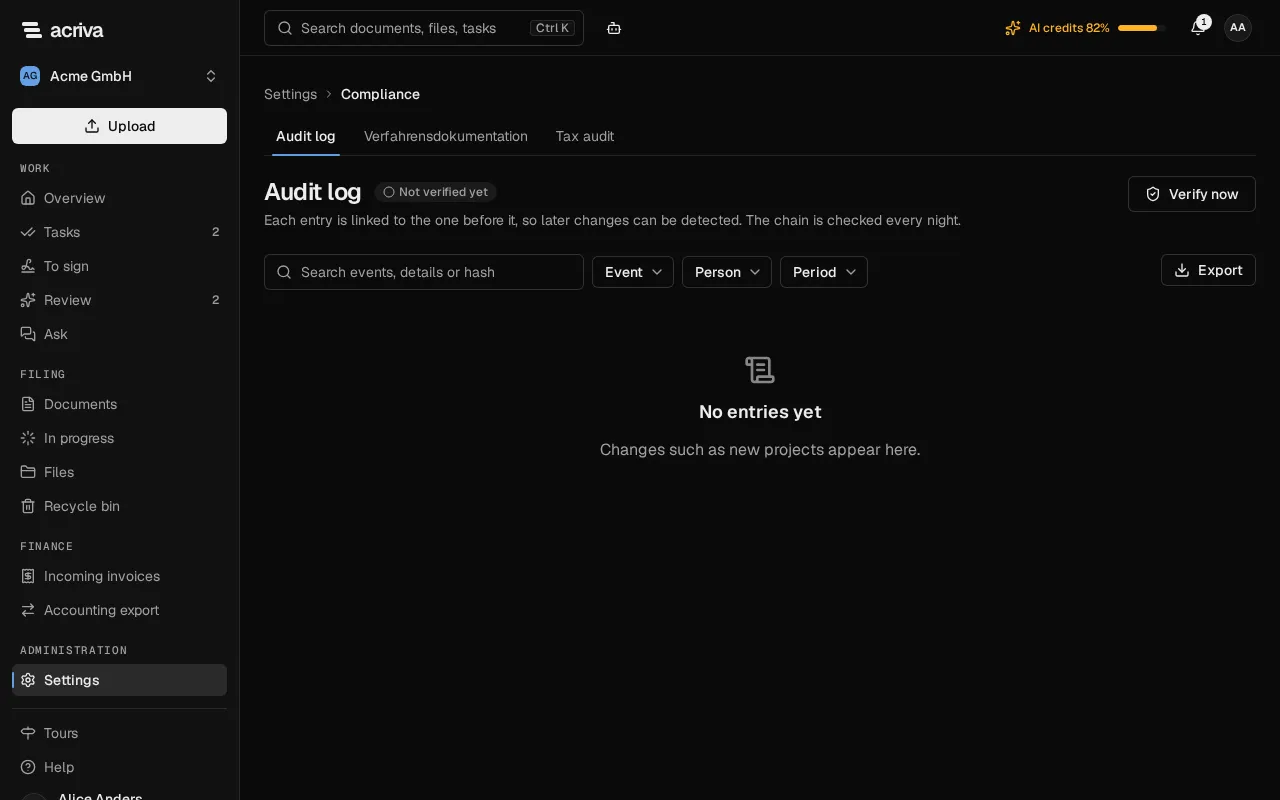
Section titled “Find a change”Select Settings in the sidebar, then Audit log in the category Compliance. The page lists the changes of this workspace, newest first, with the time, the event, the details, who made the change and the Hash: the start of the hash that links the entry into the chain. Use it to name an entry exactly.
- Type a term into Search events, details or hash, such as an invoice number or the first characters of a hash. The list then shows only the matching entries.
- To narrow the list further, choose an Event, a member under Person (shown when you may see the members), or set a date under From and To in Period. Each filter shows as a chip above the list; remove it with its ×.
- Select Reset filters to see every entry again.
- Below the list you see which entries are shown and how many there are, such as “1–50 of 1,284”. The arrows next to it go to the next or the previous page.
The filters are part of the page’s address, so you can bookmark or share a filtered view.
Export the audit log
Section titled “Export the audit log”Select Export beside the filters. Acriva saves the entries that match the filters as a CSV file: the time, the person, the event, the details and the chain’s hash values, with semicolons between the cells. While the export loads, Cancel stops it.
- An export holds at most 100,000 entries. With more, narrow the period or the filters and export in several parts.
- Every export is in the audit log itself, as Audit log exported.
- You export the entries of a single document in its History, with Export as well.
Check that the audit log is complete
Section titled “Check that the audit log is complete”Each entry is linked to the one before it with a cryptographic hash, so the entries form a chain. Changing, removing or inserting an entry breaks the chain. Every night, Acriva checks the chain of every workspace, and it also compares the chain with a copy of its latest entry that it saves once a day in the locked document archive. That copy can’t be changed, so even a chain rebuilt from the start doesn’t go unnoticed.
Owners and admins, or everyone with the permission Verify the audit log’s hash chain, see the state of the chain at the top of the page:
- The title counts the entries of the workspace, and the badge beside it shows the result of the last check: Chain verified · … with its time when it found no error, Chain broken · … when it found one, or Not verified yet.
- The line below says when the chain was Last checked, whether nightly or on request, and how many entries that check read.
To check the chain now, select Verify now. The check reads every entry, so it can take a moment in a large workspace. The message The chain is intact. confirms the result.
When the chain is broken
Section titled “When the chain is broken”If a check finds an error, a message above the list says at which entry the chain fails and why, for example “the entry was changed” or “the chain no longer matches its locked daily copy”. Acriva’s operations team is alerted at the same time and investigates it as a security incident. Nothing is repaired: the entries stay as they are, so the break remains visible and traceable.
Once the break has been investigated, it appears under Recorded breaks with its Cause and the Incident reference. Later checks pass a recorded break and report only new ones, so the badge shows Chain verified · … again as long as nothing else changed.