

AI assistant
The AI assistant is a panel at the right edge that you open on every page of your workspace. It explains how Acriva works, finds and reads documents, Akten, invoices and tasks for you, opens pages, and proposes changes. A change is only ever a proposal on a card: nothing happens until you select Run on it. The assistant always acts as you, with your permissions, never with more.
Open the assistant
Section titled “Open the assistant”- Select AI assistant in the top bar, next to the search, or press Ctrl+. (⌘. on a Mac). The same shortcut closes the panel again.
- Type your question or request in the field Message, for example Which invoices from Büro Schmidt KG are still open? or File this invoice in the Akte Schmidt, and press Enter or select Send. A message has at most 4,000 characters.
- The answer appears while the AI writes it. While the assistant works, the panel shows what it does, for example Reading: … or Opening a page. Stop ends the answer; nothing of a stopped answer is charged.
The assistant knows which page you have open: on a document, this document means that one. Closing the panel doesn’t stop an answer, and an open card is still there when you open the panel again.
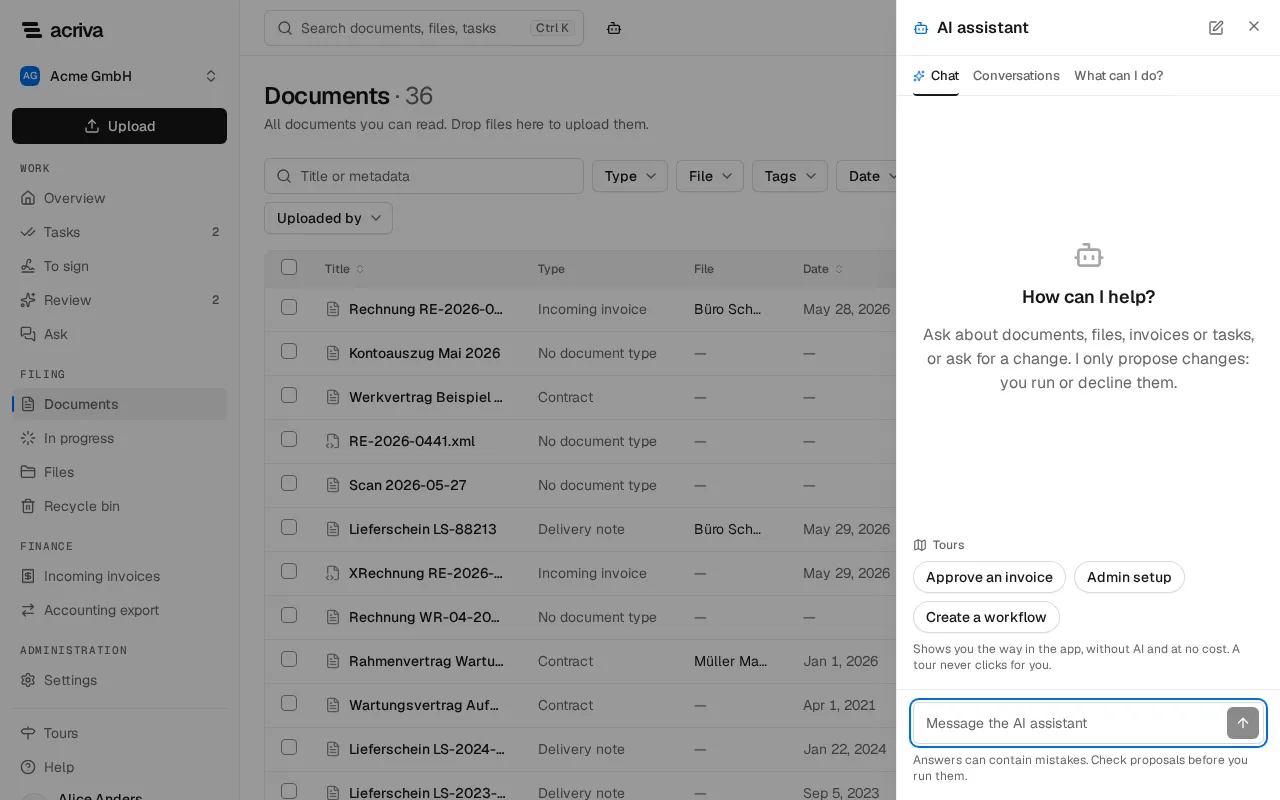
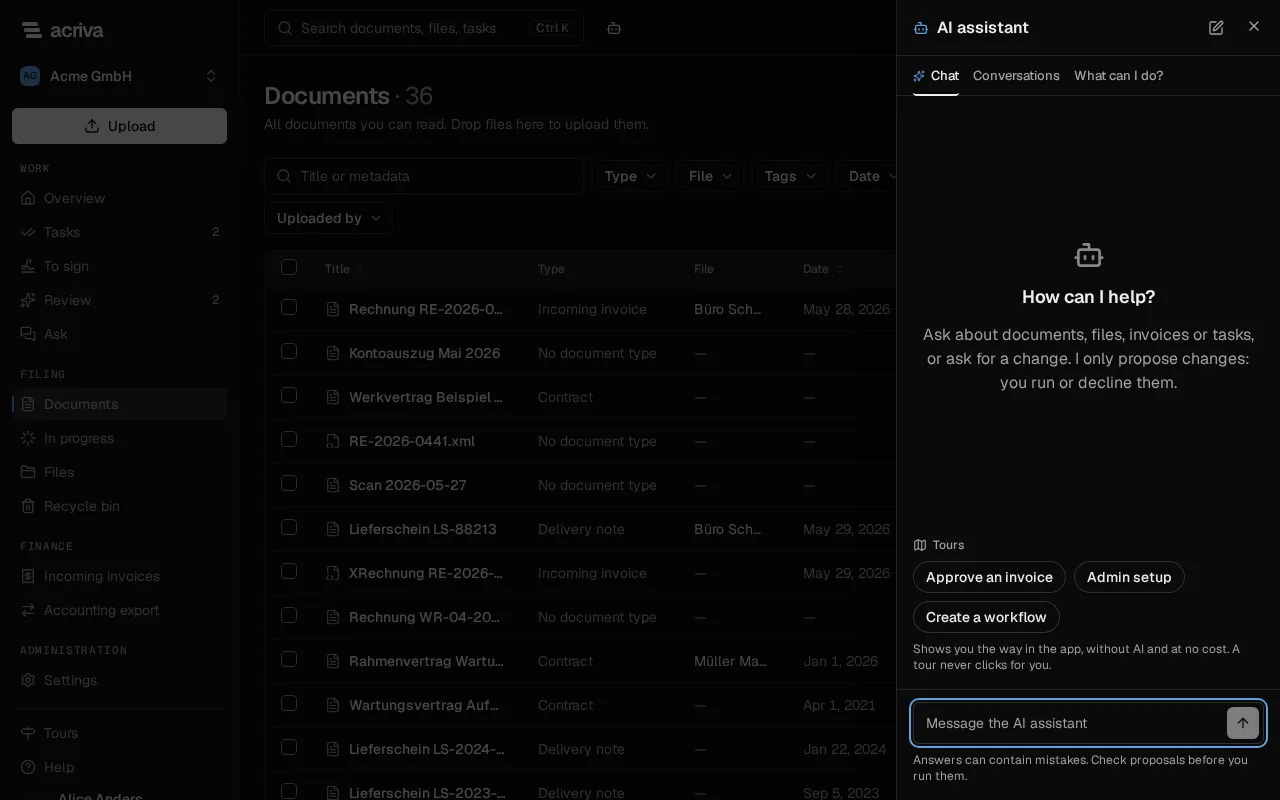
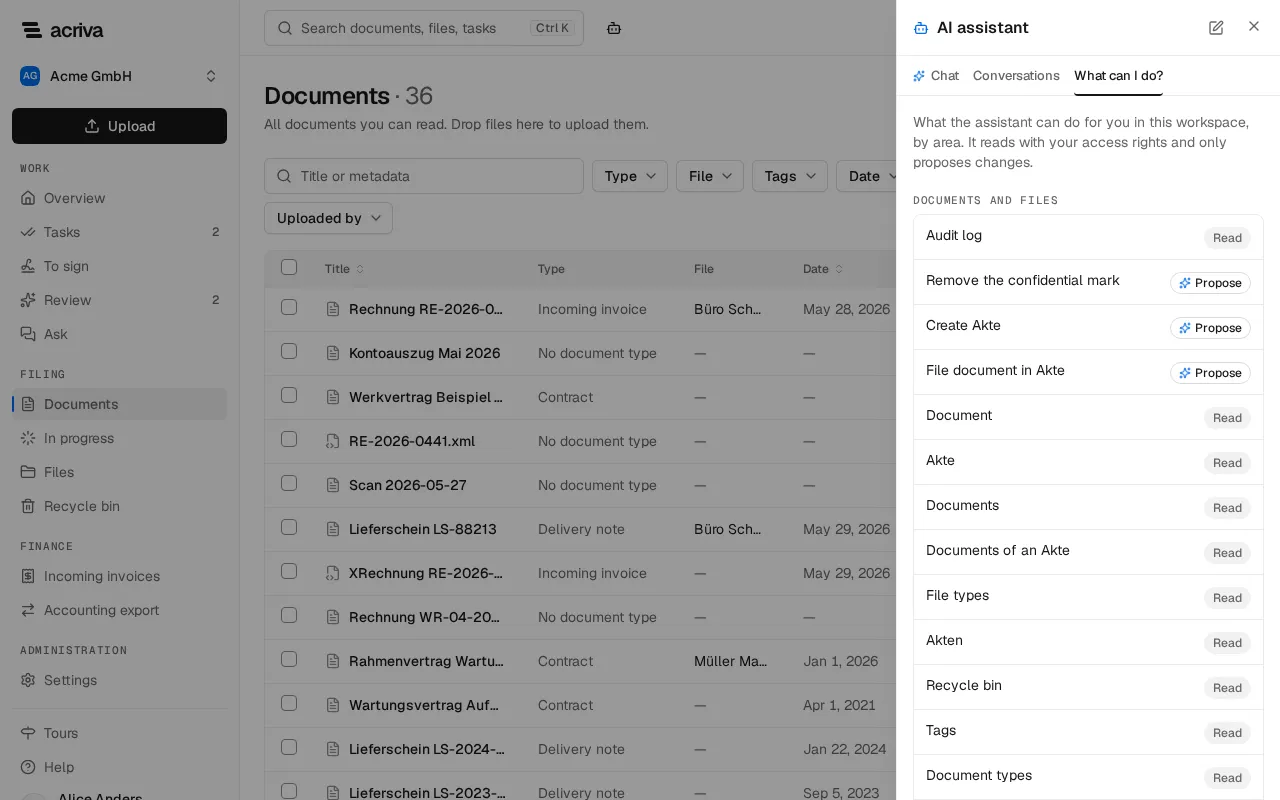
The panel has three tabs:
- Chat: the open conversation. New conversation at the top starts another one.
- Conversations: Your conversations with the assistant, the one with the newest message first. Select one to continue it. A conversation belongs to you alone: nobody else in the workspace can open it, administrators included. It is deleted 90 days after its last message and holds up to 200 messages; then Conversation full asks you to start a new one.
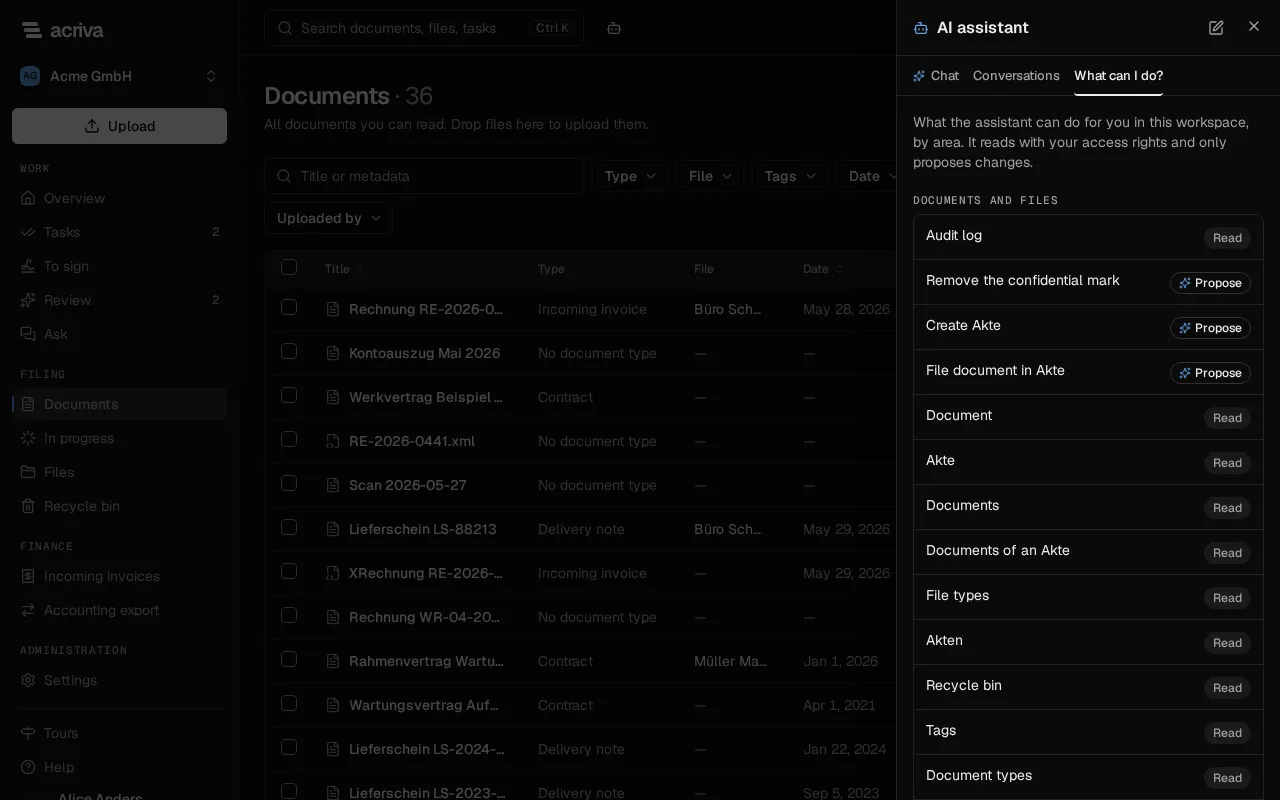
- What can I do?: what the assistant may do for you in this workspace right now, by area, each action marked Read or Propose. The list follows your role, your plan and your workspace’s settings.
The button shows only when your plan includes the assistant, your role has the permission to use it, and your workspace has switched it on for your role (see Settings for administrators). Of the built-in roles, Owner, Admin and Member have the permission; Approver, Auditor and Tax advisor don’t.
What the assistant can do
Section titled “What the assistant can do”- Explain the app. The assistant answers from this help. Its answer links the matching help page, which opens in a new tab, and it can open the page of the app the help describes.
- Find and read. It searches and reads documents, Akten, invoices, vendors, tasks and workflows, a document’s summary and history, the document types, the members and roles, the retention rules, the inbox addresses and the workspace settings, with your access: a document you may not see, or a confidential one you aren’t on the list for, never reaches it. It doesn’t change anything while it reads. It doesn’t read a document’s text: when you ask what a document says and no summary answers it, it points you to the document’s Chat tab, when your plan and role include it (see Ask about one document).
- Open pages. It can take you to a page of the workspace, for example an invoice or your tasks.
- Propose changes, in four areas:
- Documents and files: filing documents into Akten, tagging them, changing their metadata, marking them confidential, moving them to the recycle bin and restoring them, and creating and renaming Akten.
- Invoices and finance: changing an invoice’s details and allocation, linking a vendor to it, creating vendors and creating export packages. When it proposes a Contact email for a new vendor, check it on the card: a workflow’s External email writes to that address (see Finance master data).
- Tasks and workflows: commenting on and delegating tasks, and starting and cancelling workflows.
- Administration: inviting members and changing a member’s role, creating and changing document types, saving retention rules, creating inbox addresses and changing the workspace settings. This area is off until an administrator switches it on.
Tours from the assistant
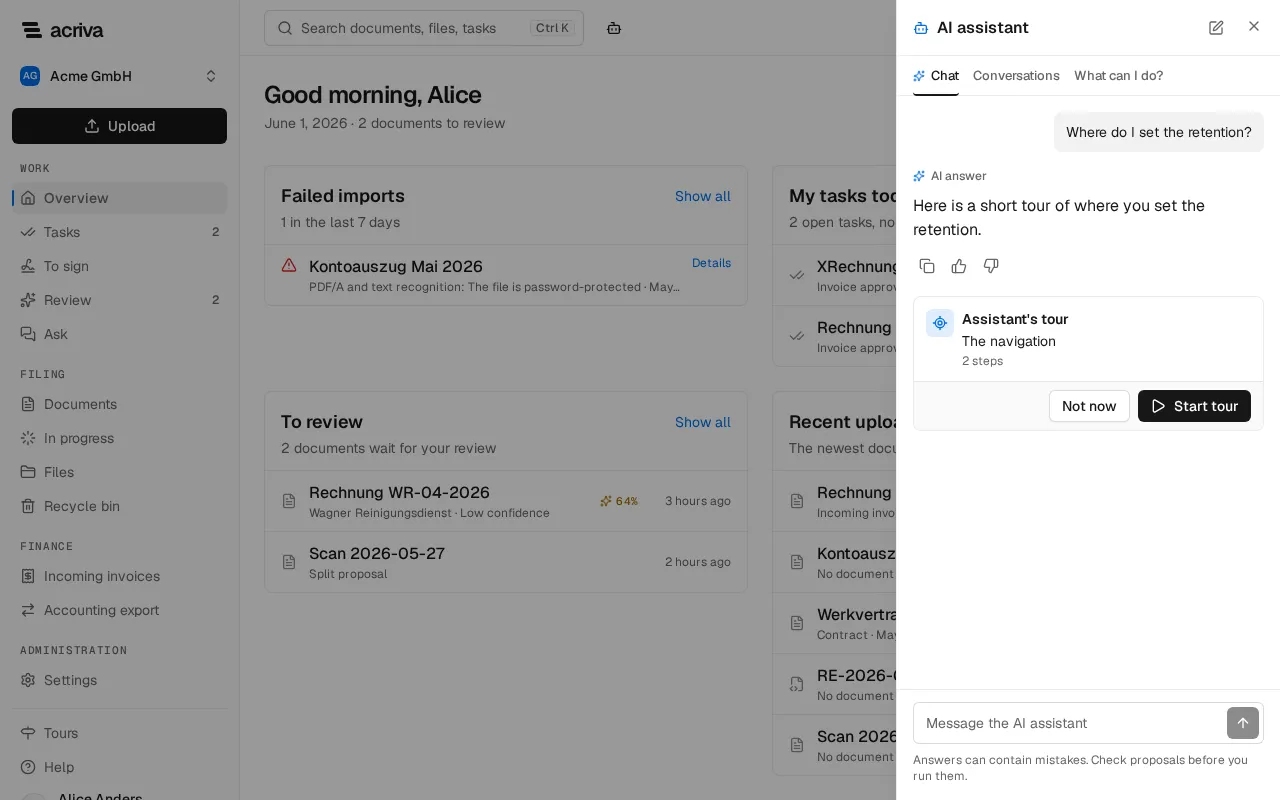
Section titled “Tours from the assistant”When you ask where something is or how a task goes, for example Where do I set the retention?, the assistant offers you a tour instead of a description, as long as the page in question has elements marked for tours. It offers one of two kinds:
- One of the three tours. If one of them fits, such as Approve an invoice for Show me how to approve an invoice, the assistant offers it to you.
- A short free tour. Otherwise it puts a tour of one to six steps together from this help and the elements the app marks for tours. Each step points at such an element on a page the assistant may open for you. A step never points at a button that approves, returns, saves, publishes or creates, and the assistant can’t make up an element: the app refuses such a step before it reaches your screen, and the assistant gets the refusal instead. Such elements are in the navigation, on Files (the list, its filter File type, the head of the page with Create file, a file’s key fields and documents), Documents (the list, its filters, a document’s metadata), Search (the field and the filters), Incoming invoices (the list and its tabs by state), Tasks and the settings pages, for example Document types, File types and Retention. Asked “How do I create a new file?”, the assistant offers a tour that shows you the page Files and where Create file is; you select it yourself.
When the page has no such elements, for example for the language in the account menu, the assistant answers in text with a link to this help. Questions about your data, such as where an approval stands or how much invoices add up to, it always answers with the data, never with a tour.
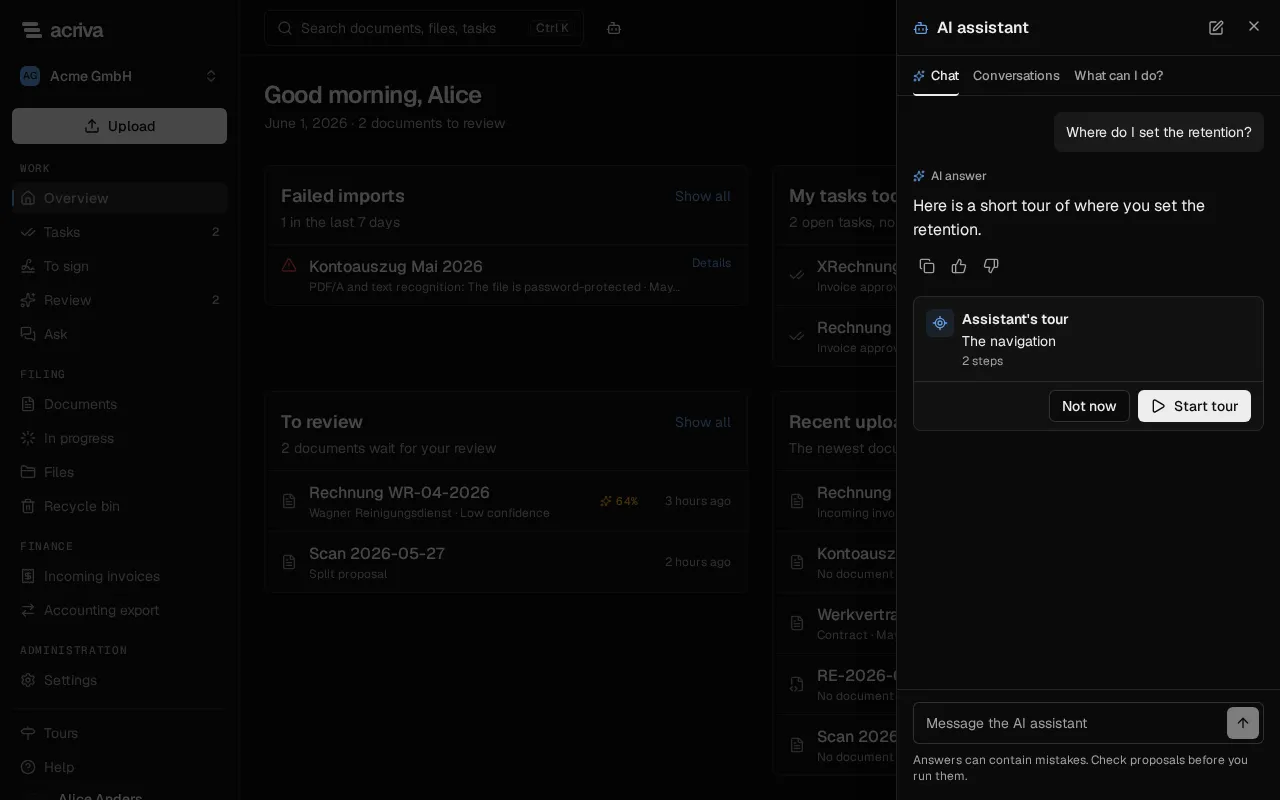
The assistant never starts a tour by itself. Its answer shows the tour as a card in the chat: with its name (for a free tour Assistant’s tour and the title of its first step) and the number of its steps.
- Select Start tour to follow the tour. The panel closes so that the tour can show the page.
- Or select Not now. The card stays in the conversation, and you can begin the tour there later with Start tour.
The card also stays when you open the conversation again later under Conversations. If a free tour’s steps no longer fit the app, for example after a new version, it reads Tour no longer available; ask the assistant again then.
A free tour is marked Assistant’s tour above its step, and Assistant’s tour paused when you leave its path, so you can tell it from the app’s own tours. The tour’s texts come from the assistant. You follow the tour as any other, with Next, Back and End tour; a step you can’t see with your role or your plan is skipped with Step skipped. A free tour isn’t listed under Tours and isn’t kept: when it ends, it is gone.
Like every tour, a tour from the assistant never clicks, types or saves for you. A change still needs its proposal and your Run.
On the panel’s start screen, the buttons under Tours start the tours you can see directly, without a question to the AI and at no cost.
Run or decline a proposal
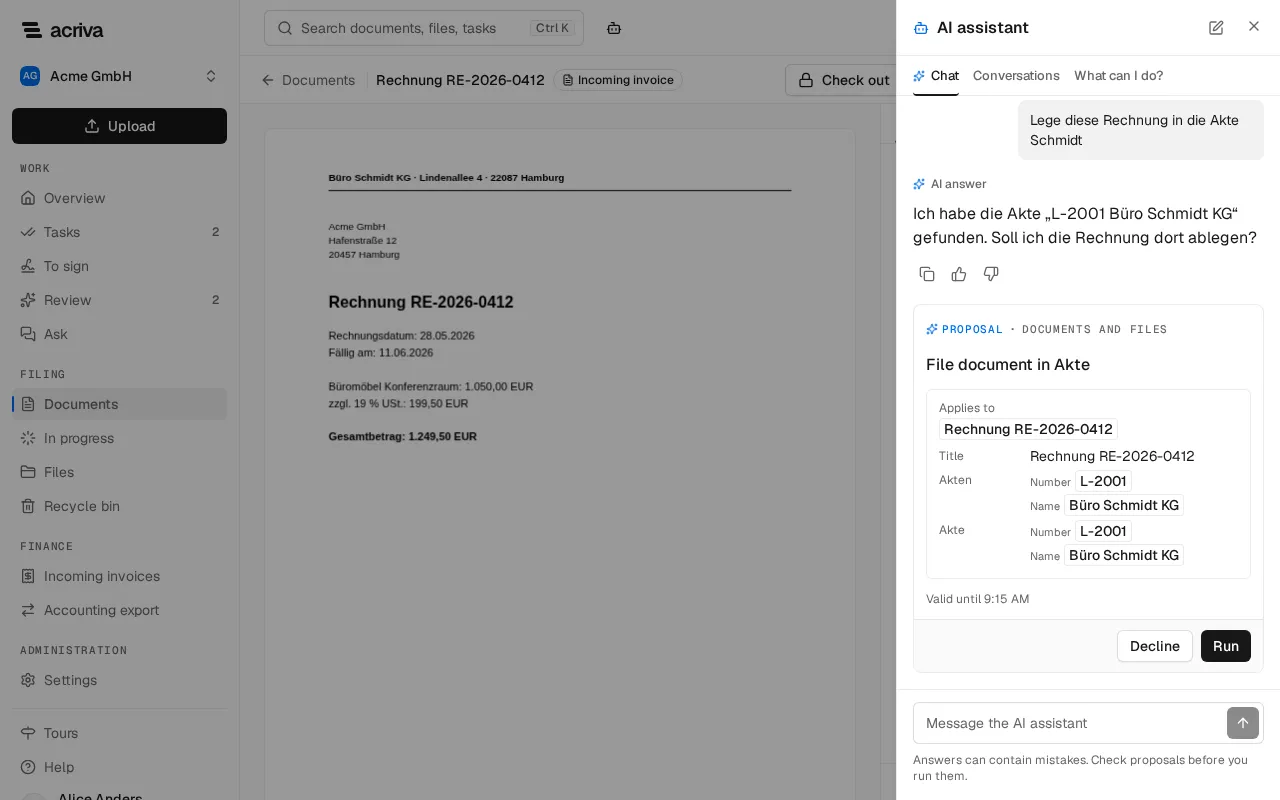
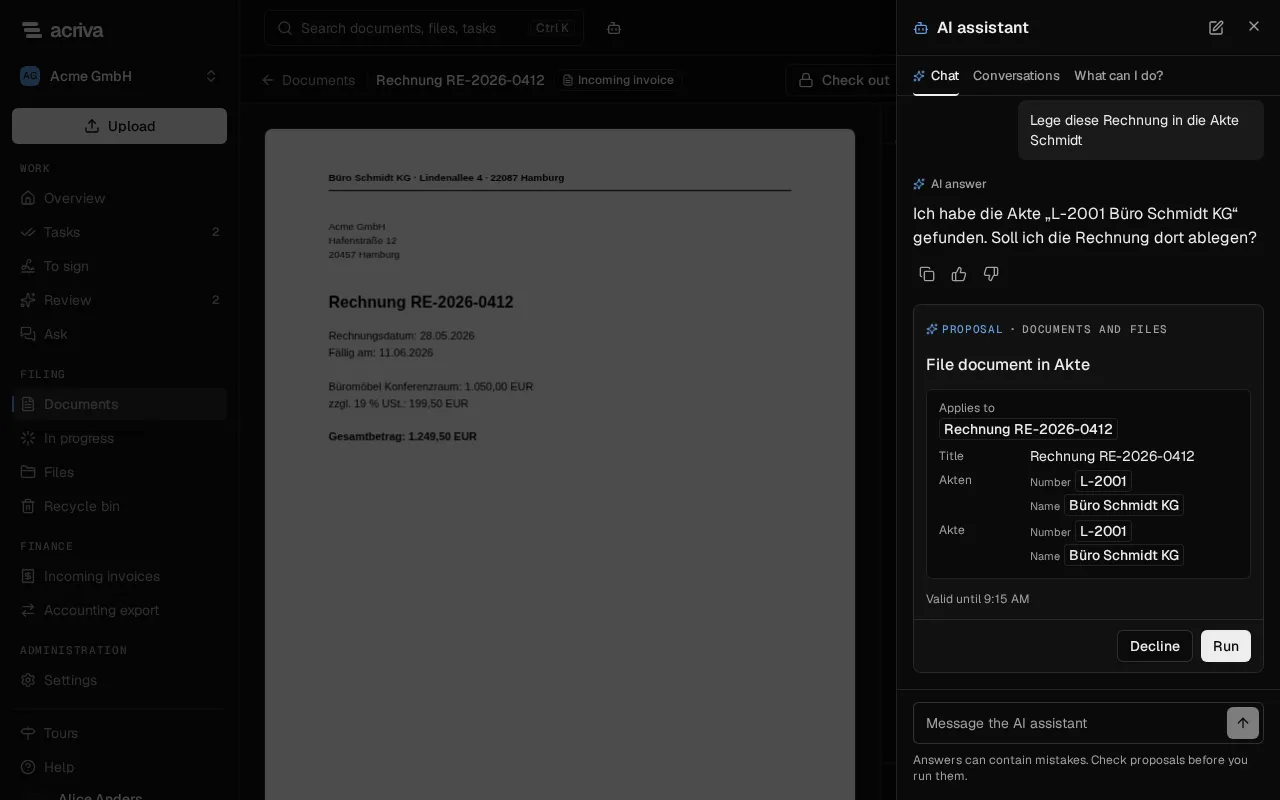
Section titled “Run or decline a proposal”When you ask for a change, the assistant shows a card in the chat. Its top line reads Proposal and the area, its heading names the action, for example File document in Akte, and each item names what it applies to (Applies to): the document, the Akte or the person by name, a type by its name in your language. Below, it lists the values the change sets; where a value changes, it shows the value now, an arrow and the value after. A number that a new Akte gets from its file type’s number series reads Assigned automatically there.
- Check the card. Valid until says until when you can run it.
- Select Run to carry the change out, or Decline to drop it. Nothing happens before you select one of them.
The selected items then run as your own action, as if you had made the change yourself. The card shows the result next to each item: Executed, Declined or Failed with the reason, for example “Failed: A file with this number already exists.” After your decision, the assistant answers with what came of it, also when an item failed; if you have written another message in the meantime, it takes the outcome into account with your next one.
- Several items. A proposal can hold up to 50 items of the same kind, for example ten invoices to file. Only such a card has a checkbox for each item. Tick the items you want; All ticks every item, and once all are ticked the same button reads None and unticks them. The card counts them (3 of 10 selected). Run (3) runs the ticked items, and the unticked ones count as declined. Each item shows its own result.
- Not confirmed. A proposal you neither run nor decline within 30 minutes expires as Not confirmed, and nothing runs. Ask the assistant again if you still want the change.
- A name the card can’t show. If the card can’t name an object, because it couldn’t be loaded or you may not see it, the card says Not every object could be named and Run stays unavailable: you can’t run what you can’t identify. Select Load again, untick the item on a card with several items, or decline the proposal.
- A value is missing. If the proposal leaves a value empty that the change needs and nothing assigns by itself, such as the number of an Akte whose file type has no number series, the value reads Missing, the card says so under A value is missing, and Run stays unavailable. Decline the proposal and give the assistant the value.
- Two objects with the same name. If another entry of the list the card reads carries the same name, for example two members you could delegate a task to, the card can’t show whom the proposal means. It marks the object with a warning sign and Name shared, says so under Not every object could be named, and Run stays unavailable while that item is ticked. Make the change on its page in the app instead.
- Several cards. You can keep writing while a card is open; each card needs its own decision and expires on its own. While a card is running, the field waits until it is done.
A change you ran through the assistant is recorded under your name. A document’s History shows it as, for example, “Max Muster (via the assistant)” (see Open a document), and the audit log lists the proposal, your decision and its execution.
Answers can contain mistakes. Check proposals before you run them. The panel says so under the message field.
What the assistant never does
Section titled “What the assistant never does”- It never sees or does more than you may. It acts with your permissions, and every action checks them again when it runs.
- It never changes anything without your click on Run. What a document says can’t make it act: at most it puts a card before you, which you can decline.
- It never approves, rejects, returns or completes a task, never approves an invoice, never confirms an AI result in the review queue or an invoice’s vendor, and never accepts an AI suggestion. These decisions stay with people.
- It never deletes a document for good: it can move one to the recycle bin, but never empty the bin or start a deletion run.
- It never lifts a legal hold or removes a document or an Akte from one, and never releases a file from quarantine or a held email.
- It never creates, shows or revokes API keys, and never gives or takes anyone’s access to documents.
- It never changes how people sign in (single sign-on, the security settings, resetting someone’s second factor), a role’s permissions, the workspace address or the tax auditor’s access, and never removes or anonymizes a member.
- An invitation or role change it proposes never changes your own role, never gives or takes an administrative role such as Owner or Admin, and never gives a role beyond your own.
- It never changes its own settings.
You can rate every answer with Helpful or Not helpful and share a bad one with Acriva: see Rate AI answers.
What it costs
Section titled “What it costs”The assistant is paid in AI credits, from the same monthly AI credits as the AI recognition:
| What | AI credits |
|---|---|
| A question, with everything the assistant reads for its answer and the proposal it makes | 1 |
| Running or declining a proposal, and the assistant’s answer after your decision | 0 |
| A stopped or interrupted answer | 0 |
| An answer that ends with Too many steps or A step failed twice | 0 |
| Opening the panel, What can I do? and your conversations | 0 |
| A question the assistant answers with a free tour | 1 |
| A question that only starts one of the three tours, up to 5 a day | 0 |
| A tour from the buttons Tours in the panel | 0 |
A question whose answer only starts one of the three tours, with nothing else but a short sentence, is free if the tour starts: for your first 5 such questions of a day in the workspace. From the sixth, it costs 1 credit like any question.
An answer needs at most 8 steps; one that needs more ends with Too many steps, and nothing is saved or charged. When the AI credits of the month are used up, AI credits used up appears and nothing is charged. The page AI usage shows the assistant’s credits as the step Assistant.
The assistant comes with the plans Business and Enterprise and with the trial, and as the add-on AI assistant for Starter (see Subscription).
What the AI receives
Section titled “What the AI receives”For each answer, the AI receives your message, the earlier messages of the conversation, the page you have open with the IDs it shows, the list of the help pages, and what the assistant read for you, which is only what you may read. Acriva sends them through its AI gateway only to AI models that run in the EU, at providers that keep no copy and don’t train on them (see AI recognition). Every AI call is recorded in the audit log.
Settings for administrators
Section titled “Settings for administrators”Owners and admins decide on the page AI assistant whether the assistant is available, where it may propose changes and which roles may use it. Select Settings in the sidebar, then AI assistant under Filing. The page is there for everyone with the permission to change the AI settings, which the built-in roles Owner and Admin have, and only while your plan includes the assistant.
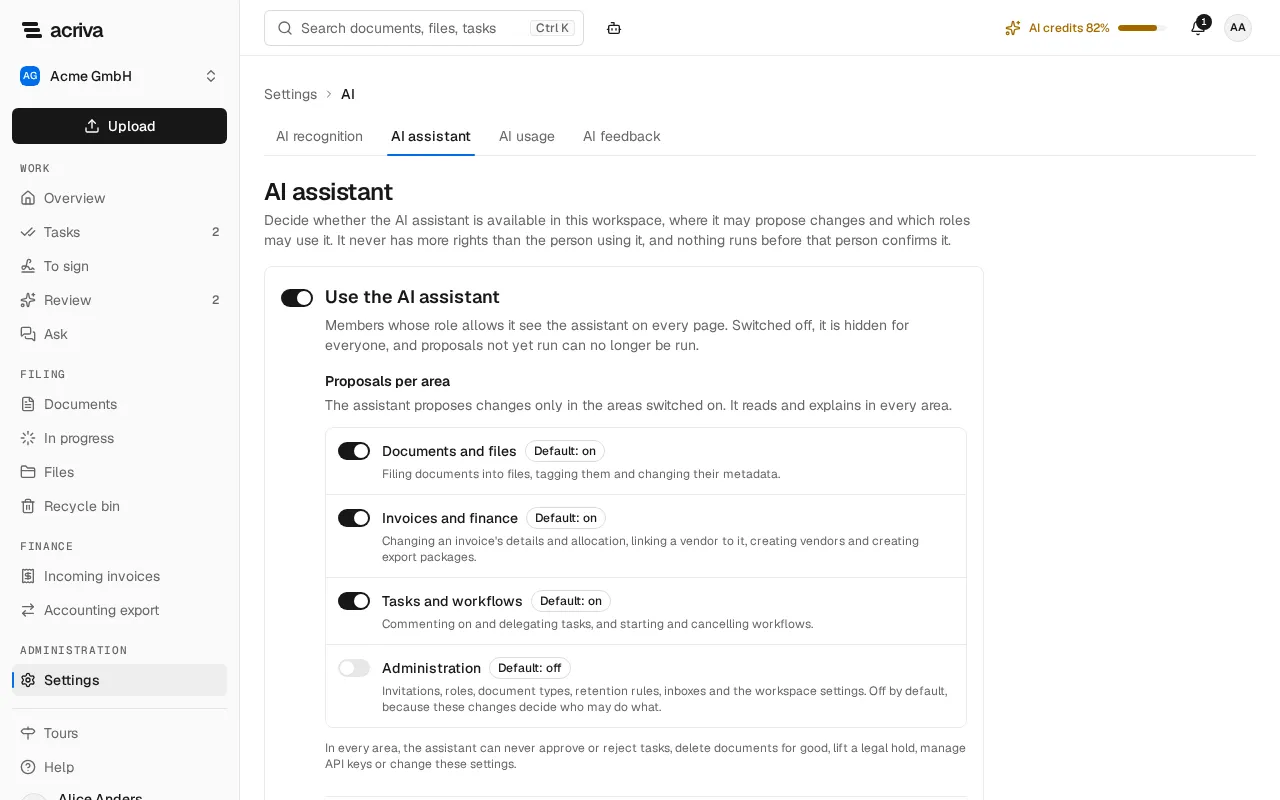
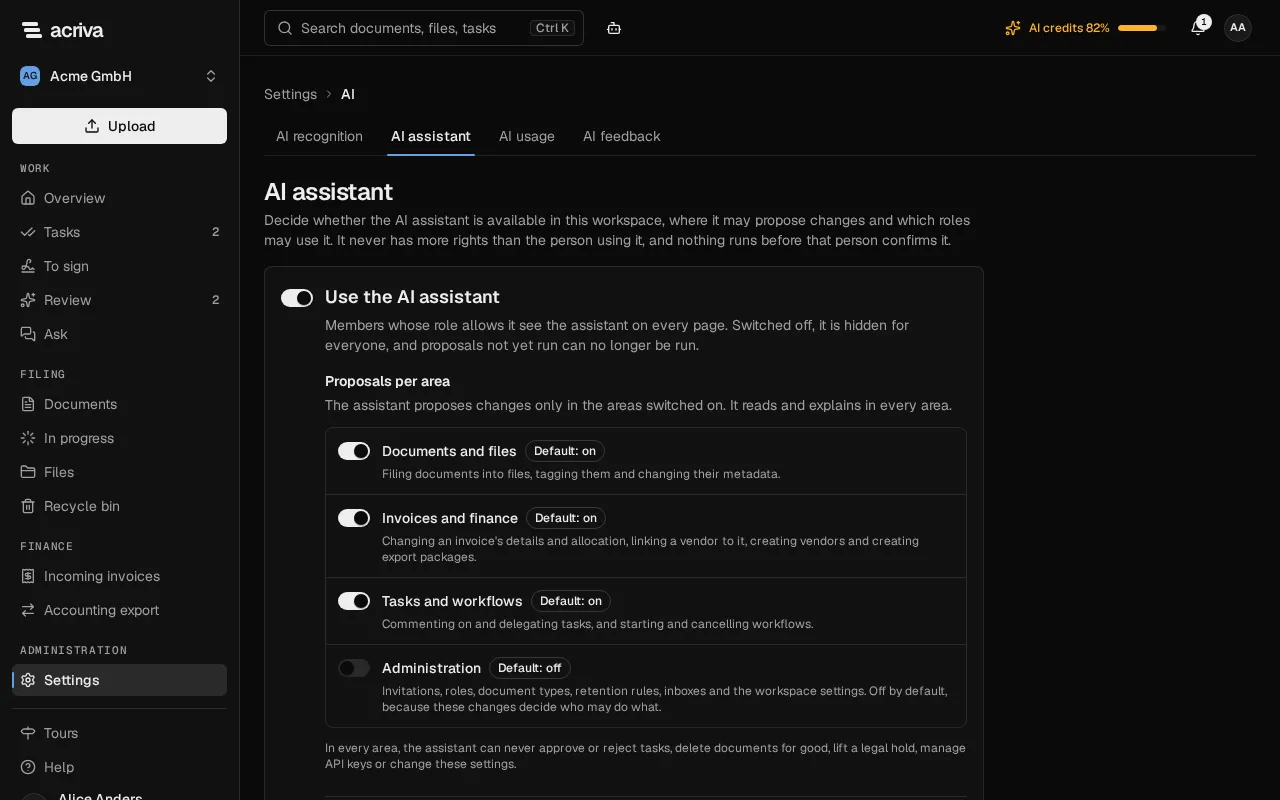
- Use the AI assistant: the switch for the whole workspace. Switched off, the assistant is hidden for everyone (the button and Ctrl+. are gone), and proposals not yet run can no longer be run.
- Proposals per area: one switch each for Documents and files, Invoices and finance, Tasks and workflows and Administration. The assistant proposes changes only in the areas switched on; it reads and explains in every area. Administration is Default: off, because these changes decide who may do what; the others are Default: on.
- Roles: Every role, or Only selected roles with a tick for each role that may use the assistant. A role also needs the permission to use the AI assistant; a role without it says so in the list. For members of a role you leave out, the assistant is hidden.
The card counts your unsaved changes; Save saves them and Discard drops them. The card’s footer says Default settings until someone saves, then Last changed on …. The audit log records every change as AI assistant settings changed.
The settings narrow what the assistant may do; they never give anyone a right. In no area can the assistant do what the list in What the assistant never does excludes.