

Verfahrensdokumentation
The Verfahrensdokumentation (procedural documentation) describes how your company captures, processes, keeps and deletes its records with Acriva. Acriva generates it as a PDF from the configuration of your workspace and files every version as a record that can’t be changed.
The page Verfahrensdokumentation
Section titled “The page Verfahrensdokumentation”You find Verfahrensdokumentation in the Settings, in the category Compliance.
- You see the page with the permission See retention rules, legal holds, deletion runs and the Verfahrensdokumentation.
- You generate a version with the permission Change retention rules, set and lift legal holds, and generate the Verfahrensdokumentation.
- Of the built-in roles, Owner and Admin have both.
At the top, a notice says how your configuration stands against the last version:
- There is no version yet: generate the first one.
- The configuration has changed since version …: the notice names the sections that are affected.
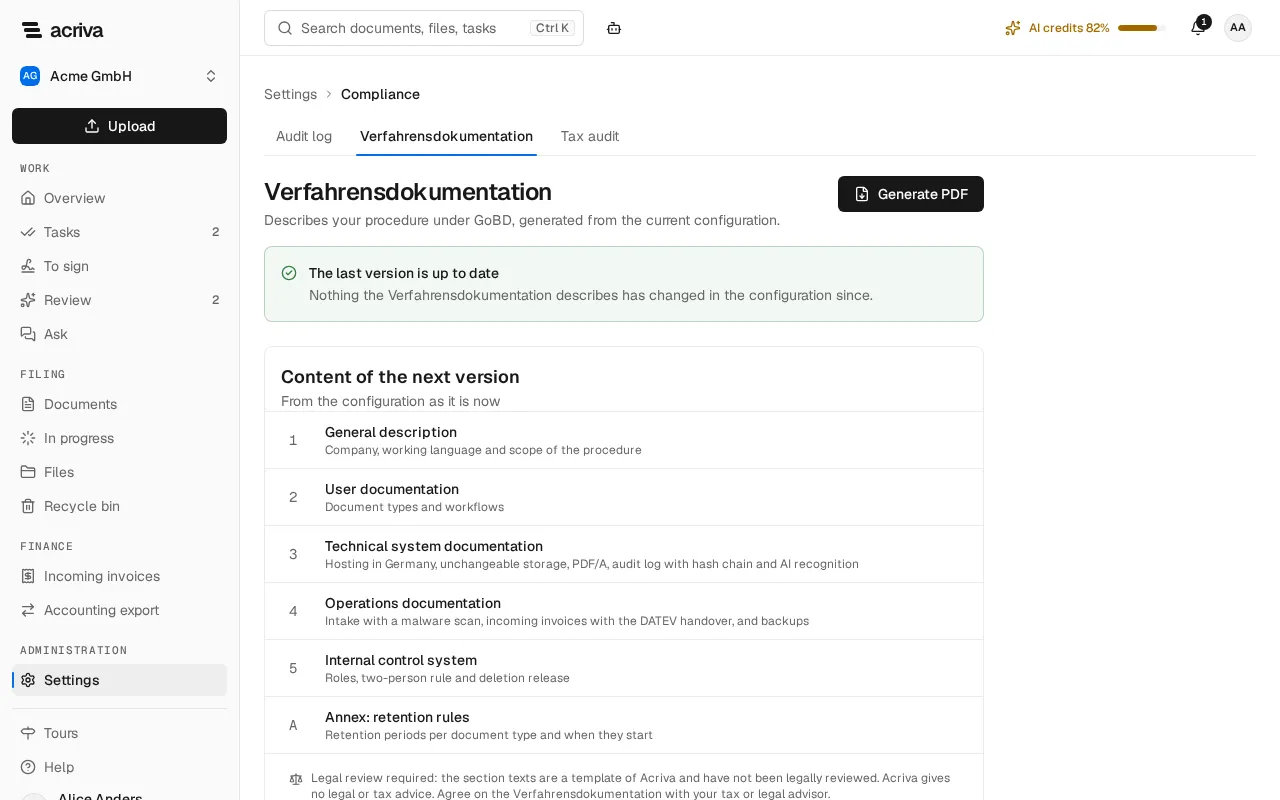
- The last version is up to date: nothing the Verfahrensdokumentation describes has changed since.
- State of the configuration: you see no version, because only Owner and Admin read them. The notice then only explains the marks.
What a version describes
Section titled “What a version describes”The card Content of the next version lists the six sections of the document. A section whose configuration differs from the last version is marked Changed. While there is no version, that is all of them.
The PDF starts with the name of the workspace, the version line with the number, the day and the reason, and the note “Draft – legal review required”. Then come these sections, by the names the card Content of the next version gives them:
| Section | What the PDF holds |
|---|---|
| 1. General description | What the document describes, for which company, and the language of the workspace. |
| 2. User documentation | A table of the document types, each with whether it is active, and a table of the published workflows with the type they start for, their version and whether they are paused. Each workflow with scripts follows with a table of its scripts (see below). |
| 3. Technical system documentation | Fixed texts about hosting, the unchanged storage with the object lock, the PDF/A copies and text recognition, the audit log’s hash chain and the AI recognition. |
| 4. Operations documentation | Fixed texts about how documents arrive and are scanned, the invoices and the DATEV hand-over, and the backup, with the chart of accounts, the G/L account length, the start of the fiscal year and whether the consultant and client number are entered. |
| 5. Internal control system | A table of the roles, each with whether it is built in, and fixed texts about approvals and the two-person deletion. |
| A. Annex: retention rules | A table of the retention rules: document type, period in years, start and legal basis. |
For each published workflow that runs scripts, section 2 names every script with its step, its hook (the place in the flow where it runs, such as After the document arrives), its file, the checksum (SHA-256) of the frozen script, the SDK version, the data sources and data tables it reads, and the fields it sets (the field keys its code names; a field the script picks only while it runs isn’t listed, and a script published before this list existed shows not recorded until its workflow is published again). The checksum is shortened in the table and given in full below it; every run of a script records the same checksum. Below that come the fields the workflow declares (field, key, field type and document types), and the sentence that a script may also set other fields of the document type the workflow starts for (for a workflow without a document type, of any document it runs on), but never the fields of an incoming invoice that invoice processing reads. The PDF doesn’t print a script’s source code. When a workflow’s conditions read data tables, a line below the workflow names those tables, also for a workflow without scripts.
The PDF is written in the default language of your workspace, German or English. It holds no content of a document and names no person. It prints no file types, no permissions of a role and no legal holds. Each list in it takes at most 500 rows, the list of workflows at most 200.
A section is marked Changed when the configuration it prints has changed: section 1 with the name or the language of the workspace, section 2 with the document types, the published workflows or their scripts and fields, section 4 with the DATEV connection, section 5 with the roles, and the annex with the retention rules or the names of their types. Section 3 has no configuration. After an update of Acriva that changes the template’s texts, every section is marked.
Generate a version
Section titled “Generate a version”- Open Settings and select Verfahrensdokumentation.
- Select Generate PDF. The dialog Generate a new version opens.
- Enter the Reason for the new version, such as “New workflow invoice approval”, in at most 500 characters. The reason is printed into the PDF and shown in the list of versions. It can’t be changed later, so name the occasion and no person.
- Select Generate PDF. Generating can take a moment. Acriva confirms with Version … of the Verfahrensdokumentation generated.
When someone else generates a version at the same moment, Acriva says Another version of the Verfahrensdokumentation is being generated right now. Try again in a moment. The dialog keeps your reason.
Generate a new version whenever the notice names changed sections, so your records follow your configuration.
Versions
Section titled “Versions”The card Versions lists the latest 100 versions, newest first, with the number (v3), the reason, who generated it, the day and the number of pages.
- Select the reason to open the version in the document viewer.
- Select the download icon to save the PDF, with a name like
verfahrensdokumentation-v3.pdf.
Every version is a document of the built-in type Verfahrensdokumentation:
- Who can read it: only people with the role Owner or Admin. Someone else who sees the page reads the sections and their marks, but no version. The card then says No version yet. You see versions when you may read the filed records: owners and administrators.
- A version can’t be changed, replaced or moved to the recycle bin.
- It is kept for 10 years from the end of the year in which it was generated (see The built-in types).
- AI doesn’t read it, and it uses no AI credits.