

E-signature
With the add-on E-signature, a workflow has documents signed electronically, such as a contract by your management and by the contract partner. The signers sign one after the other or all at once: members in Acriva, and people outside your workspace through a link. Once everyone has signed, Acriva stores the signed PDF as a new version of the document, with Acriva’s seal and the Signature log. The original stays as it was.
The add-on is available for the Business and Enterprise plans, not during the trial (see Subscription). It needs the workflow designer, because a document always goes out from a workflow.
How a signature runs
Section titled “How a signature runs”-
A workflow sends the document. The card Send for signature in the workflow designer names the signers, their order, the expiry and how the signature fields are found. When you publish, you confirm the list of signers.
-
Acriva finds the signature fields. Form fields, anchor texts such as
{{acriva:unterschrift:1}}and keywords such as “Signature” in the PDF, with AI where needed, or the document type’s template. When it isn’t certain where someone signs, a person places the fields in the task Signature field review. -
The signers sign. Members under To sign, external people through a link from their email and a Confirmation code. Whoever declines ends the request for everyone.
-
Acriva stores the signed version. It puts the signatures into the fields (with the signer’s drawn or typed signature, if they added one), seals the PDF and stores it with the Signature log as a new version. The workflow continues through signed, declined or expired.
If the PDF already carries a digital signature (a version that was signed before, for example), Acriva draws no visible signatures into it: any change to its content would invalidate that signature. The seal and the Signature log then prove the signatures, and the log says under Visible signatures that they weren’t drawn.
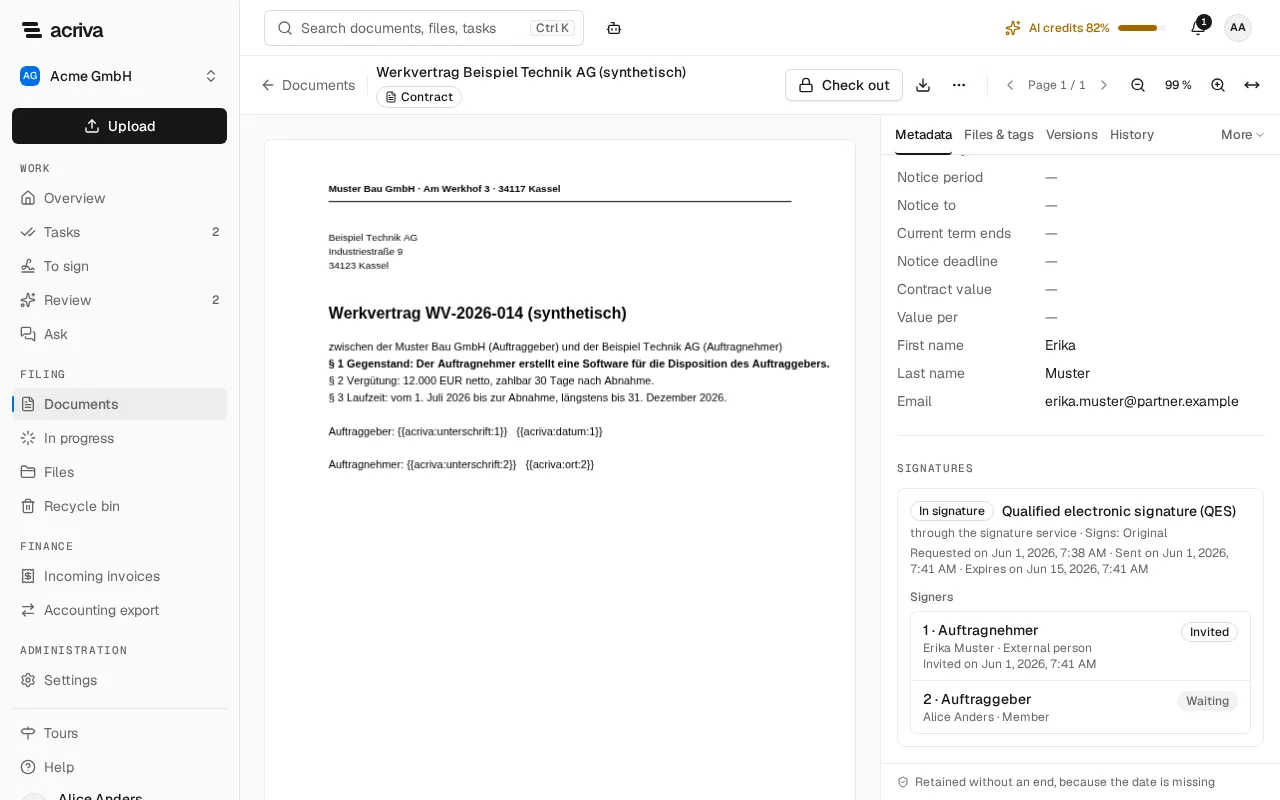
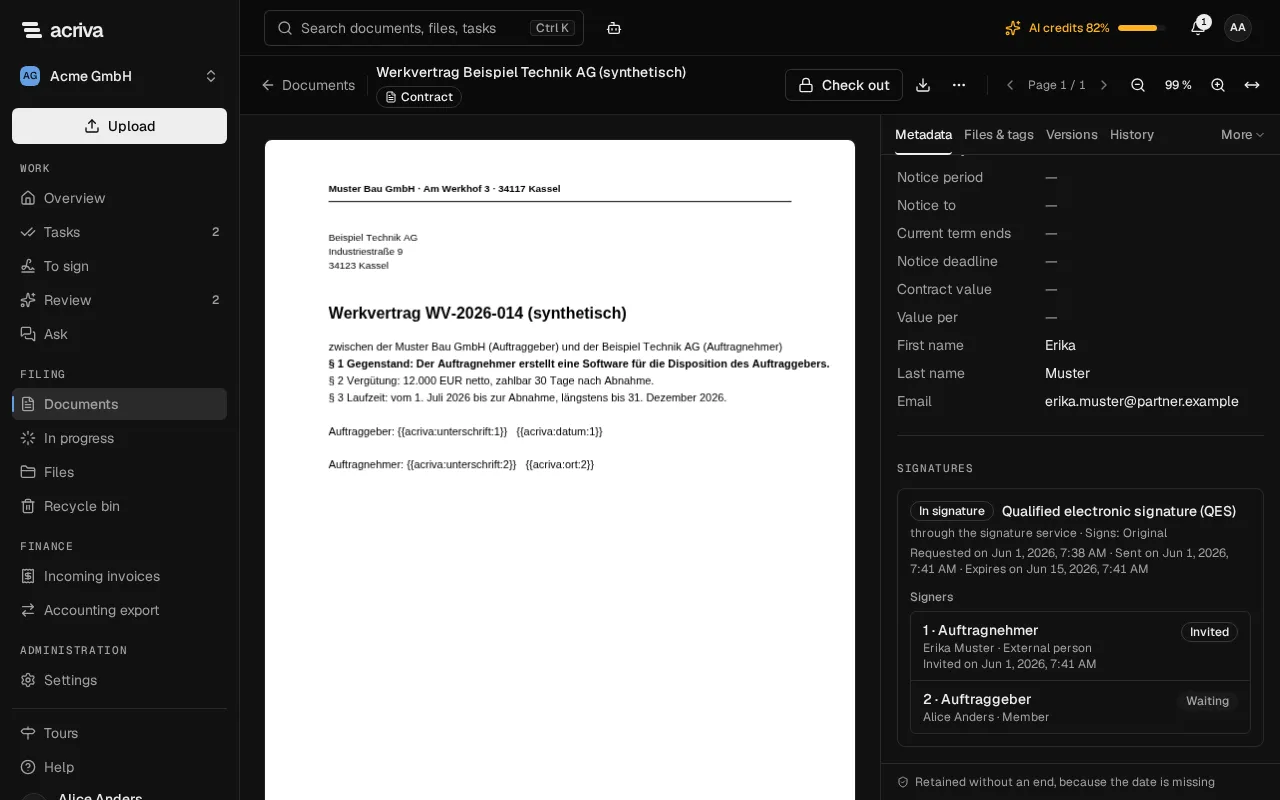
The document shows what became of a request in its section Signatures. If a request Failed, the reason is below it, for example that the seal couldn’t be applied. No signed version was added then, and the document is unchanged.
Without a valid seal certificate, e-signature is switched off on the system: no signature request starts, the workflow names the reason in its history, and nobody can sign until the seal is set up again. Settings › E-signature shows this under Seal.
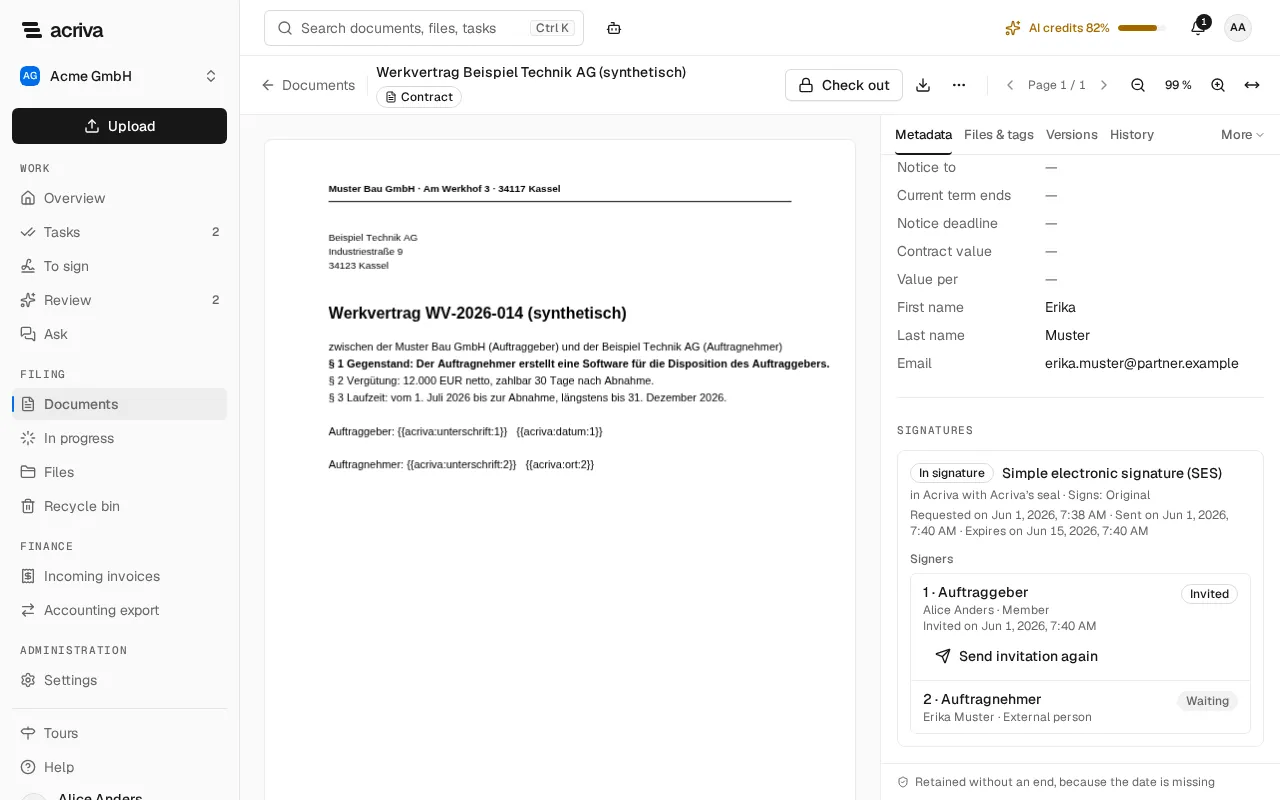
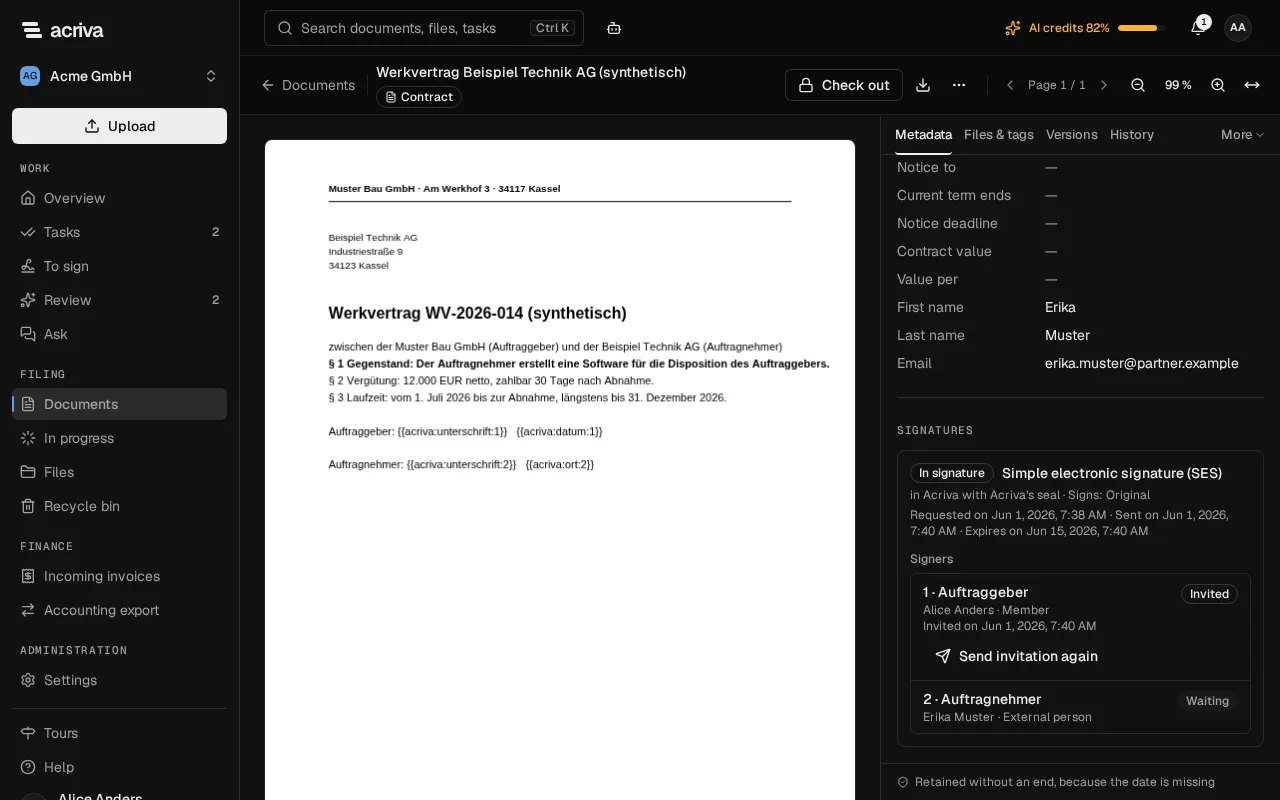
Which signature this is
Section titled “Which signature this is”Acriva signs with the Simple electronic signature (SES). It suffices for most contracts without a required form, such as service, work and purchase contracts, quotes and order confirmations. Where the law requires the written form, such as for terminating an employment contract in Germany, it doesn’t. Acriva sends the Advanced electronic signature (AES) and the Qualified electronic signature (QES) through the signature service Yousign once the workspace is connected under Settings › E-signature.
With the SES, each person shows who they are in their own way:
- A member is signed in to Acriva, with a second factor if they set one up, and must be allowed to read the document.
- An external person confirms with a code Acriva sends to their address that they received the email. The address comes from a field of the document that a person entered or confirmed. If the AI capture read it, a person checks it before the request goes out. Usually it isn’t on the document yet after the upload: then you enter the first name, the last name and the email address on the document. For the workflow to wait for them, a Capture task with these three fields under Required fields comes before the card; the workflow sends once it is done. The recipe Have a contract signed does this.
Acriva’s seal is an electronic signature in the PAdES standard over the whole PDF: every PDF reader shows that the document wasn’t changed after it was signed. Until Acriva has a seal certificate from a recognized authority, a PDF reader reports the certificate as unknown; the check that nothing was changed holds anyway.
Advanced and qualified signatures (AES and QES)
Section titled “Advanced and qualified signatures (AES and QES)”Where a contract needs more than the simple signature, the card Send for signature offers two more levels under Signature level, once your workspace is connected under Settings › E-signature and Yousign has activated the level:
- Advanced electronic signature (AES): each signer confirms with an SMS code sent to their mobile number. It is meant for people outside your workspace: the card takes their first name, last name, email address and mobile number from text fields of the document. Members and the requesting person can’t sign at this level, because Acriva stores no mobile number for them.
- Qualified electronic signature (QES): Yousign checks each signer’s identity, for example with their ID document, before they sign. It replaces the written form where the law allows the electronic form. Members and external people can sign at this level.
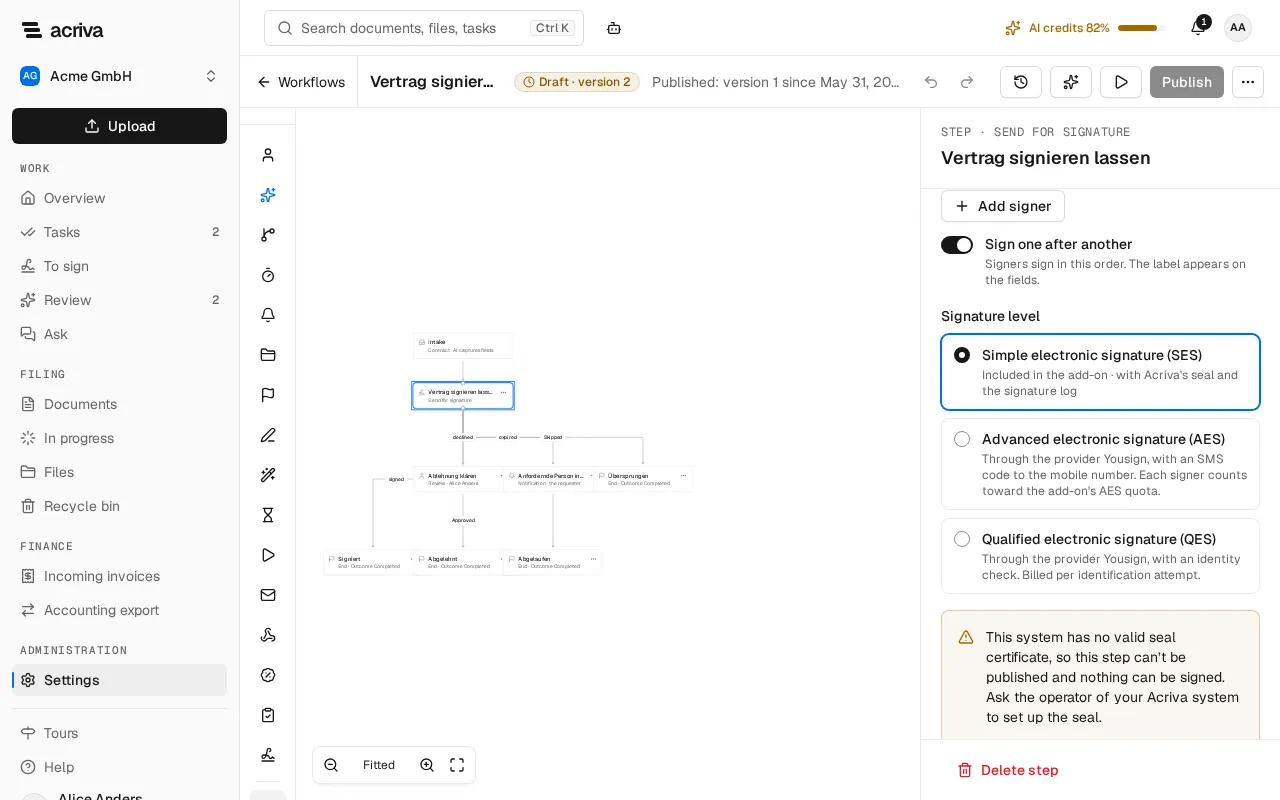
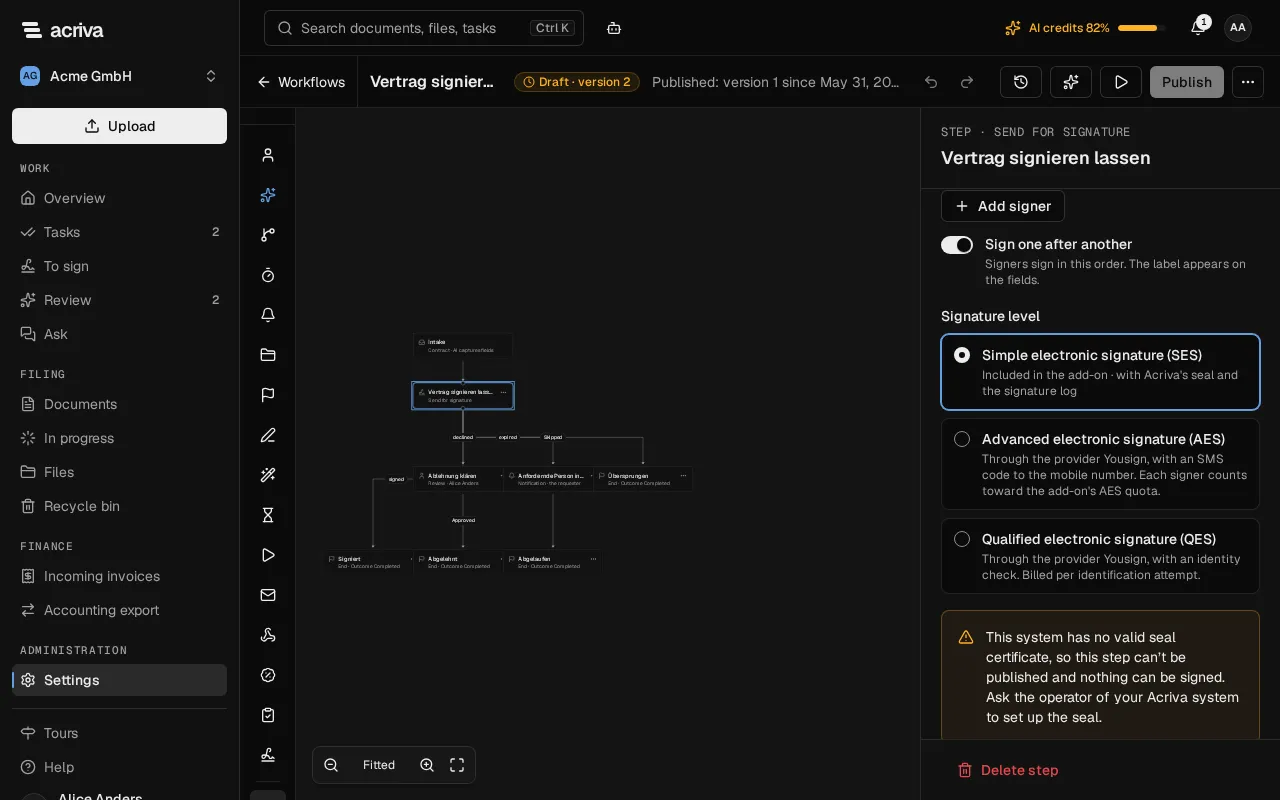
A request at these levels runs through Yousign, the signature service Acriva works with:
- Acriva sends the request to Yousign once the signature fields are ready, with the document, the signers, their order and the fields. Just before, it checks again that a confidential document may go out and that every member who signs may still read it; otherwise the request ends as failed and nothing goes to Yousign.
- Yousign invites the signers by its own email, with the sender name from the settings (your workspace’s name if none is set), and reminds them. Members of a QES request sign through Yousign’s email too, not under To sign.
- The signers prove who they are and sign at Yousign: with the SMS code for the AES, with the identity check for the QES. Whoever declines ends the request for everyone.
- Acriva stores what Yousign signed. It keeps Yousign’s signed PDF as it is, as a new version of the document, without adding its own seal, and adds the Signature service audit trail (Yousign’s evidence of each signer in one PDF) and its own Signature log. The workflow continues through signed, declined or expired, as with the simple signature.
While the request is at Yousign, the document’s section Signatures shows it through the signature service with each signer’s state. Ending it in Acriva (the workflow is cancelled, or its time runs out) cancels it at Yousign too.
The Signature log
Section titled “The Signature log”The Signature log is Acriva’s evidence of the signature, a sealed PDF next to the signed version. Download it from the document’s Signatures section or the Versions tab. It holds:
- the request with its level and when it was requested, sent and completed;
- the document with its title, version, file name and the checksums (SHA-256) of the document before and after signing;
- each signer with their name, email address, label and how they proved who they are (signed in, or with a confirmation code), when they were invited, proved it and signed, with their IP address and browser, and their Signature image: drawn, typed or none, with its checksum.
For an AES or QES, the Signature log also names Yousign, its number for the request, the checksum of the Signature service audit trail and the messages Yousign sent about the request. Yousign’s own evidence of how each signer proved who they are is in that audit trail, which you download from the Versions tab with the signed version.
The checksums are also in the workspace’s Audit log, whose entries are chained: anyone who later changes the PDF or the Signature log would be noticed.
What leaves Acriva
Section titled “What leaves Acriva”- Only the document being signed goes out, to the external signers, and only after their confirmation code. Their emails name your workspace, the requesting person, the document’s title and the link, never its content.
- A confidential document goes out only when the card allows Also for confidential documents; otherwise the step takes the exit “skipped”.
- Nobody becomes a signer at run time. Who signs is set in the card: a member, the requesting person, or the fields an external person comes from.
- The AI gets only the PDF’s text blocks with their position and the signers’ labels for finding the signature fields, never their names or addresses. It only suggests fields; it never sends, signs or approves anything.
- For the simple signature, no signature service is involved: Acriva signs and seals itself.
- For the AES and QES, Acriva sends Yousign SAS in Caen, France (EU), the document being signed, its title and file name, the signature fields, the request’s number and the signers’ names, email addresses and mobile numbers, together with your workspace’s name and the sender name. Yousign processes them for Acriva; you don’t need an account of your own.
What it costs
Section titled “What it costs”- Signatures: the add-on includes 100 simple electronic signatures a month; each signature request sent counts as one. When they are used up, Send for signature takes the exit “skipped” until the next month. Under Subscription, the line Signatures (SES) shows how many are used.
- Advanced signatures (AES): the add-on includes 10 a month on Business and Enterprise, and each AES pack adds 25. Each signer of a request counts one when it is sent. When they are used up, Send for signature takes the exit “skipped”. Under Subscription, the line Signatures (AES) shows how many are used.
- Qualified signatures (QES): each identification attempt at Yousign is billed, also one that fails, at Yousign’s price plus a markup. The card shows the price per attempt, and the line Signatures (QES) under Subscription shows the month’s identifications.
- When Acriva includes the AES and QES for your workspace, the AES aren’t limited and the identifications aren’t charged; the card and the settings say so.
- AI credits: only when form fields and anchor texts aren’t enough and Acriva looks for the fields with AI does that use 1 AI credit per detection. A document type’s template and fields you place yourself use none.
- Send for signature: set up the card and check the signature fields
- E-signature settings: the seal, the connection to Yousign and the costs
- Signature fields: place fields and save them as the document type’s template
- To sign: sign or decline as a member
- Signing through a link: what an external person sees
- Signatures on a document: the state, the signed version, the Signature log and deletion
- A ready workflow to import: Have a contract signed