

Tours
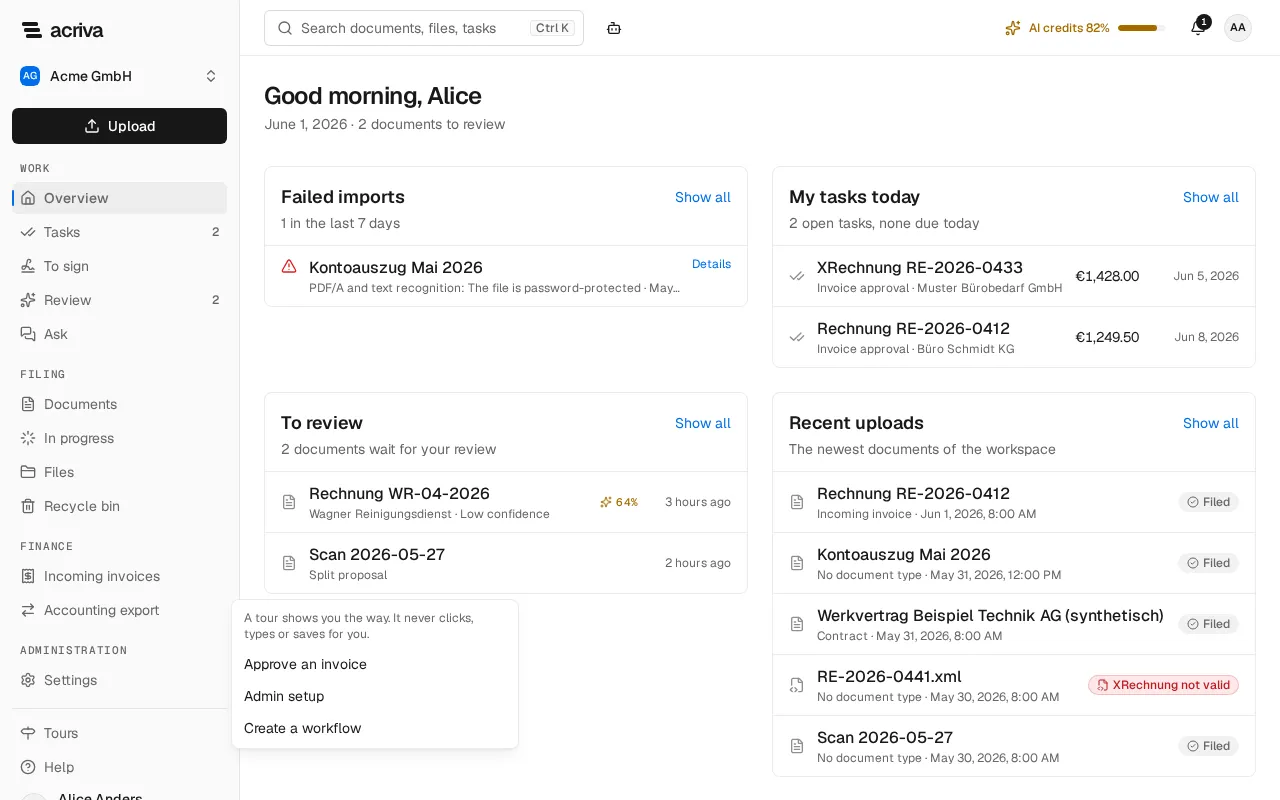
A tour shows you where something is in the app and how a task goes. It opens the page, highlights one element at a time and explains it in a small box beside it. You take every step yourself: a tour never clicks, types or saves for you. Tours are part of the app in every plan, and they cost no AI credits.
The tours
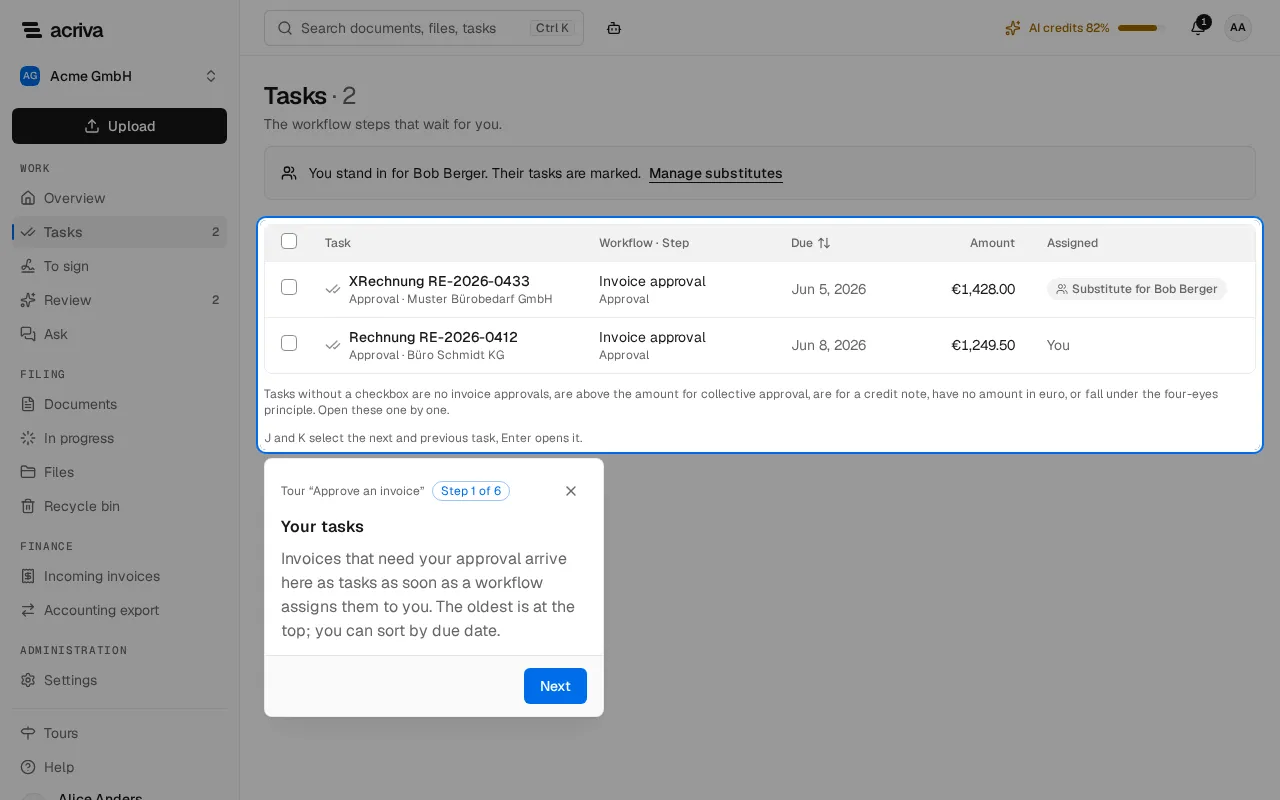
Section titled “The tours”- Approve an invoice: your tasks, opening a task (the tour marks your first approval, and you can open any other task too), checking the invoice’s key facts, where you approve or return it, and its history. If you have no open task, the tour shows where tasks arrive, skips the steps inside a task and ends there.
- Admin setup: the document types, the roles, the inbox, the DATEV connection and the DATEV export, and the retention rules.
- Create a workflow: the workflow list, New workflow, the steps you draw a workflow from, the test run and publishing in the workflow designer. It needs the designer in your plan and a wide window: below 1,024 pixels the designer’s steps are skipped.
Start a tour
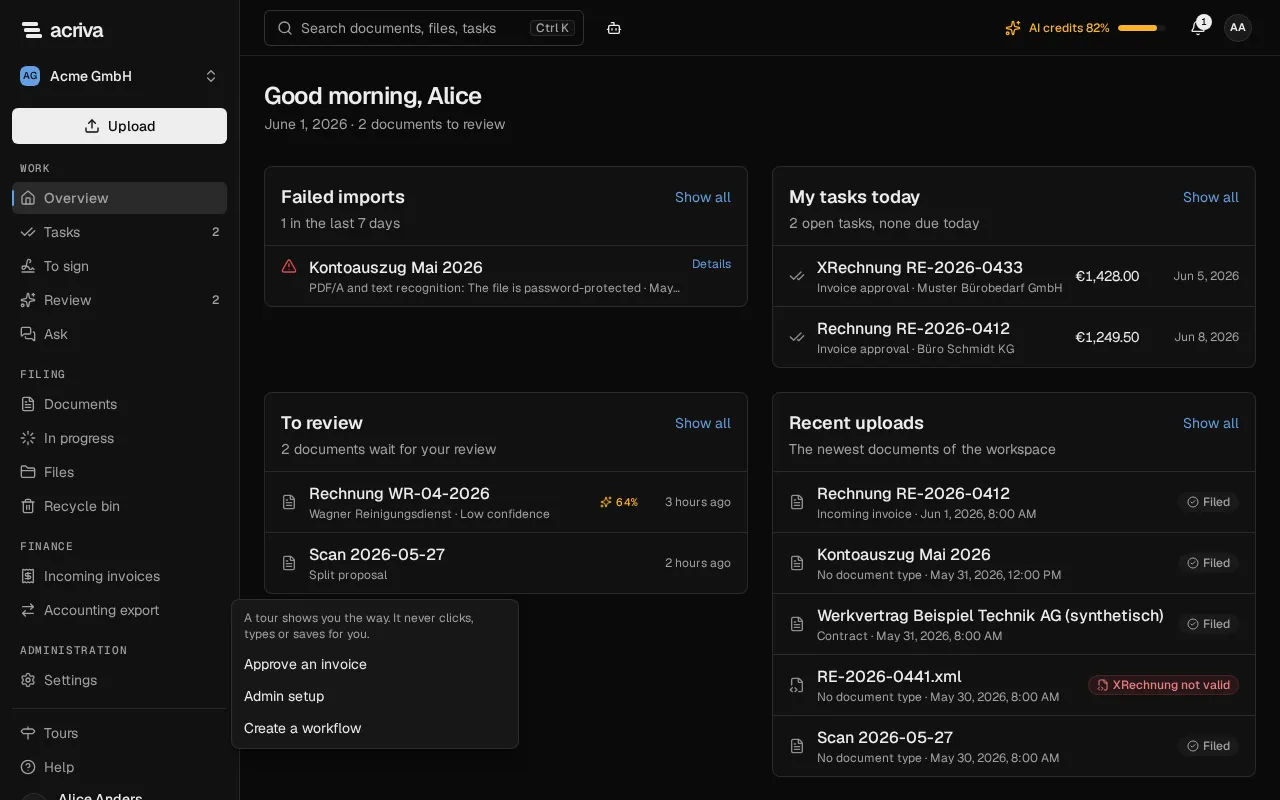
Section titled “Start a tour”- Select Tours next to Help in the navigation. On a phone, it is in the menu.
- Select a tour. A tour you finished is marked completed; you can start it again at any time.
Tours lists only the tours with at least one step you can see with your role and your plan.
Follow a tour
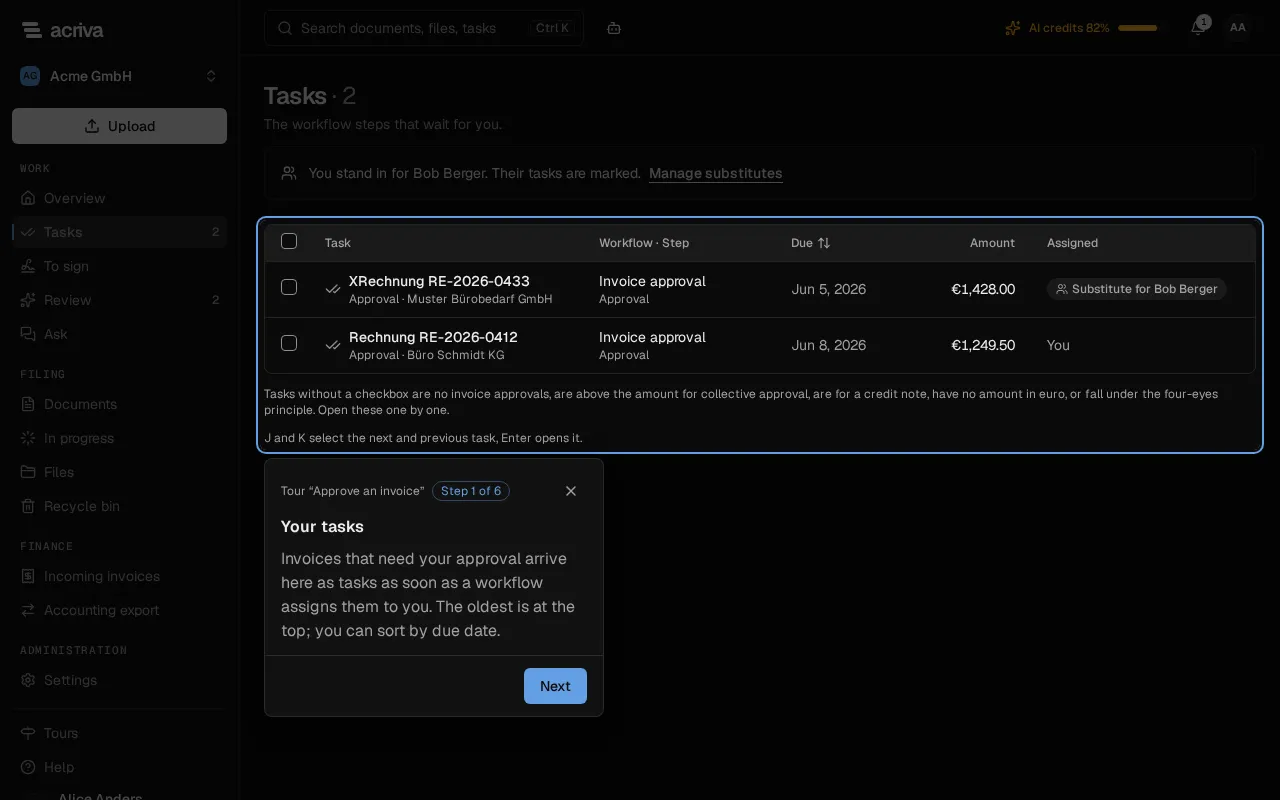
Section titled “Follow a tour”Each step highlights one element and explains it in a box with Step 1 of 6 and the tour’s name.
- Next goes to the next step, and Back to the previous one. While the step’s page opens and the element is being looked for, Next shows a spinner and waits; it works as soon as the element is highlighted.
- Some steps wait for you instead of offering Next. “Click the highlighted element.” asks you to click it, for example to open a task. “The tour goes on as soon as you reach the next page.” waits until you get there yourself, for example after you created a draft in New workflow.
- A step about a button that decides or saves, such as Approve, Return or Publish, only explains it. Go on with Next: whether you press the button is up to you.
- When you open a dialog during a step, the tour waits behind it and comes back when the dialog closes.
- End tour (the × in the box) or Esc ends the tour.
The keyboard alone is enough: Tab moves between the box’s buttons, and to the highlighted element when a step waits for your click. A screen reader reads each step, and with reduced motion in your system settings nothing moves.
A skipped step
Section titled “A skipped step”When a step’s page or element isn’t available to you, for example because your role lacks a permission, your plan doesn’t include the feature or you have no open task, the tour skips it and says Step skipped.
Pause and resume
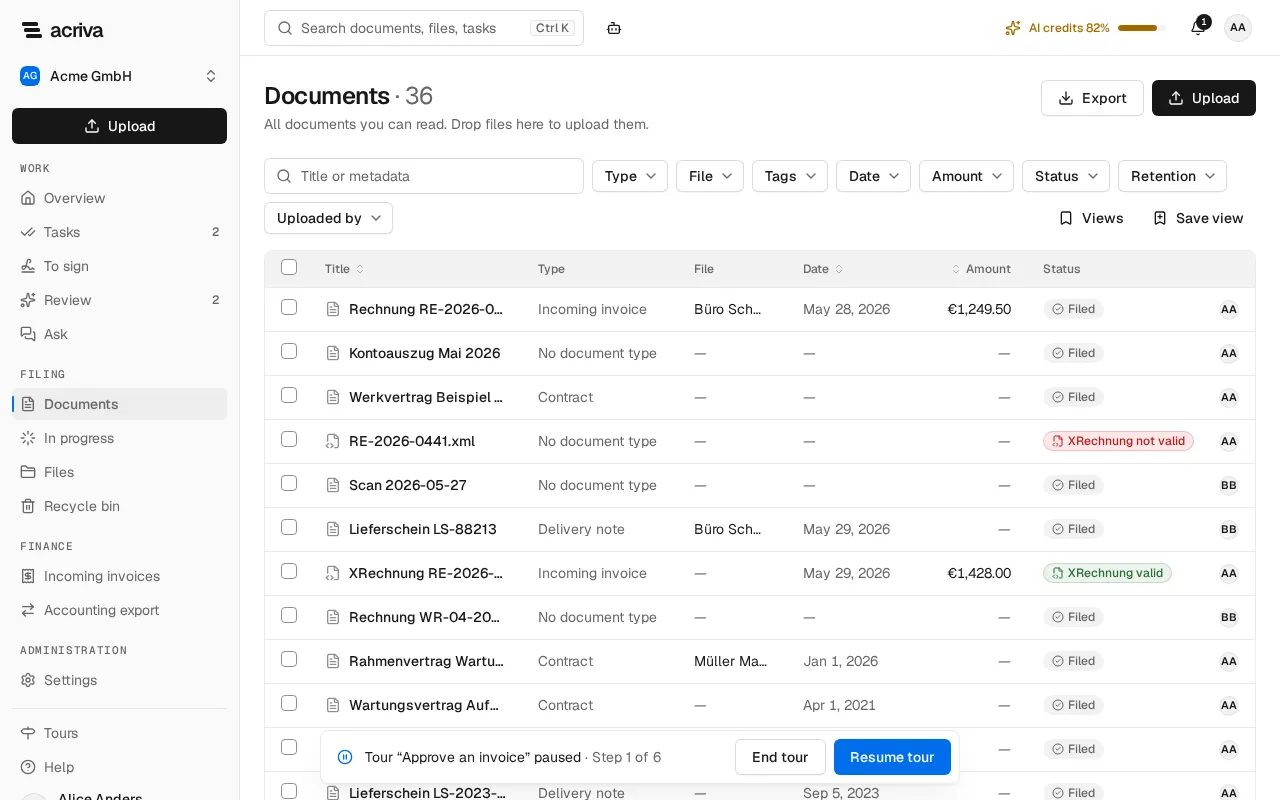
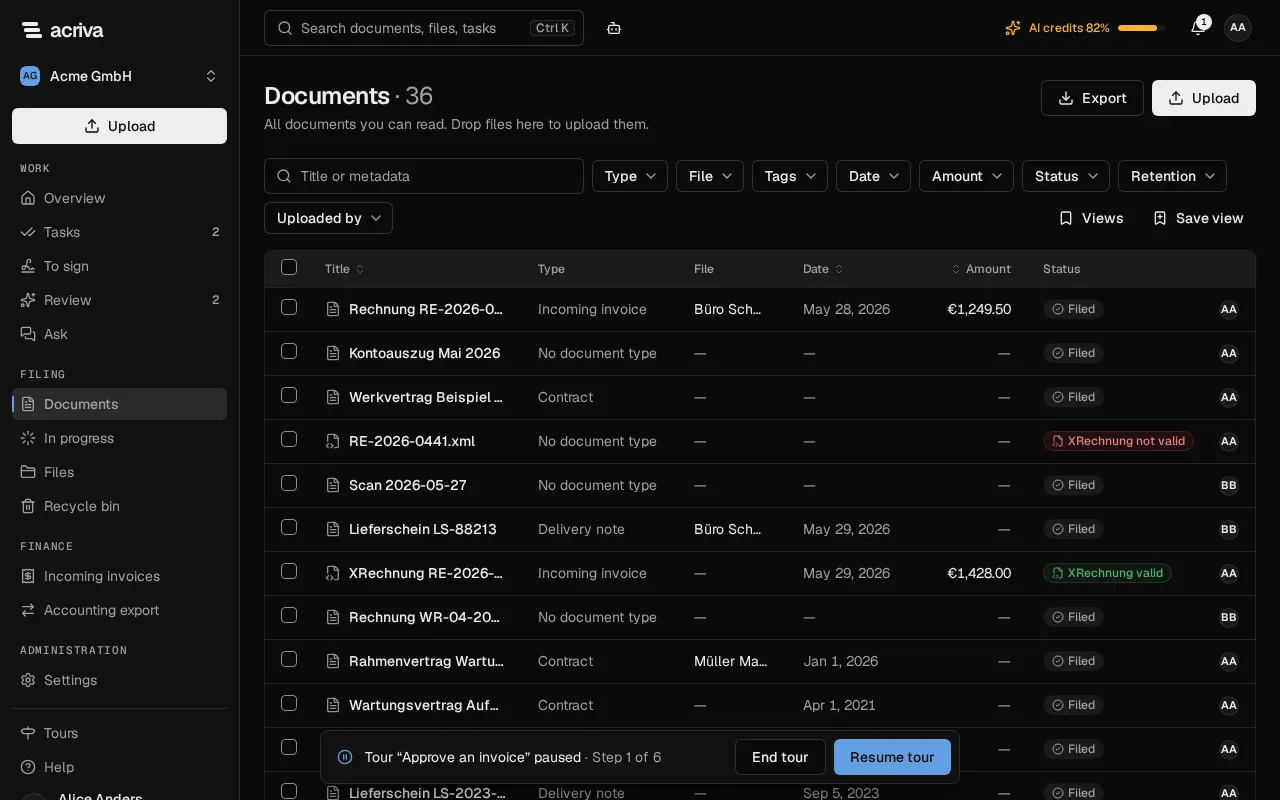
Section titled “Pause and resume”When you open another page during a tour, or reload the page, the tour pauses. A bar at the bottom says that the tour is paused and offers Resume tour and End tour. Resume tour takes you back to the step where you left. A paused tour stays until you end it or close the browser tab.
The invitation at sign-in
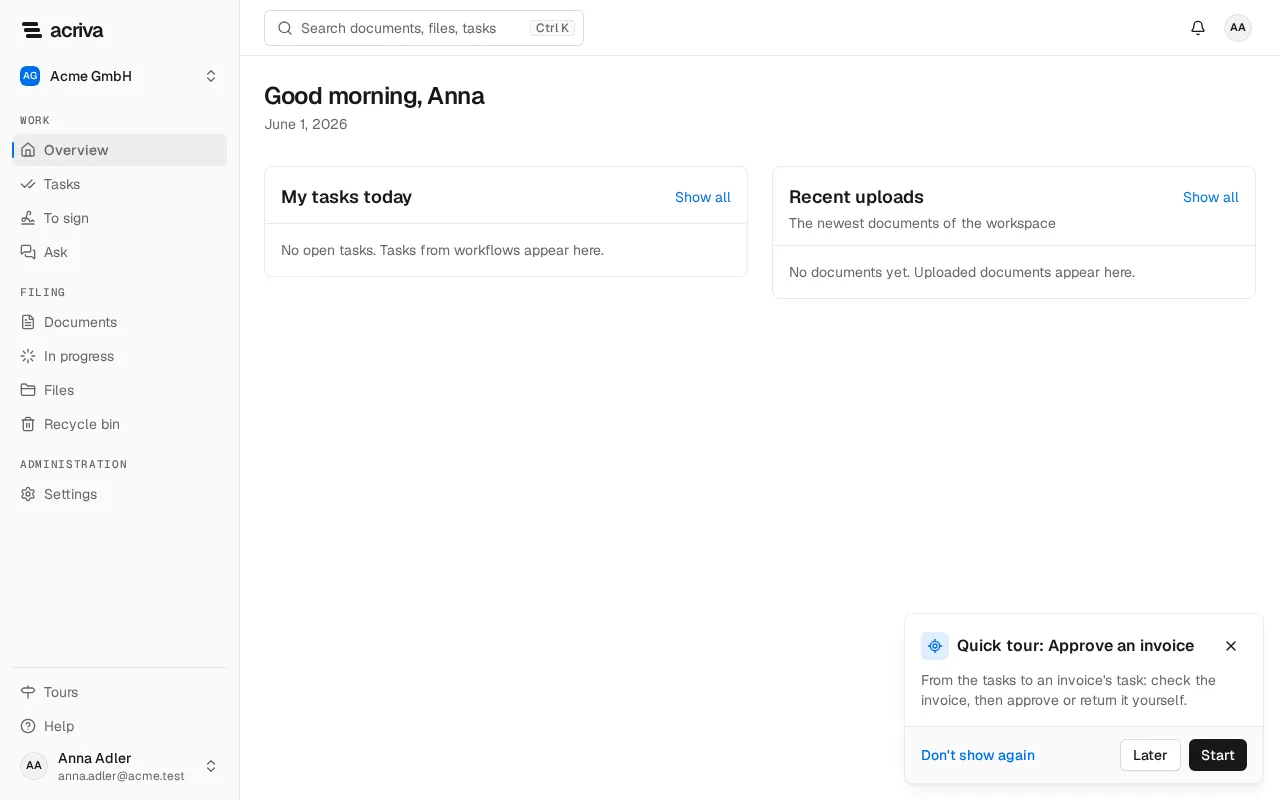
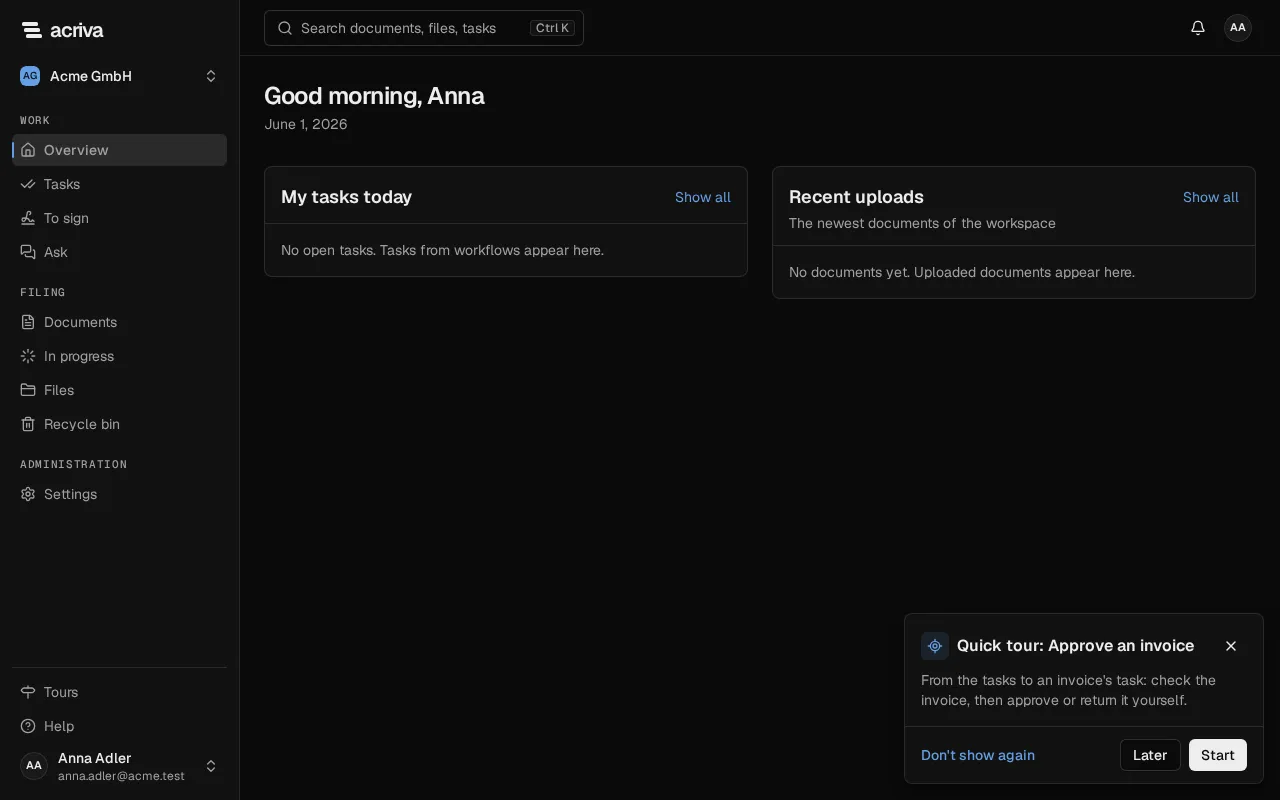
Section titled “The invitation at sign-in”On the Overview, the page you see after signing in, a small card offers one tour:
- Admin setup to admins: the roles Owner and Admin and every role that may manage roles;
- Approve an invoice to the role Approver.
Other members get no card, and find every tour they can see under Tours. The card waits until Set up the workspace is finished or skipped and the terms are accepted, and it doesn’t show while a tour runs or is paused. It starts nothing by itself.
- Start starts the tour.
- Later or the × hides the card in this browser tab. It comes back at your next sign-in or in a new tab.
- Don’t show again hides it for good in this workspace.
Once you finished the offered tour, the card doesn’t come back. A tour counts as finished when you reach its end, also when its last steps were skipped.
What a tour never does
Section titled “What a tour never does”- It never clicks, types, fills in a form or saves. A task you looked at in a tour is still open after it.
- It shows only what the page already shows you. A step you can’t see is skipped, never shown.
- It costs no credits and doesn’t need the AI assistant. The assistant can start a tour too, and show you a short tour of its own: see Tours from the assistant.
Acriva keeps only whether you finished a tour or chose Don’t show again, so that the card stays away. That is a setting of yours in this workspace: it isn’t in the audit log, and it is deleted when you leave the workspace.