

Finance master data
The finance master data is the basis for allocating your incoming invoices and for the DATEV export: vendors with their vendor account, cost centers, G/L accounts and tax keys. You find it in the settings under Finance › Finance master data.
Whoever may see incoming invoices also sees the master data. The built-in roles Owner and Admin may create, change, deactivate and import. The settings are in the sidebar only when you may manage something; a Member reaches the page through its address.
The page
Section titled “The page”The page has four tabs, each with the number of its entries: Vendors, Cost centers, G/L accounts and Tax keys. In every tab:
- the search field searches by number or name (for vendors by name, vendor account or VAT ID),
- Status shows the Active ones, the Deactivated ones or All; without a choice you see the active ones,
- the button with the three dots in a row opens Edit, Deactivate or Reactivate.
Entries are never deleted, only deactivated. A deactivated entry can no longer be chosen; existing invoices and exports stay as they are, and you can reactivate it at any time. A deactivated vendor is no longer suggested by name either; Acriva still matches invoices with its VAT ID or IBAN to it.
When someone else changed an entry while your dialog was open, your change isn’t saved: the list shows the current state, and you open the entry again.
Vendors
Section titled “Vendors”Acriva matches incoming invoices to the vendor by VAT ID and IBAN. A vendor comes about in three ways: you create it here, you import it as CSV, or you confirm a new vendor on an invoice (see Incoming invoices). A vendor that isn’t confirmed yet is not in this list.
- Select Create vendor.
- Fill in the fields:
- Vendor account: the vendor’s account at your tax advisor’s, up to nine digits; for the export it may be at most one digit longer than your G/L accounts. Without a vendor account the export doesn’t take the vendor’s invoices.
- Name
- VAT ID and IBAN (one IBAN per line, at most ten). Each VAT ID and each IBAN belongs to at most one vendor.
- Contact email: the address a workflow’s External email writes to (see Email templates). You set it here, or you confirm it on the assistant’s card when it creates a vendor: the card shows the address before you select Run. AI capture, the CSV import and a new vendor confirmed on an invoice never fill it in. The audit log notes Contact email changed for the vendor, without the address.
- Payment term in days, Cash discount in % and Cash discount period in days
- Default cost center and Default G/L account: the suggestion for the allocation of this vendor’s new invoices.
- If you want, select Create a vendor file: Acriva creates an Akte with the vendor’s name and links it. You choose the File type and, when the file type has no number series, the File number. For this you need the permission to edit documents.
- Save.
When you edit a vendor, you link an existing Akte under Vendor file or remove the link. An Akte belongs to at most one vendor and shows the vendor’s master data (see Documents and Akten).
Cost centers
Section titled “Cost centers”Cost centers appear in an invoice’s allocation and decide who approves it.
- Number: up to 36 characters of letters, digits, underscore and blank.
- Name
- Responsible: a member or a role, or Nobody. The responsible person or role approves invoices allocated to this cost center when the approval workflow says so (see Workflows and approvals).
G/L accounts
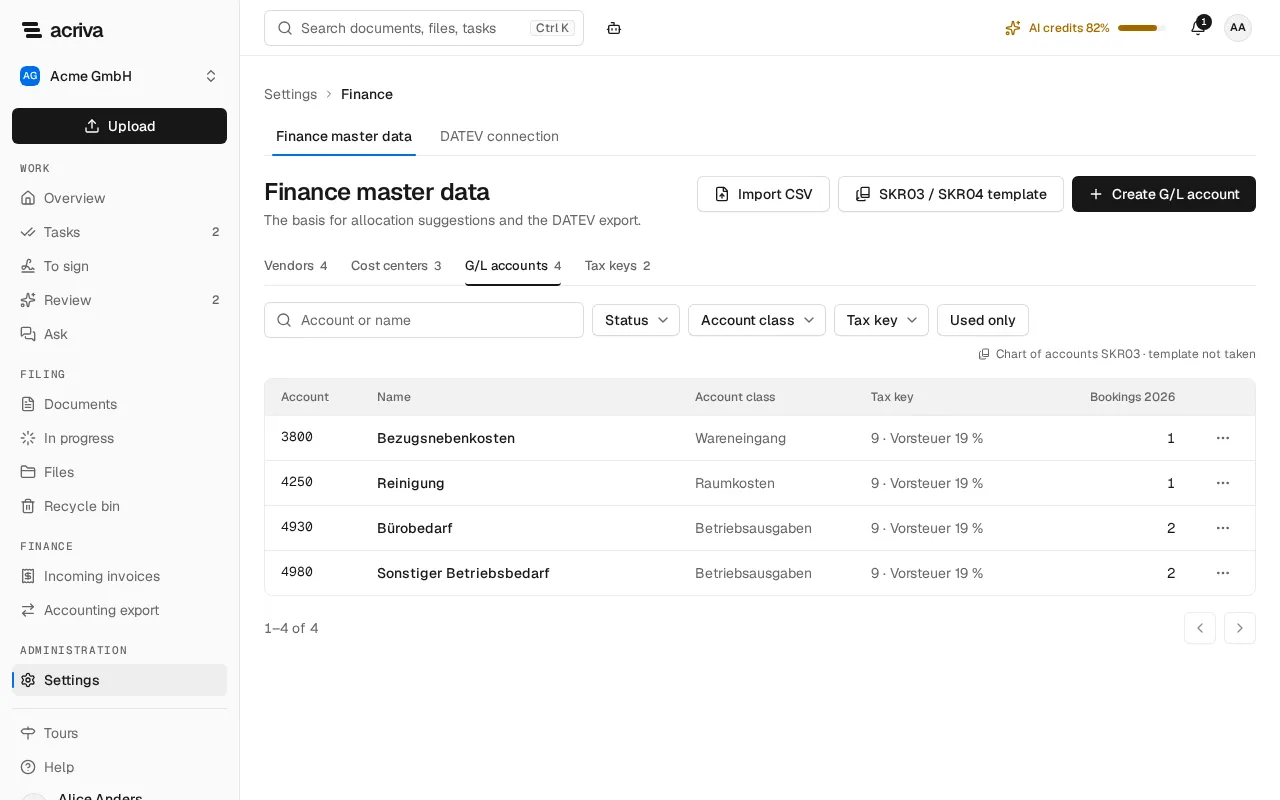
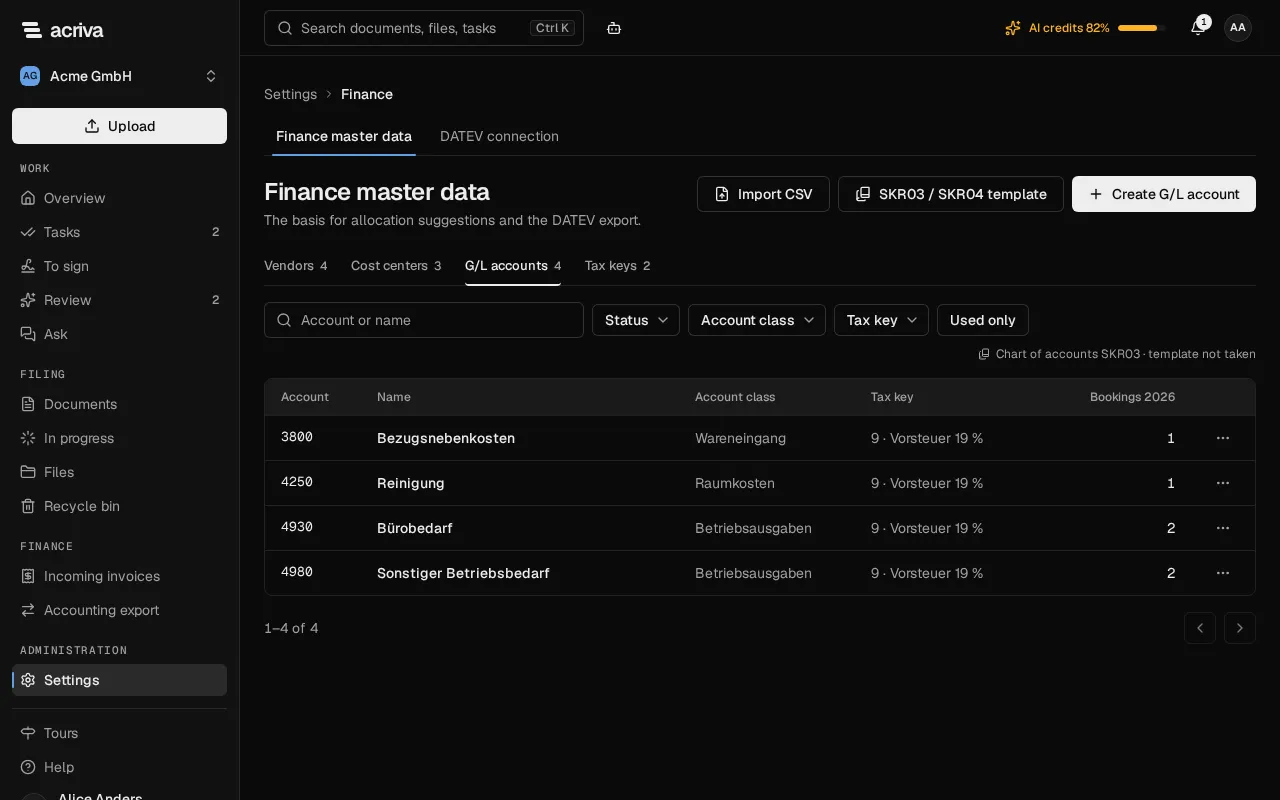
Section titled “G/L accounts”G/L accounts appear in an invoice’s allocation and in the booking batch of the DATEV export.
- Account: digits of exactly the length set under DATEV connection.
- Name and Account class (for example “4 · Raumkosten”)
- Tax key: a suggestion for the allocation. A person confirms it on every invoice.
- Automatic account: DATEV books the tax of this account itself, so the export passes no tax key.
The column Bookings with the current year counts the allocation lines an account appears in: on invoices of the current calendar year that you may read. Besides Status you filter by Account class and Tax key, and Used only shows the accounts that appear in an allocation.
The template of the chart of accounts
Section titled “The template of the chart of accounts”To get started, Acriva creates a short list of commonly used expense and tax accounts with their tax keys for your chart of accounts (SKR03 or SKR04).
- First save the details under DATEV connection (see DATEV export); you choose the chart of accounts there. Before that the page doesn’t offer the template: Template available once the DATEV connection is saved.
- In the tab G/L accounts, select SKR03 / SKR04 template.
- Read the note Legal review required and select Take template.
Existing accounts stay as they are. The template can be taken once. It is not a full chart of accounts: import that as CSV from your tax advisor. Next to the filters you then see which chart was taken and when, with the addition legal review required.
Tax keys
Section titled “Tax keys”A tax key is DATEV’s BU-Schlüssel. It stands on every line of an allocation and goes into the booking batch. Tax keys come from the template of the chart of accounts, or you create them one by one; there is no CSV import for them.
- Number: one to four digits.
- Name
- Tax rate in % (optional): Acriva proposes the tax key from the rate of a tax line. Leave the field empty when the key stands for no fixed rate.
A deactivated tax key is no longer offered for new allocations or as the default of new G/L accounts. G/L accounts and invoices that already use it keep it, in the export too. A change to a tax key also applies to G/L accounts and to invoices not yet exported that use it.
Above the list it says: Legal review required: the tax keys and their numbers have not been legally reviewed. Acriva gives no tax advice. Agree the tax keys with your tax advisor. Which key applies to which tax case, such as reverse charge or intra-community acquisitions, is for your tax advisor to say, not Acriva.
Import as CSV
Section titled “Import as CSV”You import vendors, cost centers and G/L accounts as CSV, for example the chart of accounts from your tax advisor.
- Open the tab you import into and select Import CSV.
- Choose the file with Choose file. Acriva checks it first and shows the Check report: the rows read, how many entries would be new and how many changed, and, when rows have errors, each of them with Row, Column and Reason (the first 100; beyond that the report says how many more there are).
- Select Import. As long as a row has an error, nothing is imported: correct the file and select Choose another file.
What the file must look like:
- UTF-8. Excel’s “CSV (Comma delimited)” saves in another encoding; choose CSV UTF-8 when you save. Acriva doesn’t take a file in another encoding at all.
- Semicolons between the cells, the column names in the first row, in any order.
- At most 2 MB and 5,000 rows.
- A cell that contains a semicolon is in quotation marks. An unknown column is an error.
The dialog says for each kind what a row recognises an existing entry by: a cost center and a G/L account by the number, a vendor by the vendor account, otherwise by the VAT ID. Such a row changes the entry, any other creates one. For a vendor, the row’s IBANs replace its earlier ones. An empty cell keeps the existing value.
The column names are German in both languages of the app:
| Import | Required columns | Optional columns |
|---|---|---|
| Vendors | Name |
Nummer (the vendor account), USt-IdNr, IBAN (several separated by a comma), Zahlungsziel, Skonto-Prozent, Skonto-Tage, Kostenstelle, Sachkonto (each the number of an existing entry) |
| Cost centers | Nummer, Bezeichnung |
none |
| G/L accounts | Nummer, Bezeichnung |
Kontenklasse, Steuerschlüssel (the number of an active tax key), Automatikkonto (ja or nein) |
An example for vendors:
Nummer;Name;USt-IdNr;IBAN;Zahlungsziel;Skonto-Prozent;Skonto-Tage;Kostenstelle;Sachkonto70001;Beispiel Bürobedarf GmbH;DE123456788;DE66999999990000012345;30;2;14;4100;4930The reasons a row has an error for:
- Required value is missing
- Invalid value
- Value is too long
- Appears more than once or is already taken
- Refers to an unknown entry: for example a cost center or a tax key that doesn’t exist.
- The file isn’t saved as UTF-8. Save it as “CSV UTF-8”.
A cost center’s responsible person and a vendor’s Akte are not part of the file; an import leaves them as they are.