

Signing through a link
A workflow can ask people outside your workspace to sign, for example the other party of a contract. They need no account: they get an email with a link, confirm their address with a code and sign with a simple electronic signature (SES). This page describes what they see, so you can help them. Members of the workspace sign under To sign.
The steps
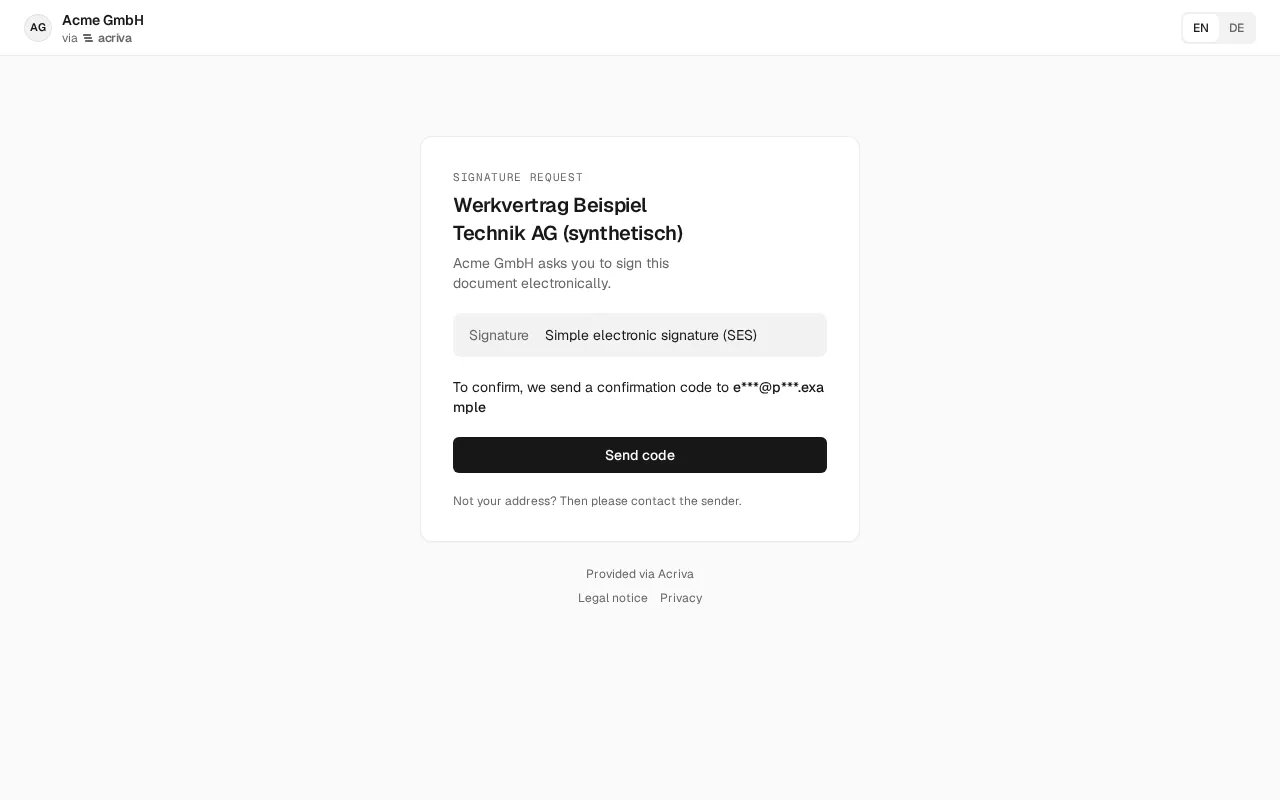
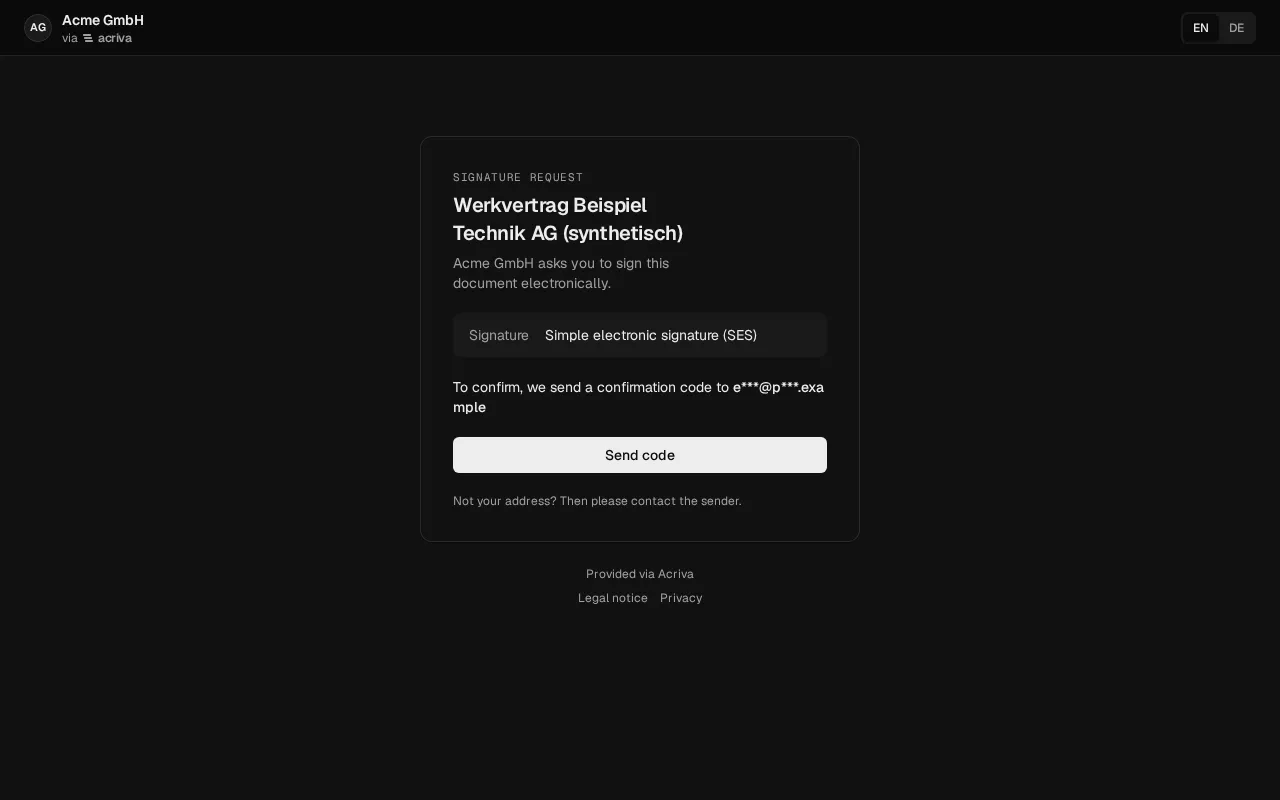
Section titled “The steps”- Open the link. The page names your workspace, the document’s title and the signer’s address in part (for example
m***@k***.de). It shows nothing of the document yet. - Send code. Acriva sends a 6-digit Confirmation code to that address. It is valid for 10 minutes. Send code again sends a new one.
- Enter the code and select Confirm. A wrong or expired code is named on the page.
- Read the document. The signer’s own fields are outlined in black, the signature field with Sign here. Other signers’ fields aren’t shown.
- Sign becomes available once the first page and the pages with the signer’s fields have been shown. If the document can’t be shown, the page offers Download, and signing becomes available once the signer has downloaded it. If the fields contain a place, enter it under Place. Under Signature · optional the signer may draw their signature or select Type name, as members do under To sign; without it the signature field shows the name and the evidence as before. Tick I have read the document and sign it electronically. and select Sign, or select Decline with an optional reason.
The page ends with Thank you – you have signed or You declined. The language switches between DE and EN at the top right; it starts in the browser’s language.
Limits and what to do
Section titled “Limits and what to do”- Five wrong entries lock the code. The signer requests a new one with Send code again.
- At most three codes in 15 minutes per link: after the third the page says No new code possible right now and asks the signer to wait a few minutes.
- At most ten codes in all per link: after that the page says so, and the signer needs a new link. Resend the invitation from the document’s signatures.
- Too many requests in a short time: the page counts down on Send code until a new code can be requested.
- The session after the code lasts at most 30 minutes. If it ends before signing, the page goes back to the code and says so; the signer requests a new code with Send code again.
- Link invalid or expired: the link was replaced by a newer one, the request ended (signed, declined, expired or cancelled), or it is not a link Acriva issued.
- A reload keeps working in the same tab: the page keeps the link for that tab only and forgets it once the signer has signed or declined, the link has ended or the session after the code is over. No link found appears in a new tab or after that; the signer opens the link from the email again.
The page loads nothing from other sites and sends no referrer, and the link’s secret part never appears in a web address the server sees.