

Send for signature
The workflow card Send for signature sends a workflow’s document to its signers and waits until they sign, decline or the request expires. It needs the e-signature add-on and the workflow designer. The signers sign with a Simple electronic signature (SES), sealed by Acriva with a signature log. E-signature gives an overview of the flow, the evidence and the costs.
Set up the card
Section titled “Set up the card”Select the card in the workflow designer. Its panel has these settings:
-
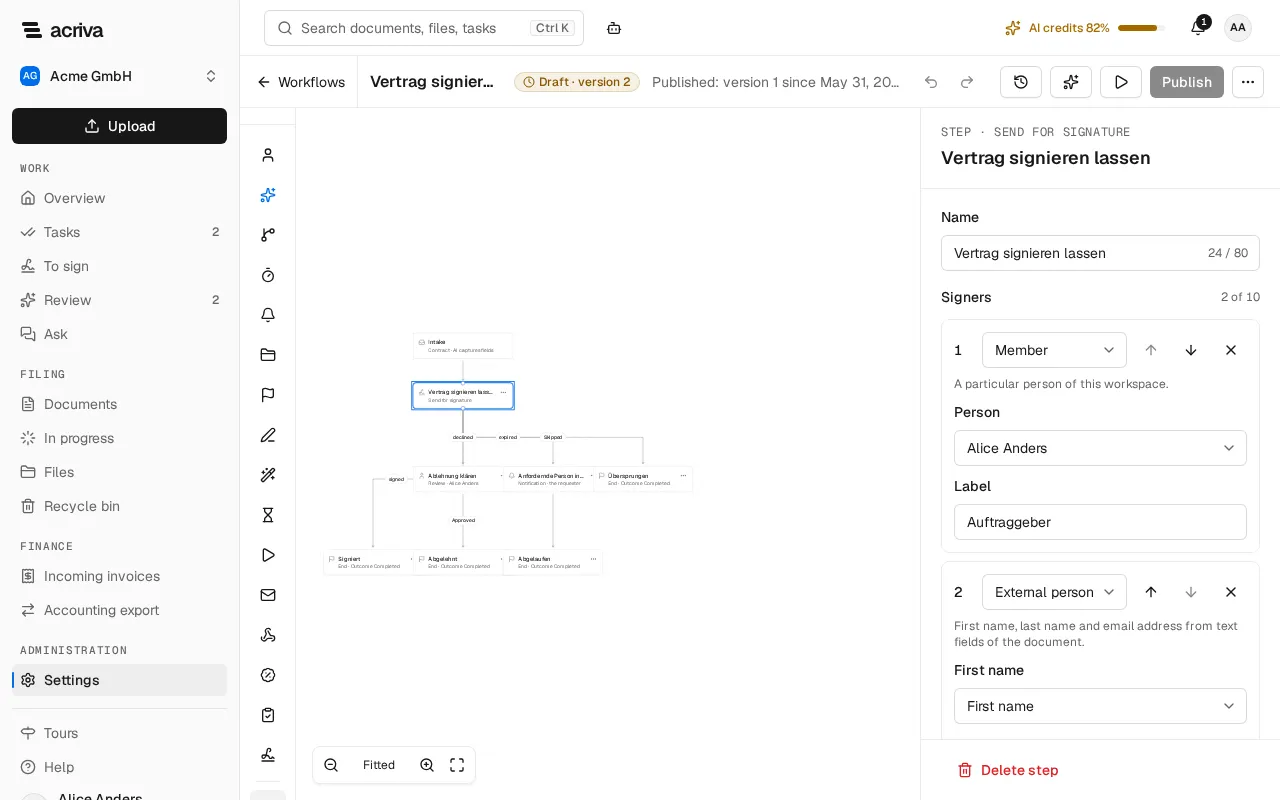
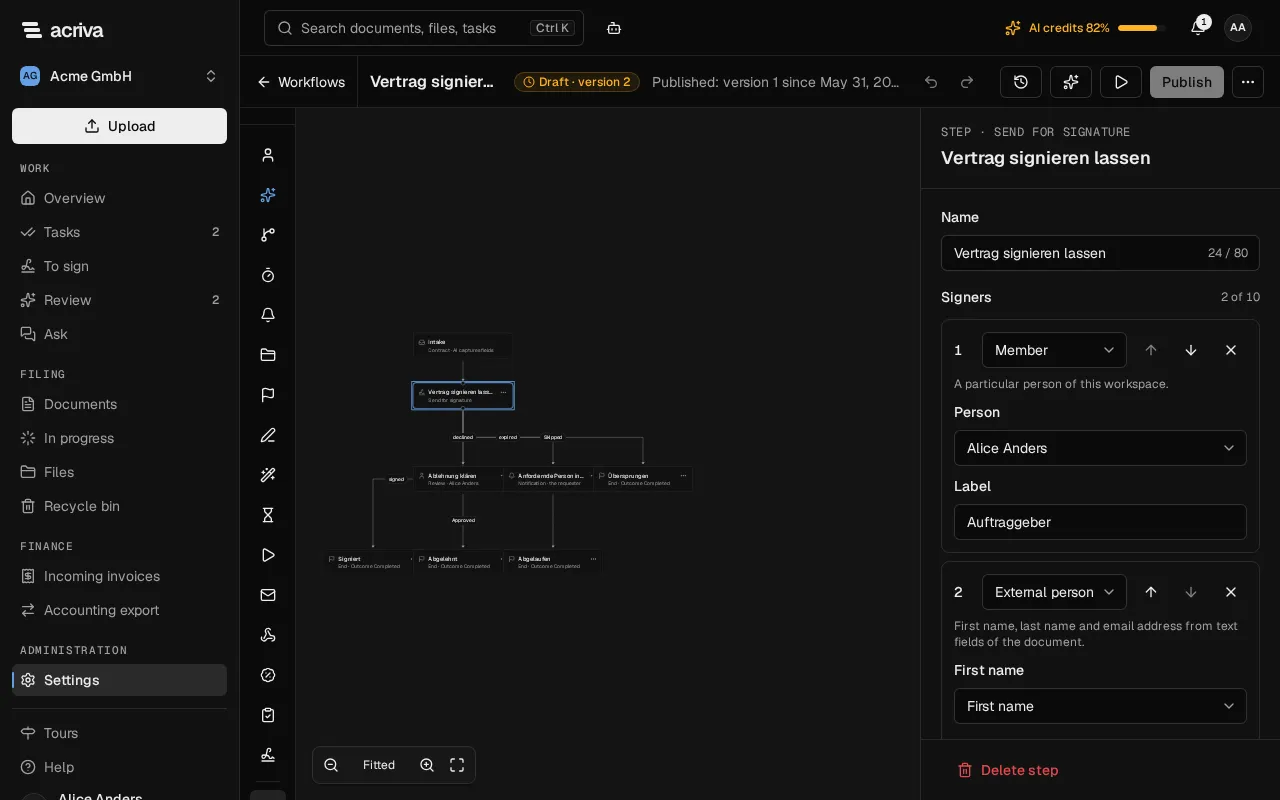
Signers: up to ten, in order. For each, choose its kind:
- Member: a particular person of this workspace, chosen under Person;
- Requester: whoever started the workflow, once per card;
- External person from fields: the First name, Last name and Email come from text fields of the trigger’s document type.
A workflow starts as soon as the document is processed. An external person’s details are usually not on the document yet, and a signer with an empty field makes the card take “skipped”. So put a Capture task before the card, with the three fields under Required fields: the person enters them on the document, the task can be marked as done only then, and only after that does the workflow send. The recipe Have a contract signed does this.
Give each signer a Label, such as “Client”. The label appears on the signature fields. Use the arrows to change the order, and Add signer for more.
-
Sign one after another: on, the signers sign in this order; off, all get the document at once.
-
Signature level: the simple electronic signature.
-
Expires after: 1 to 90 days. Then the step takes the exit “expired”.
-
Signature fields, where the signers sign:
- Detect automatically: Acriva reads the PDF’s form fields, anchor texts and keywords, with AI if needed;
- Document type’s template: the fields saved on the document type (see Signature fields);
- Review before sending: detect automatically, then have them confirmed in a task.
The Reviewer gets the task Signature field review: always with Review before sending, otherwise when the fields aren’t certain or the template doesn’t fit.
-
Language for external signers: the language of their emails and signing page.
-
Also for confidential documents: without it, a confidential document takes the exit “skipped”.
The panel also shows how many signatures of your plan’s quota are used this month, when you may see the subscription. The card’s exits are signed, declined, expired and skipped. “skipped” applies when no signer can be found, the request fails, the quota is used up, or someone cancels the review; the history names the reason. When a signer lacks a name or an address, the history names the signer by its label, such as “Auftragnehmer”.
Confirm the signers when you publish
Section titled “Confirm the signers when you publish”When you publish the workflow, the dialog lists Signatures: per step the level, the setting for the signature fields, and each signer with their label and source. Publishing confirms this list. If the signers changed in the meantime, the dialog checks the draft again.
Review the signature fields
Section titled “Review the signature fields”The task Signature field review opens the document with its fields and says why they need a review.
- Check the suggested fields. They have a dashed outline and their source, such as Anchor text or AI · 82%. Move, resize or add fields as on the page Signature fields.
- If an external signer’s name and address come from fields no person confirmed, a note says so. The signer’s card shows the whole email address with “Recognized by AI – please check” or, when a workflow set them, “Not confirmed – please check”. Check them there: Confirm and send confirms the name and email address.
- Your changes save on their own once every signer has a signature field.
- Select Confirm and send. The document goes to the signers, and the task is done. As long as a signer has no signature field, the button says who is missing.
Cancel cancels the signature request after a confirmation, and the step takes “skipped”. With the permission to manage e-signatures, Save as template keeps the layout as the document type’s template.
If the fields couldn’t be detected at all, the task offers only Cancel, with the reason.