

Signature fields
Signature fields mark where each signer of an e-signature signs a document: their Signature, the Date and their Name, which Acriva fills in when they sign, and the Place, which they type. Every signer needs at least one signature field before a document is sent for signature.
You place the fields once for a document type and save them as the type’s template. The workflow card Send for signature then uses the template for new documents of the type when its setting Signature fields is Document type’s template. Signature fields need the e-signature add-on and the permission to manage e-signatures, which owners and administrators have.
Place the fields on a document
Section titled “Place the fields on a document”- Open a document of the type whose template you want to make.
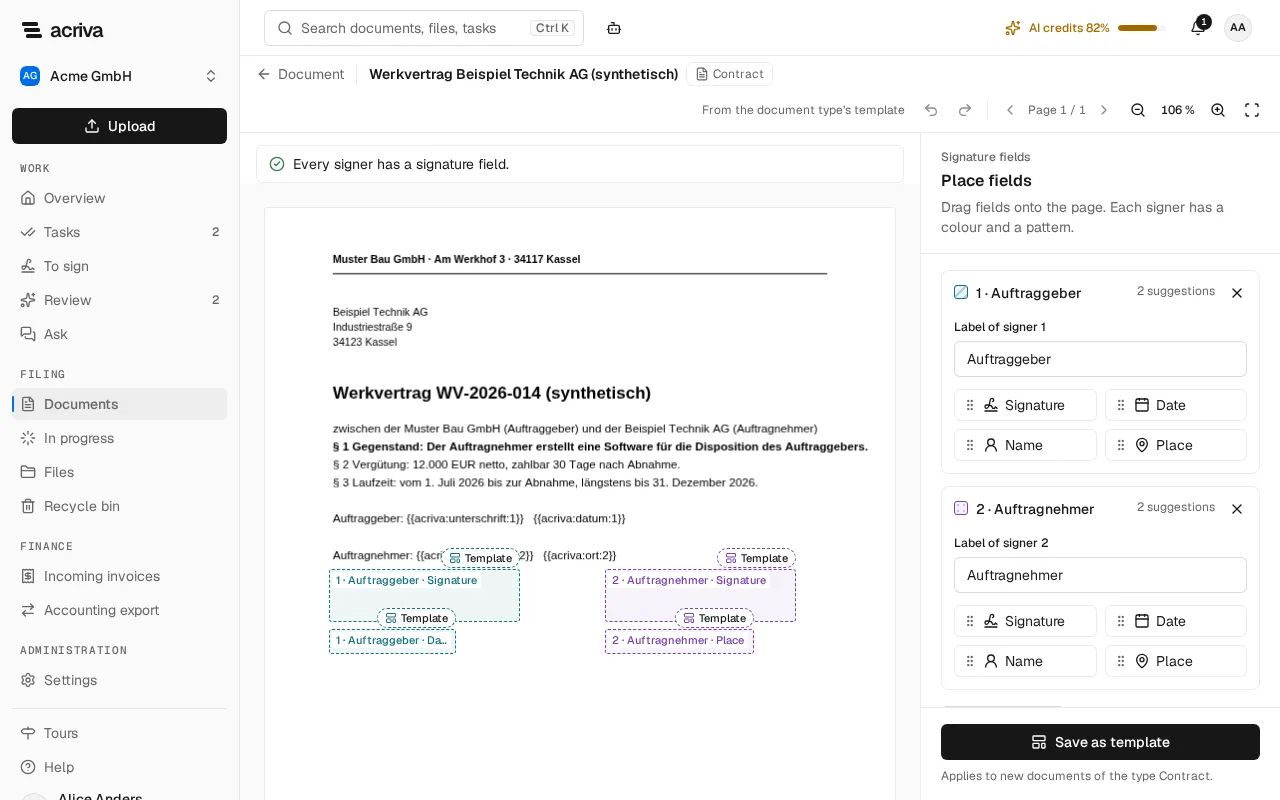
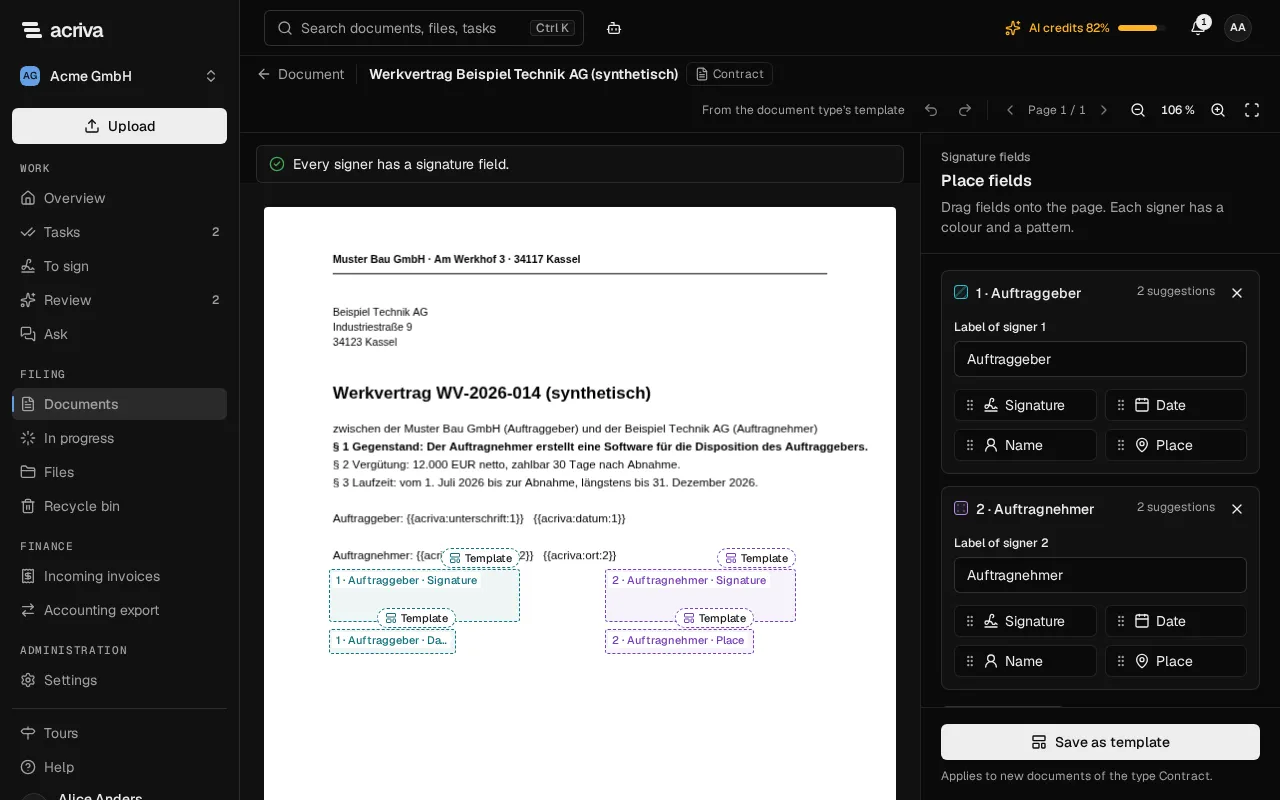
- Open the menu with More actions and select Signature fields. The editor shows the document’s pages, and on the right the panel Place fields with a card for each signer.
- Give each signer a label in Label of signer 1, Label of signer 2 and so on, such as the role the signer has in the document. Select Add signer for more signers, up to ten.
- Drag Signature, Date, Name or Place from a signer’s card onto the page. You can also select the item: the field then appears on the page you are on.
- Move a field with the mouse, and resize it by one of the eight handles of the selected field.
- To change a field, select it. Under Selected field you choose who it Belongs to and its Kind, and Remove deletes it.
Each signer has a colour and a pattern: the first stripes, the second dots, the third a grid. Each field also names its signer and kind in text, for example “2 · Contractor · Signature”.
A note above the pages says which signers still have No signature field yet, with Add field to place one. Once all have one, it reads Every signer has a signature field.
Work with the keyboard
Section titled “Work with the keyboard”The editor works without a mouse:
- Tab goes through the fields in page order.
- The arrow keys move the selected field by 1 point, with Shift by 10 points.
- Alt with an arrow key makes the field wider, narrower, higher or lower.
- Enter opens the field’s signer and kind, and Escape brings you back to the field.
- Delete removes the field.
- Ctrl+Z undoes a change and Ctrl+Y redoes it, as do the buttons Undo and Redo.
A screen reader announces each change and the signers that still have no signature field.
Suggestions and rotated pages
Section titled “Suggestions and rotated pages”Fields that come from the type’s template, or that Acriva found in the document, are suggestions. They have a dashed outline and a chip with their source, for example Template, Form field, Anchor text or AI · 82%. Once you move, resize or change a suggestion, it is your own field.
Some PDFs store a page rotated, such as a landscape annex. The editor shows the page as you read it, names its rotation in the toolbar, and the fields follow the rotation when the document is signed.
Save the layout as the type’s template
Section titled “Save the layout as the type’s template”When every signer has a signature field, select Save as template. The layout applies to new documents of the type. If all fields are on the document’s last page, the template fits documents of any page count, and the fields land on their last page. If it also has fields on other pages, it fits only documents with the same page count. For any other document, someone checks the fields in the task Signature field review before the document is sent.
Saving again replaces the type’s template. If someone else changed it in the meantime, Acriva says so; reload the page and save again. When you open a template on a document with another page count, a note says so: fields beyond the document are missing there, and saving replaces the template.
The template in the type’s settings
Section titled “The template in the type’s settings”Under Settings › Document types, the type’s page shows the card Signature field template: a sketch of the pages with the fields, the page count, and each signer with the kinds of their fields.
- Open in editor opens the editor on the newest document of the type.
- Remove template removes the template after a confirmation. Documents already sent and running signatures stay as they are. Right after, Template removed · Undo brings it back.
Without a template, the card reads No signature field template.