Tax audit
For a tax audit (Betriebsprüfung), you give the auditor an access of their own: they sign in to your workspace and see the documents of the audit period, and nothing else. The access is read-only, ends by itself on its last day, and every view, download and search of the auditor is in the audit log.
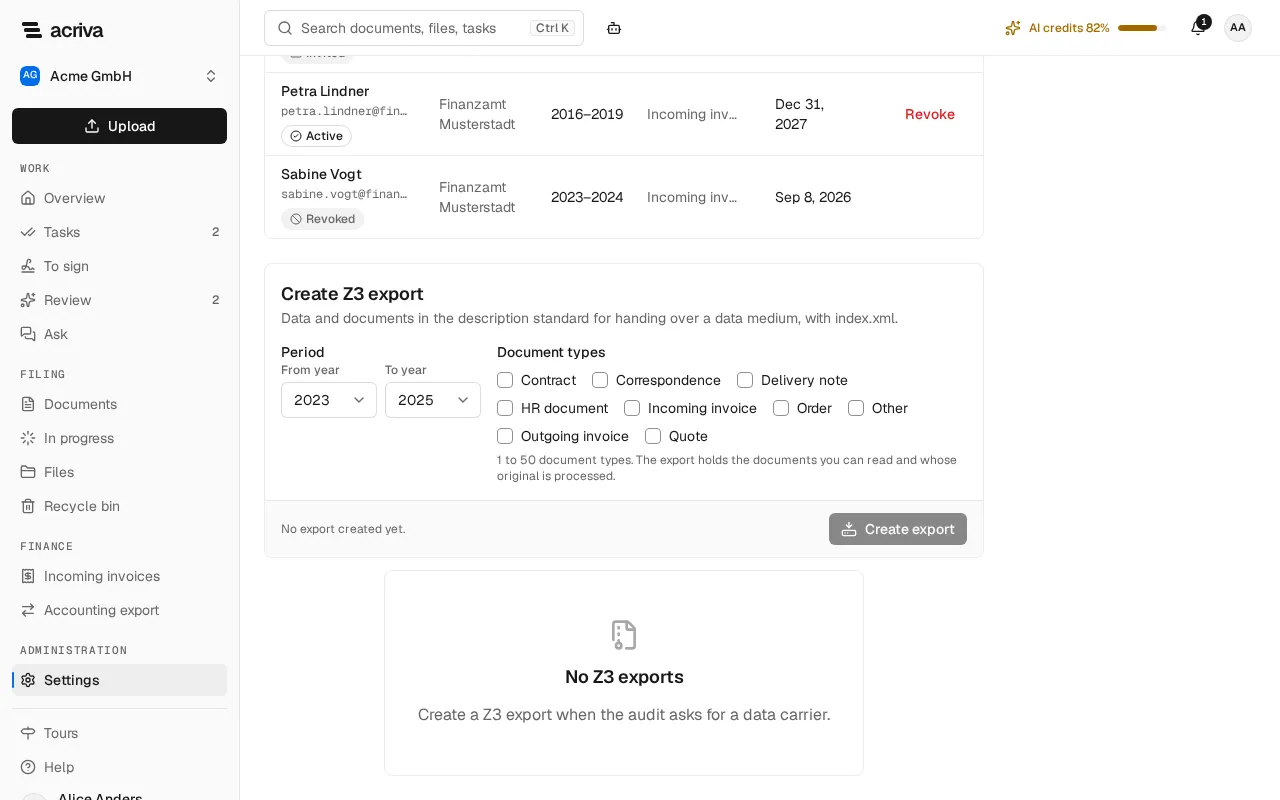
The page Tax audit
Section titled “The page Tax audit”You find Tax audit in the Settings, in the category Compliance. You see and use it with the permission Create and revoke tax auditor accesses and create the Z3 export. Of the built-in roles, Owner and Admin have it.
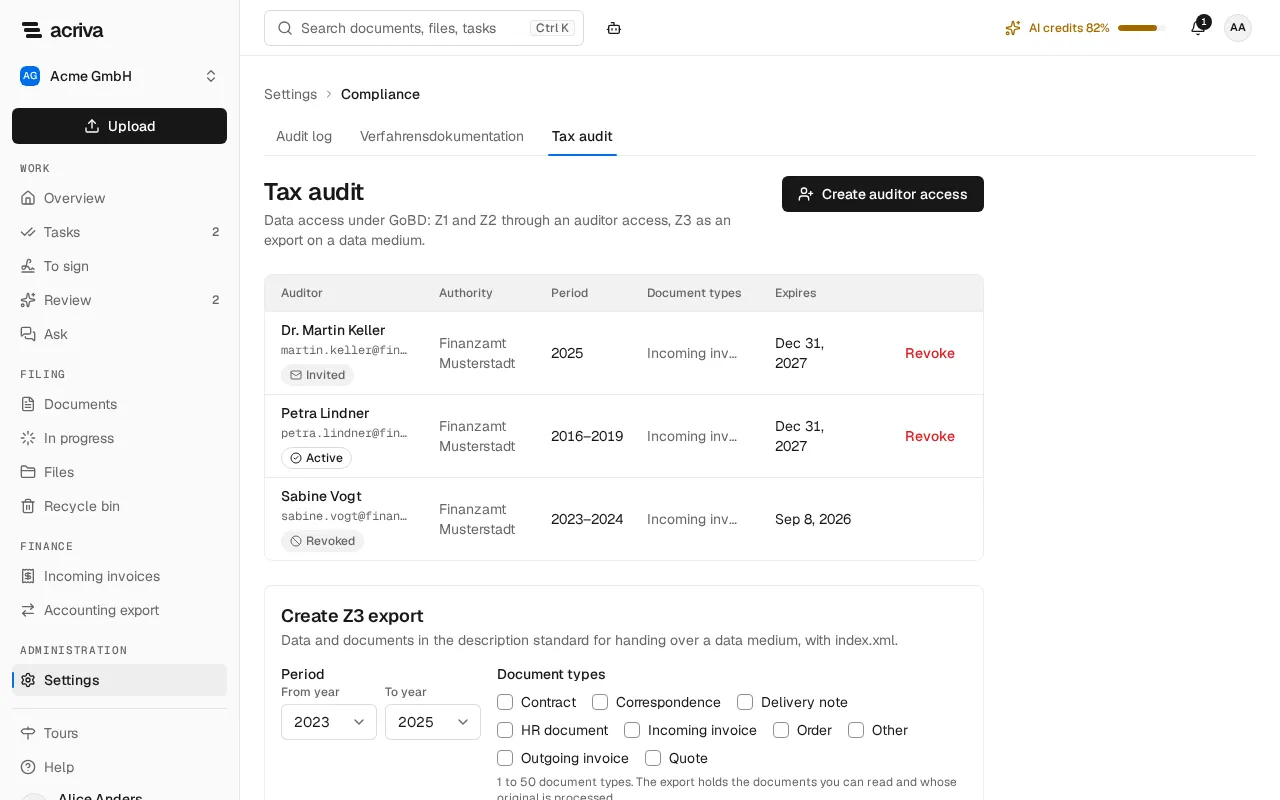
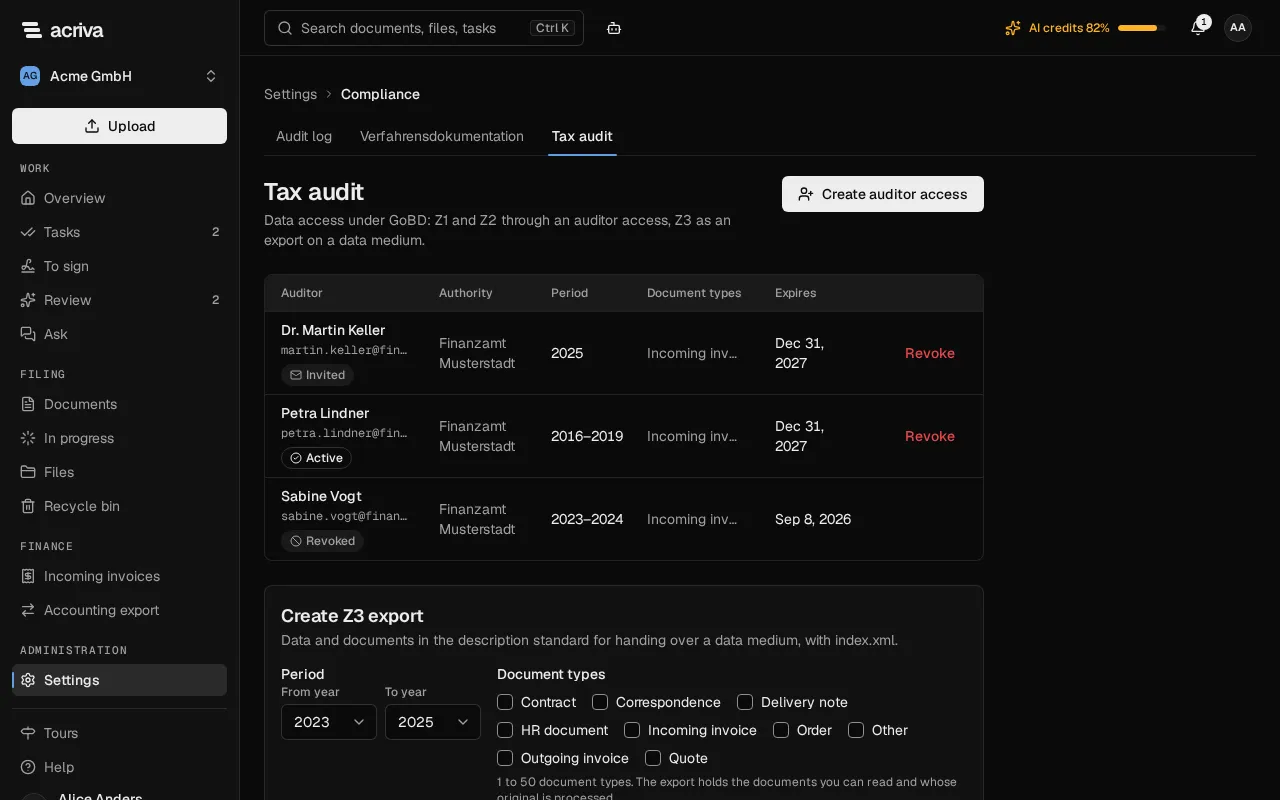
The page lists the auditor accesses, newest first:
| Column | Content |
|---|---|
| Auditor | The name, the email address and the state: Invited until the auditor has signed in for the first time, then Active, later Expired or Revoked. |
| Authority | The tax office you entered. |
| Period | The audit period in whole years, such as “2023–2025”. |
| Document types | The types of the access. Below them including confidential documents, or how many confidential documents of the scope the access leaves out: … confidential documents hidden. |
| Expires | The last day of the access. |
What an access covers
Section titled “What an access covers”An access is the combination of an audit period, document types and a kind of access. The auditor sees a document when all of this holds:
- Its document type is one of the types of the access.
- Its retention period started in one of the years of the audit period. A retention period starts at the end of the year of the document’s date (see How a period is counted), so an invoice with an invoice date in 2024 belongs to the year 2024.
- It is not confidential, unless you ticked including confidential documents.
- It is not in the recycle bin.
Archived documents are part of an access. The two built-in types Deletion record and Verfahrensdokumentation are never part of one.
There are two kinds of access:
| Kind | The auditor can |
|---|---|
| Z1 · View only | list the documents, open each one in the viewer and download single originals. |
| Z1 + Z2 · View and evaluate | also search the full text, filter by year, document type and amount, and download the documents shown as one ZIP file. |
Create an auditor access
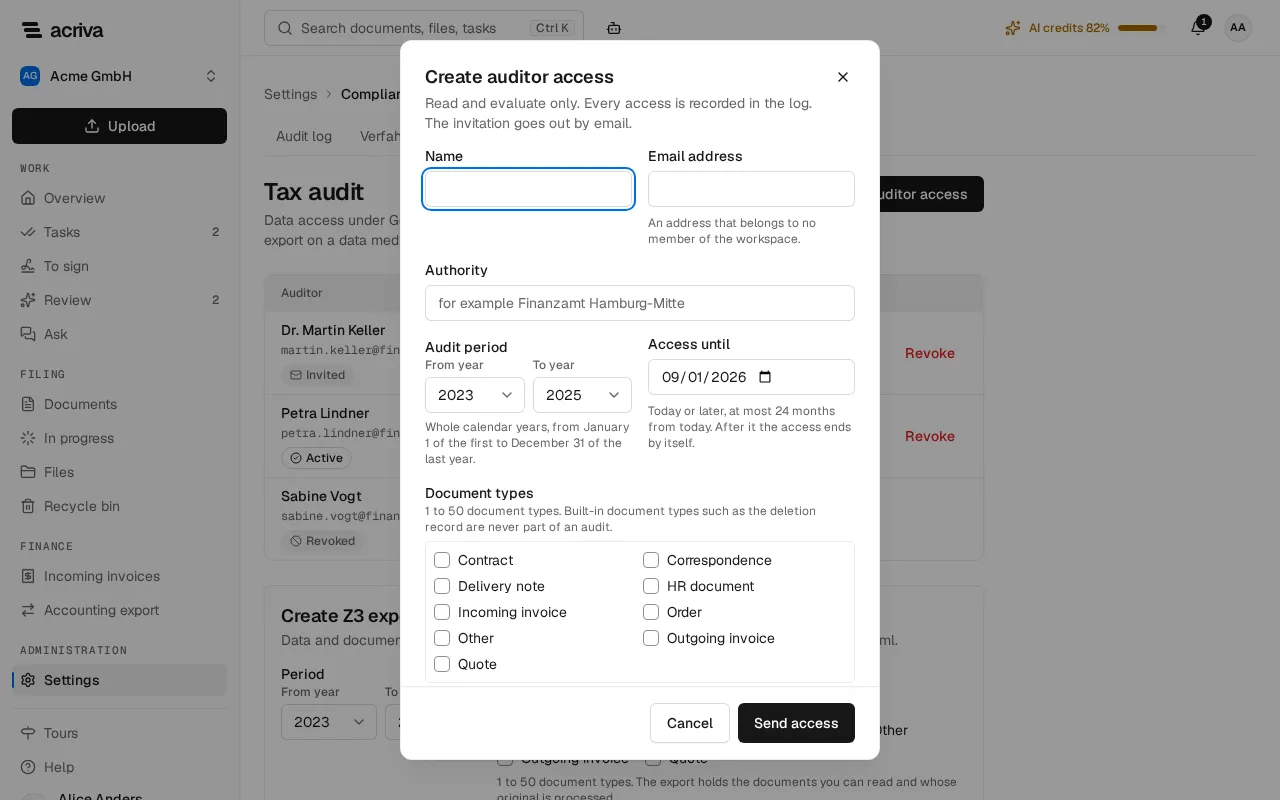
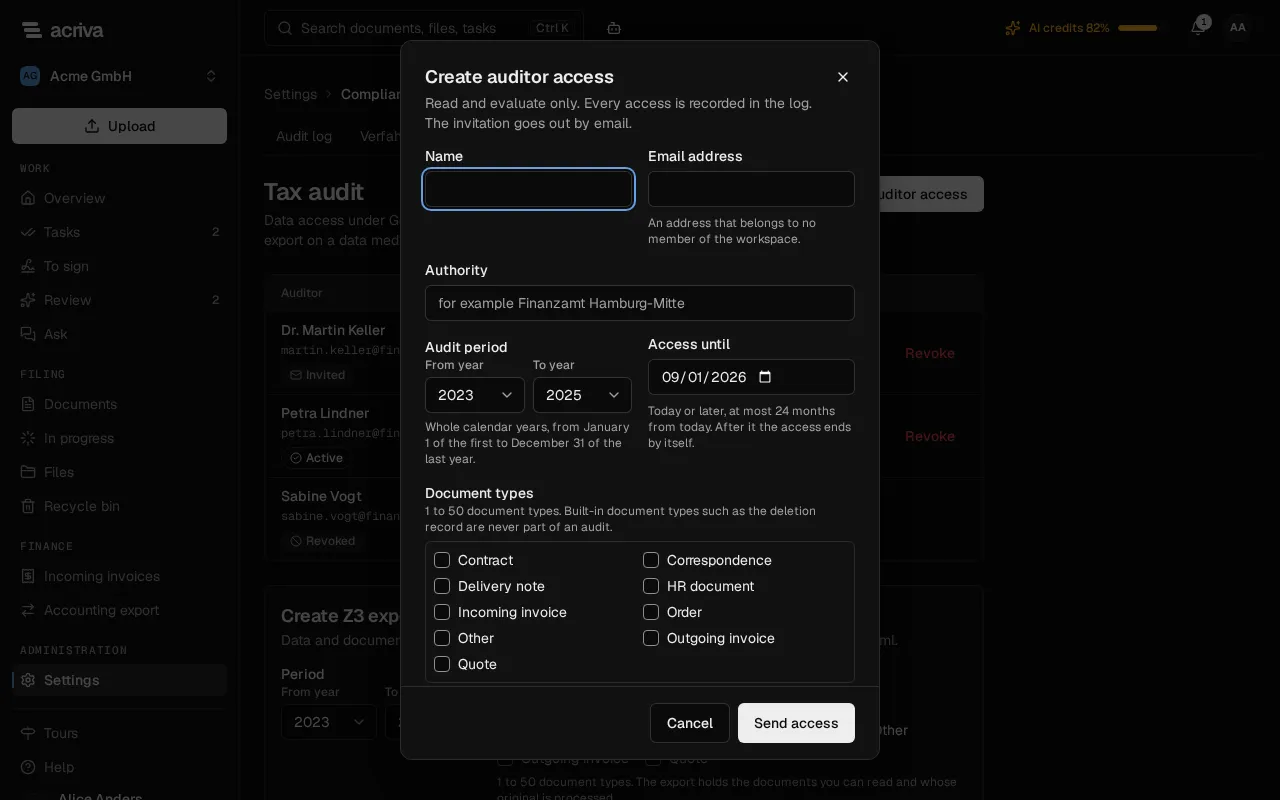
Section titled “Create an auditor access”- Open Settings, select Tax audit and then Create auditor access.
- Enter the Name and the Email address of the auditor. The address must belong to no member of your workspace, and nobody with an open invitation.
- Enter the Authority, for example “Finanzamt Hamburg-Mitte”.
- Choose the Audit period with From year and To year: whole calendar years, from January 1 of the first to December 31 of the last year. You can choose this year and the ten years before it.
- Under Document types, tick 1 to 50 types.
- Choose the Access type: Z1 · View only or Z1 + Z2 · View and evaluate.
- Set Access until: today or later, at most 24 months from today, and not before the audit period starts.
- Tick including confidential documents only when the audit needs them. The dialog then warns: The auditor then also sees the period’s confidential documents, even without being on a confidential list.
- Tick Place a hold on this period when no document of the audit should be deleted meanwhile (see Hold the audit period).
- Select Send access. Acriva confirms with Auditor access for … created. The invitation went to …
The auditor gets an invitation by email and signs in through the normal sign-in of Acriva. Until then the access shows Invited.
What Acriva refuses:
| Message | What to do |
|---|---|
| This person already has an auditor access. Revoke it before you create a new one. | A person has one access at a time. Revoke the old one first. |
| This email address belongs to a member of the workspace. An auditor access needs another address. | A member can’t be an auditor. Use another address of the auditor. |
| An invitation for this email address is already open. | Revoke the open invitation under Members first. |
| A role of your own has the name of the built-in role Auditor. Rename it and try again. | Rename your own role named “Auditor” under Roles & permissions. |
An access can’t be changed afterwards. To change the period, the types or the last day, revoke the access and create a new one.
Hold the audit period
Section titled “Hold the audit period”With Place a hold on this period, Acriva creates a legal hold with the access. It is named after the audit, for example “Tax audit 2023–2025, Finanzamt Hamburg-Mitte”, and covers the documents of the chosen types and years as they are on that day, the confidential ones too, whether or not the access includes them. Documents that enter the scope later, for example because a missing date is entered, are held as well.
Acriva fills the hold in the background. Until that is done, the hold’s row on the page Retention says still being filled, and no document whose retention period started in the audit period can be deleted.
The hold stays when the access ends or is revoked. Lift it on the page Retention when the audit is over (see Lift a hold).
What the auditor sees
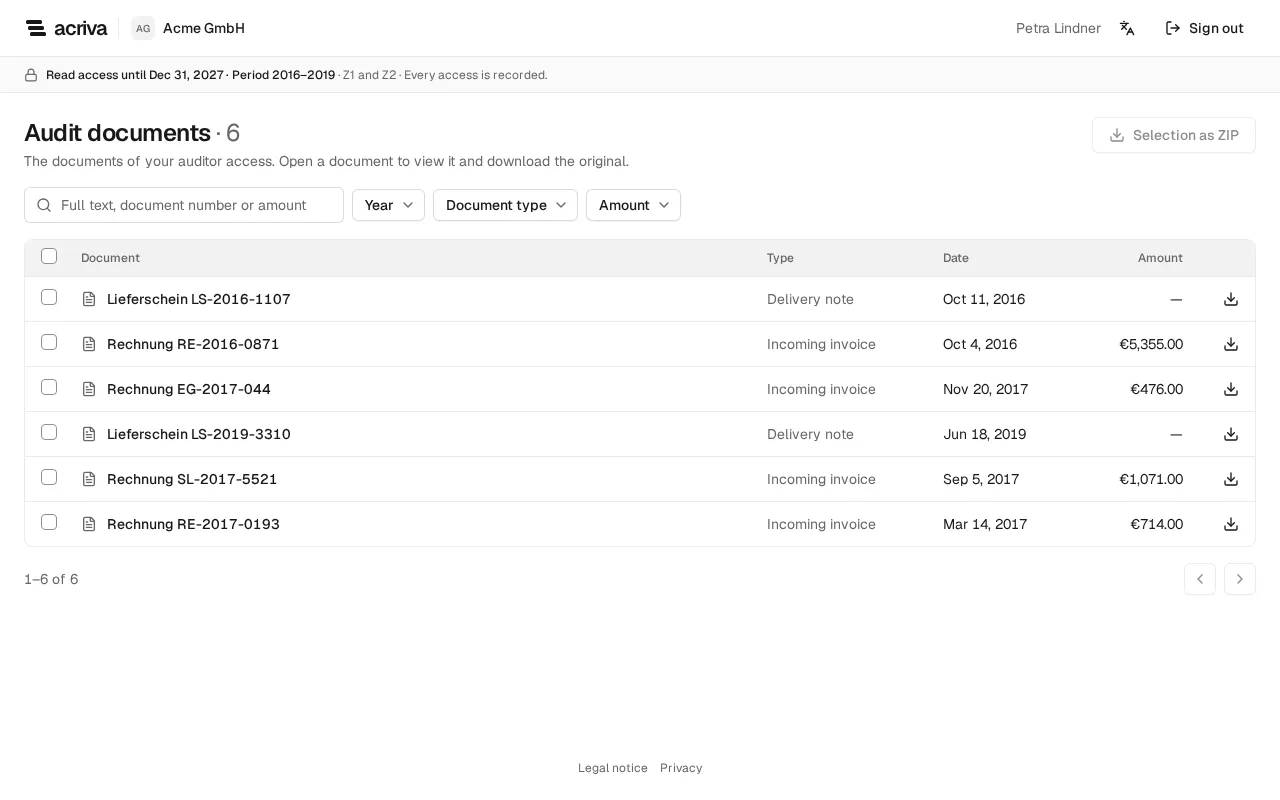
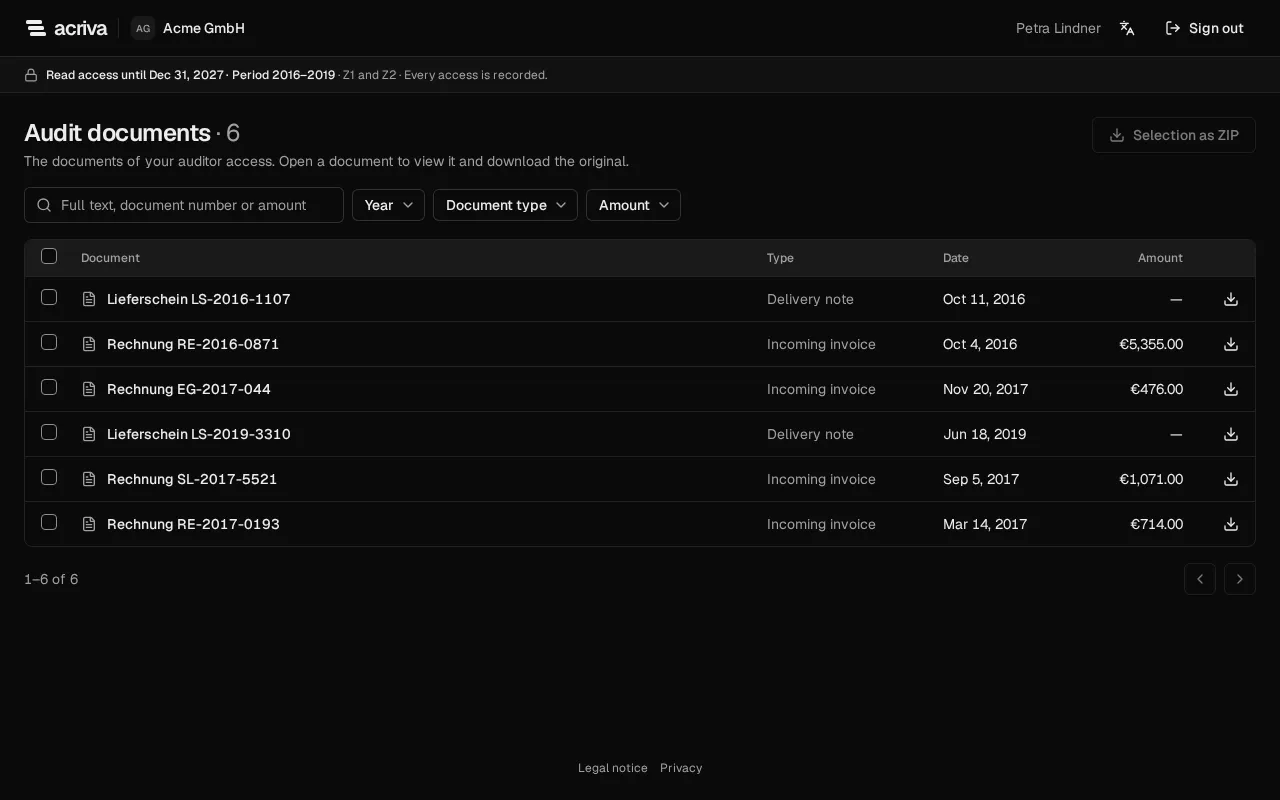
Section titled “What the auditor sees”The auditor sees a page of their own, Audit documents, and nothing else of your workspace: no Akten, no tags, no tasks, no search across the workspace, no settings and no members. A bar at the top names the last day, the audit period and the kind of access, for example Read access until Dec 31, 2026 · Period 2023–2025 · Z1 and Z2 · Every access is recorded.
- The list shows Document, Type, Date and Amount.
- Selecting a document opens it in the viewer, with its title, its type, Retained until and the fields of its document type. The auditor sees no Akten, no tags, no history, no workflows and no booking of an invoice, and no name of a member.
- Download original saves the original file of a document.
With Z1 + Z2, the page also has
-
the search Full text, document number or amount,
-
the filters Year, Document type and Amount, and
-
Selection as ZIP in the page header: the ticked documents of the page shown, with their originals and a
metadata.csv. Each row has a checkbox (Select “…”), and the checkbox in the table header ticks every row of the page (Select all documents of this page). With rows ticked, a bar says for example 3 selected and offers Cancel. The button is disabled while nothing is ticked.A page holds 50 documents, and another page or other filters clear the ticks. To get further documents, go to the next page or narrow the list with the search and the filters, tick them and download again. A ZIP takes at most 200 documents and 1 GB; Acriva refuses a larger one.
What an auditor can never do:
- change, upload, delete or restore anything,
- see a document outside the access, a document in the recycle bin or a file in quarantine,
- get a task of a workflow, be a substitute or the responsible person of an Akte or a cost center,
- get a grant on documents or stand on a confidential list. The role of an auditor can’t be given to a member, and an auditor can’t get another role.
Every document an auditor views or downloads is in the audit log, and so is every search, with the search text.
Revoke an access and its end
Section titled “Revoke an access and its end”An access ends by itself after its last day. To end it earlier:
- Select Revoke in the row of the access.
- Read the question. It says: The access ends at once: with the next step the auditor sees no documents any more. This can’t be undone.
- Confirm with Revoke.
After the end, the auditor sees Your auditor access has ended and can’t open any document. The access stays in the list as Revoked or Expired. To give the same person access again, create a new access.
Z3 export
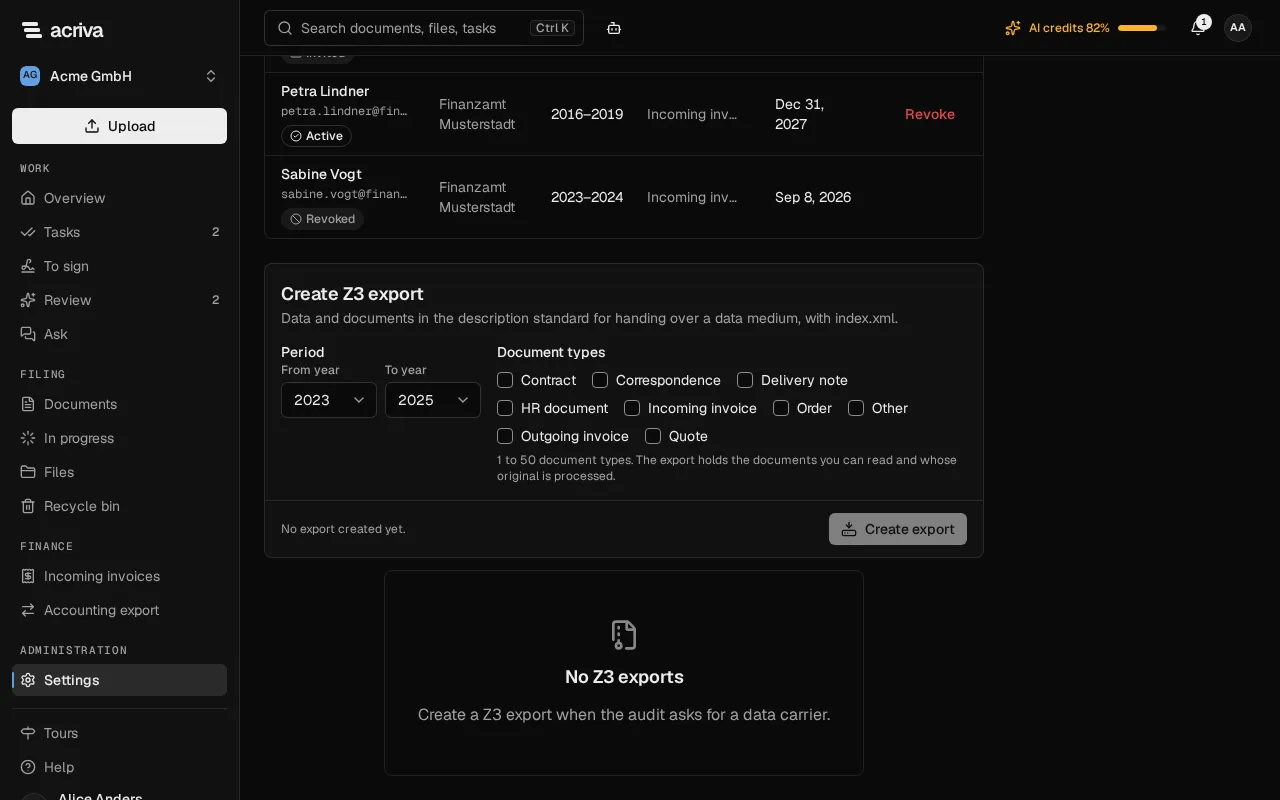
Section titled “Z3 export”When the audit asks for the data on a data medium, create a Z3 export: one ZIP file with the documents of an audit period, tables that describe them, and an index.xml that the auditor’s analysis software reads. You hand the file over yourself; the auditor needs no access for it.
The card Create Z3 export is at the bottom of the page Tax audit. Creating and downloading an export needs two permissions: Create and revoke tax auditor accesses and create the Z3 export and See incoming invoices, finance master data and the DATEV details, because the package holds invoice data. Of the built-in roles, Owner and Admin have both. Without the second one the card is disabled and names the missing permission: Only people whose role also allows “See incoming invoices, finance master data and the DATEV details” under “Finance” can create and download the Z3 export: the package holds incoming invoices. Someone who manages roles can add this to your role.
What the package holds
Section titled “What the package holds”- The original file of every document of the chosen document types whose retention period started in the chosen years (see What an access covers). Confidential documents are in it when you may read them.
- One table per document type, with each document’s title, retention period, checksum and the fields of its type.
- For incoming invoices, a table of the invoices (number, dates, vendor, amounts) and one of their allocation lines (G/L account, cost center, tax key).
The export holds only documents that you may read and whose file is processed. A document that you may not read, that is still being processed or whose current version is in quarantine is left out. A document whose every version is in quarantine is not part of the export at all and isn’t counted. Acriva tells you how many: … documents of the selection are missing from the export: you can’t read them, or their originals aren’t processed yet. The package names none; its file ausgelassen.txt says how many were left out at the download and why. When documents are left out, have someone who may read them create the export, or tell the auditor that the package is not complete.
A text that a spreadsheet would read as a formula gets a leading apostrophe in the tables: an invoice number “-123” is written as “’-123”. It starts with =, +, - or @, or with a tab or a line break. The value then differs from the document by that one character; tell the auditor so when they ask. Every file and column is described under Z3 export format.
Create and download an export
Section titled “Create and download an export”- Under Period, choose From year and To year: whole calendar years, this year or one of the ten before it.
- Under Document types, tick 1 to 50 types.
- Select Create export. Acriva confirms with Z3 export created and, for example, 812 documents, 640 MB. Download the package from the list.
- In the list Z3 exports below, select the download icon in the row of the export. The file has a name like
Z3-Export_2023-2025.zip.
One export holds at most 2,000 documents with 1 GB of originals. Above that nothing is created, and the card says: The selection is too large for one export: … documents with …. One export holds at most … documents with …. Choose a shorter period or fewer document types. Create several exports then, for example one per year.
The list Z3 exports shows every export, newest first, with Period, Document types, Documents (and … left out), Size and Created with the person. An export stays in the list; it can’t be changed or removed.
Acriva doesn’t store the package. It builds it again at every download, from what the person who downloads may read at that moment, so a later download can hold other documents than the list names. Below the list it says: The package is built again at each download, from what you can read then. If a download fails, the selection has grown too large or the export no longer exists: create it again.
Creating an export is in the audit log, and every download records a download for each document in it.