

E-signature settings
Under Settings › E-signature, owners and administrators see how e-signatures are set up in the workspace. The page needs the permission to manage e-signatures, which owners and administrators have.
Without the add-on
Section titled “Without the add-on”When the workspace hasn’t booked the add-on E-signature, the page says E-signature isn’t booked. It names the plans the add-on can be booked on and whether your plan is one of them. Go to subscription opens your Subscription.
Simple electronic signature (SES)
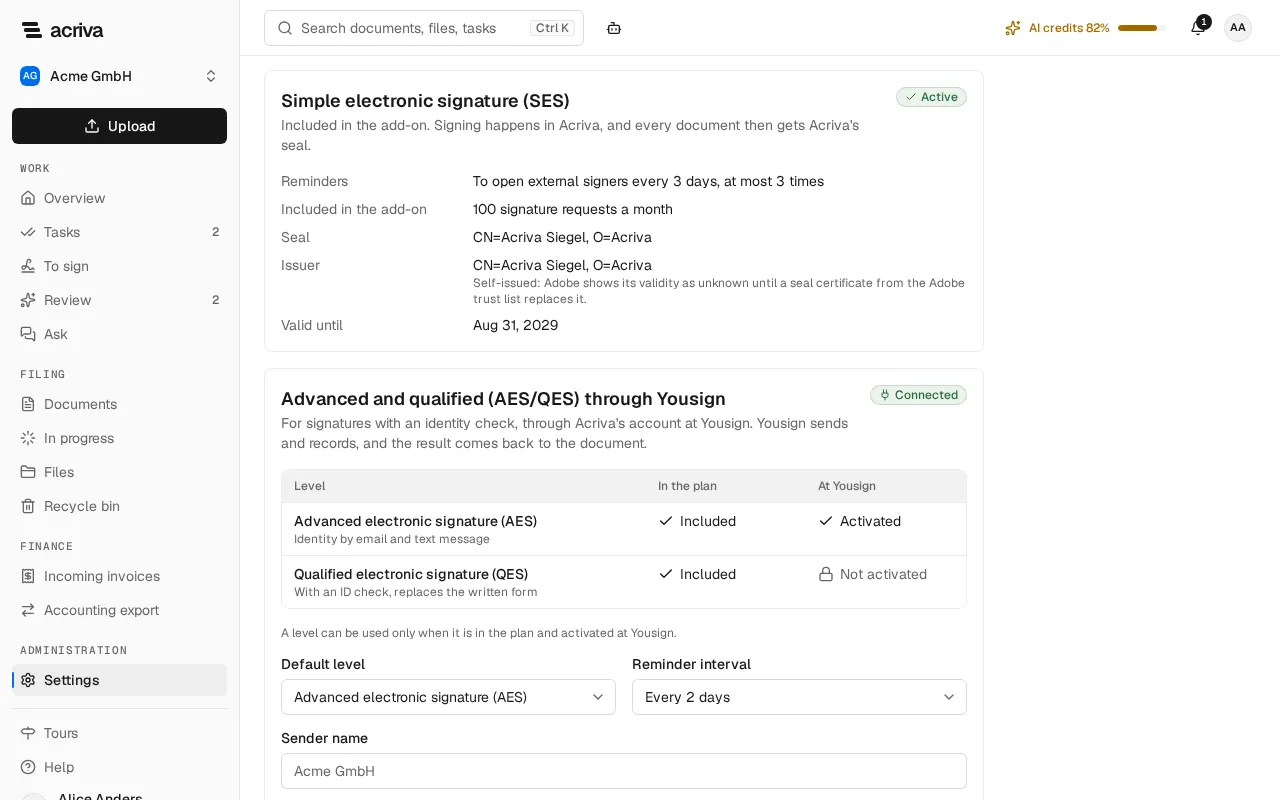
Section titled “Simple electronic signature (SES)”The first card shows Acriva’s own signature, which the add-on includes. It is Active as long as the add-on is booked. It lists:
- Reminders: Acriva reminds open external signers every 3 days, at most 3 times. This can’t be changed.
- Included in the add-on: how many signature requests a month your plan includes.
- Seal, Issuer and Valid until: the certificate Acriva seals every signed document with. A self-issued seal is marked as such: PDF readers then show its validity as unknown. If the seal is Not set up, Can’t be read right now, Expired or Not valid yet, signing is switched off and the page says so: no signature request starts, not even an advanced or qualified one, since their Signature log carries the seal too. Ask the operator of your Acriva system to set up the seal.
Advanced and qualified signatures (AES/QES)
Section titled “Advanced and qualified signatures (AES/QES)”The second card connects your workspace to Yousign, through Acriva’s account there. You don’t need an account or a key of your own.
- Select Connect. Acriva sets up your workspace’s account at Yousign; connecting again later finds the same account. If someone else is connecting the workspace right now, the page says so; then try again in a few minutes.
- The table shows each level as Included in your plan, since the add-on includes both, and whether Yousign has Activated it for Acriva’s account. A level can be used only when both are true. Right after connecting, the Yousign column shows the levels Yousign activated; it reads Unknown when they couldn’t be read, until the next Test connection.
- Choose the Default level, the Reminder interval of Yousign’s emails and the Sender name those emails show. Left empty, the sender name is your workspace’s name. Select Save.
- Test connection checks the account and reads the activated levels again. It shows Connection works with the time and the account, or why it failed, for example that Yousign can’t be reached right now.
Disconnect turns the advanced and qualified signatures off after a confirmation: no new request goes out, and signatures in progress run to their end. Connect turns them on again with the same account.
When a level is usable, the card Send for signature offers it under Signature level. With the AES, each signer confirms with an SMS code sent to their mobile number. It therefore applies to external people whose first name, last name, email address and mobile number come from fields of the document, and each signer counts towards the AES quota; once it is used up, the step takes the outcome “skipped”. The QES verifies the signer’s identity and is billed per identification attempt. Once the signature is done, Acriva stores the PDF signed by Yousign as it is, with Yousign’s audit trails and Acriva’s Signature log.
What leaves Acriva and what it costs
Section titled “What leaves Acriva and what it costs”The last card sums up what the E-signature page explains in full:
- SES stays in Acriva. External signers only get an email with a link and a confirmation code.
- AES and QES send the document, its title, the signature fields and the signers’ names, email addresses and mobile numbers to Yousign SAS in Caen, France (EU), which processes them for Acriva. So do the workspace’s name, which Acriva names its workspace at Yousign after, and the sender name.
- Costs: the simple signatures the add-on includes each month, a monthly quota of advanced signatures with packs beyond it, and each identification attempt of a qualified signature at Yousign’s price plus a markup. Acriva bills them; when Acriva includes them for your workspace, the card says so.
- E-signature: how a signature runs and what the Signature log holds
- Send for signature: the card in the workflow designer
- Subscription: your plan, the add-ons and the usage