

Tax advisors
A tax advisor reads your documents and incoming invoices and creates the DATEV export, in your workspace and in the workspaces of their other clients, with one login. The seat Tax advisor is free: it never counts against the full seats of your plan.
Invite your tax advisor
Section titled “Invite your tax advisor”- Under Settings › Members, select Invite.
- Under Email addresses, enter the advisor’s address.
- Under Seat type, choose Tax advisor. The role Tax advisor is fixed for this seat.
- Select Send invitation.
The advisor gets an email with a link that is valid for 7 days. An advisor who already uses Acriva for another client signs in with the same account and gets your workspace in addition. You remove the advisor like any member (Members).
What a tax advisor can do
Section titled “What a tax advisor can do”The role Tax advisor can’t be edited. It allows:
- reading and downloading documents of the standard document types: incoming and outgoing invoices, contracts, delivery notes, quotes, orders, correspondence and other documents. HR documents are not among them, and neither are your own document types. Owners and admins change which types the advisor reads under Roles & permissions (Document access).
- searching these documents;
- the incoming invoices and their booking details (Incoming invoices);
- the DATEV export under Accounting export (DATEV).
A confidential document stays closed to the advisor unless they are on its confidential list. The advisor doesn’t upload, edit, file or tag documents, doesn’t approve invoices or take workflow tasks, doesn’t review AI results, and has no access to members, settings or compliance. Exports the advisor creates are in the audit log like everyone else’s.
Switch between clients
Section titled “Switch between clients”An advisor with the seat Tax advisor in more than one workspace has the client switcher at the top left of the sidebar, in place of the workspace switcher. It shows the current client with the number of approved invoices that are ready for the export, for example Client · 4 open, or Client · all done.
- Select the client switcher, or press Ctrl M.
- The list shows each client with Open and Last activity. Type into Search clients to find one.
- Choose a client. Acriva opens its incoming invoices (in a workspace where you have another seat, its Overview).
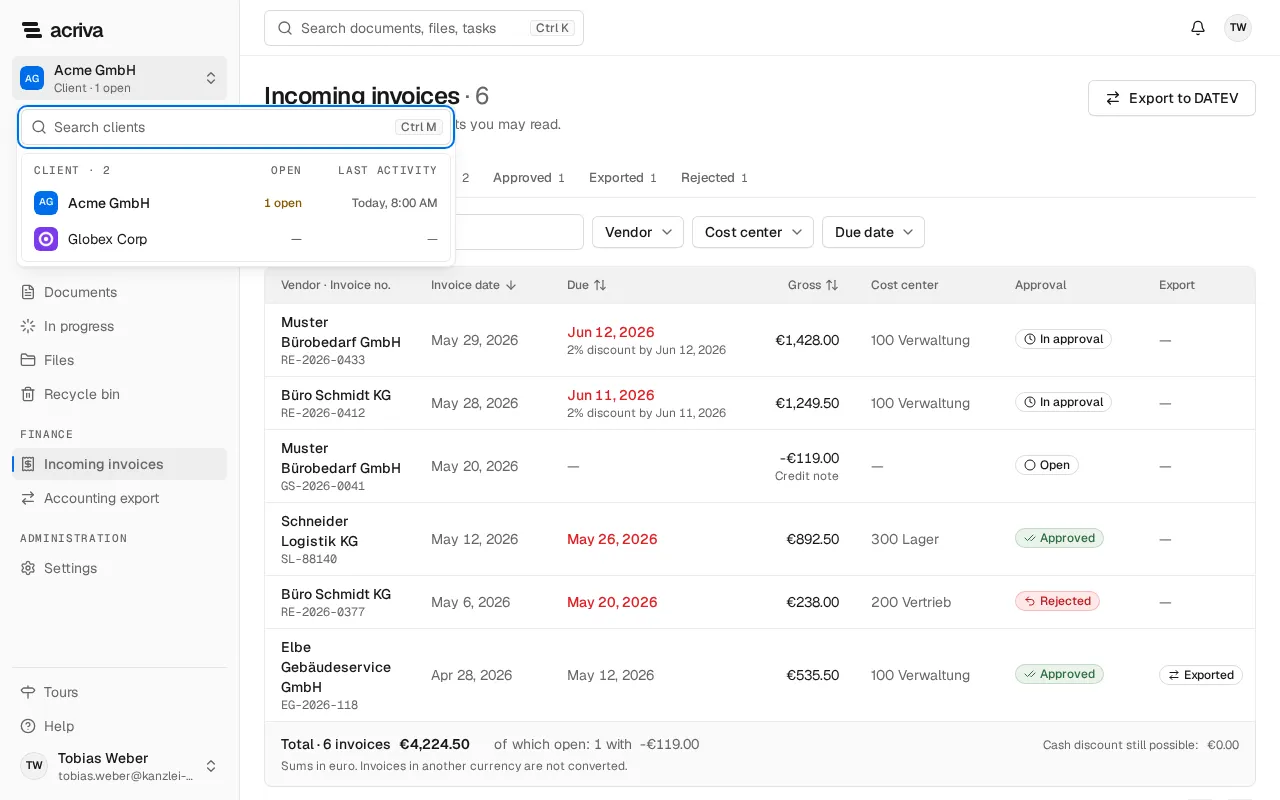
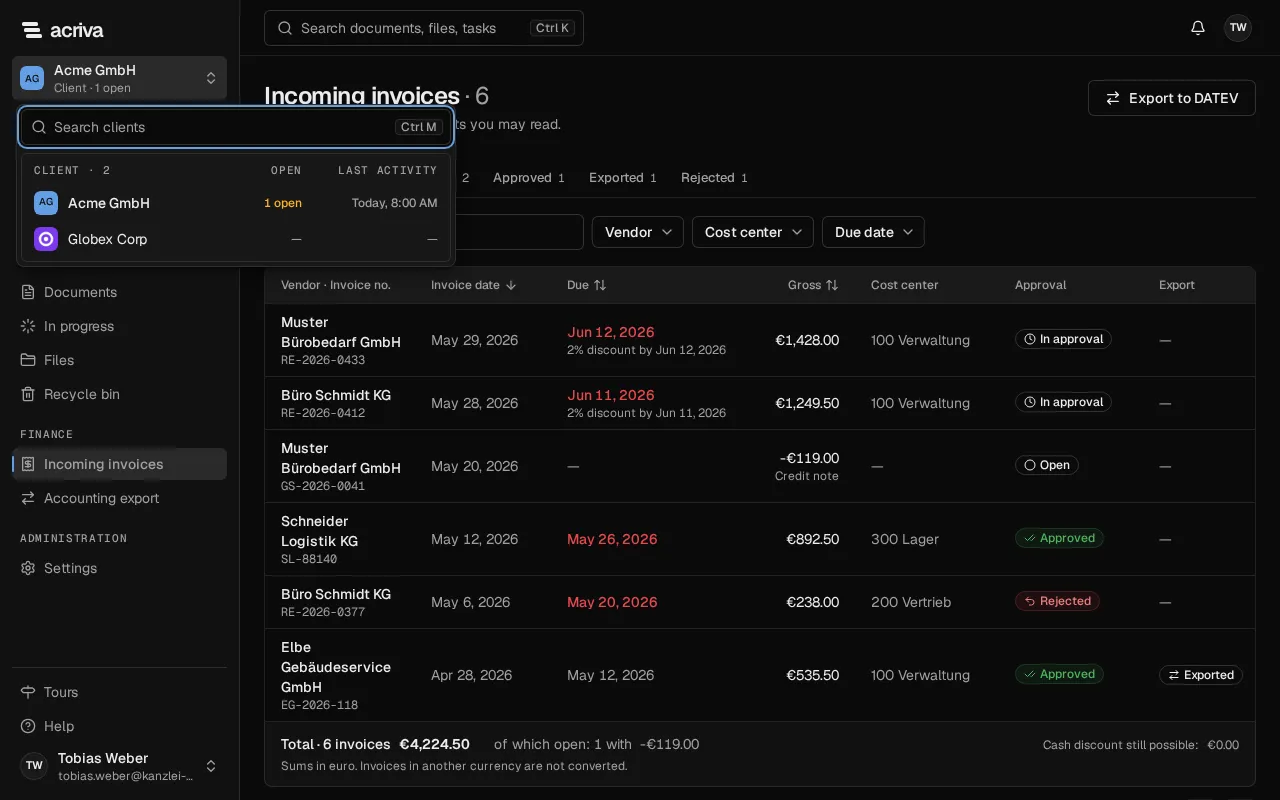
On a phone, the client switcher is in the menu. In a workspace where the advisor has another seat, such as their own firm’s workspace, the switcher shows the role there instead of the open invoices.