

Members
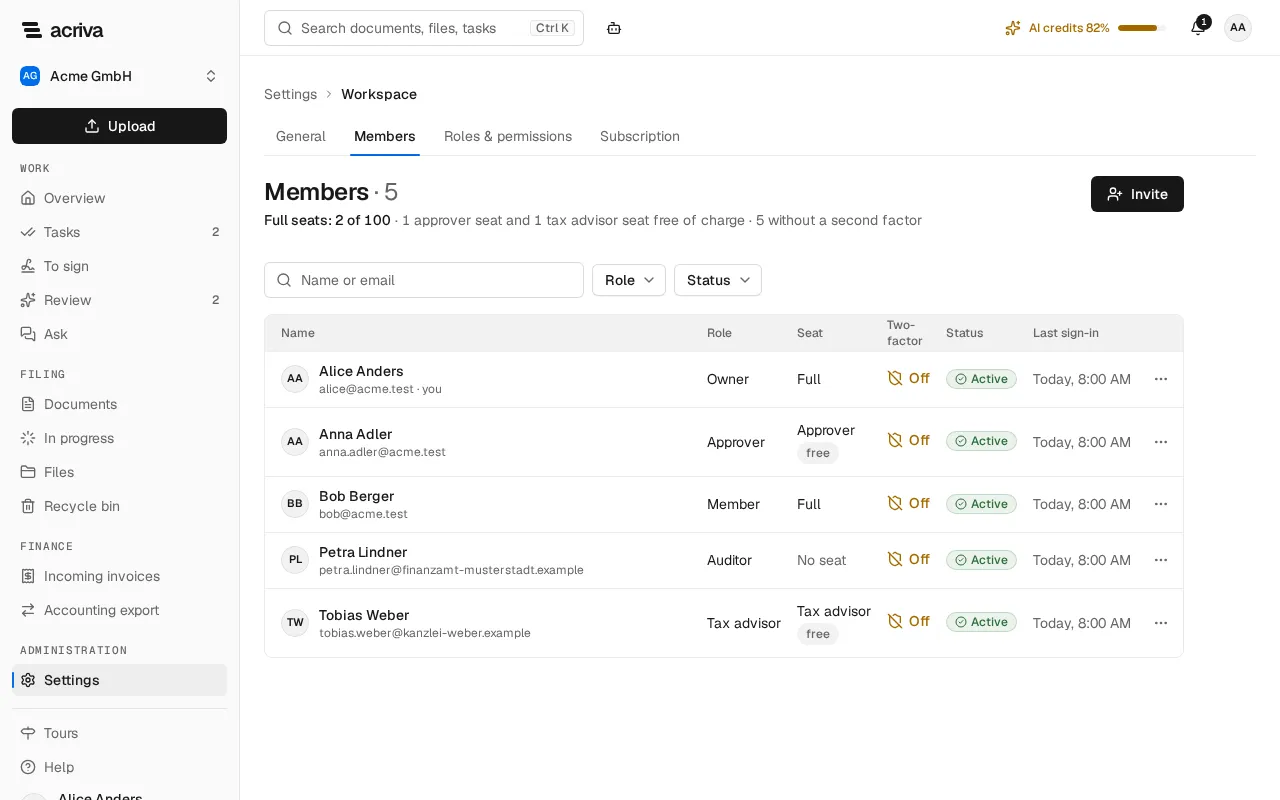
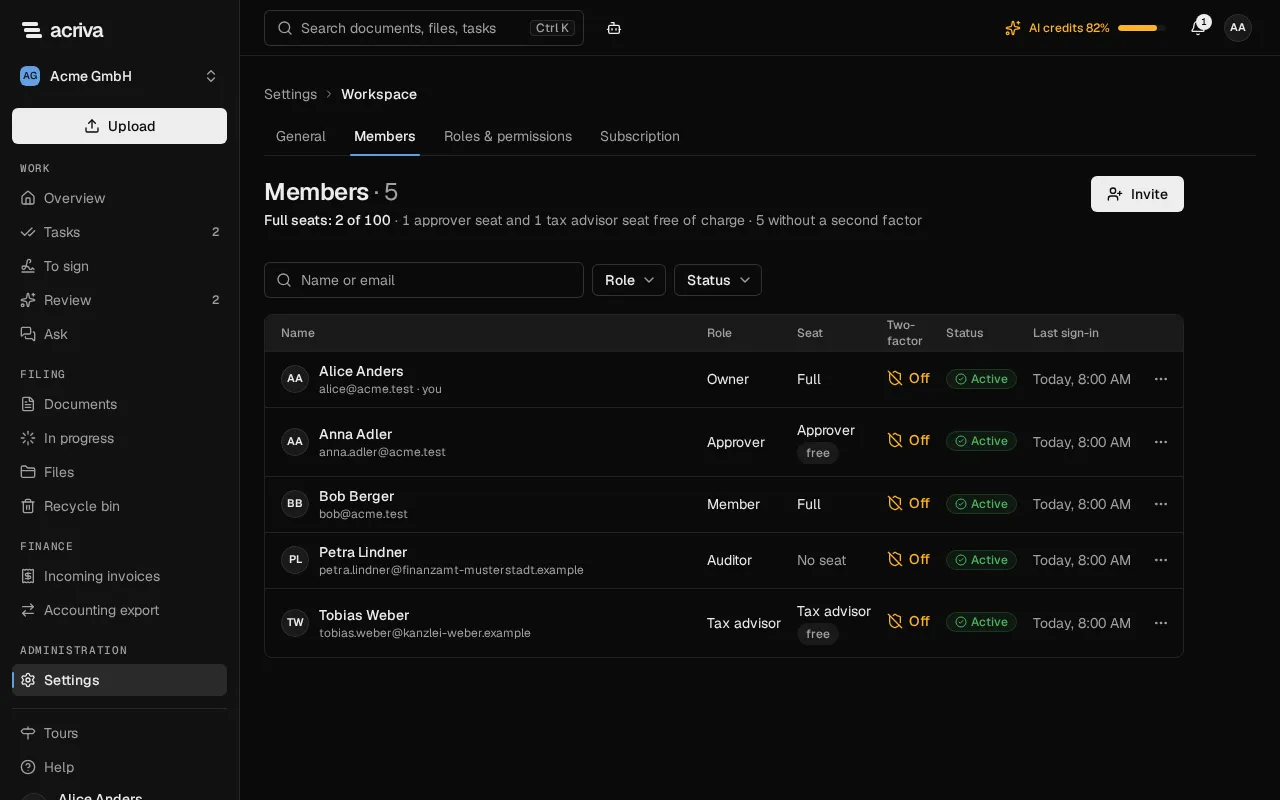
The page Members lists the people of your workspace. Owners and admins open it under Settings, in the category Workspace, and also see the open invitations there; inviting, changing roles and removing members is for them.
While the workspace is read-only (Subscription), you can’t invite members or change roles; removing a member and revoking an invitation still work.
Under the title, the page counts the seats: for example Full seats: 3 of 25 · 1 approver seat and 1 tax advisor seat free of charge. Owners and admins see how many full seats the plan has; the count includes open invitations into a full seat. Owners and admins also see how many members have no second factor, for example 2 without a second factor. The table shows each person’s Role, Seat, Two-factor, Status and Last sign-in.
For owners and admins, the column Two-factor shows On when the member has set up an authenticator app or a passkey, and Off when they haven’t. A dash means Acriva doesn’t know it yet; it checks again the next time the page opens, and overnight.
Seat types
Section titled “Seat types”Every member occupies a seat of the plan (Subscription):
- Full: every feature the role allows. Each full seat costs the plan’s price per month. Every other role takes a full seat, including your workspace’s own roles; only the tax auditor’s role Auditor takes no seat (No seat).
- Approver: views, approves and comments on their own tasks only. The seat is free and has the fixed role Approver.
- Tax advisor: reads documents except HR documents, searches, and exports invoices for the accounting. The seat is free and has the fixed role Tax advisor. More in Tax advisors.
Acriva marks both free seats free in the column Seat.
The role decides the seat: choosing the role Approver or Tax advisor moves the member to that free seat, and any other role except Auditor to a full seat.
Invite members
Section titled “Invite members”- Select Invite.
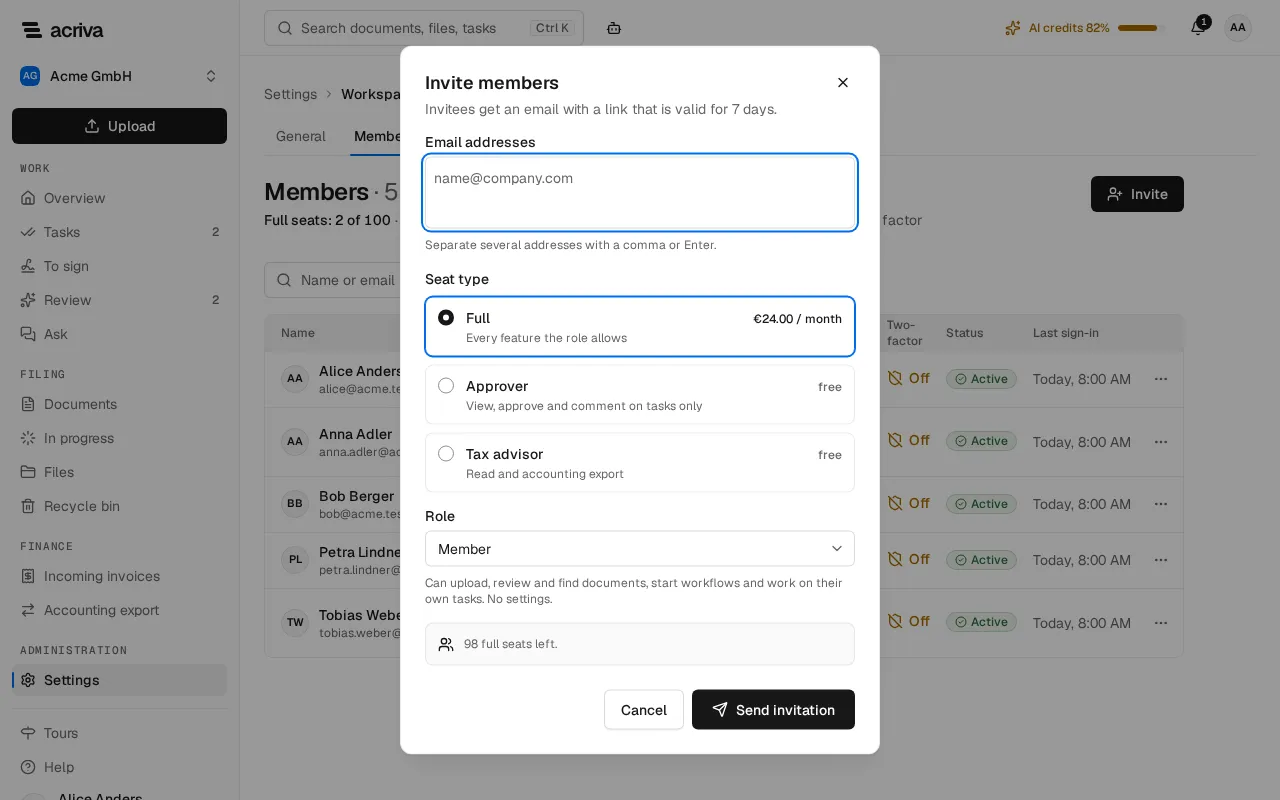
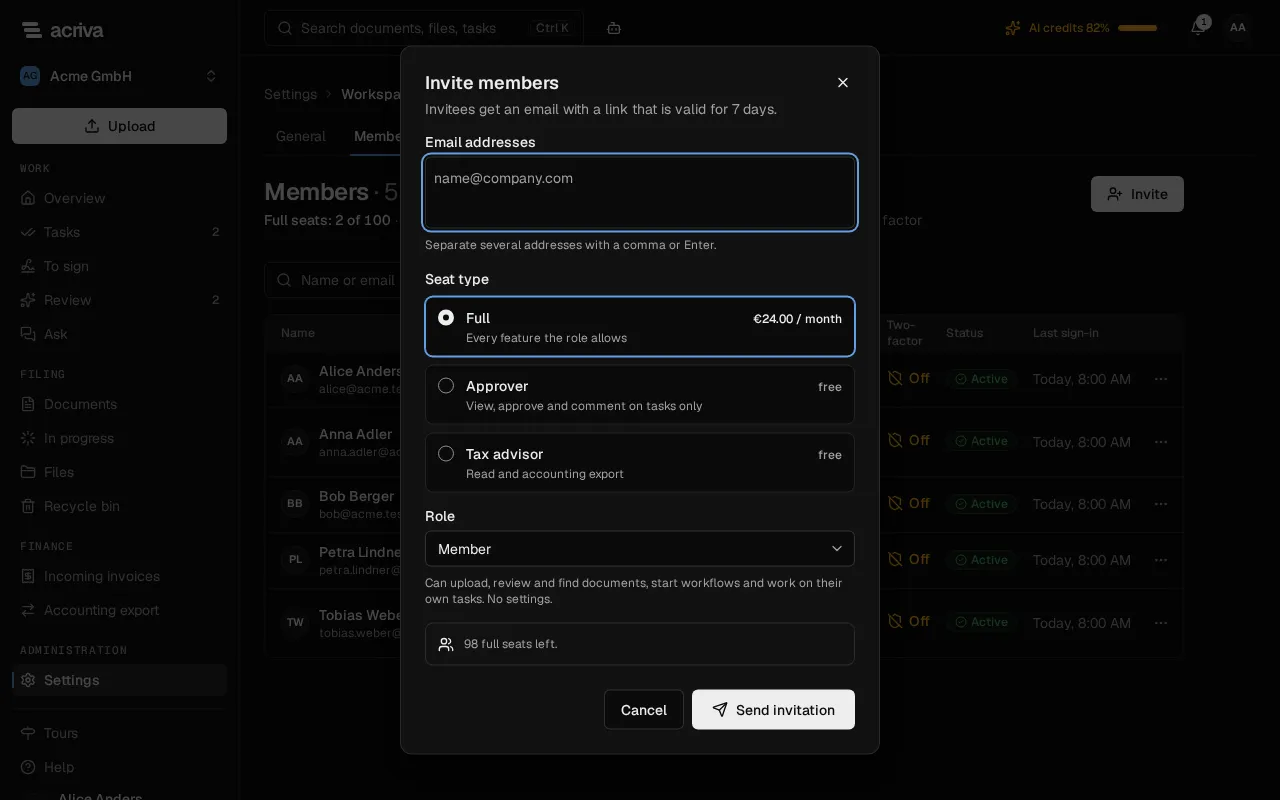
- Under Email addresses, enter one or more addresses. Separate several addresses with a comma or Enter.
- Under Seat type, choose Full, Approver or Tax advisor. Full shows the price per month.
- Under Role, choose the role. For a free seat, the role is fixed.
- Select Send invitation (or Send 2 invitations and so on).
Under the role, the note says how many full seats are left and how many open invitations occupy one. Invitees get an email with a link that is valid for 7 days.
When every full seat of your plan is occupied, the dialog says so and keeps the addresses: invite with a free seat, or ask our team to extend the plan (owners and admins find Go to the subscription there).
You can invite a person again after you revoked their invitation: the link of the old invitation stays invalid, and the role of the new one applies. If the person already has an account and had accepted the first invitation, they get an email that leads to the workspace: they sign in with their account, open the workspace, and are a member.
Change a role or the seat
Section titled “Change a role or the seat”- In the row of the member, open the menu Actions for ….
- Under Role, choose the new role.
When the new role moves the member to another seat, Acriva asks first, for example The seat changes from “Full” to “Approver”. Select Change role to confirm. The same question appears when the member created API keys that still work: keys whose access goes beyond the new role are revoked. A move into a full seat is refused when every full seat is occupied.
Remove a member
Section titled “Remove a member”- In the row of the member, open the menu Actions for ….
- Select Remove … and confirm with Remove member.
The member loses access to the workspace at once and is signed out. The question names the API keys the member created: they are revoked with the membership.
Reset a member’s second factor
Section titled “Reset a member’s second factor”When a member has lost the phone with their authenticator app, or their passkey, an owner or admin resets the second factor:
- In the row of the member, open the menu Actions for ….
- Select Reset the second factor of … and confirm with Reset.
The member is signed out on every device. When your workspace requires two-factor login, they set up a second factor again the next time they sign in; otherwise they can set one up in their profile. Their password stays the same, and the reset is logged. The menu doesn’t offer the reset for your own account, for a member whose column shows Off, or while the workspace is read-only. When the person also belongs to another workspace, the second factor applies there too, so only our support can reset it; Acriva says so when you try.