

Review queue
When a document arrives, AI recognizes its document type and fills in its fields (see Processing and quarantine). It applies its result on its own only when it is sure and every check passes. Everything else waits for a person in the review queue: select Review in the sidebar. The number next to it says how many documents wait for you.
You only see documents you may edit. A document that is confidential, or that you may only read, never shows in your queue and isn’t counted. You need the permission to review AI results; the built-in roles Owner, Admin and Member have it.
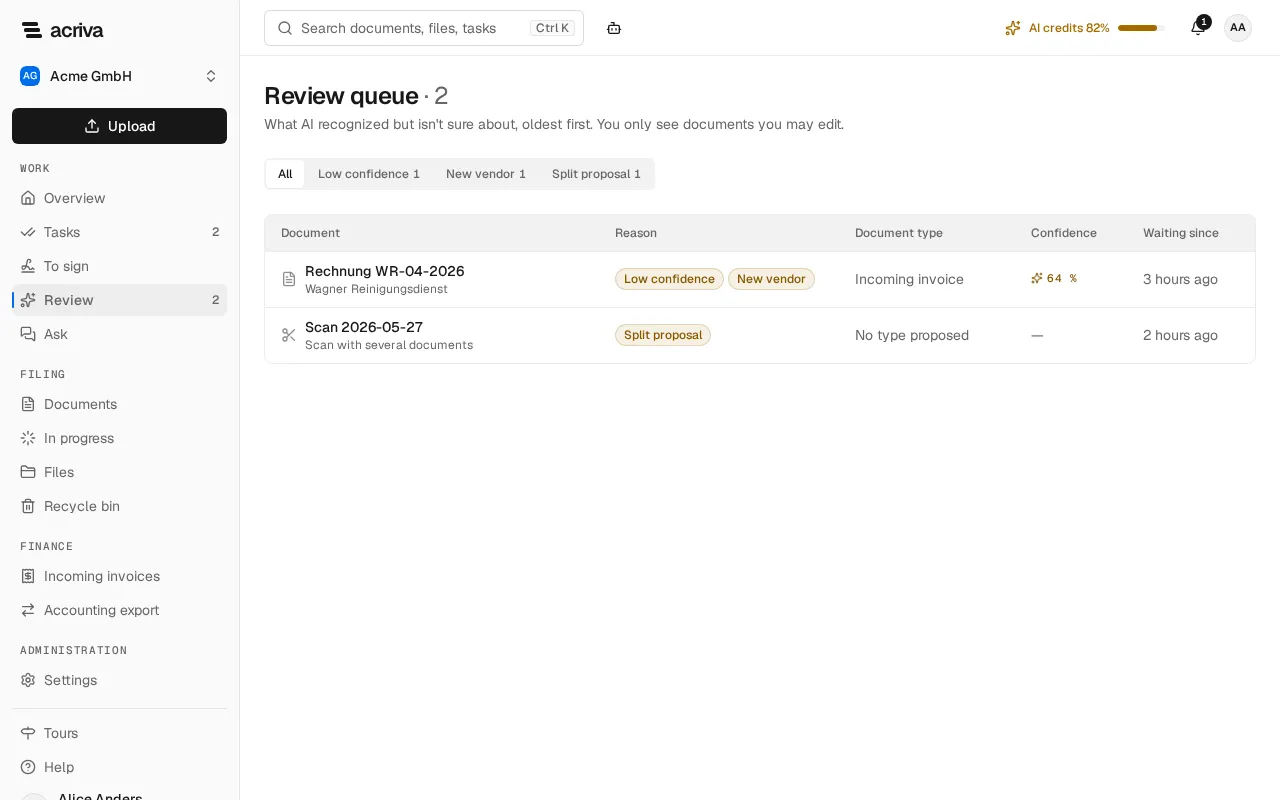
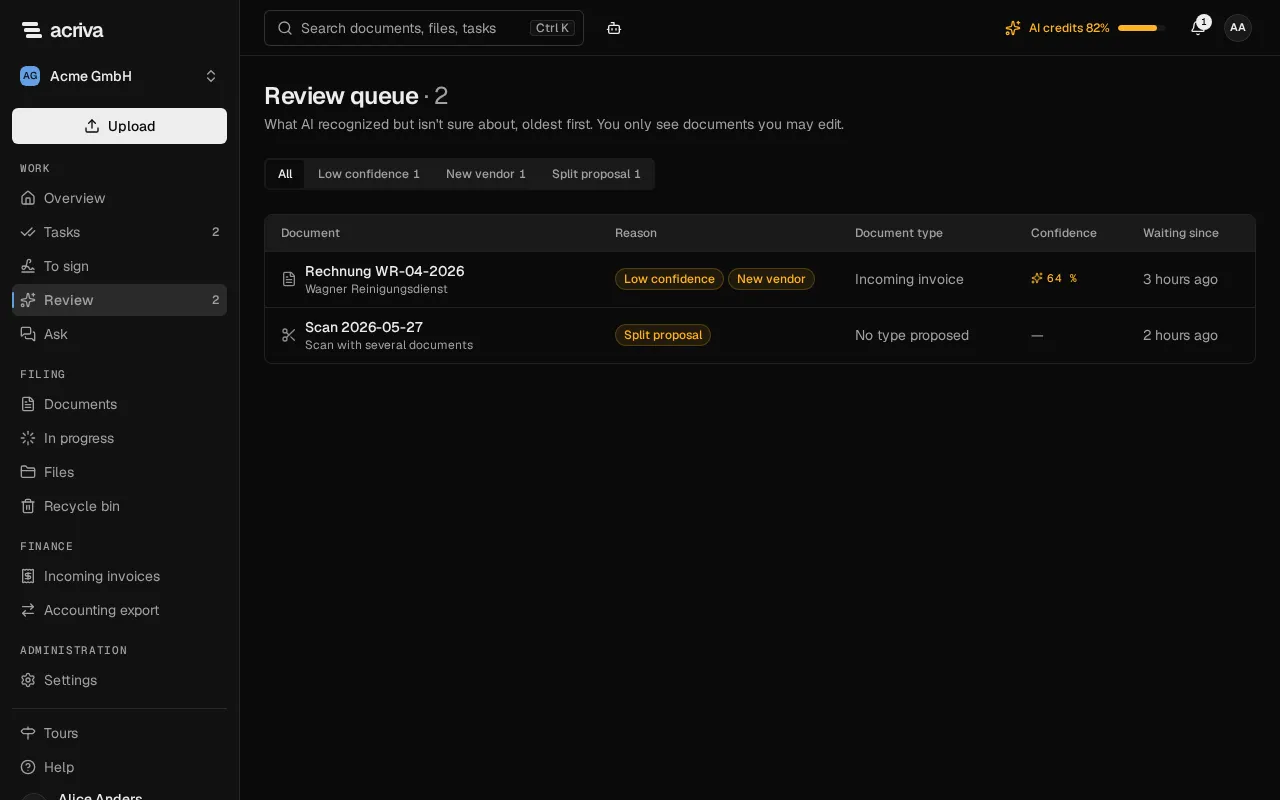
The review queue
Section titled “The review queue”Review queue lists the waiting documents, the oldest first. Each row shows the document with the vendor AI read, why it waits, the proposed Document type, AI’s Confidence and how long it has been Waiting since. Above the list, choose a reason to see only the documents waiting for it, or All. Each reason shows how many documents wait for it, and only the reasons that have documents appear. Longer lists have pages: the arrows below the list go forward (Next page) and back (Previous page).
A document waits for one or more of these reasons:
- Low confidence: AI is less sure than your workspace’s threshold.
- A check failed: a value didn’t pass a check, for example an invalid IBAN, amounts that don’t add up or an implausible date. An incoming invoice must also name its vendor, invoice number, invoice date and gross total, and its vendor must not be your own company: when AI reads your company as the vendor, the document is probably an invoice you issued. Invoices between companies of your group that share a name, VAT ID or bank account, and credit notes you issue yourself (self-billing), can land in review for this reason too.
- New vendor: there is no confirmed document from this vendor yet.
- Split proposal: AI thinks a scan holds several documents.
- Splitting failed: you confirmed a split, but it couldn’t be done. The scan is still one document.
- AI credits used up and AI unavailable: AI didn’t read the document; fill it in yourself.
- Not applied: AI’s result couldn’t be applied, for example because its document type was deactivated.
Check a document
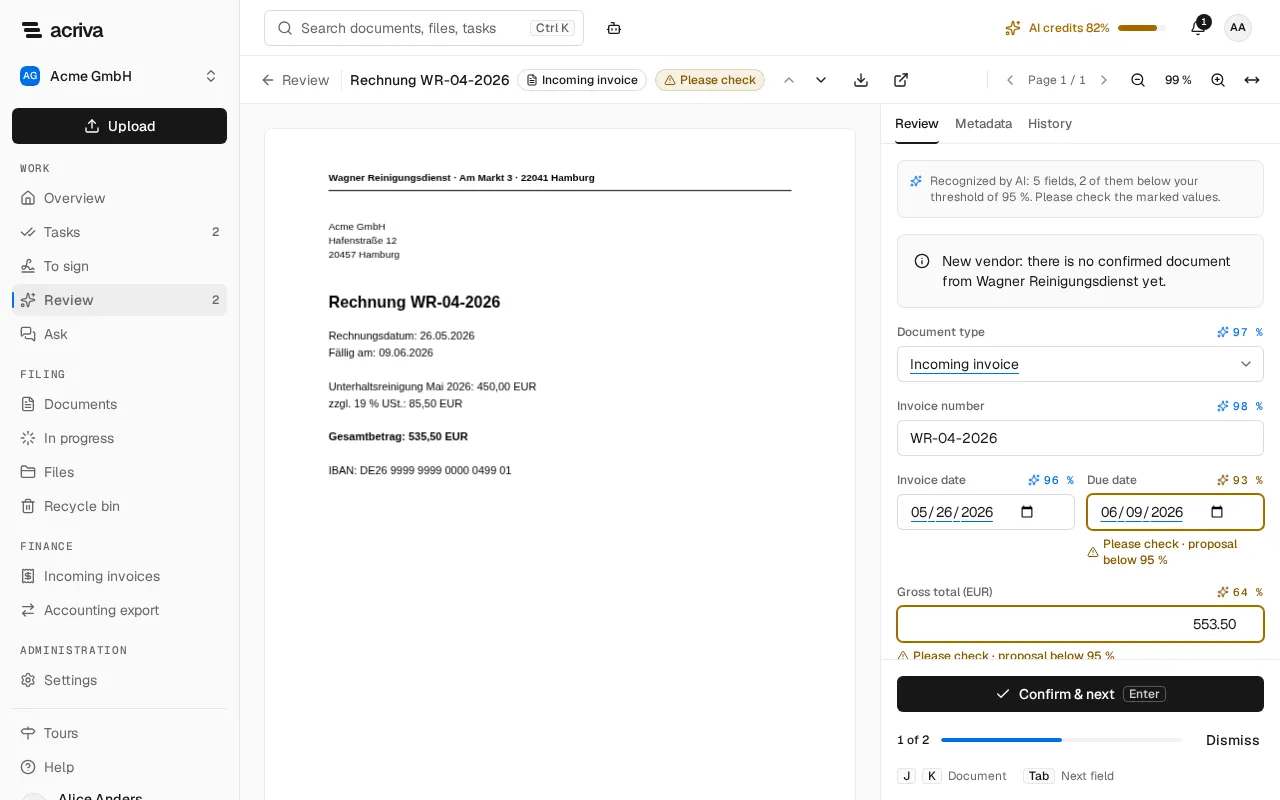
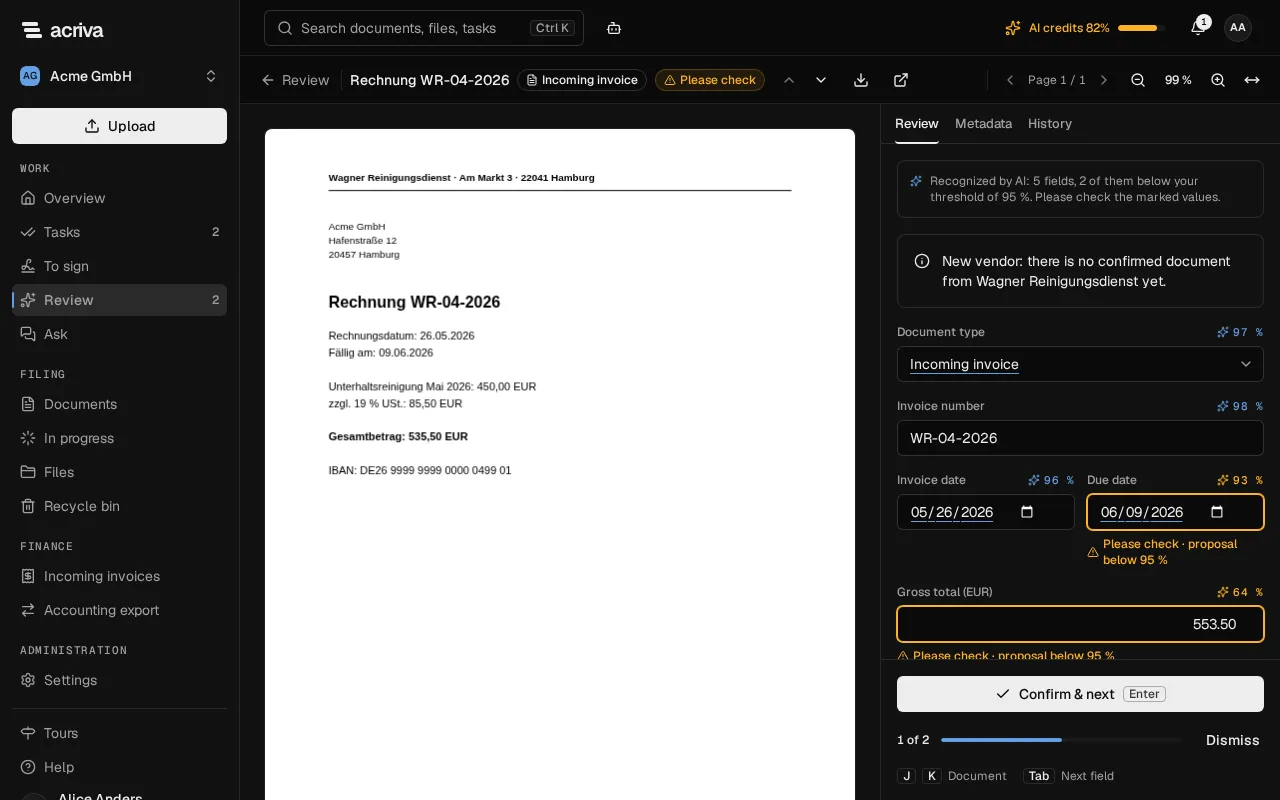
Section titled “Check a document”Select a document in the queue. It opens in the viewer, and the panel beside it has three tabs:
- Review: AI’s proposal, the Document type and every field of the type. This is where you check and confirm.
- Metadata: the values the document holds now, to compare. You can’t change them here.
- History: what happened to the document so far.
Your entries on Review stay while you look at the other tabs. Above the viewer, Download original downloads the file, and Open document opens the document page.
On Review, a short note says how many fields AI recognized and how many of them are below your threshold. A value AI filled in is underlined and shows its confidence, for example 96 %. A field below your threshold, or one whose check failed, is outlined and marked Please check, with the reason below it. Short fields, such as dates and amounts, sit in pairs side by side. Amounts show two decimals, for example 553.50.
- Compare each marked value with the document and correct it where needed. A value you change becomes yours. Press Tab to go to the next field.
- Change the Document type if AI chose the wrong one. The fields of the new type start empty.
- Select Confirm & next, or press Enter. The values are saved as yours, and the next document of the queue opens.
To fill in the document yourself instead, select Dismiss and confirm with Dismiss. Acriva doesn’t take AI’s values, and the document leaves the queue as it is.
Press J and K to move to the next and the previous document without confirming. Next to Dismiss you see where you are in the queue, for example 4 of 17. A value you entered yourself before is never replaced by AI.
If someone else completed the document in the meantime, or a new version was added, Acriva tells you and opens the next document. Your values are kept when they were already saved.
While a document waits for review, its document page says so: Waiting for review: the type and fields still need to be confirmed. (for a scan with a split proposal, Waiting for review: the proposed split still needs to be confirmed.). Select Review there to open it in the review queue.
Split a scan
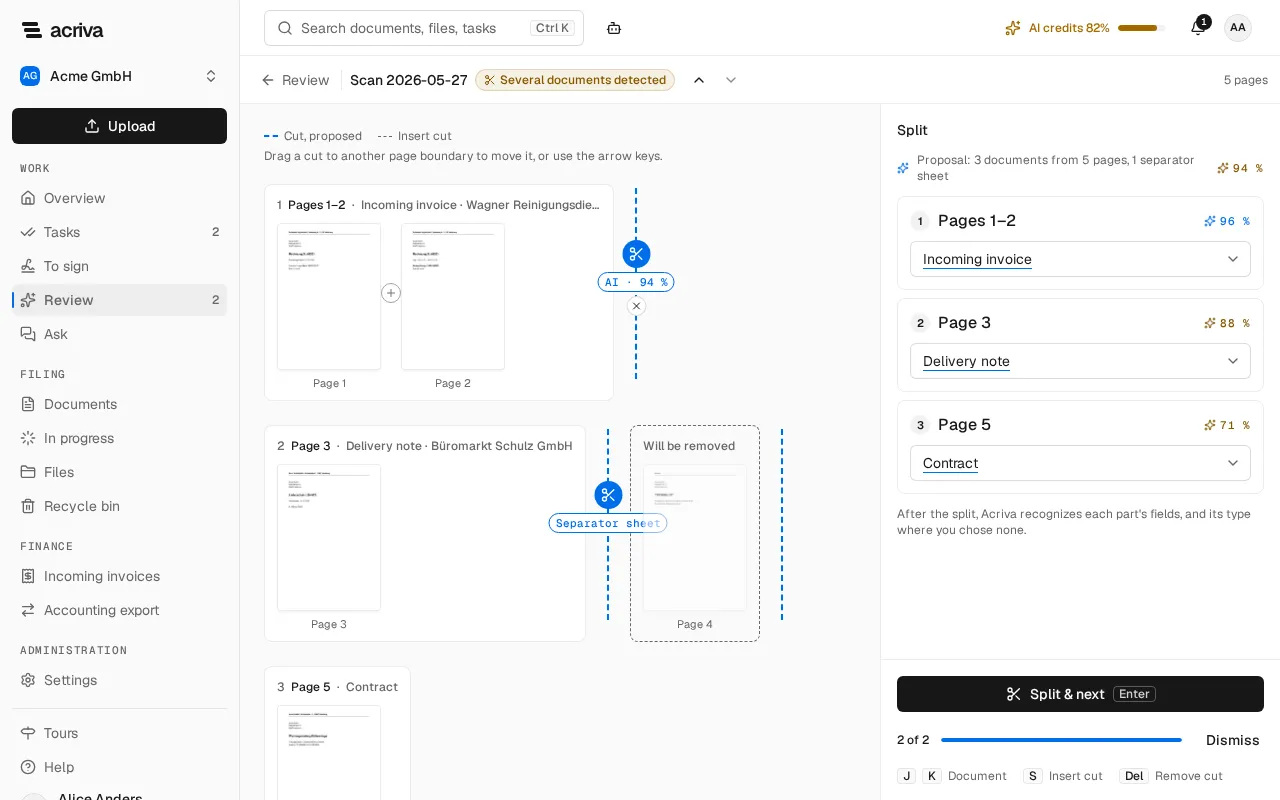
Section titled “Split a scan”A scan of several documents, for example from a multi-page scanner, shows as a split preview: each page as a small image, grouped into one card per document AI found. A cut between two documents shows AI’s confidence, for example AI · 94 %. A separator sheet is marked Separator sheet, and its page sits in a card Will be removed: it is left out when the scan is split.
- Check where each document begins and ends.
- To move a cut, drag it onto another page boundary, or select it and press the arrow keys. To insert a cut, select + between two pages, or press S: the cut goes to the page boundary under the pointer, else into the middle of the longest part. To remove a cut, select ×, or select the cut and press Del.
- Check each part’s document type on the right. For each part as AI proposed it, AI suggests a type and shows its confidence, and the part’s card names the type and the vendor AI read. A part whose pages you changed has no suggestion. Choose another type, or Detect the type automatically to let Acriva recognize it after the split. You can only choose active types that you may set.
- Select Split & next, or press Enter. Acriva splits the scan into the documents on the right, gives each one the type you chose, recognizes its fields (and its type, where you chose none), and opens the next document of the queue.
Without a cut, the scan stays one document, and Split & next isn’t available. If the scan is one document after all, select Dismiss and Keep as one.
On a phone, the review panel lies as a sheet over the lower half of the document, as on the document page: drag it up or down by its handle (see Open a document).