

Inbox
Your workspace has its own email inbox. Forward an invoice or a letter to one of its addresses, and Acriva files the attachments as documents. Owners and admins, and every role given the permission, open the page Inbox under Settings, in the category Intake & processing. The page shows the addresses, the allowed senders, the held emails and the most recent emails.
Addresses
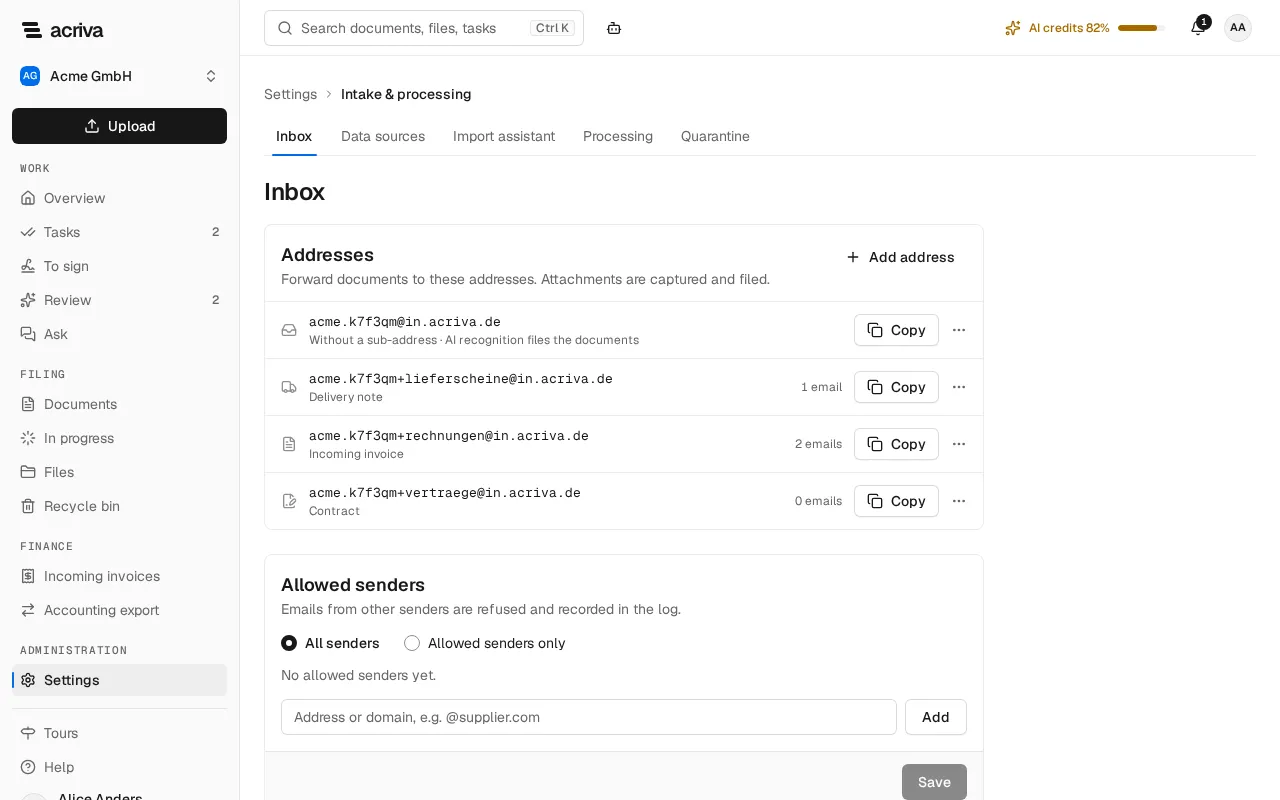
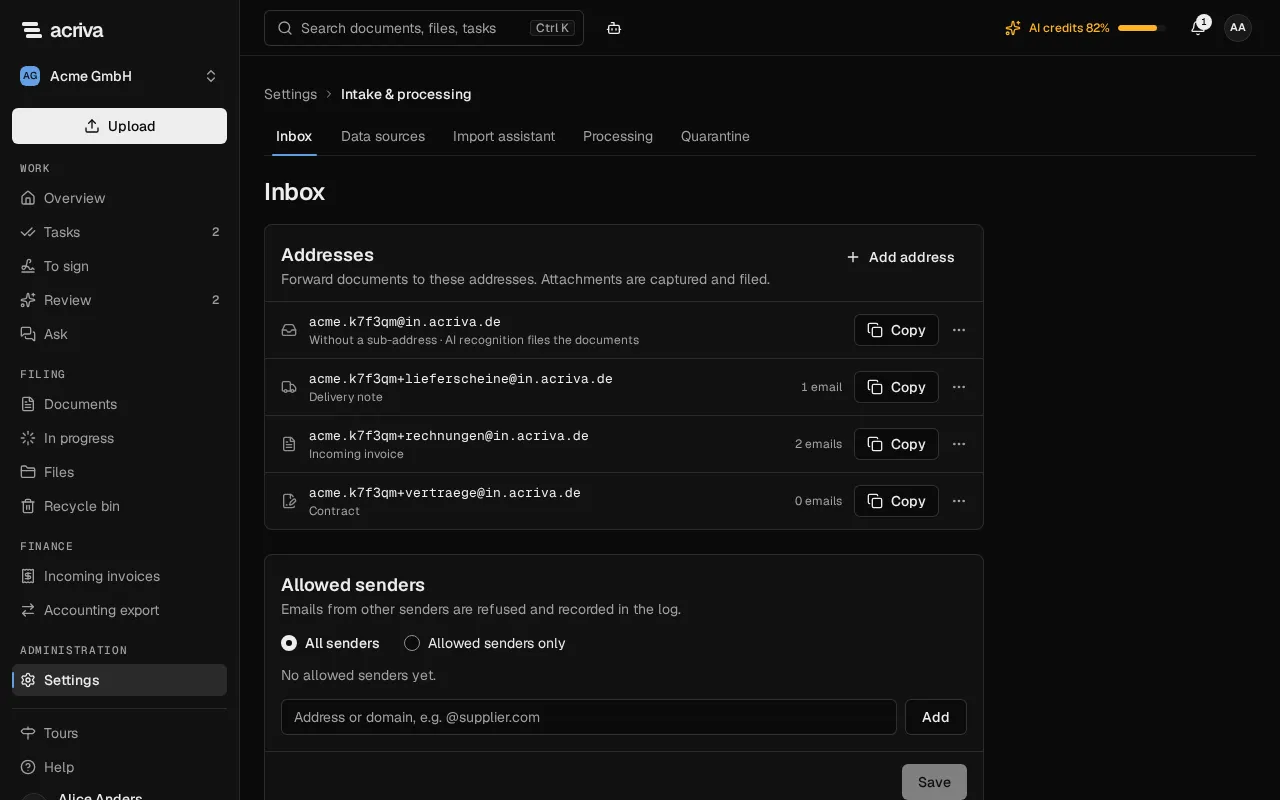
Section titled “Addresses”The card Addresses lists every address of the inbox. Select Copy next to an address to put
it on the clipboard. Use the addresses exactly as the card shows them: the addresses on this page
are examples, and the part after the @ can differ in your installation.
- The first row is the inbox’s own address, such as
muster.k7f3qm@in.acriva.de. Documents sent to it get their type from the AI recognition. - Every further address adds a short name after a
+, such asmuster.k7f3qm+invoices@in.acriva.de. Its documents get the document type, the file (Akte) and the tags you chose for it, and they can be confidential from the start. The row names where the address files and counts the emails it received. - Some scanners refuse a
+in an address. Under More actions, Copy with a dot instead of + copies the same address asmuster.k7f3qm.invoices@in.acriva.de.
After a change of the workspace address, the earlier addresses keep working; the first row lists them.
Add or edit an address
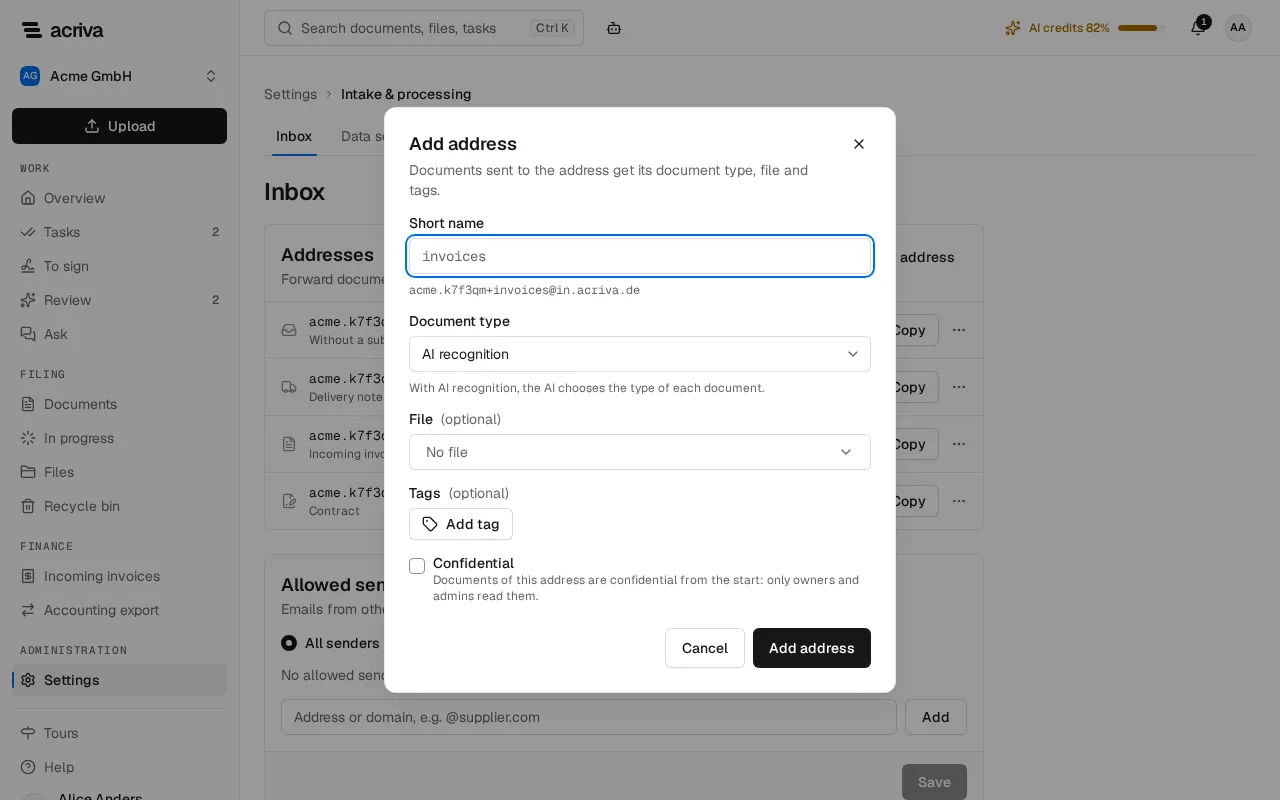
Section titled “Add or edit an address”- Select Add address.
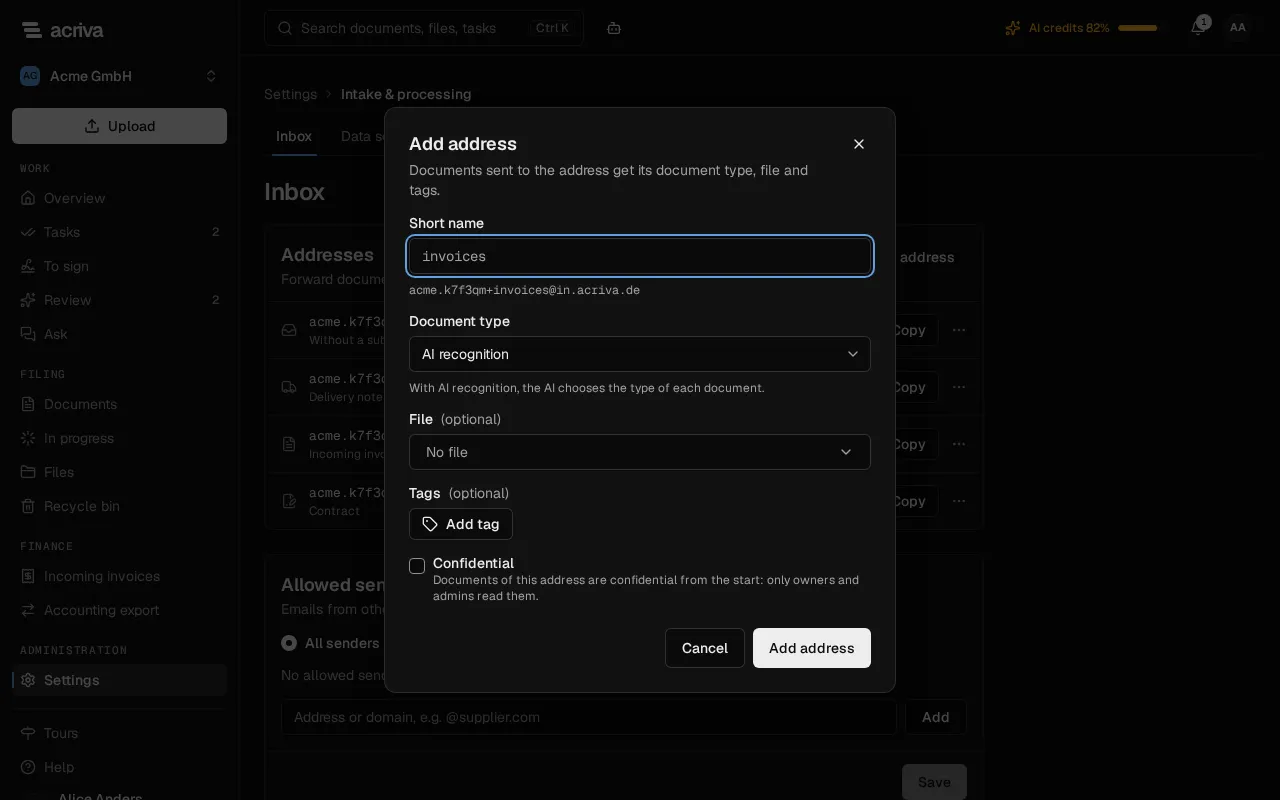
- Enter a Short name of lowercase letters, digits and hyphens. The address it makes shows below the field.
- Choose the Document type, or keep AI recognition. Optionally choose a File and Tags.
- Owners and admins can tick Confidential: the documents of this address are then confidential, and their list holds the owners and admins of the moment each one is filed.
- Select Add address.
To change where an address files, select More actions and then Edit. The short name stays as it is, so that senders never reach another target unnoticed: to use another one, add a new address. Remove takes an address away after you confirm; emails to it are refused from then on, and the emails it received stay in the log. An inbox has at most 50 addresses with a short name.
Regenerate the key
Section titled “Regenerate the key”The six characters after the workspace address, such as k7f3qm, are the inbox’s key. If an
address reaches the wrong people, select More actions in the first row and then Regenerate the
key. After you confirm, every address of the inbox gets a new key: the previous addresses stop
working at once, and emails to them are refused. Give the new addresses to every sender and scanner.
Allowed senders
Section titled “Allowed senders”With All senders, the inbox accepts every sender. With Allowed senders only, it accepts only the addresses and domains in the list; emails from other senders are refused and recorded in the log, once an hour for each sender. The check reads the sender address of the email’s envelope, which a sender can fake. The rule keeps strangers out; an email whose sender’s domain disowns it is held (see Held emails).
- Enter an address such as
invoices@supplier.com, or a domain such as@supplier.com, and select Add. A domain allows its subdomains too. - Select the cross on an entry to remove it.
- Select Save.
With Allowed senders only and an empty list, every email is refused.
Held emails
Section titled “Held emails”An email that fails both sender checks (SPF and DKIM) or looks like spam is held: no documents are made of it yet, and the members who manage the inbox get a notification. The card Held emails says why each one was held and when it is discarded:
-
Held: SPF and DKIM both failed: the sender’s domain doesn’t vouch for the server that sent the email, so the sender may be forged. A missing record or signature alone doesn’t hold an email.
-
Held: the spam score reached its limit: the spam check rates the email as spam.
-
Release files its attachments as if it had arrived normally.
-
Discard asks first. No documents are made of it, and the original email can no longer be downloaded; it is deleted once its retention lock ends. The log keeps the email without its sender and subject.
An email that nobody releases is discarded after 30 days.
Recent emails and the log
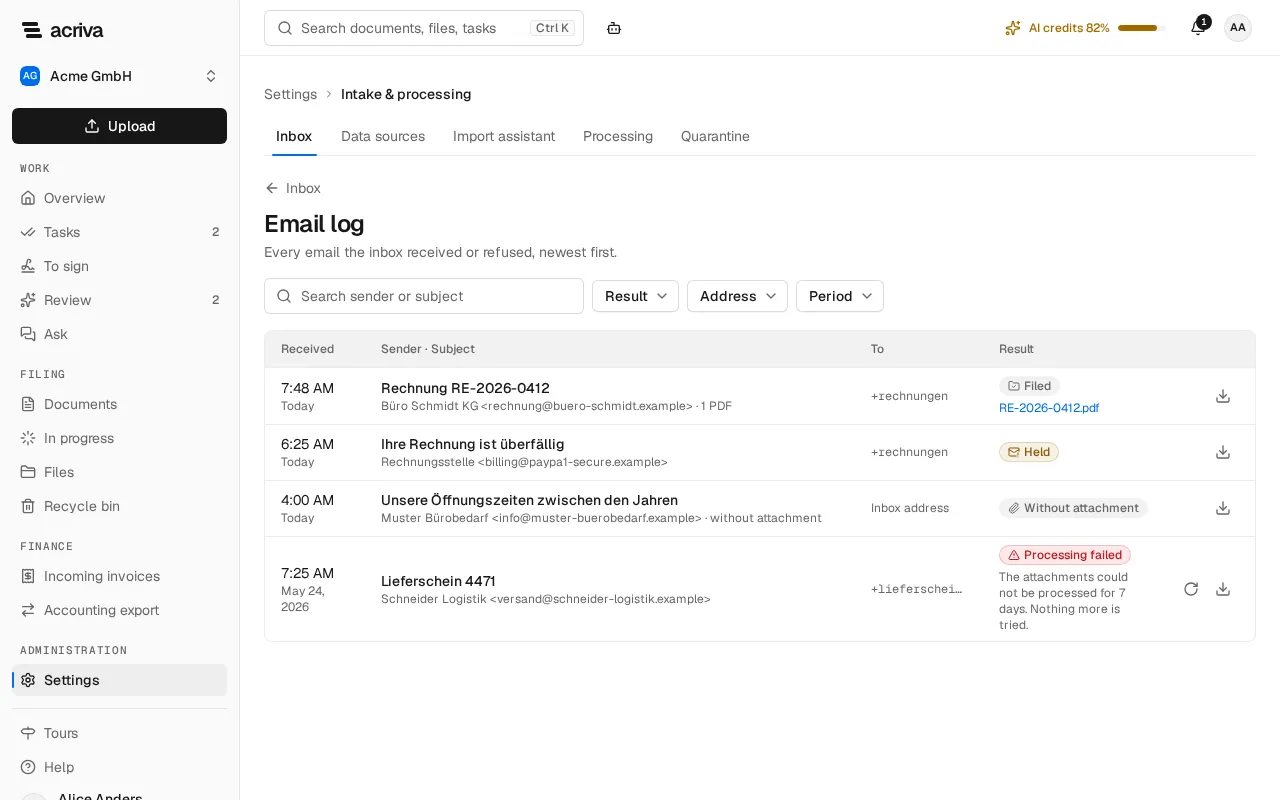
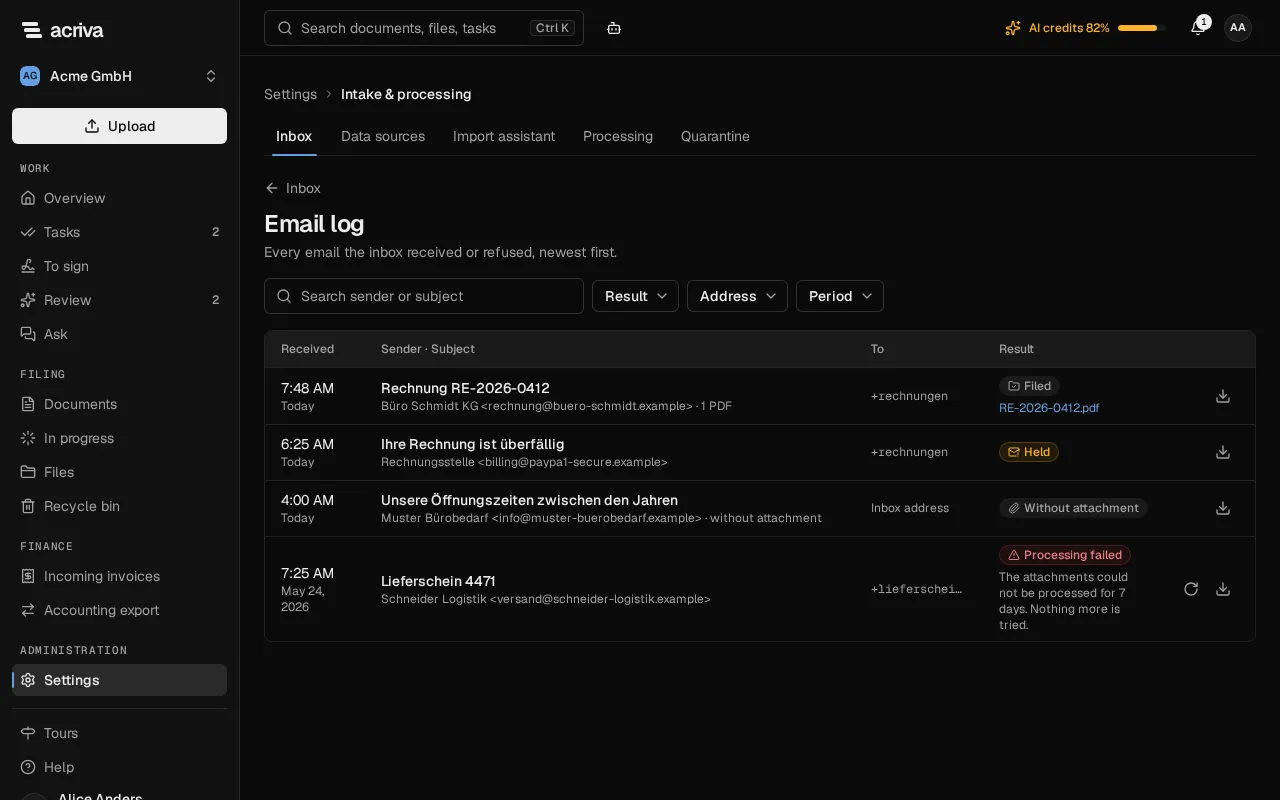
Section titled “Recent emails and the log”Recent emails shows the 10 most recently received emails: when they arrived, the sender and the subject, the address they went to and the result, such as Filed, Without attachment, Held, Processing failed or Sender refused. Select Open the log for every email, with filters for the Result, the Address and the Period, and a search over sender and subject. The log lists the documents each email made, linked to them; Load more shows older emails.
The results in the log:
- Processing: the email was received, and its attachments are being filed.
- Filed: its attachments became documents (3 filed when there are several).
- Without attachment: the email had nothing that becomes a document.
- Processing failed: Acriva could not make documents from the email; see When processing failed.
- Held and Discarded: see Held emails.
- Refused: the sender isn’t allowed (Sender refused), or the workspace is read-only (Refused: read-only). The sender’s mail server reports the refusal to the sender.
Owners and admins, and every role allowed to manage the inbox, can download the Original email of a stored email. It stays closed to you if you can’t see every document the email made, and it is gone once the email was discarded or handed to the deletion.
When processing failed
Section titled “When processing failed”An email shows Processing failed when Acriva could not make documents from it. The log says why under the result:
- The attachments could not be processed for 7 days. Nothing more is tried. Acriva tried again every night for a week and then stopped.
- The email cannot be read. The email is damaged, or it is built in a way Acriva cannot open.
Filter the log by the Result Processing failed to find these emails. Owners and admins, and every role allowed to manage the inbox, can select Process again in the email’s row. Acriva then reads the email once more and files its attachments; documents it already made from the email are not created twice. If that fails too, Acriva tries again every night for another 7 days. You can also download the Original email and upload its attachments yourself. Process again is no longer offered once the original email was handed to the deletion.
What becomes a document
Section titled “What becomes a document”Each attachment of an email becomes a document: PDF files, images, XML e-invoices and Office documents. Small images inside the email, such as logos and signatures, are skipped. An email without such an attachment creates nothing and shows Without attachment in the log. An email makes at most 50 documents, and an attachment whose file type or size your workspace’s upload settings don’t allow makes none. The log counts these under the email’s result, for example 3 attachments skipped: more than 50 attachments or 1 attachment skipped: file type or size not allowed. A document that came by email says so at the bottom of its details panel: By email from the sender on the day it arrived, with the subject below.
In a read-only workspace after the trial, the inbox refuses every email. The page still shows the addresses and the log, and the original emails can still be downloaded.
Limits
Section titled “Limits”- An email may be up to 50 MB, headers included. A larger one is refused, and the sender gets the refusal from their mail server.
- Of one email, at most 50 attachments become documents. Images inside the email smaller than 50 KB are taken for logos and signatures and skipped.
- An inbox takes at most 300 emails an hour. Beyond that, and while the workspace’s storage is full, Acriva asks the sender’s mail server to try again later, and the email arrives with its next attempt.
- An inbox has at most 50 addresses with a short name and at most 200 allowed senders and domains.
- Acriva keeps the original email for a year after it arrived, then deletes it, unless a legal hold covers one of its documents. The documents it made stay.