

Security
Two-factor sign-in protects an account even if someone learns its password: after the password, Acriva asks for a second factor, a code from an authenticator app or a passkey. Owners and admins decide on the page Security whether the workspace requires it. Everyone protects their own account and sees their sessions in their Profile.
The workspace’s rule
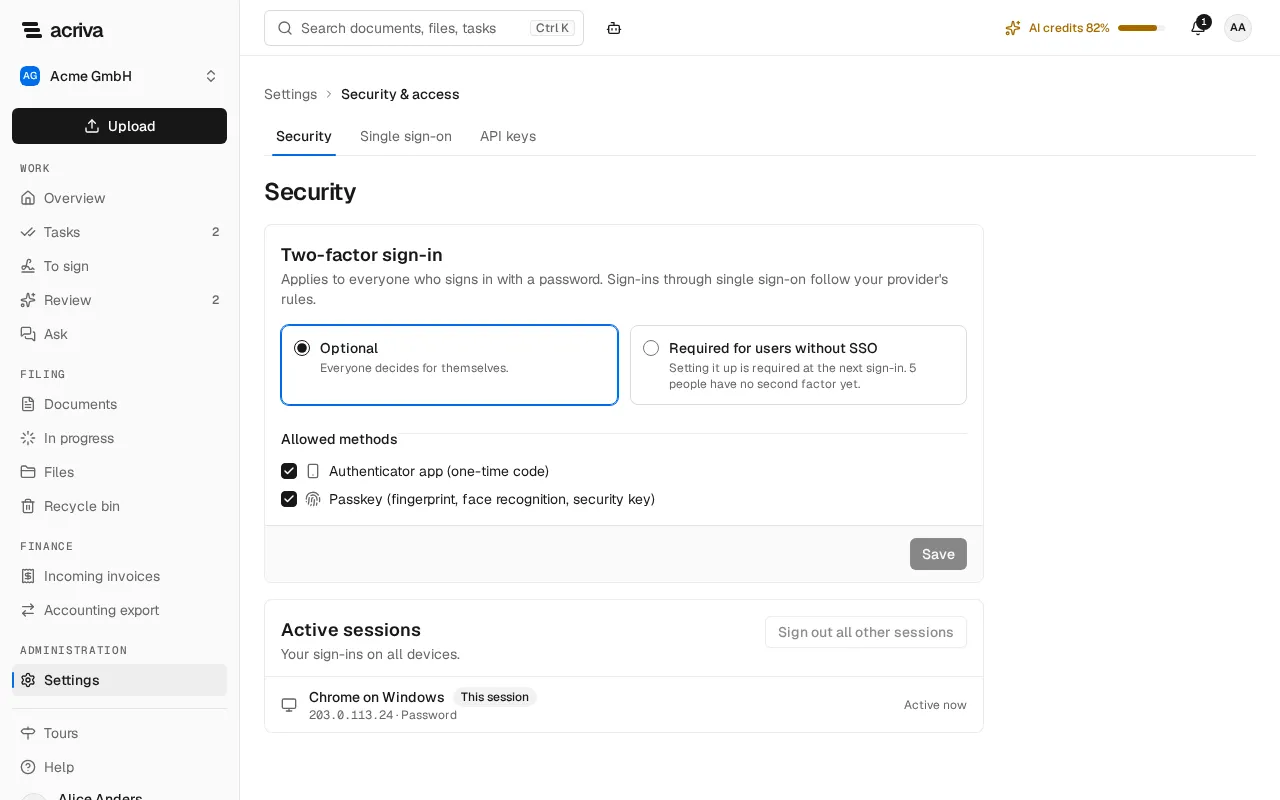
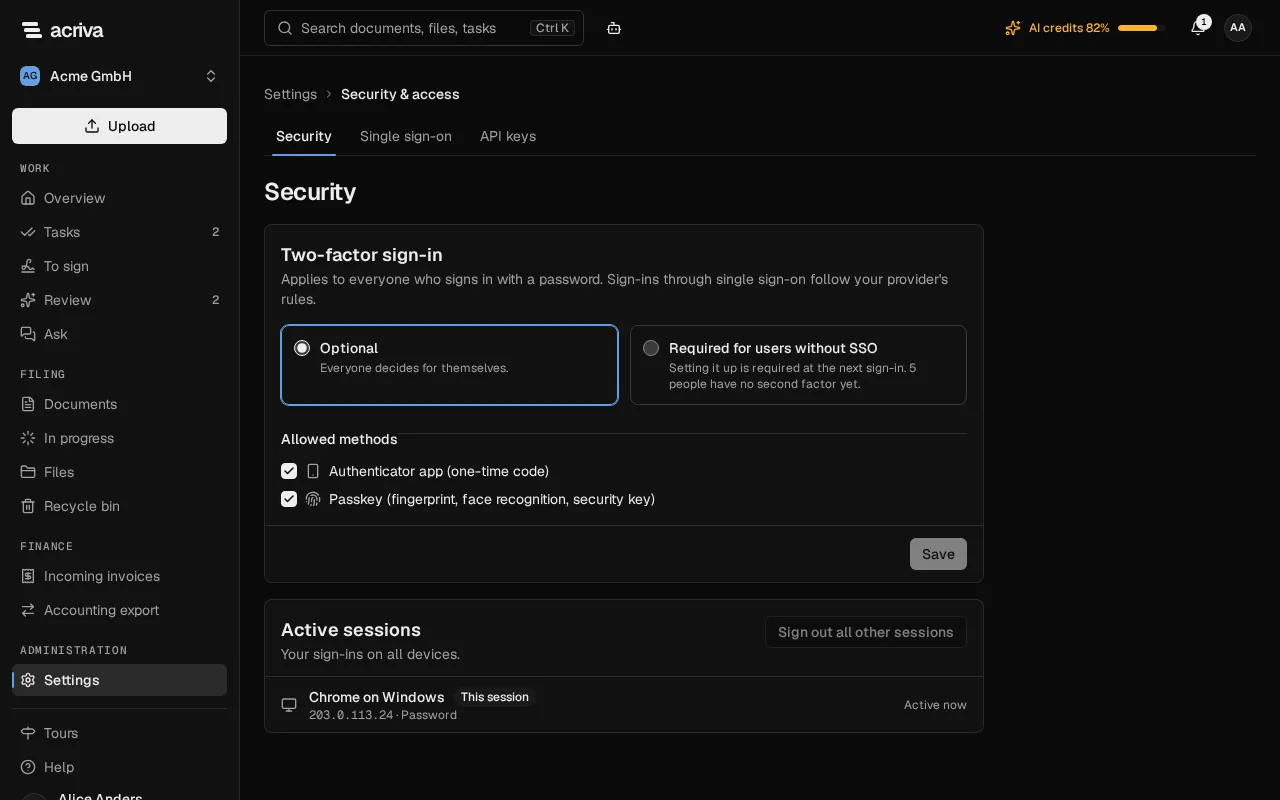
Section titled “The workspace’s rule”Open Settings and, in the category Security & access, the page Security. The card Two-factor sign-in applies to everyone who signs in with a password; sign-ins through single sign-on follow your provider’s rules. Choose:
- Optional: everyone decides for themselves. This is the setting of a new workspace.
- Required for users without SSO: from the next action, everyone who signed in with a password confirms the sign-in with a second factor, and whoever has none sets one up. Under this choice, the card says how many people have no second factor yet, and for how many it isn’t known yet.
Under Allowed methods, choose Authenticator app (one-time code), Passkey (fingerprint, face recognition, security key) or both; at least one is needed. Then select Save. A rule that takes access away, Required for users without SSO where it was optional or a method removed from the required rule, asks first: confirm Require the second factor? with Save rule. A rule your own session couldn’t meet is refused: “Your own session doesn’t meet this rule. Set up an allowed method in your profile under “Security” first, then save the rule.”
Below the rule, the page shows your own active sessions, as your profile does.
The rule takes effect with the next action in the workspace, without a grace period. It doesn’t apply to:
- people who signed in through your workspace’s single sign-on: their provider checks them;
- requests with an API key: the key is the credential.
What members see
Section titled “What members see”When the workspace requires a second factor, a member who signed in with the password alone is sent to confirm the sign-in with the next action.
- Without a second factor yet, the page Set up two-factor sign-in opens: open an authenticator app, such as Microsoft Authenticator or Google Authenticator, scan the QR code or enter the key, enter the code the app shows, and select Set up and sign in. It takes about a minute. This page sets up the app only; a passkey is added in the profile.
- With the authenticator app, the page Confirm your sign-in asks for the 6-digit code from the app. Confirm with a passkey uses a passkey instead, and No access to the app? › Use a recovery code takes one of the recovery codes; each link shows only when that factor is set up. With only a passkey, the page Confirm with your passkey opens.
Acriva asks once per sign-in. If the workspace allows only a method the member hasn’t set up yet, the sign-in can’t be completed: after a few tries the app says so and points to the profile, where they add the method and then reload the page.
Resetting the password by email keeps the second factor: after the link from the email, Acriva asks for the second factor first and then for the new password. If a member has lost their device and has no recovery code, an owner or admin resets their second factor.
Your own second factor
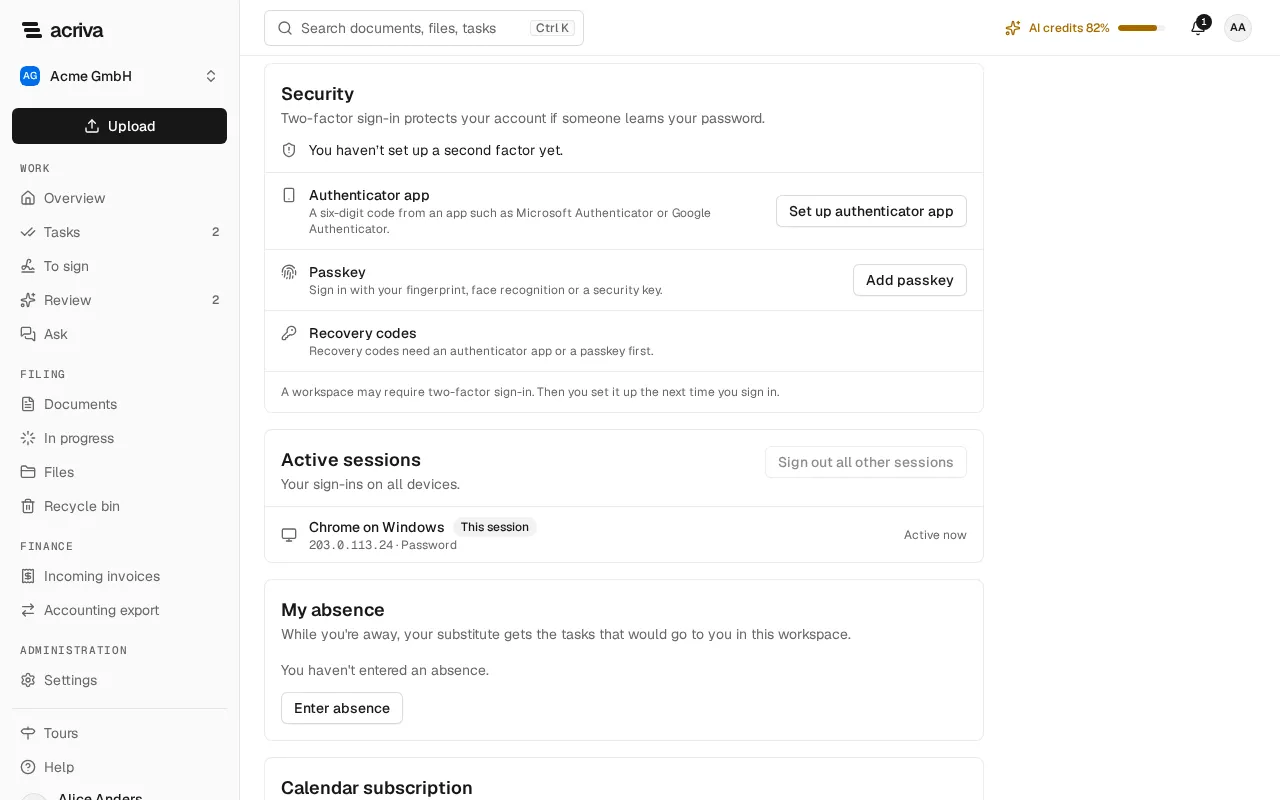
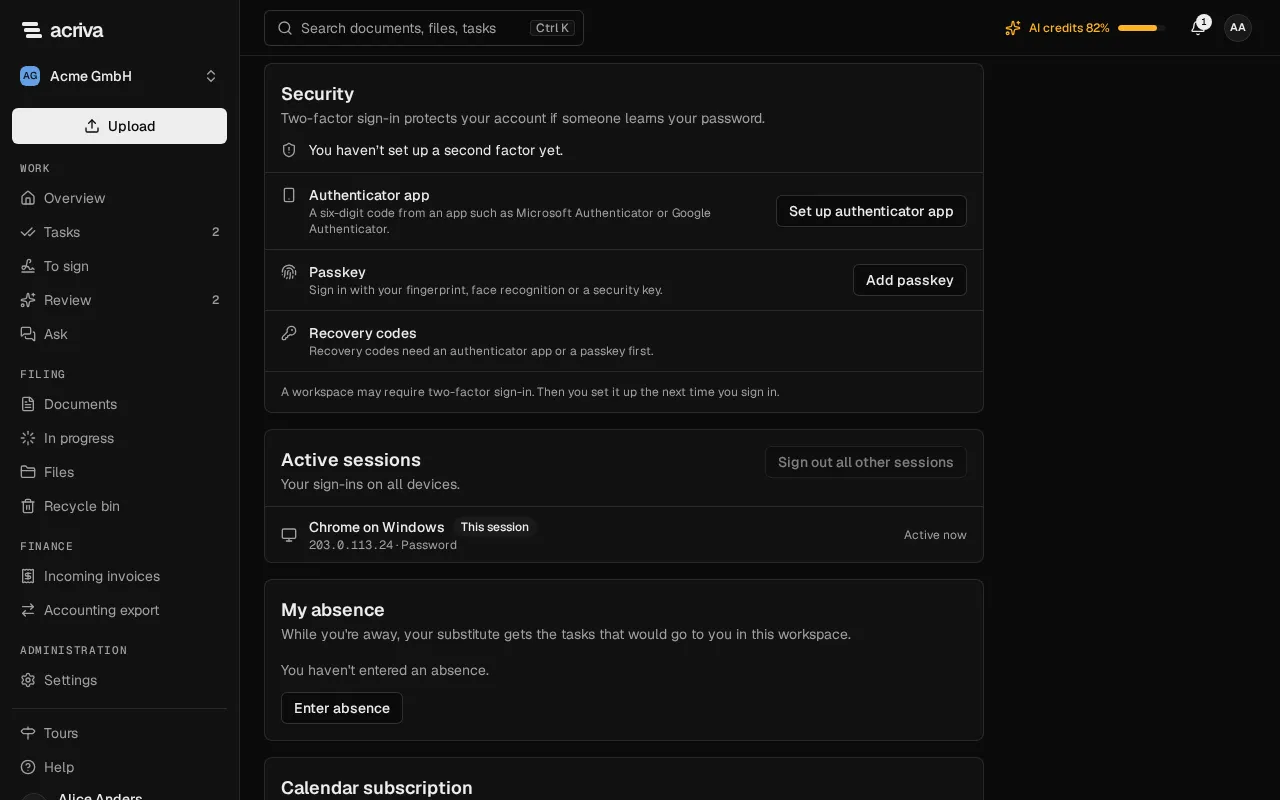
Section titled “Your own second factor”Open the account menu (your initials at the top right), select Profile and go to the card Security. You can set up a second factor here also when your workspace doesn’t require one. Once you have an authenticator app or a passkey, Acriva asks for it at every sign-in, in every workspace: after your password, and after a sign-in through single sign-on too. If you have no second factor of your own and sign in through single sign-on, only your identity provider’s rules apply.
After several failed attempts with a wrong password or code, you can sign in again only after a few minutes. The login page says so with its message about the wrong password or code; you see the same message while you have to wait, also with the right password. The wait begins after ten failed attempts in a row: one minute at first and one minute more with every further failure, up to 15 minutes. An account is never locked for good, and the count starts again after twelve hours without a failed attempt.
The card shows what you have set up. At the top it says Every sign-in asks for your second factor. or You haven’t set up a second factor yet., and below it lists your authenticator app and each passkey with the day it was set up.
- Set up authenticator app: a six-digit code from an app such as Microsoft Authenticator or Google Authenticator.
- Add passkey: sign in with your fingerprint, face recognition or a security key. You can have several passkeys, for example one per device.
- Create recovery codes: one-time codes for when you don’t have your device. The card offers them once you have an authenticator app or a passkey. Acriva shows them once: Download them or write them down, tick I have kept these codes in a safe place. and select Complete setup. Each code works once. Generate new codes replaces the old codes with new ones.
Remove a second factor
Section titled “Remove a second factor”- Select Remove next to the authenticator app, the passkey or the recovery codes.
- To be safe, Acriva asks for your second factor once more, and for your password too if you signed in more than five minutes ago. Each code from the app works once: if you have just entered one, wait for the next.
- On the page Remove second factor, confirm with Remove. Cancel takes you back to the profile and changes nothing.
From then on the sign-in no longer asks for this factor. If you have neither an app nor a passkey and your workspace requires two-factor sign-in, you set up an authenticator app again the next time you sign in.
Recovery codes alone are no second factor: without an app or a passkey, no sign-in asks for them. So when you remove your last authenticator app or passkey, Acriva removes the recovery codes too.
Other devices you are signed in on stay signed in. If you removed a factor because a device was lost, end its session under Active sessions.
When you add another passkey or generate new recovery codes, Acriva also asks once for a second factor you already have.
Active sessions
Section titled “Active sessions”The card Active sessions in your profile lists where you are signed in: the device, the address of its last request, how it signed in (Password, Password + second factor or Single sign-on) and when it was last used. Your current session is marked This session.
- Sign out next to a session ends it on that device, after a confirmation.
- Sign out all other sessions ends every session but this one.
Signing in on those devices again needs the password. A session signed in with the password alone doesn’t list or end your sessions with a second factor or through single sign-on, so someone who only knows your password can’t sign you out or see your devices.