

Import assistant
The import assistant brings the documents you already have into Acriva: the folders of a file server, or the export of another document management system. You upload a ZIP file or a folder, say for each folder what its documents are and where they belong, look at a dry run, and only then start the import. Nothing is filed before you start it.
Owners and admins open Import assistant under Settings, in the category Intake & processing. A role of your own needs the permission to change the inbox’s addresses and allowed senders, which opens the import assistant too. To start an import, you also need the right to upload documents. The import files every document with the rights of the person who starts it.
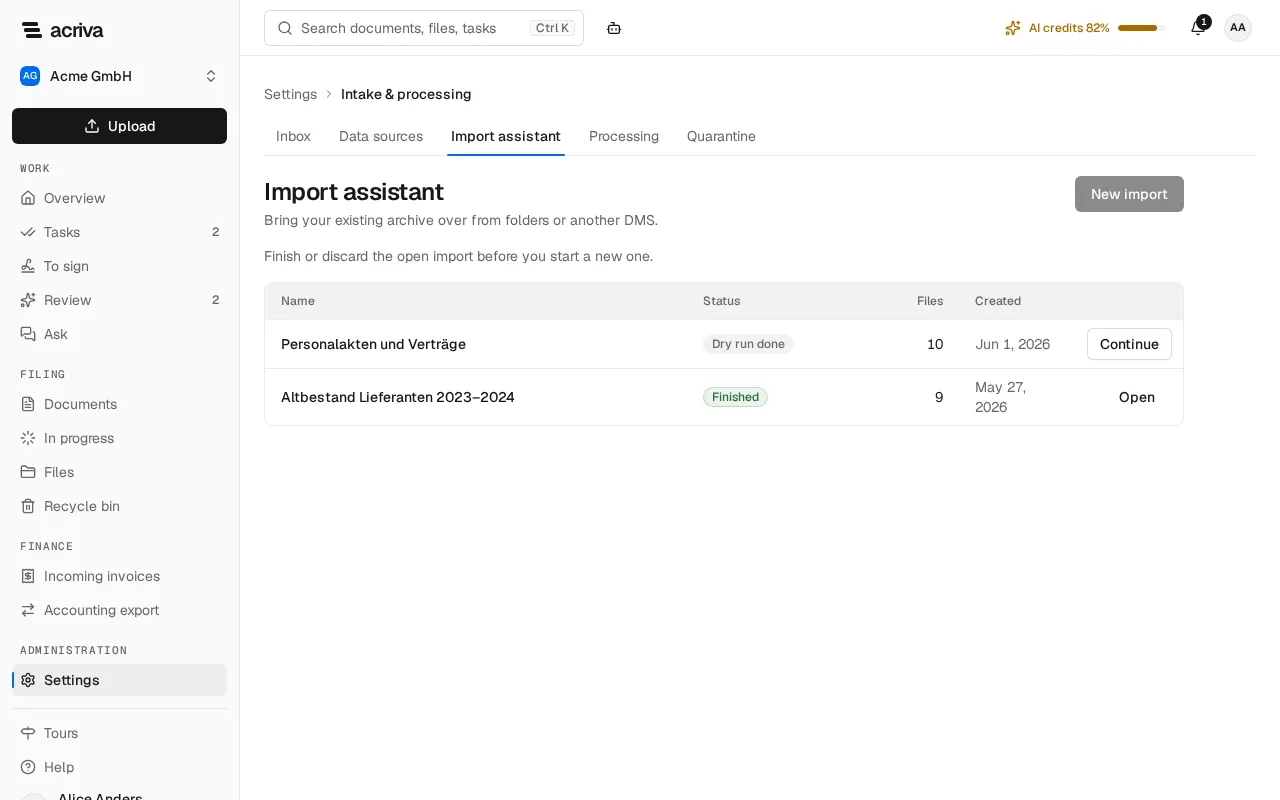
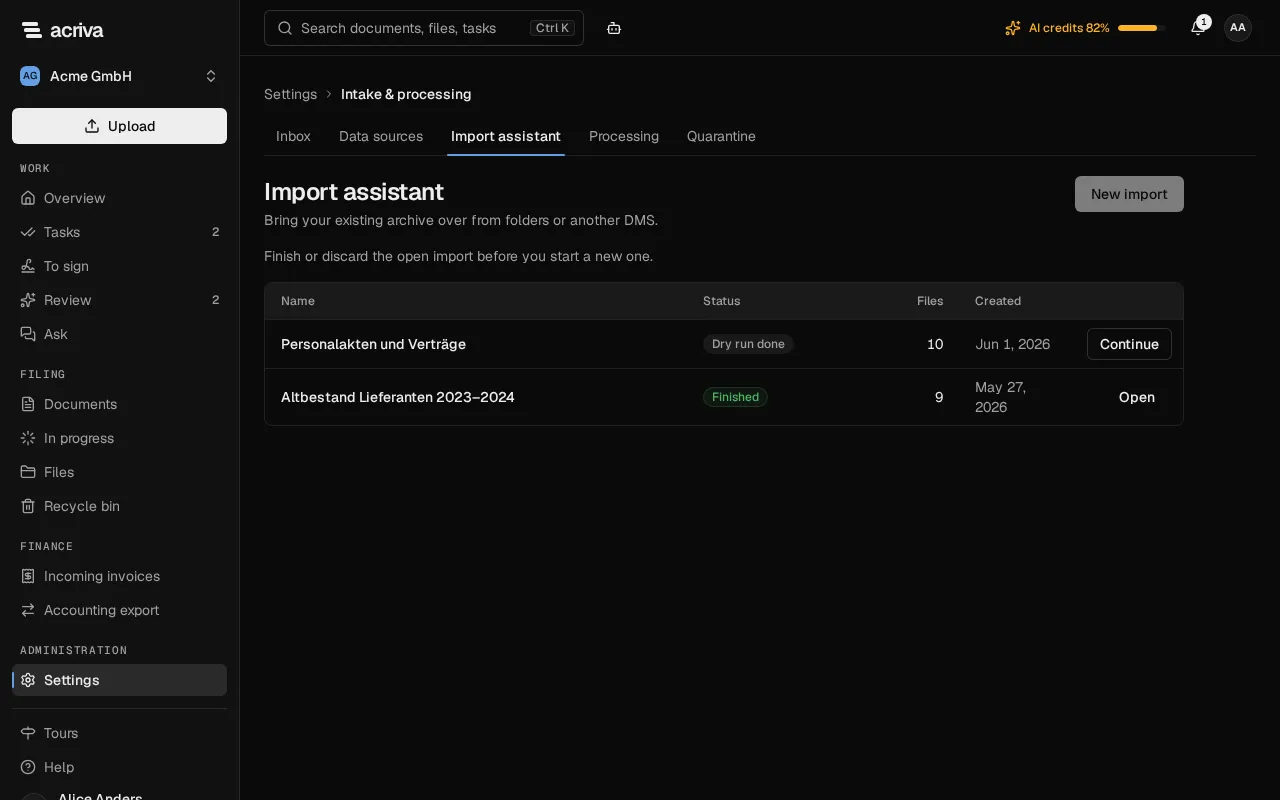
The page lists the imports of your workspace, the newest first, with their Status. A workspace has one open import at a time: while one is not finished, cancelled, failed or discarded, New import waits, and the row of the open import offers Continue.
The four steps
Section titled “The four steps”An import goes through four steps, which the page shows at the top: Upload, Map, Dry run and Import.
1. Upload
Section titled “1. Upload”- Select New import.
- Drag a folder or a ZIP file into the drop zone, or select Choose ZIP file or Choose folder. Subfolders are included.
An import can be up to 20 GB with up to 50,000 files. Split a larger archive and import it in several parts, one after the other. A ZIP file must be one complete file that is neither split nor damaged; otherwise the import fails and the page says why.
The upload goes on while you work on other pages of Acriva in the same tab. When you reload the page, close the tab or lose the connection, it stops. Open the import again and select Choose ZIP file again or Choose folder again with the same ZIP file or folder: the upload goes on where it stopped. The page says until when it can be continued, which is 72 hours after the import was created. After that, start a new import.
A file in a folder that is larger than the upload limit is not uploaded, and the upload says how many files that were. The upload dialog of the document list names that limit. The dry run lists such files as a conflict.
2. Map
Section titled “2. Map”The left side shows the folders of the import as a tree. Each folder says whether it is mapped or is not imported.
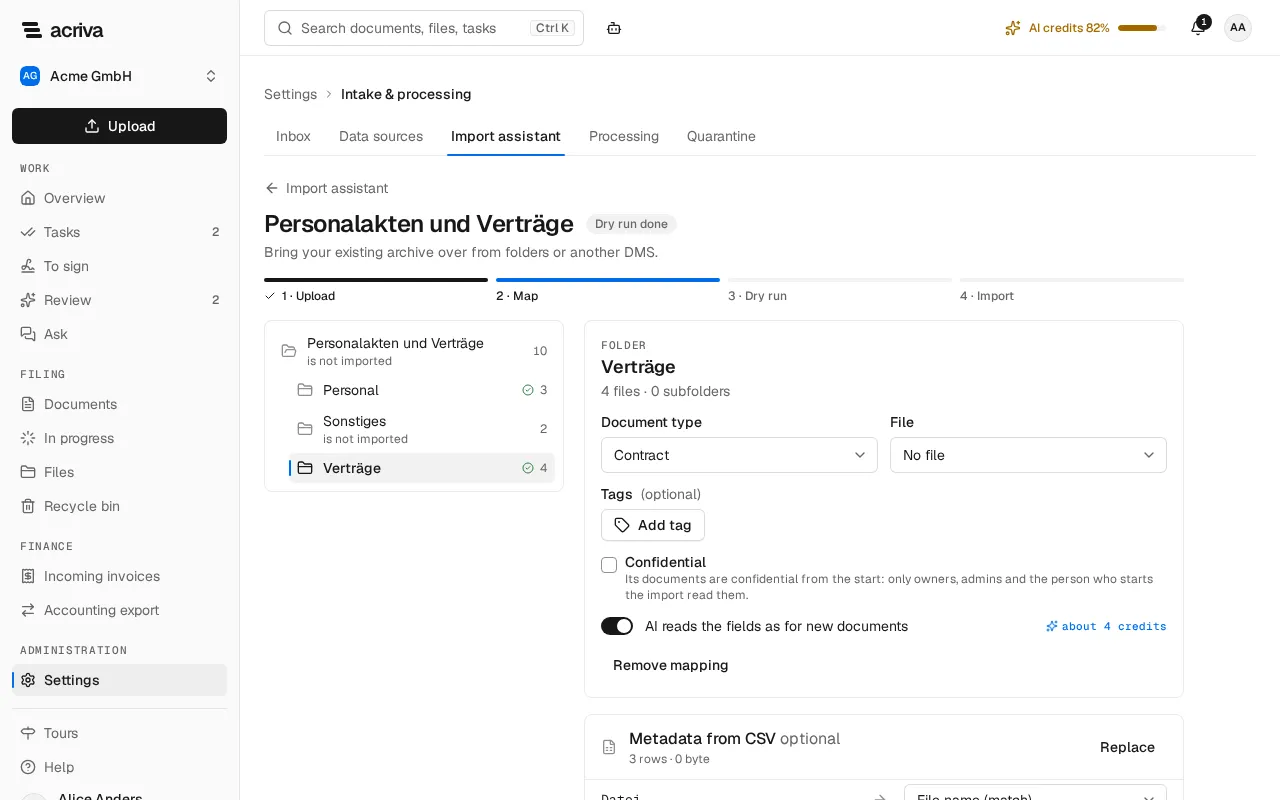
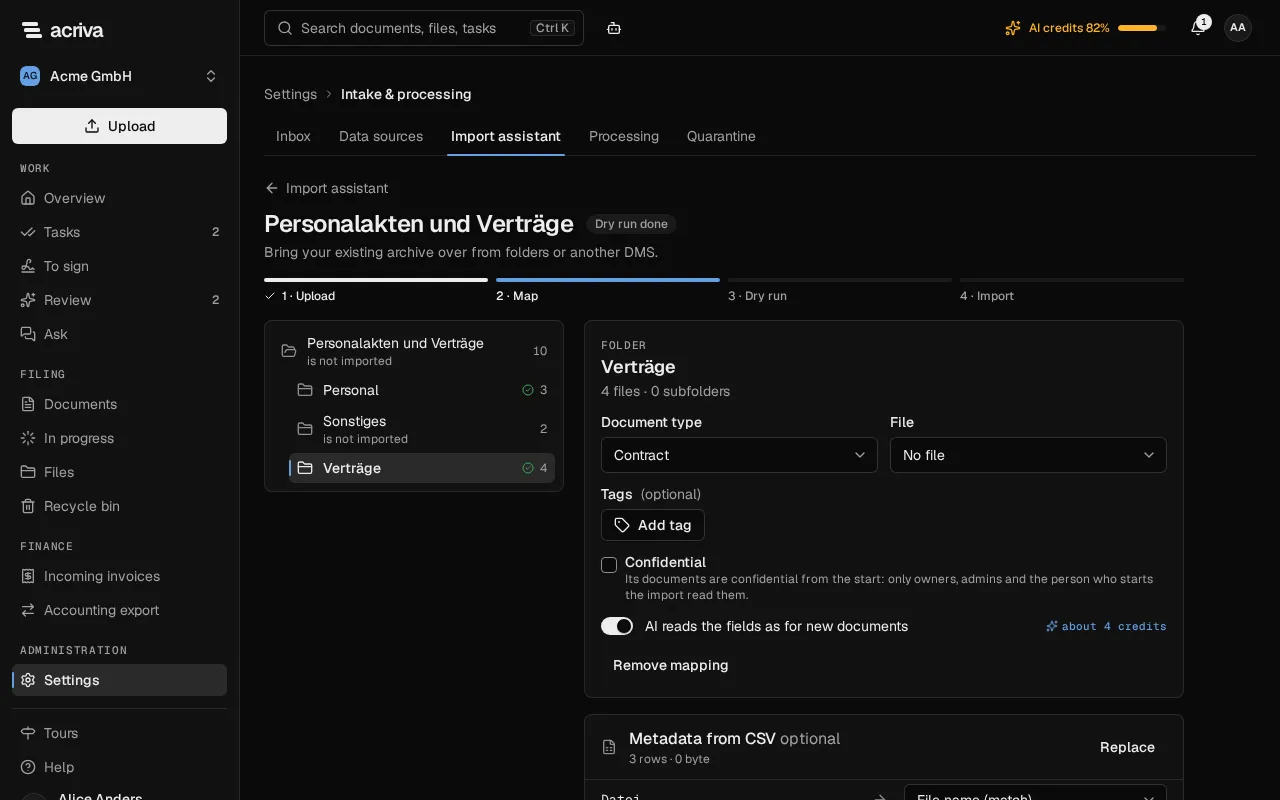
- Select a folder, then Map this folder.
- Choose the Document type, or keep AI recognition to let the AI classify each document.
- Under File, choose where the documents go: No file, A specific file or From subfolder (see below).
- Add Tags if you want; a folder can have up to 20.
- Owners and admins can tick Confidential: the documents are then confidential from the start, and only owners, admins and the person who starts the import read them. Acriva proposes it for personnel documents.
- AI reads the fields as for new documents decides whether the AI fills the fields of each document. It costs about one AI credit per file. Without a document type, the AI classifies every document, so it stays on.
- Select Save mapping.
A subfolder takes the mapping of the folder above it. To treat it differently, select it and then Give this folder its own mapping. The files of a folder that is not mapped, and that has no mapped folder above it, are not imported.
What “From subfolder” needs
Section titled “What “From subfolder” needs”With From subfolder, each direct subfolder of the mapped folder becomes one Akte of the
File type you choose. A folder Vendors with the subfolders Muster GmbH and Beispiel AG
gives two Akten of those names. Acriva looks for an open Akte of that type with the same name, in
upper or lower case, and files into it; when there is none, the import creates it. Files that lie
directly in the mapped folder are filed without an Akte.
The import numbers the Akten it creates, so the file type needs a number series. The standard file types of a new workspace come with one:
| File type | Numbers start at |
|---|---|
| Customer | K-1001 |
| Vendor | L-2001 |
| Project | P-3001 |
| Employee | PA-4001 |
| Property | O-5001 |
A workspace that was created before this was introduced, or a file type of your own, may have no number series. The assistant then marks the type with “(no number series)” and doesn’t save the mapping. Set the number series under Settings, File types (see Document types and access), and choose the type again.
Metadata from a CSV file
Section titled “Metadata from a CSV file”When the old system exported a list with the documents’ data, upload it in the card Metadata from CSV with Upload CSV. Then say what each column means:
- File name (match): the column that names the file. Exactly one column has this meaning. A
value with a
/is compared with the file’s path inside the import, any other value with the file’s name. - File · name: the name of the Akte the document belongs to, for a folder mapped with From subfolder. It takes the place of the subfolder’s name.
- A field of the mapped document types: the column fills that field.
- Not used: the column is left out.
A CSV file can be at most 32 MB with 100,000 rows and 64 columns, separated by semicolons or
commas. Write dates as 2024-03-31 or 31.03.2024.
3. Dry run
Section titled “3. Dry run”Select Start dry run. The dry run shows what the import would do, and files nothing.
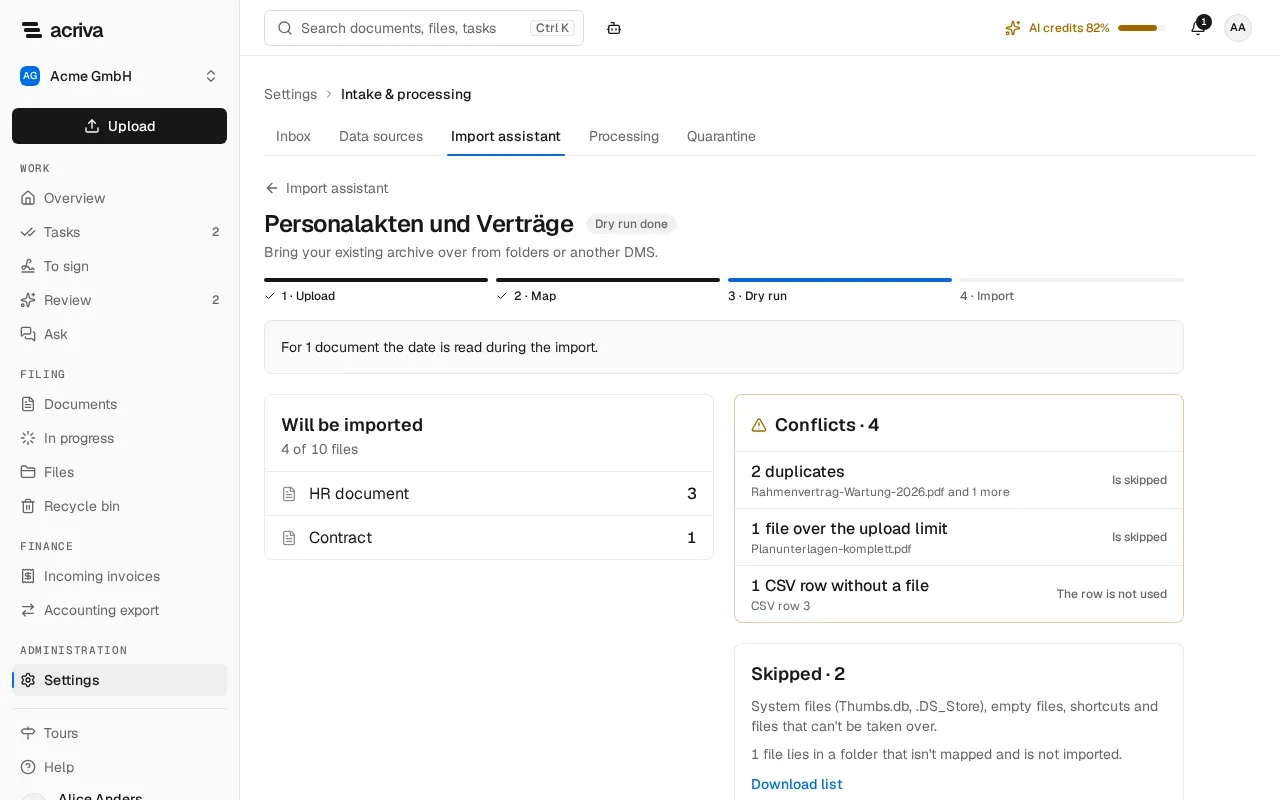
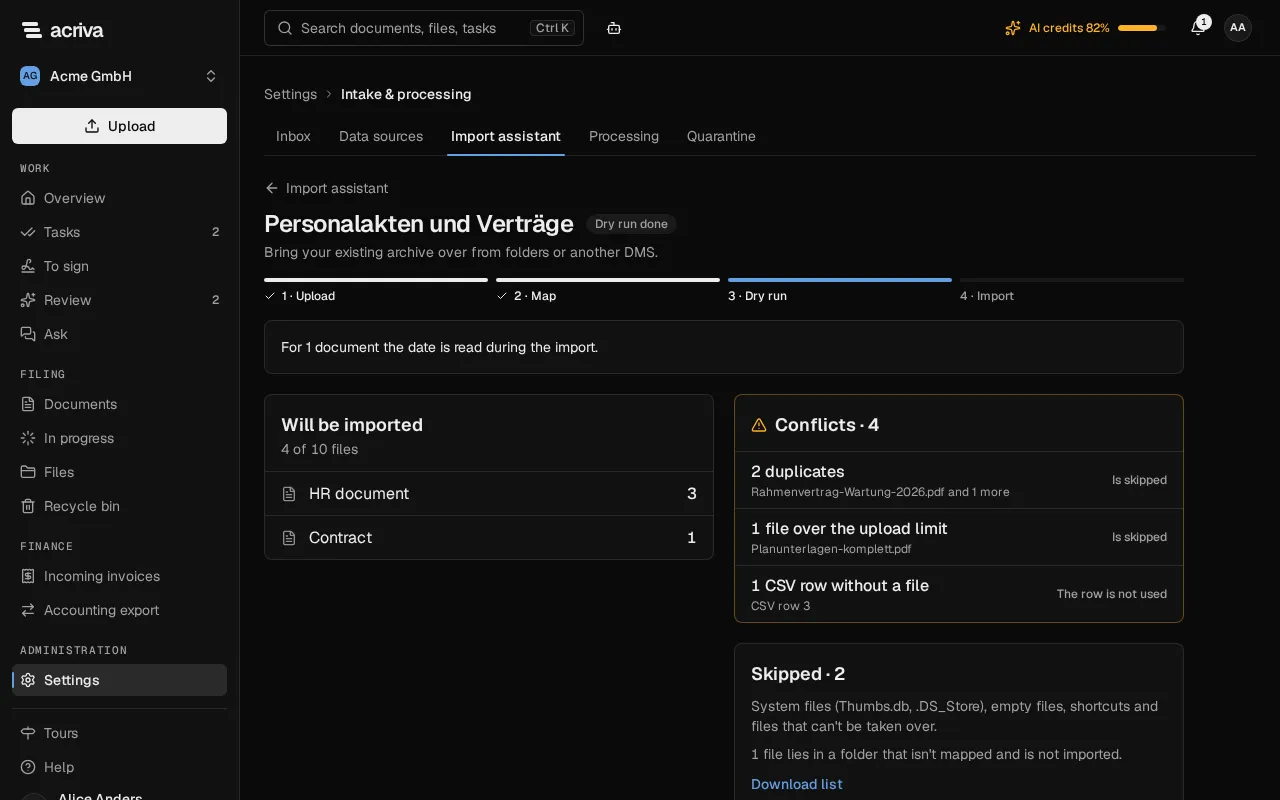
- Will be imported: how many of the files become documents, by document type, and how many Akten the import would create or find.
- Conflicts: files that are skipped, and CSV rows that can’t be used, each kind with a count and examples (see Duplicates and conflicts).
- Skipped: system files such as
Thumbs.dband.DS_Store, empty files, shortcuts and files that can’t be taken over. - The files in folders that are not mapped.
- How many AI credits the import needs and how many you have left this month.
- Notes on the retention periods (see What happens to retention periods).
Download list gives you every file that would not be imported, with its reason, as a CSV file.
A dry run belongs to the person who ran it: only that person sees its result and can start the import from it. When the mapping was changed after the dry run, run it again with Run dry run again before you start the import.
4. Import
Section titled “4. Import”- Select Start import below the dry run’s result.
- Confirm the dialog.
The import starts only when the month’s AI credits cover its estimate and the workspace’s storage is enough for its files; otherwise the page says how much is missing.
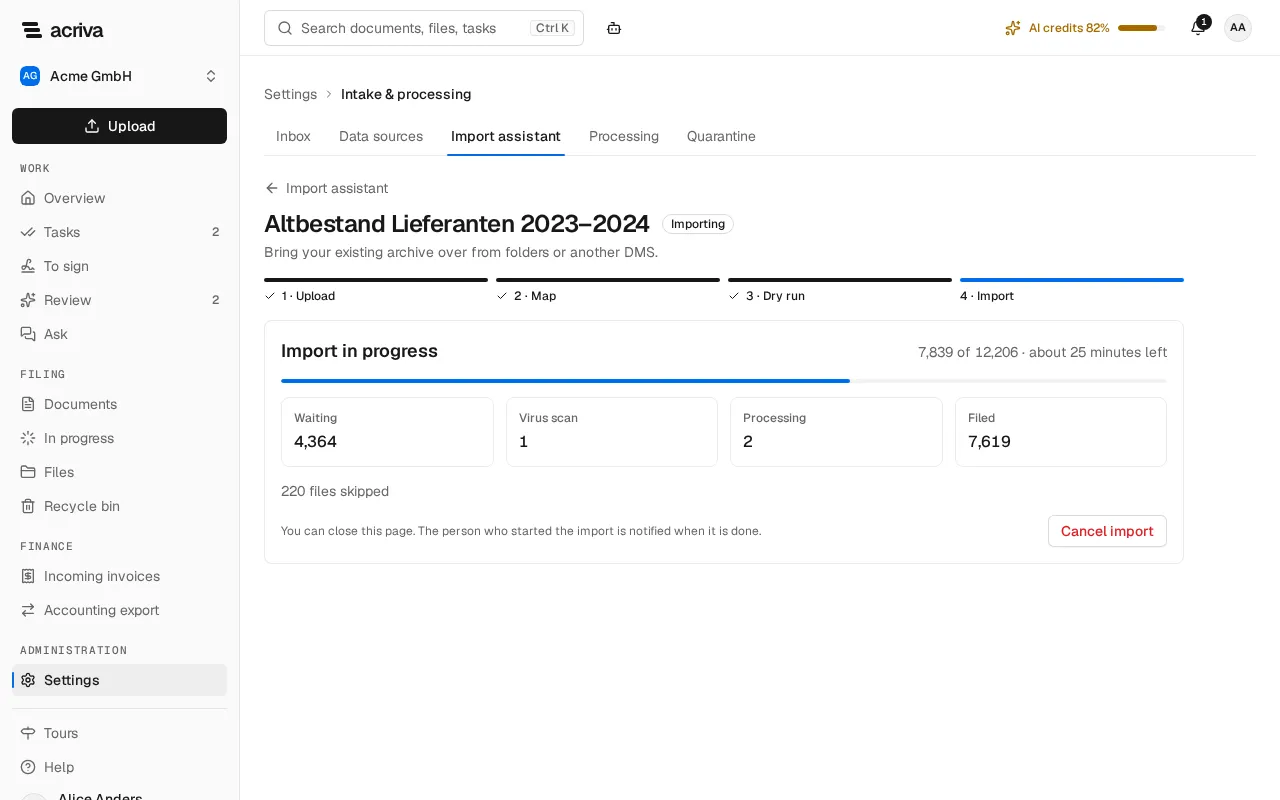
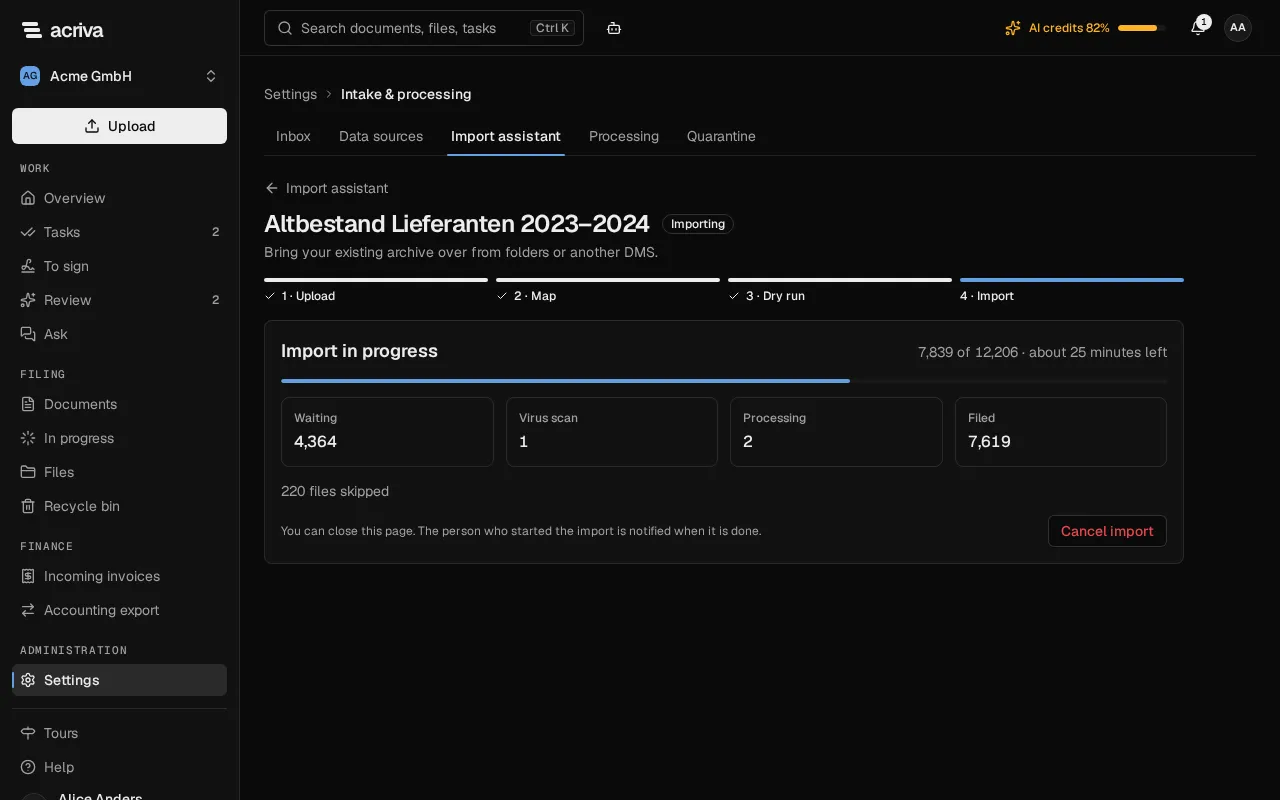
The files now go through the normal processing, a few at a time: the virus scan, the PDF/A copy, the text recognition and, where it is switched on, the AI. The page counts them under Waiting, Virus scan, Processing and Filed, and estimates the time that is left. While an import runs, Acriva keeps room in the processing for your daily work, so documents you upload or receive by email are not held up by it.
You can close the page. The person who started the import is notified in Acriva and by email when it ends. When that person can no longer use the import, the people who may import are told instead.
Cancel import stops the import: no further files are imported, and the documents that are already filed stay. An import ends in the same way by itself when the workspace’s storage is full, when the workspace becomes read-only, or when the person who started it loses the rights for it. While the file store doesn’t answer, or while the workspace is suspended, the import waits and then goes on by itself.
The final report
Section titled “The final report”When the import has ended, its page shows the Final report.
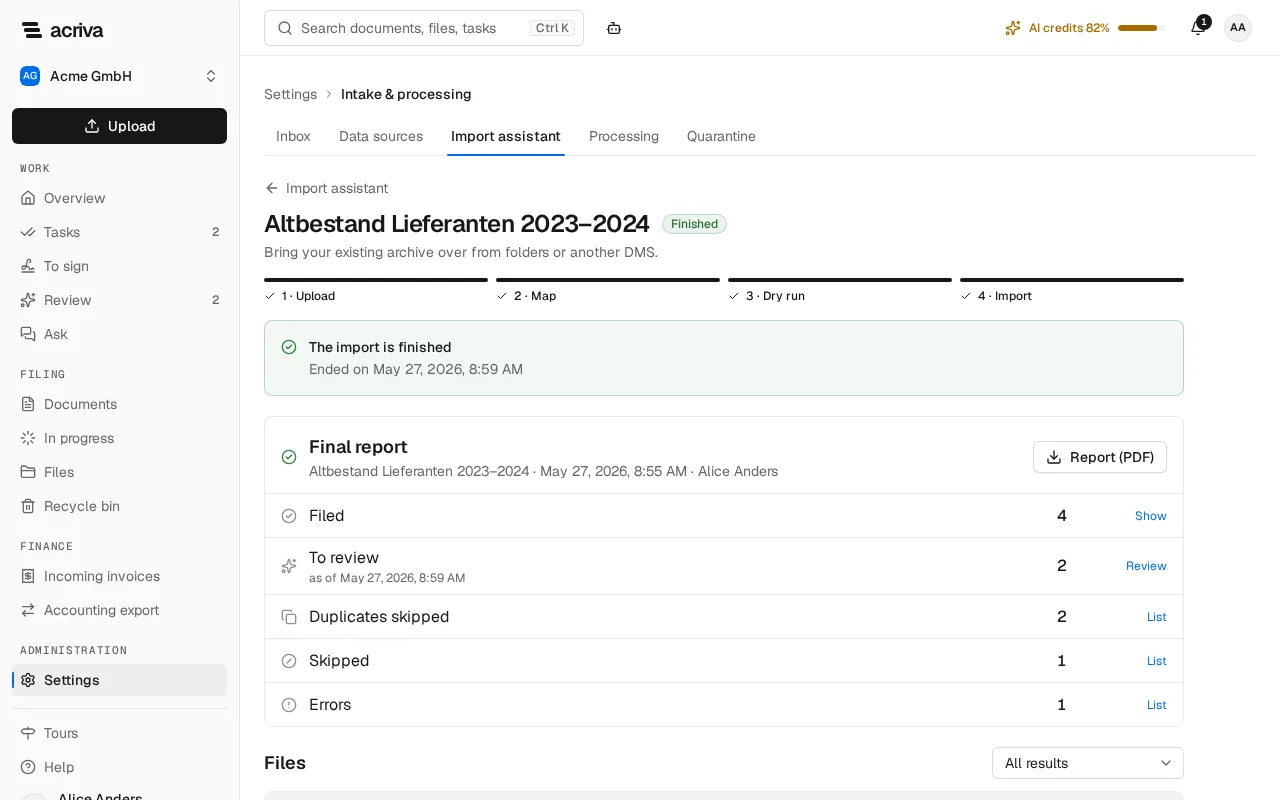
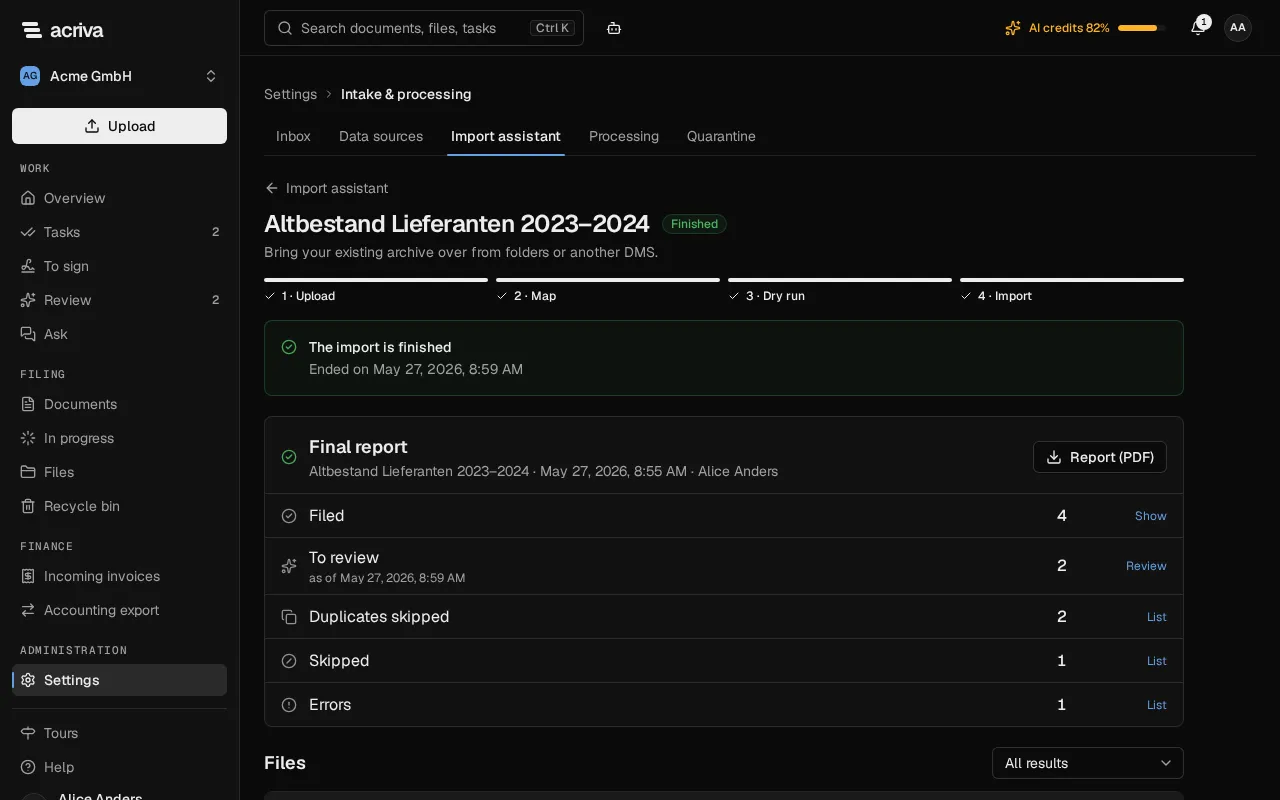
- Filed: the documents the import made. Show opens the document list with the filter From an import.
- To review: how many of them waited in the review queue when the import ended. Only the person who started the import sees this number.
- Duplicates skipped, Skipped and Errors: the files that became no document. List shows them below.
- Processing failed and In quarantine: documents that were filed and then failed in the processing, or in which the virus scan found something (see Processing and quarantine).
The table Files below lists every file with its Result and the Reason; you can filter it by result. Why a file was skipped is shown to owners, admins and the person who started the import. Report (PDF) downloads the report with its counts and the first 1,000 files as a PDF file.
The report counts what you may see. When the import holds files you may not see, such as the documents of a confidential folder, the page says so.
A year after an import ended, Acriva no longer keeps the names of its files. The report then shows Name no longer kept in their place; its counts and the documents stay.
Duplicates and conflicts
Section titled “Duplicates and conflicts”A file with the same content as a document you can read, or as an earlier file of the same import, is a duplicate. It is skipped, and the existing document stays as it is: the import never replaces anything. The report says whether the file equals an existing document or names the earlier file. A file that equals only a document you can’t read, or one in the recycle bin, is no duplicate for you and is imported.
These conflicts keep a file from being imported:
| Conflict | What it means |
|---|---|
| Duplicate | The same content as a document you can read or an earlier file |
| Over the upload limit | The file is larger than the upload limit |
| File type isn’t allowed | The file’s type can’t be uploaded to Acriva |
| Encrypted in the archive | The entry of the ZIP file is protected by a password |
| Damaged | The file can’t be read |
| Unpacks too large | The entry of the ZIP file grows far beyond its packed size when it is unpacked |
| The subfolder matches several files | From subfolder found more than one Akte with the subfolder’s name |
| No right to write to the file | You may not file into the Akte the document belongs to |
A PDF file protected by a password is no conflict: it is imported, and its processing then fails.
The conflicts of a CSV file never keep a file from being imported. A row without a file, or one that matches several files, is not used; of two rows for the same file, the first one counts; and a value that can’t be read is left out.
What happens to retention periods
Section titled “What happens to retention periods”An imported document gets its retention period like every other document, from its document type and its date (see Archive and compliance). For an old document that period may have ended already. Such a document is imported all the same and then shows among the deletion proposals, where two people decide about it. The import itself deletes nothing. The dry run says for how many documents that is the case, as far as the CSV file gives their date; for the others the date is read during the import, and the dry run names their number.
From the import on, the imported file is the original that Acriva keeps unchanged. What happened to a document in the old system before the import is outside what Acriva can prove.
Limits
Section titled “Limits”| Size of an import | Up to 20 GB |
| Files in an import | Up to 50,000 |
| A single file | The upload limit |
| Continuing an upload | Up to 72 hours after the import began |
| CSV file | Up to 32 MB, 100,000 rows and 64 columns |
| Tags per folder | Up to 20 |
| Open imports | One per workspace |
What an import counts against
Section titled “What an import counts against”- Documents: imported documents don’t count against your plan’s monthly document allowance. The Subscription page shows them in a line of their own, Import.
- Storage: imported documents use the storage of your workspace like all others. The import doesn’t start when the storage isn’t enough for it.
- AI credits: each file the AI reads costs about one credit. The import doesn’t start when the month’s credits aren’t enough for it. Switch the AI off for folders whose document type you know, or import fewer files.
Discard an import
Section titled “Discard an import”Until you start it, you can drop an import with Discard import. The uploaded files are then not imported, and nothing of them has been filed. Acriva discards an import that was not started by itself 14 days after its last change, and an upload that wasn’t finished within its 72 hours.