

To sign
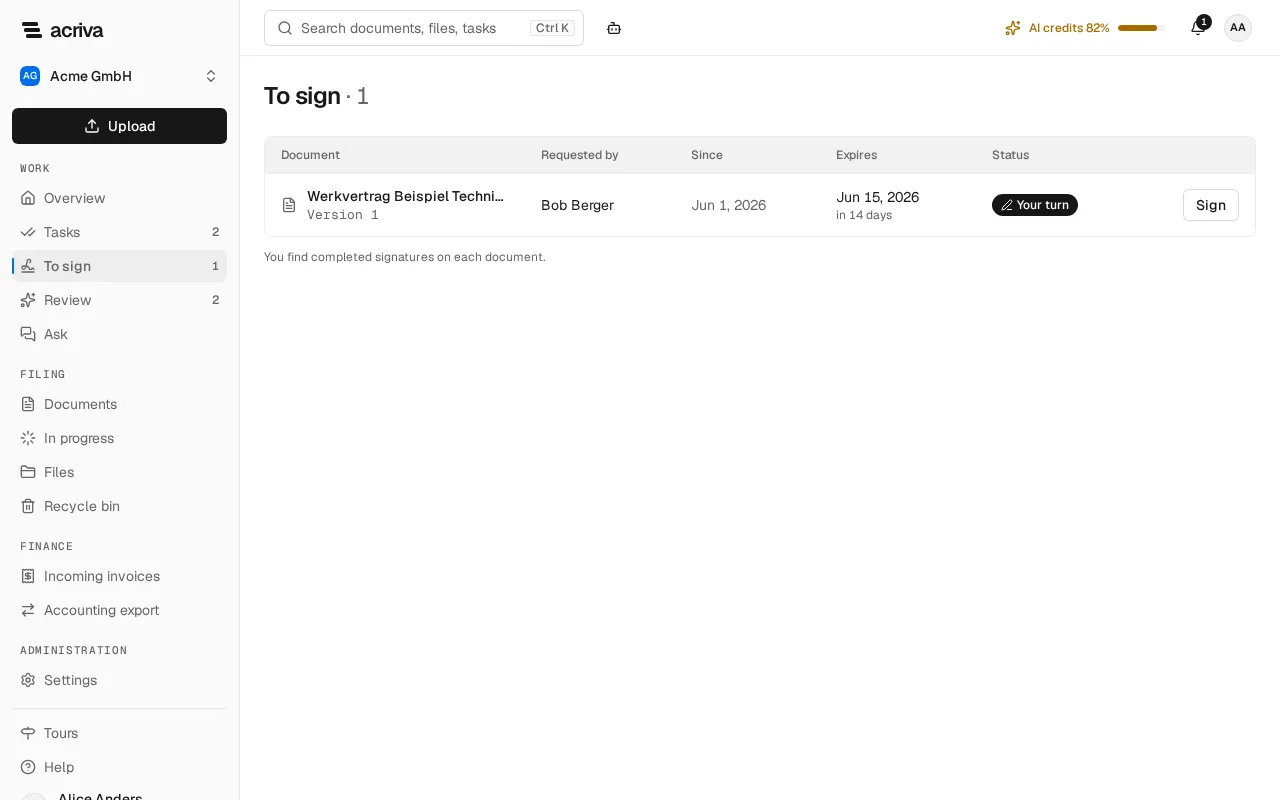
When a workflow sends a document for signature and names you as a signer, you get the notification A document is waiting for your signature, and the document appears under To sign. You sign in Acriva with a simple electronic signature (SES). Acriva needs the e-signature add-on for this; without it there is no To sign entry.
Find the documents to sign
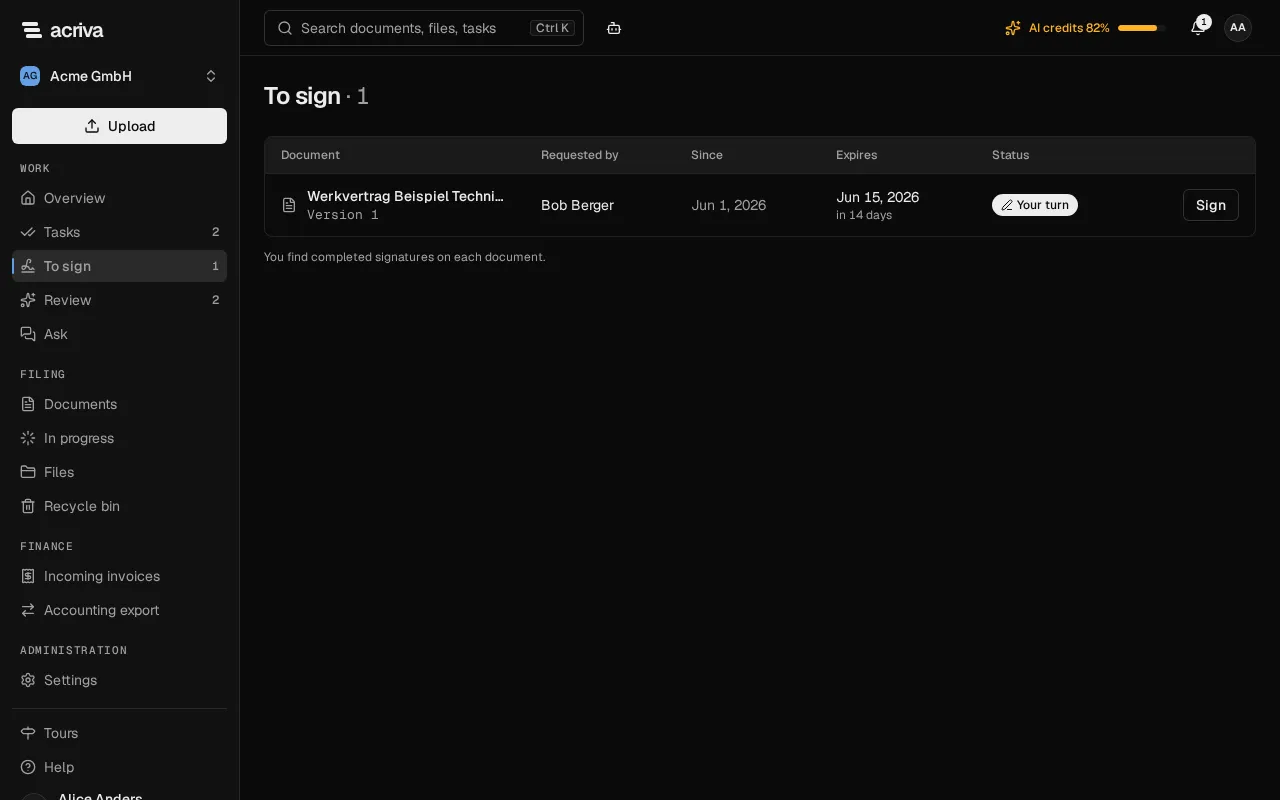
Section titled “Find the documents to sign”To sign in the side bar shows how many documents wait for your signature. The page lists them oldest first, with Requested by, Since, Expires and Status. A signature that ends within three days says Expires soon.
The page shows only the documents where it is Your turn: when the signers sign in a fixed order, a document appears once the signers before you have signed. A document you may no longer read leaves the list. Once you have signed or declined, the document leaves the list too; You find completed signatures on each document.
If you work on tasks, the Tasks page shows the same documents in a section To sign above your tasks, with Show all.
Sign a document
Section titled “Sign a document”- Select Sign in the document’s row.
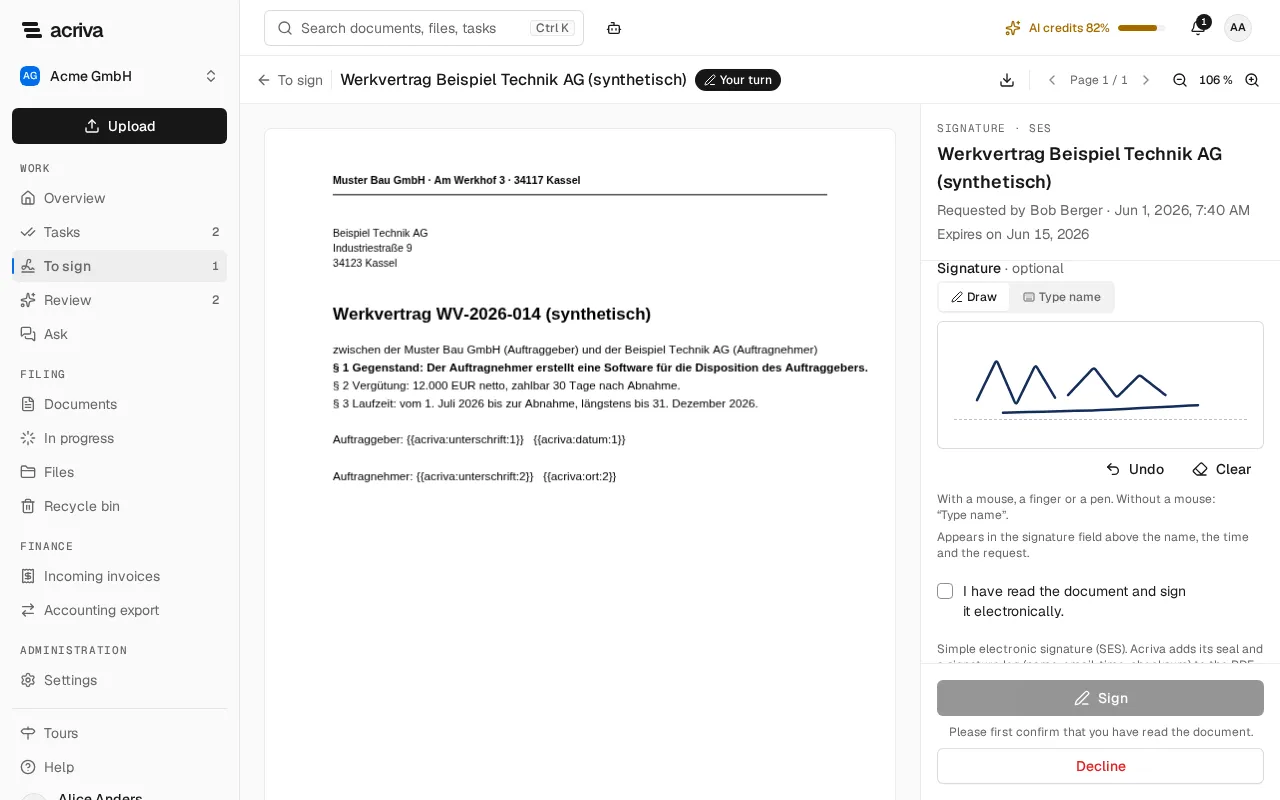
- Read the document. Your fields are marked on the pages, the signature field with Sign here. Go to my fields jumps from one of your fields to the next. Fields of other signers aren’t shown.
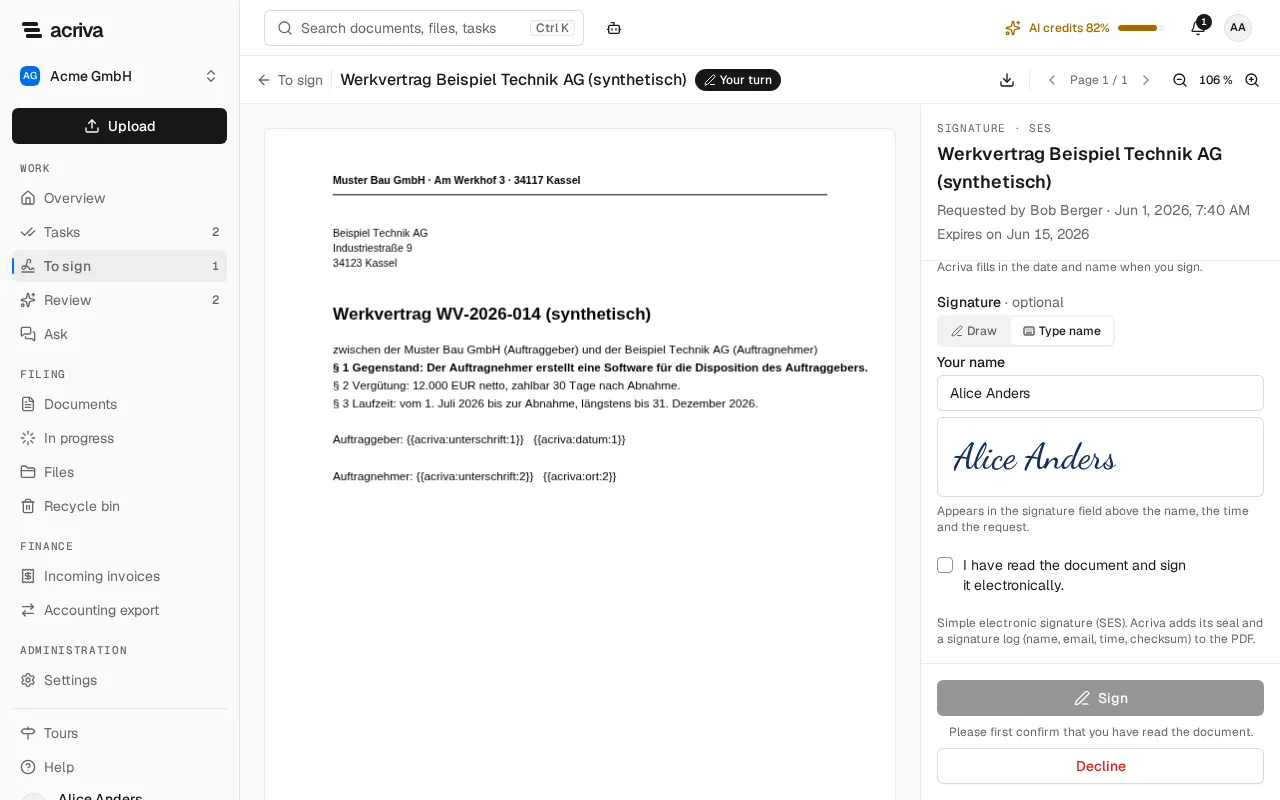
- The panel shows who requested the signature, when it expires and the Signers in their order.
- If your fields contain a place, enter it under Place (at most 100 characters). Acriva fills in the date and name when you sign.
- Optionally add your handwritten signature under Signature · optional (see Add your signature).
- Sign becomes available once the first page and the pages with your fields have been shown. If the document can’t be shown, select Download there and read it; then you can sign.
- Tick I have read the document and sign it electronically. Until you do, Sign says Please first confirm that you have read the document.
- Select Sign.
The panel then shows Signed with the time, and what happens next: whoever signs next is notified, and once everyone has signed, Acriva files the signed PDF with its seal and the signature log as a new version of the document. Next document opens the next document waiting for you.
If the request changed while you had it open (someone declined it, it expired or was cancelled), Acriva says The signature has changed in the meantime. The view was reloaded. and doesn’t sign.
Add your signature
Section titled “Add your signature”The signature field always shows your name, the time, how you proved who you are and the request. Above it, it can also show your handwritten signature. It is optional: without it, the field stays as before.
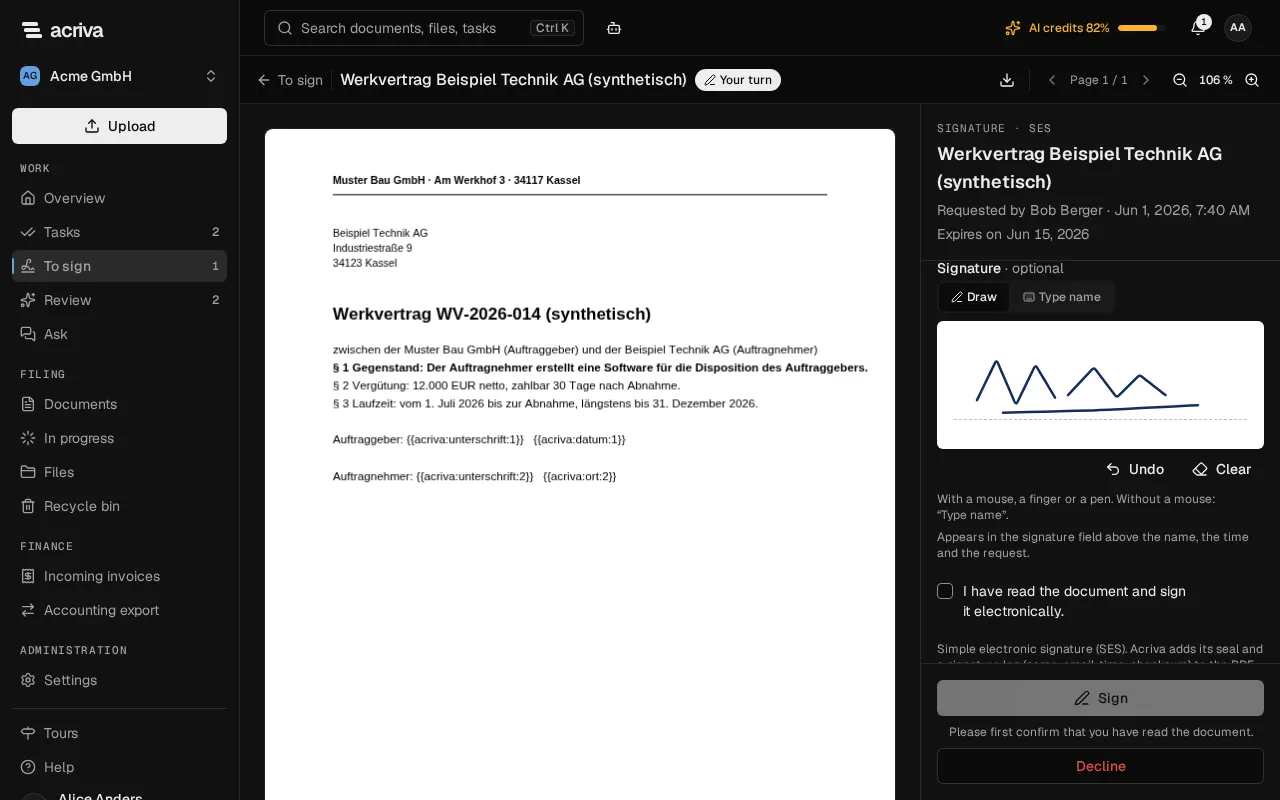
- Draw: sign on the white pad with a mouse, a finger or a pen. Undo removes the last stroke, Clear removes all of them.
- Type name: type your name under Your name. Acriva sets it in a handwriting font, as the preview shows. Use this when you work without a mouse or a touch screen, or with a screen reader.
When you select Sign, Acriva adds the signature to every signature field of yours, and the Signature log names whether you drew it, typed it or added none. If Acriva can’t take the image, it says Acriva couldn’t take the signature. Draw it again, type your name, or sign without one. and doesn’t sign.
Decline a signature
Section titled “Decline a signature”- Select Decline in the panel.
- Optionally give a Reason (at most 500 characters). It is stored with the decline.
- Select Decline in the dialog.
After a decline nobody can sign any more, and a workflow takes the exit “Declined”.