

Processing and quarantine
Every uploaded file and every new version goes through the processing: a virus scan, the conversion into a PDF/A copy, text recognition, for e-invoices the check against the official rules, and, for files with text that aren’t a valid e-invoice, the recognition of their document type and fields with AI. The AI applies a result only when it is sure and the checks, for example of the IBAN, the amounts and the dates, pass; it never overwrites a value a person entered. A run that is recognizing shows In recognition (AI). What your members see of it is described in Open a document. Administrators follow the processing in the workspace settings: select Settings in the sidebar, then Processing or Quarantine in the category Intake & processing.
Processing runs
Section titled “Processing runs”Processing lists every processing run, the newest first. Each row names the document with its version, the run, the reason (Upload, Retry, Reprocessing or Unlocked from quarantine) and when the run was queued, and shows its status. A failed run also names the step that failed with its error, for example PDF/A and text recognition: The file is password-protected. Status above the list shows only the runs of one status, such as Failed.
A failed run leaves the original unchanged and available; only the copies the processing makes may be missing.
- Find the run, for example with Status set to Failed.
- Select Retry. The run starts again, and the toast Processing run started again confirms it.
To process a single document once more, open it and select Process again under More actions.
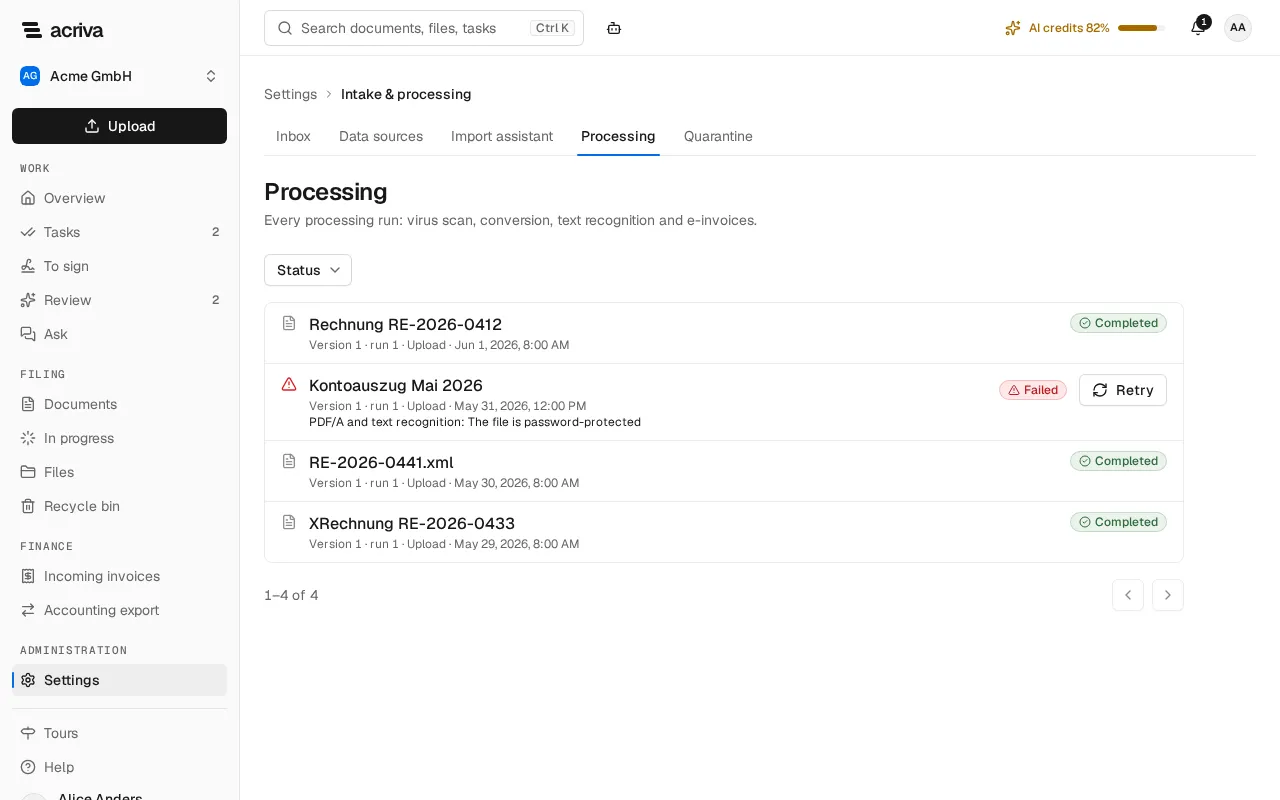
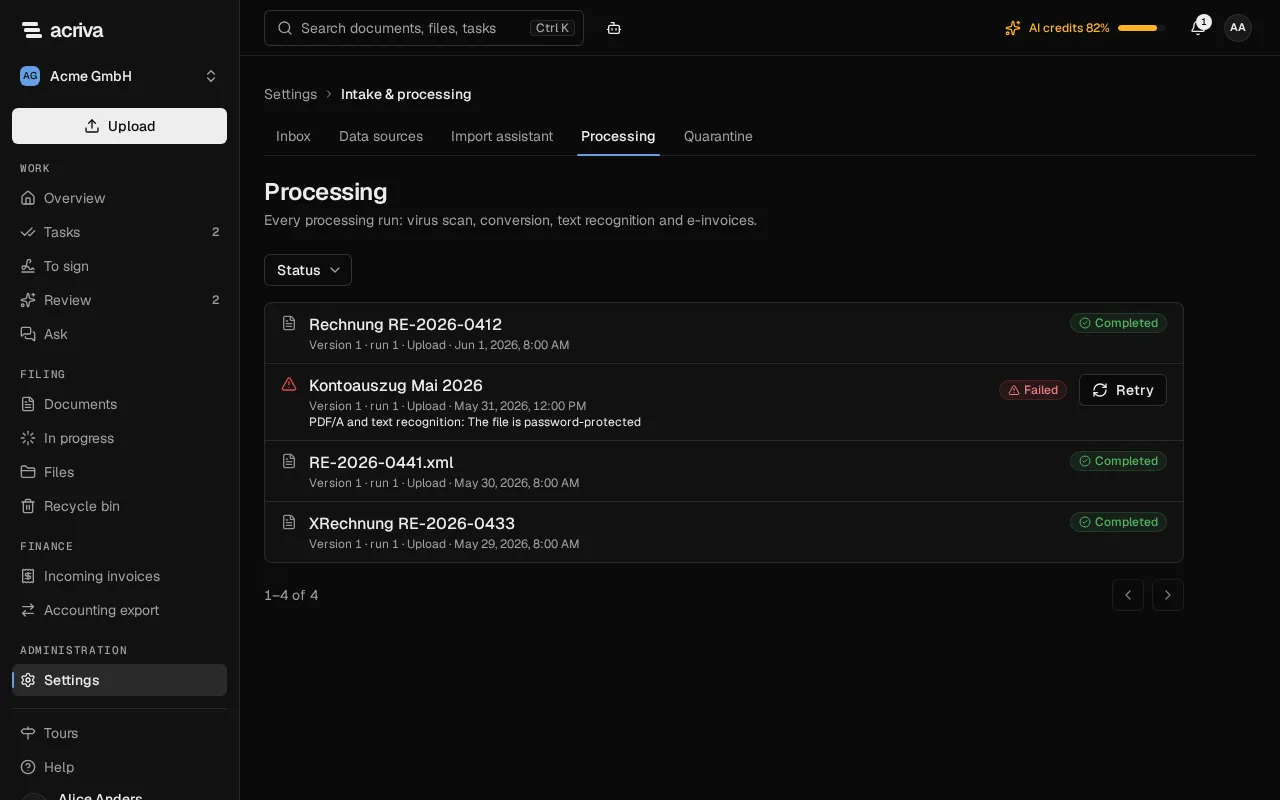
You need the permission to see processing runs to open the page, and the permission to retry runs for Retry and Process again. The built-in roles Owner and Admin have both.
What the statuses mean
Section titled “What the statuses mean”- Waiting: the run is queued. Each workspace processes a few files at the same time, so after a large upload the other files wait their turn. Another workspace’s upload never holds up yours for long.
- Running: the steps are in progress.
- Completed: every step is done, and the document shows its preview and is found by its text.
- Failed: a step failed after several automatic attempts. The row names the step and the error.
- Blocked: the virus scan found malware, and the file is in quarantine.
Errors and what to do
Section titled “Errors and what to do”| Error | What to do |
|---|---|
| The file is password-protected | Remove the password and upload the file as a new version. |
| The file is damaged | Ask the sender for a new copy and upload it as a new version. |
| The file format is not supported, The file is too large, The file was refused | The file stays available for download as it is. Convert it to a PDF yourself and upload that as a new version if you need a preview. |
| The PDF/A copy could not be made from this file | The original is stored unchanged, and you can open and download it. For a PDF file with text only the PDF/A copy is missing: Acriva reads the text for the search, checks an e-invoice and recognizes the document type and the fields from the original, and an invoice goes into its approval as usual. The run stays marked as failed, so that you can see the copy is missing; there is nothing to do then. The same holds for a PDF file with the error The file format is not supported. A scanned PDF without text and an image (JPEG, PNG, TIFF) have no text without the copy, because the text recognition is part of making it: enter the document type and the fields yourself. Retry usually gives the same result for the same file, reads it again, with AI too, and uses AI credits again; when several different files fail with this error at the same time, retry them a little later. If you need the copy, ask the sender for the file from another program, or print it into a new PDF, and upload that as a new version. |
| The step took too long, A processing service was unavailable, Unexpected error, The run ended without a result | A temporary problem. Select Retry; if the run fails again, retry it a little later. |
| A newer run took over, The version no longer exists, The document refused the result | Nothing to do: a newer run is processing the version, or the version was deleted. |
After an update of Acriva
Section titled “After an update of Acriva”Files that are already processed keep their PDF/A copies, their text and their e-invoice check. An improved text recognition or new check rules apply to new uploads. To apply them to an existing document, select Process again: Acriva makes new copies and checks an e-invoice again. The earlier copies and the original stay stored.
Failed imports on the overview
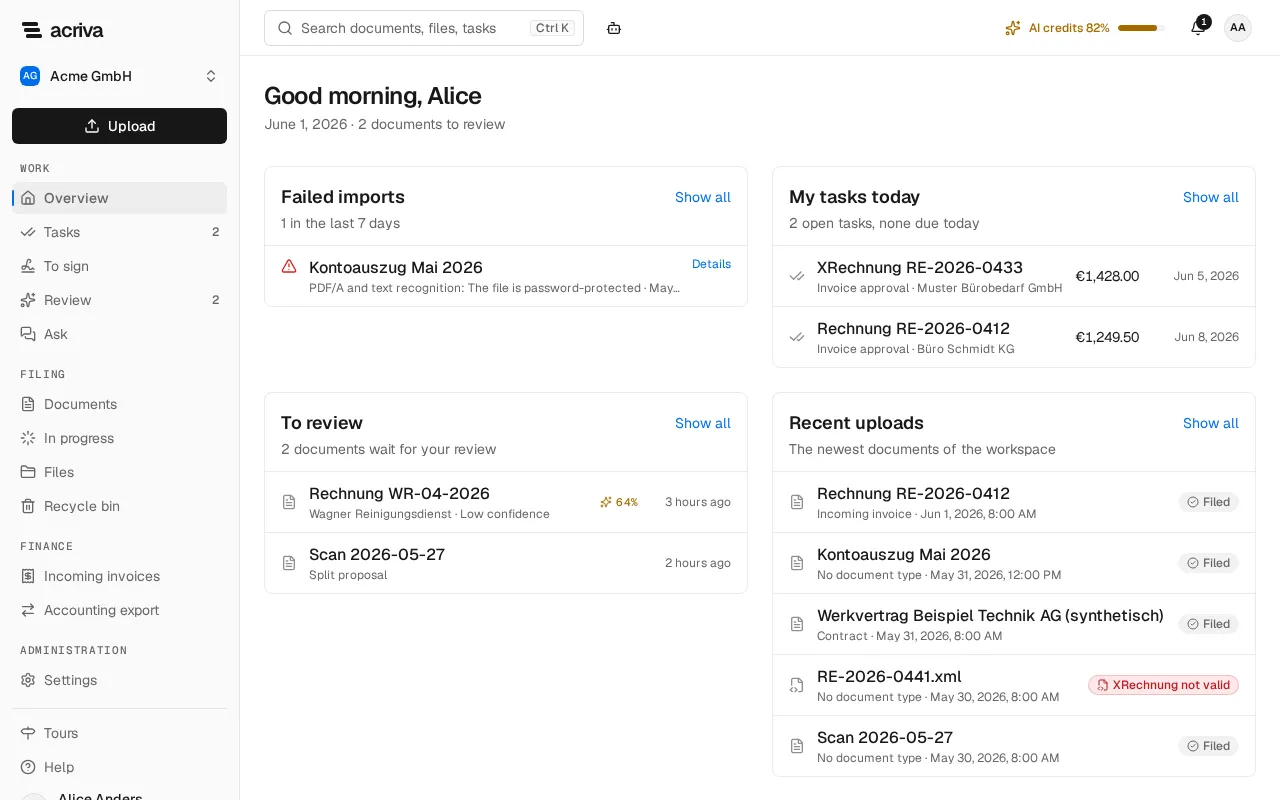
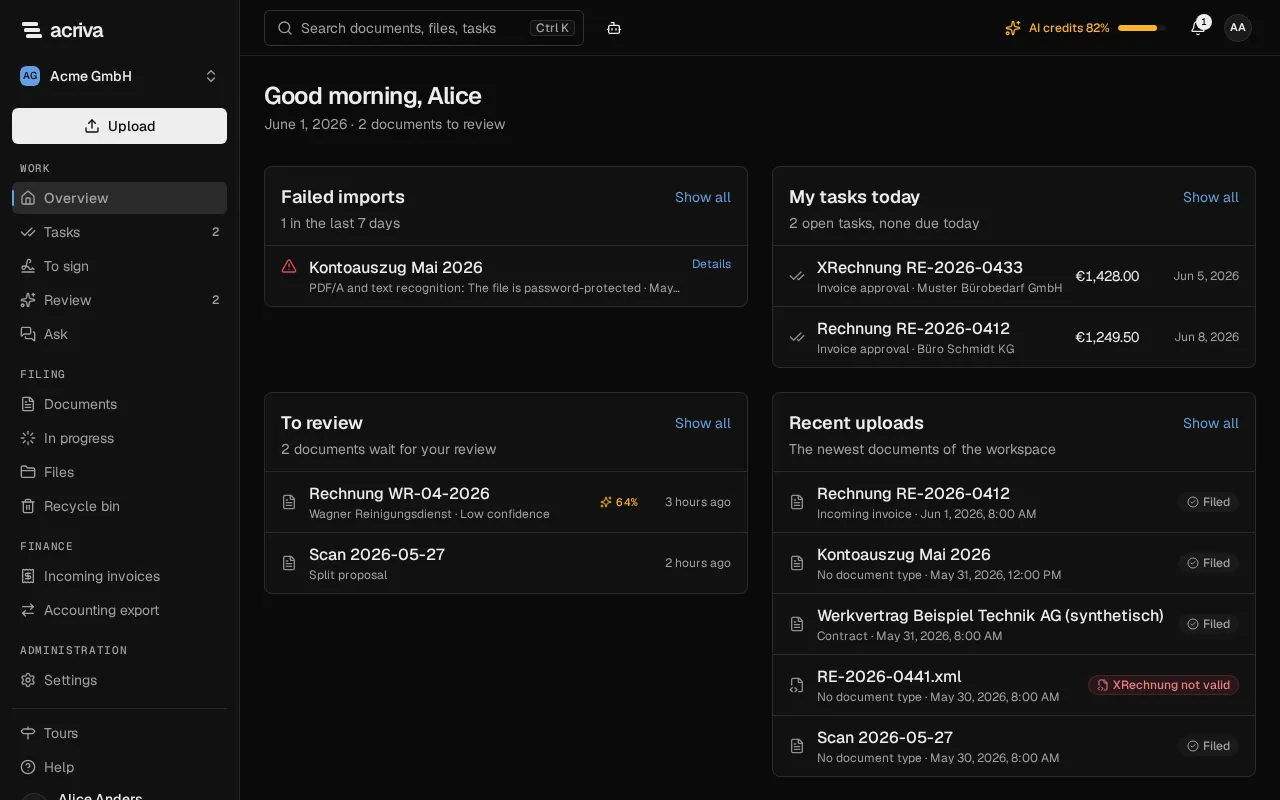
Section titled “Failed imports on the overview”Administrators see the tile Failed imports on the Overview: the newest files of the last 7 days whose processing failed or that the virus scan blocked, each with the step and the reason or Virus scan: malware found, file blocked. Details opens the document, or the quarantine for a blocked file; Show all opens the failed runs.
Quarantine
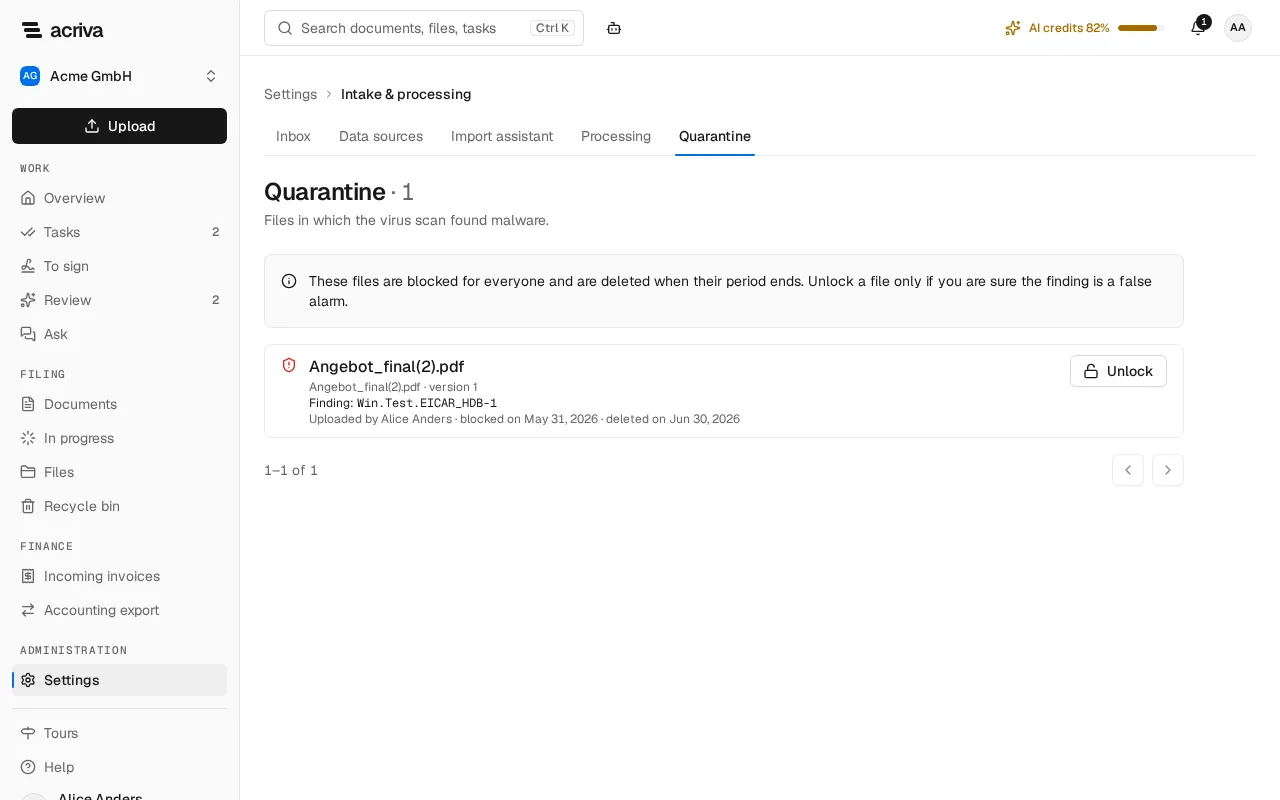
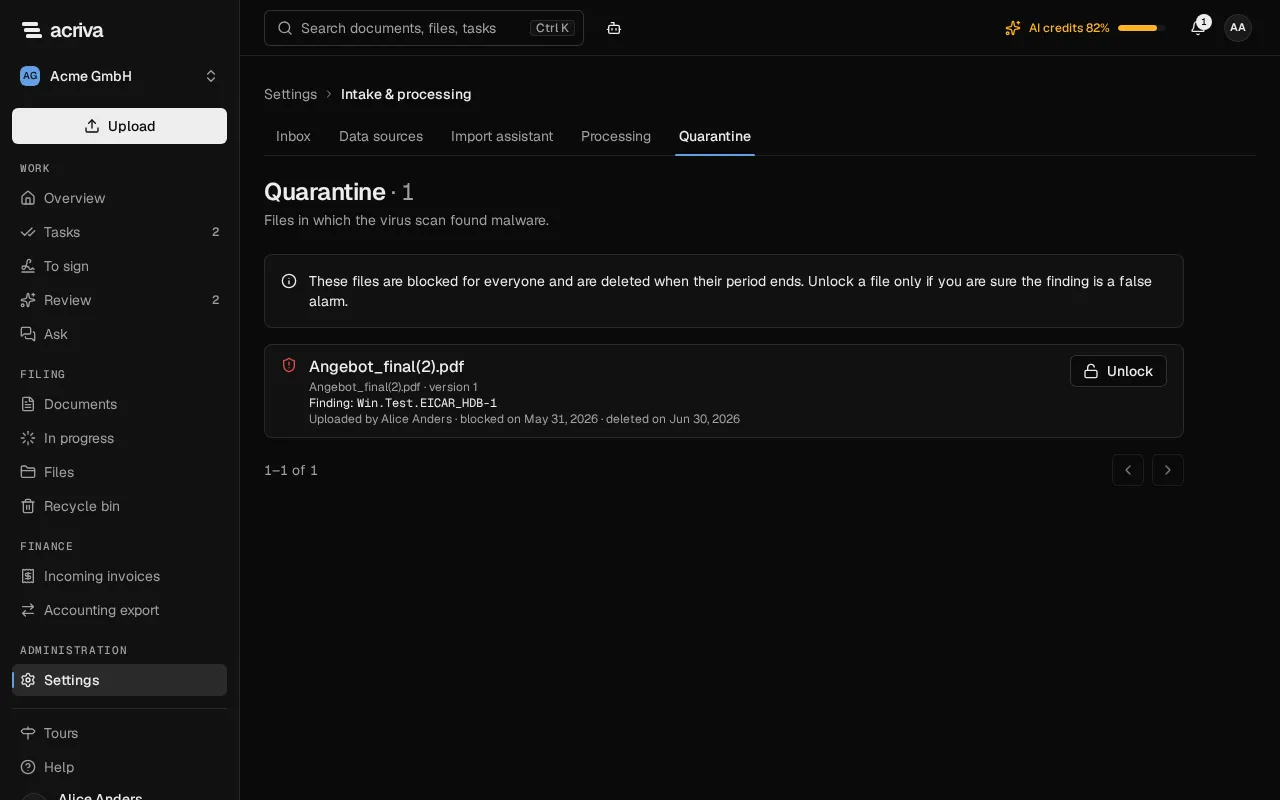
Section titled “Quarantine”When the virus scan finds malware in a file, the file is blocked: nobody can open or download it, and it no longer shows in any list. Quarantine lists these files with the Finding of the virus scan, who uploaded the file, when it was blocked and when it is deleted. After its period, a file is handed over for deletion and marked Handed over for deletion.
If you are sure that a finding is a false alarm, unlock the file:
- Select Unlock in its row.
- Enter the Reason. It is kept in the audit log.
- Select Unlock. The file is processed again without the virus scan and becomes visible to everyone who may read the document.
A file that was handed over for deletion can no longer be unlocked.
You need the permission to see and unlock quarantined files. The built-in roles Owner and Admin have it.