

Bulk generation
With Bulk generation you create one document per row of a data table from a released template, for example a contract for each of your maintenance customers. Each row’s values fill the new document’s fields, the template writes the document, and Acriva stores it like a document you create from a template yourself, under your name.
Who can use it
Section titled “Who can use it”You need:
- templates and data tables in your plan (Business, Enterprise or the trial; see Subscription);
- the permissions Manage templates: a template’s settings and the release of its checked versions, Create files and tags, file and tag documents and Create and change data tables, their columns, uploads and rows (the built-in roles Owner and Admin have all three);
- the right to create documents of the template’s target type, and, when the documents go into a file, the right to file into it.
Acriva checks your rights again for each row while the run goes on: when you lose one, the rows after it fail.
Start from a template
Section titled “Start from a template”Open a template that has a released version under Templates and select Bulk generation. The page Bulk generation guides you through four steps: Data, Mapping, Dry run and Generate. It always uses the template’s released version; a template without one shows This template has no released version. Release a version first.
Step 1: Data
Section titled “Step 1: Data”- Choose the Data table. Below it you see its rows, columns and when it was last updated. A run takes at most 500 rows.
- Choose where the documents go under File:
- None: the documents are filed in no file.
- Fixed: all documents go into one file; select Choose a file.
- By column: each row names its file. Choose the File type and the Column whose value matches the file type’s key field (Matched with the key “…”). Only a file type with exactly one unique key field can be chosen. No file is created: a row without a matching file fails.
- Select Next.
Step 2: Mapping
Section titled “Step 2: Mapping”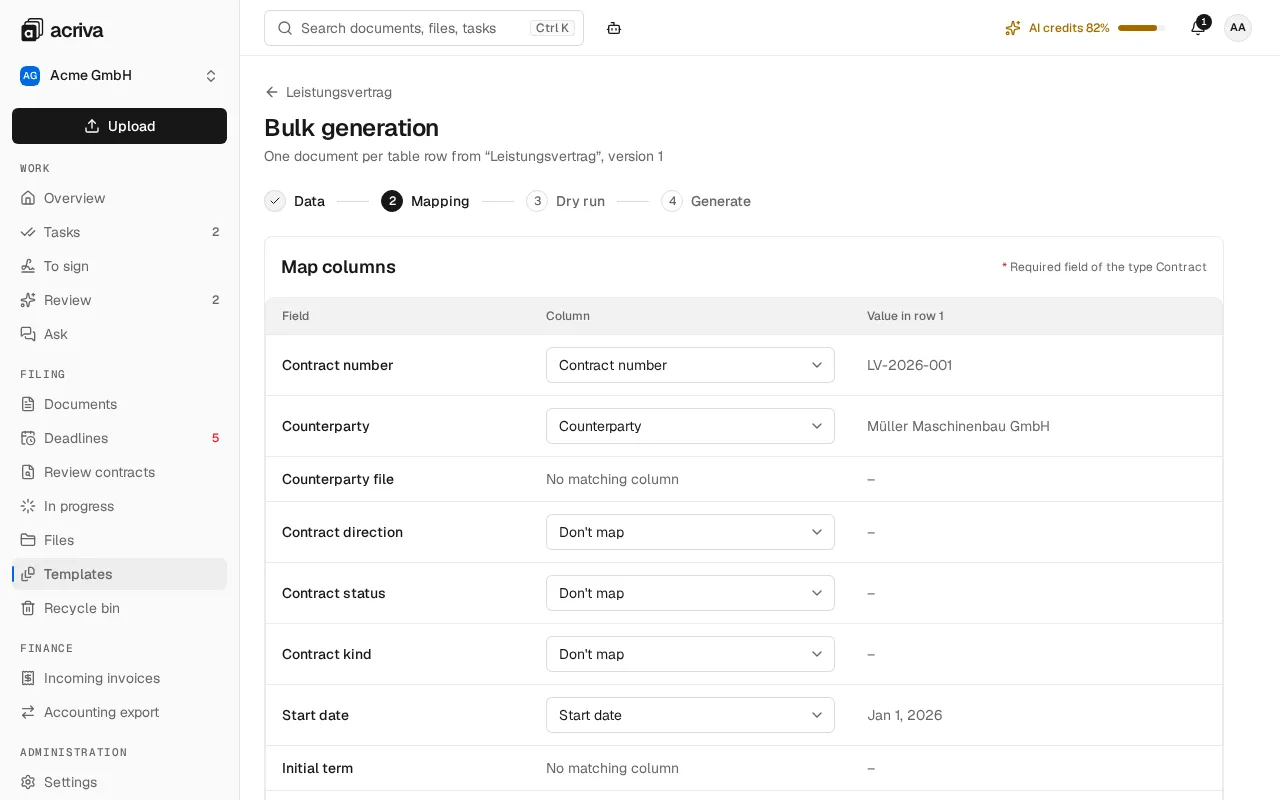
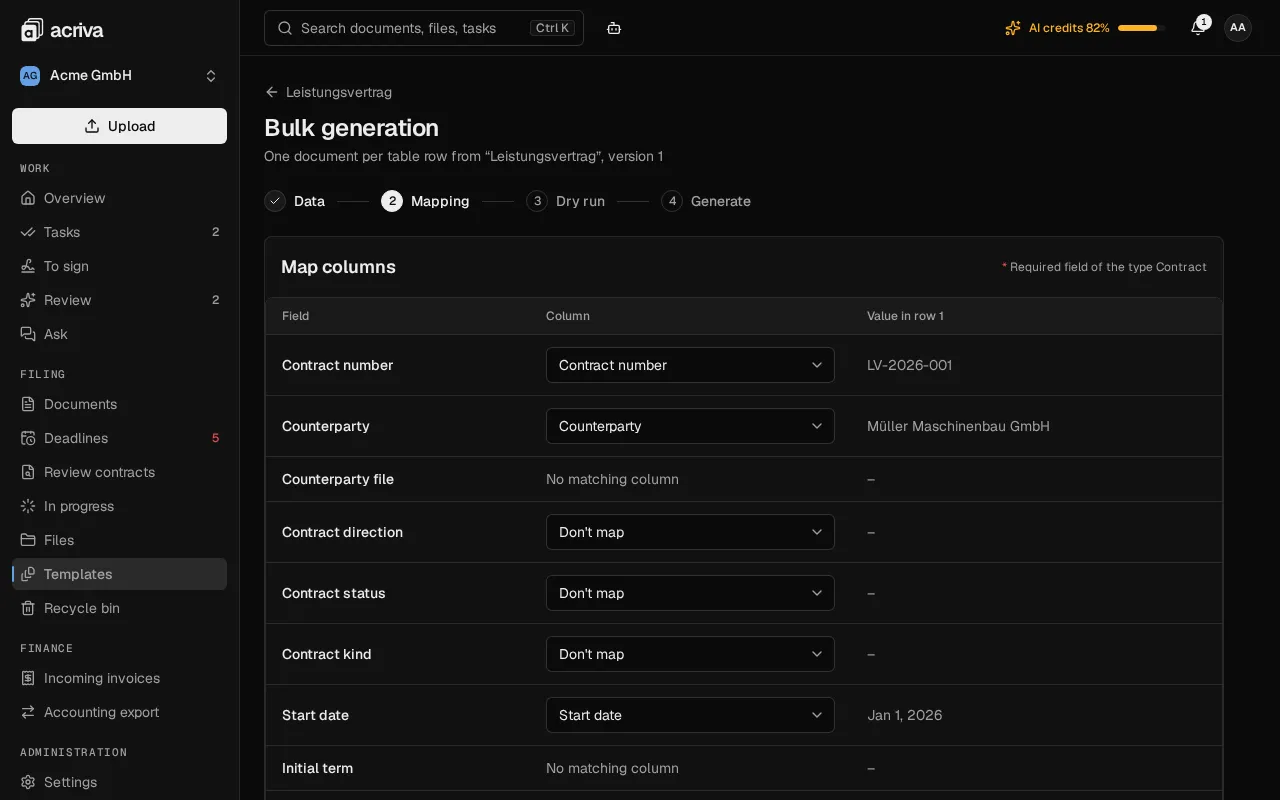
Under Map columns, each field of the template’s target type gets a Column of the table, or Don’t map. A column whose key or label matches a field’s is chosen for it from the start. Value in row 1 shows what the first row would write. A column must fit its field: text into a text or a choice field (with the choice’s key), a number or an amount into a number or amount field (amounts in euros), a date into a date field. Each required field needs a column (Required field – please map a column); the partner file of a contract comes from the run’s file (From the file).
The Title pattern sets each document’s title, with placeholders as in the template and the row’s columns as {{zeile.<column>}}, such as Wartungsvertrag {{zeile.kundennummer}}. Left empty, the template’s title pattern or name is used. The template itself can read the row’s columns with {{zeile.<column>}} too.
Select Dry run with 3 rows.
Step 3: Dry run
Section titled “Step 3: Dry run”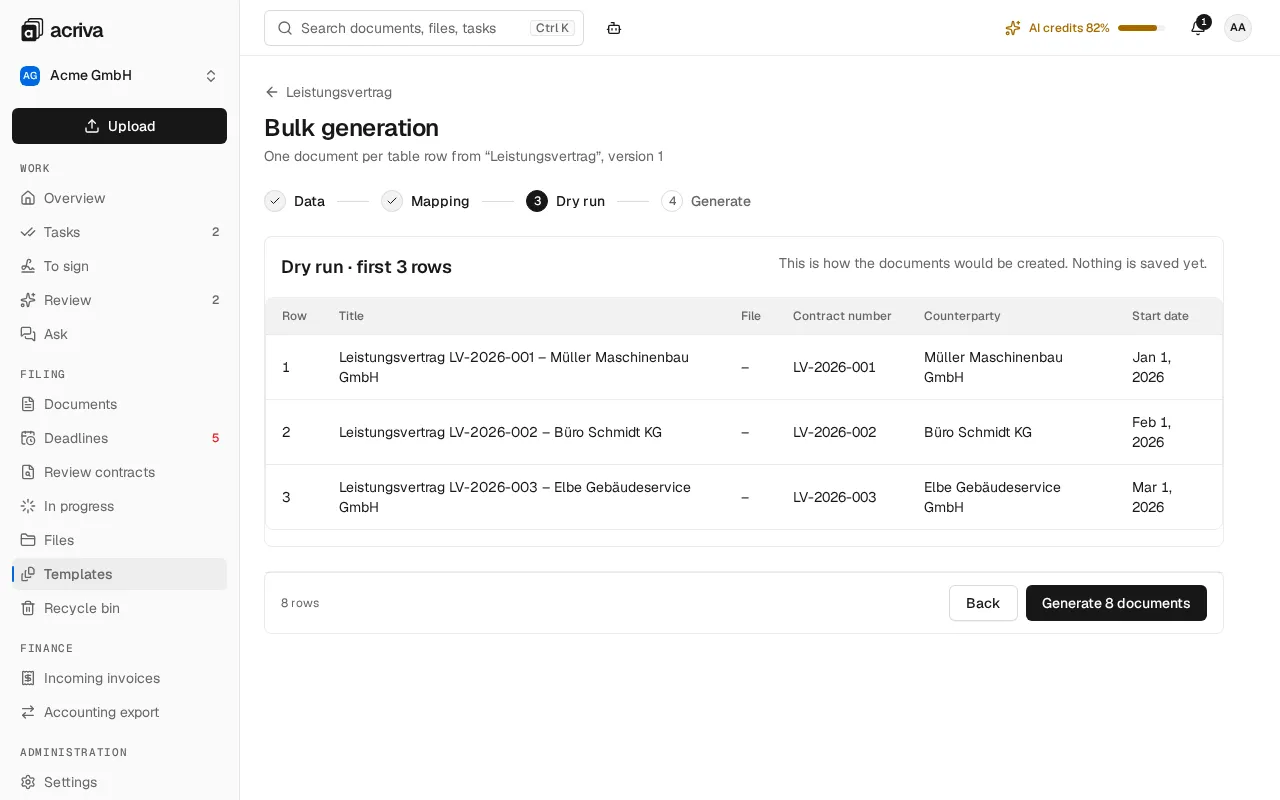
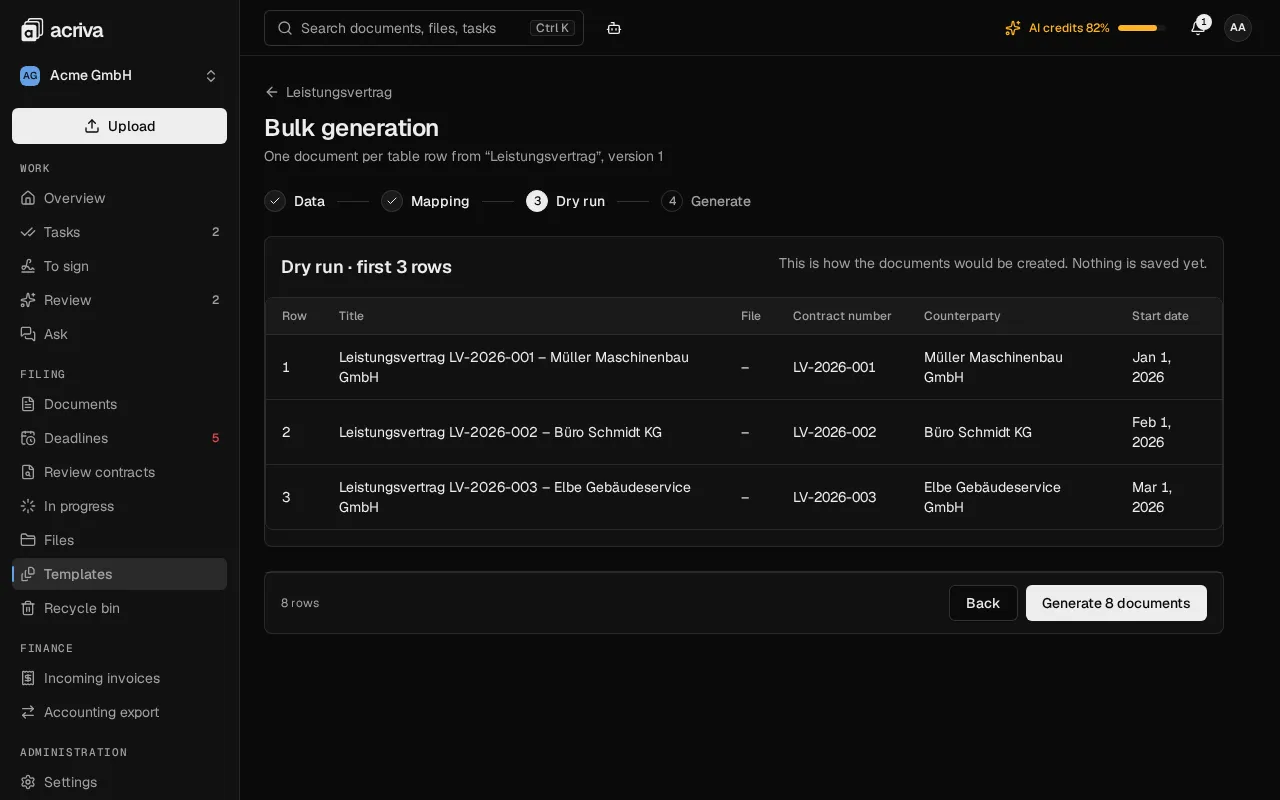
The dry run shows the first 3 rows as the documents would be created: their title, their file and their first values. Nothing is saved yet. A row that would fail shows its reason, and the footer counts the table’s rows and how many of the 3 would fail.
Before the start, Acriva refuses a run that is too large:
- More rows than allowed: a bulk generation has at most 500 rows.
- More rows than your remaining document quota: the table has more rows than documents can still be created this month. Extend the quota leads to the subscription. Generating is locked while the quota isn’t enough.
Select Generate … documents to start.
Step 4: Generate
Section titled “Step 4: Generate”The run goes on in the background, row by row, also when you leave the page or close the browser. The page shows Generating documents with how many rows are done, how many were generated and how many failed, and the rows processed last.
To stop it, select Cancel and confirm with Cancel bulk generation. The row in progress still finishes; rows not generated yet won’t be generated, and documents already generated stay.
When the run ends, Acriva notifies you in the app, and the notification opens the run’s report.
The report
Section titled “The report”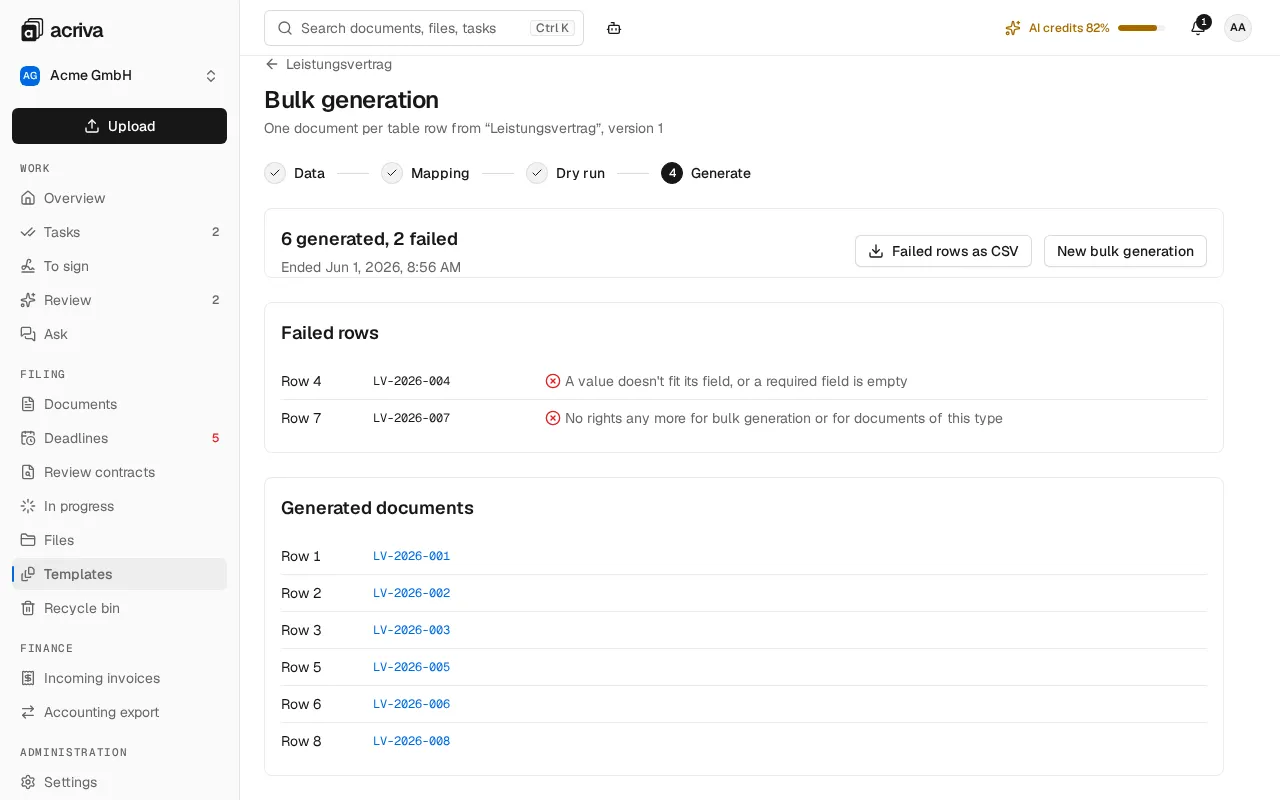
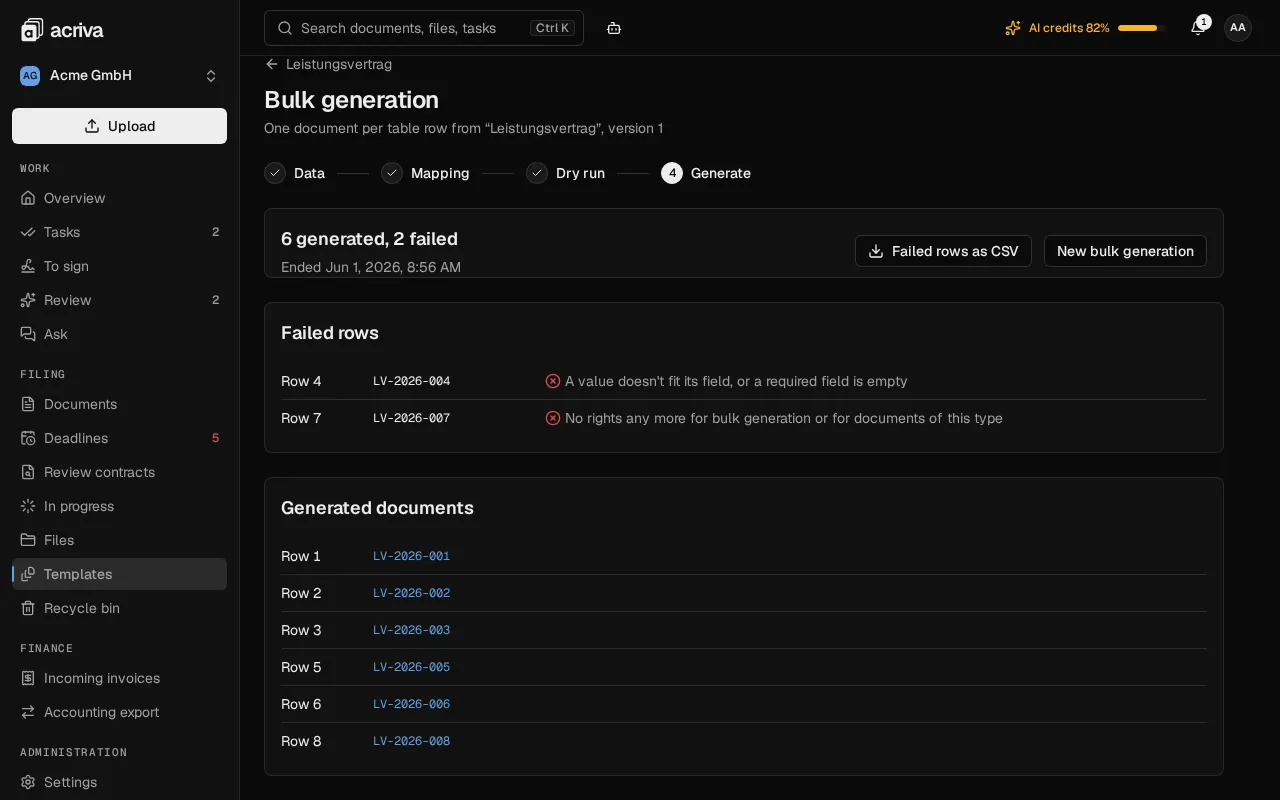
The report shows how many documents were generated and how many rows failed, Failed rows with each row’s reason, and the Generated documents. A document you may not read (any more) shows as Not visible to you. Failed rows as CSV downloads the failed rows with their row number, key and reason; correct them in the data table and start a New bulk generation for them.
A row fails, and the others go on, when:
| Reason | What to do |
|---|---|
| The row no longer exists in the data table | the row was deleted after the start |
| A value doesn’t fit its field, or a required field is empty | correct the value in the data table |
| No file with this key | create the file, or correct the key |
| The file is closed, or you may not create documents in it | reopen the file, or ask for the right to file into it |
| No rights any more for bulk generation or for documents of this type | ask an admin for the permissions above |
| The document quota is used up | extend the quota |
| The template can’t be used any more: released again, no longer readable for you, or its target type is gone | a run uses the version released at its start; start a new run for the new version |
| The document couldn’t be generated | try the row again in a new run |