

Clauses
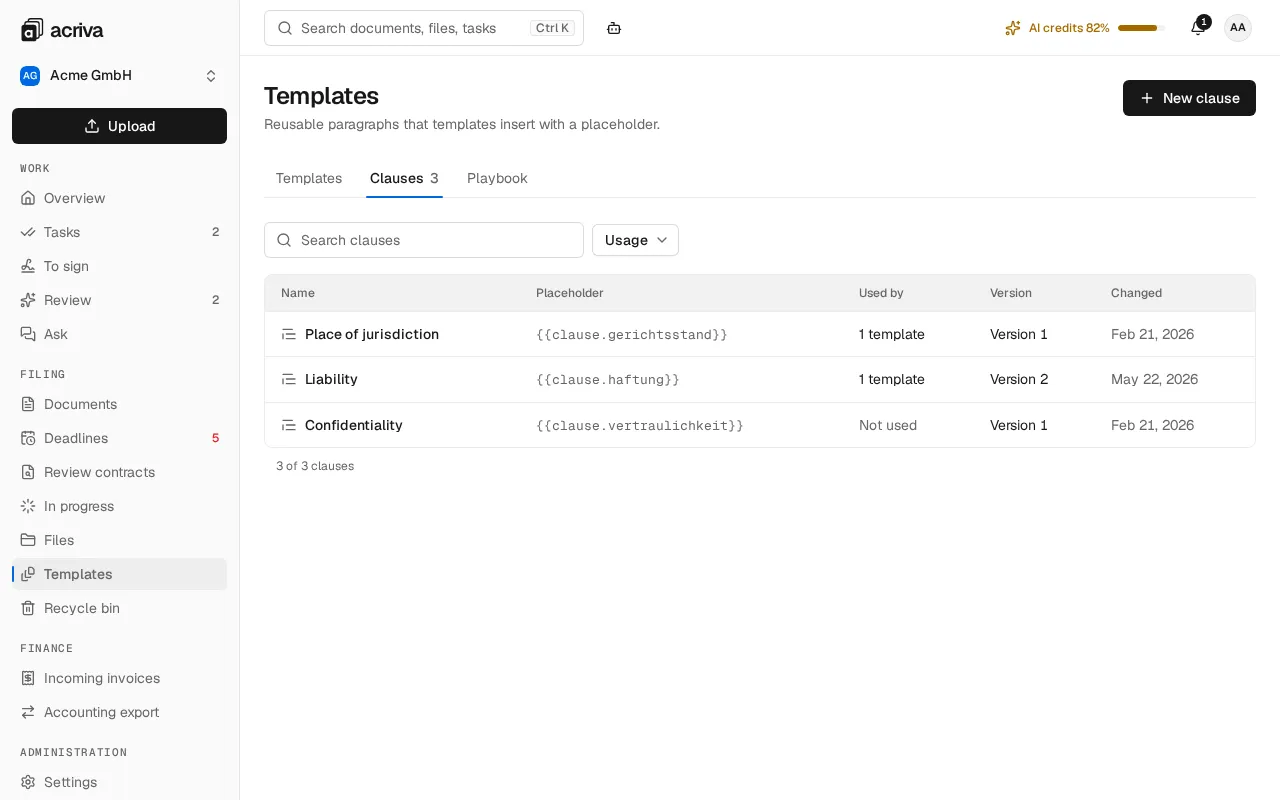
A clause is one or more paragraphs from a Word file, such as your liability or your place of jurisdiction, that templates insert with a placeholder: {{baustein.haftung}} (or {{clause.haftung}}). You write the text once, and every template that names the clause uses it. You find the clauses under Templates, on the tab Clauses.
Who has clauses
Section titled “Who has clauses”Clauses come with templates: the Business and Enterprise plans, the trial, and the add-on for Starter (see Subscription). Everyone who may read documents (See documents and document types) sees the clauses and their text. Creating a clause, uploading a new version, editing its titles and deleting it needs the permission Manage templates: a template’s settings and the release of its checked versions, which the built-in roles Owner and Admin have. Without it the page shows the clauses without these buttons.
A clause is the workspace’s text, not a document: it has no access grants of its own. Under Used by, a clause names only the templates you may read. The playbook can name a clause per topic as its standard clause; such a clause can’t be deleted while a topic names it.
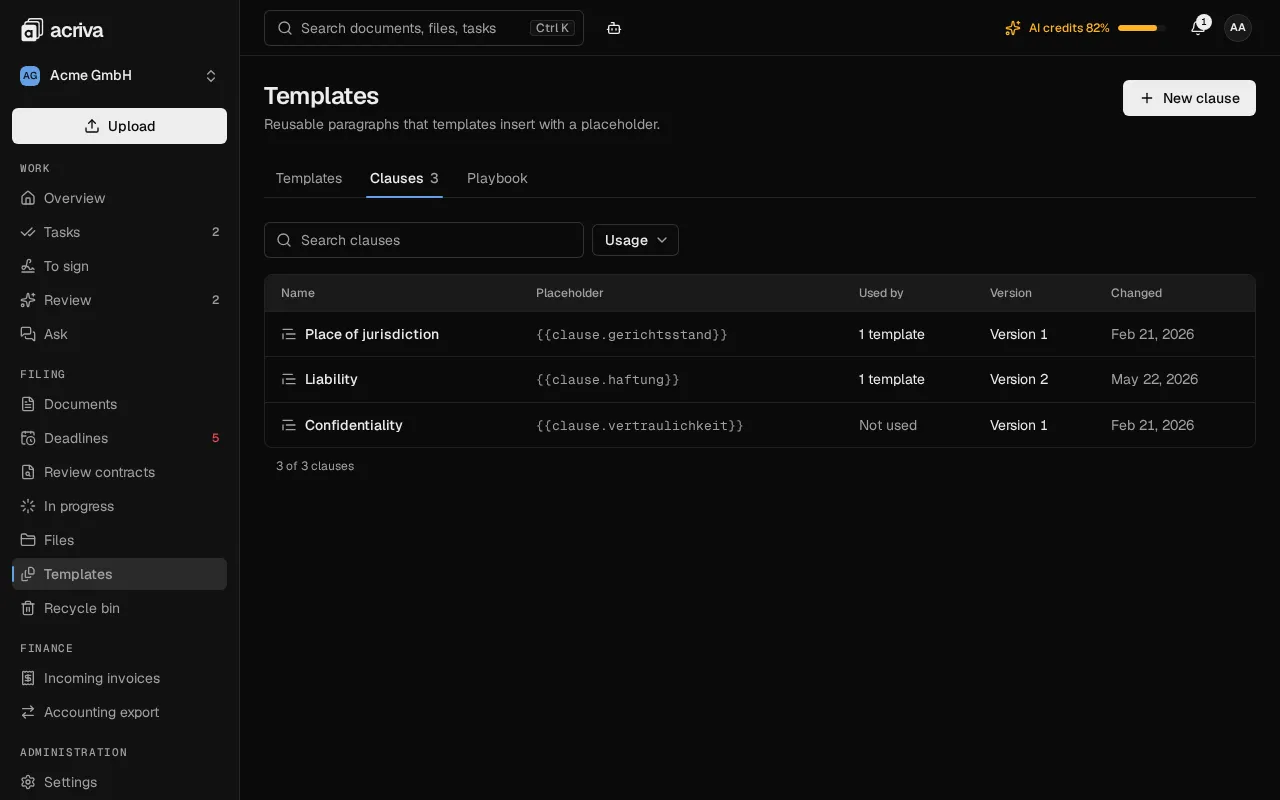
The list shows each clause’s Name, its Placeholder, how many templates use it (Used by, or Not used), its Version and when it Changed. Search with Search clauses, or filter by Usage: All, Used or Not used.
Create a clause
Section titled “Create a clause”- Write the clause’s text in Word, with the formatting it should have: headings, a numbered list, a table, a footnote, a link or an image are kept. Save it as a Word file (.docx) of at most 256 KB.
- In the template library, open the tab Clauses and select New clause.
- Enter the Key. It starts with a lowercase letter and holds only letters and digits, at most 40 characters, such as
haftung. The dialog shows the clause’s Placeholder: below it. Another clause can’t have the same key (Another clause already has this key.). - Enter the Title (German) and the Title (English). The library shows the title in the language of the interface.
- Select Choose file and pick the Word file.
- Select Create.
Acriva checks the file when you upload it. It refuses a file as a template’s check does, under This file can’t become a clause:: macros, encryption, a link to external content, a field that loads content, a linked object, a chart or another embedded object it can’t carry over (The file contains an embedded object that can’t be carried over (a linked object, in a clause also a chart or an OLE object).), a clause inside the clause (A clause contains another clause.) and a conditional block or repeated row inside the clause (A block or clause isn’t alone in its paragraph or table row.).
Write or edit a clause in the editor
Section titled “Write or edit a clause in the editor”You can also write a clause in Acriva instead of in Word. In New clause, select Write in the editor instead: enter the Key and the titles as above, write the text, and select Save. A clause written here shows Edit in the editor on its page, next to its content. When you leave the editor with unsaved changes, Acriva asks first.
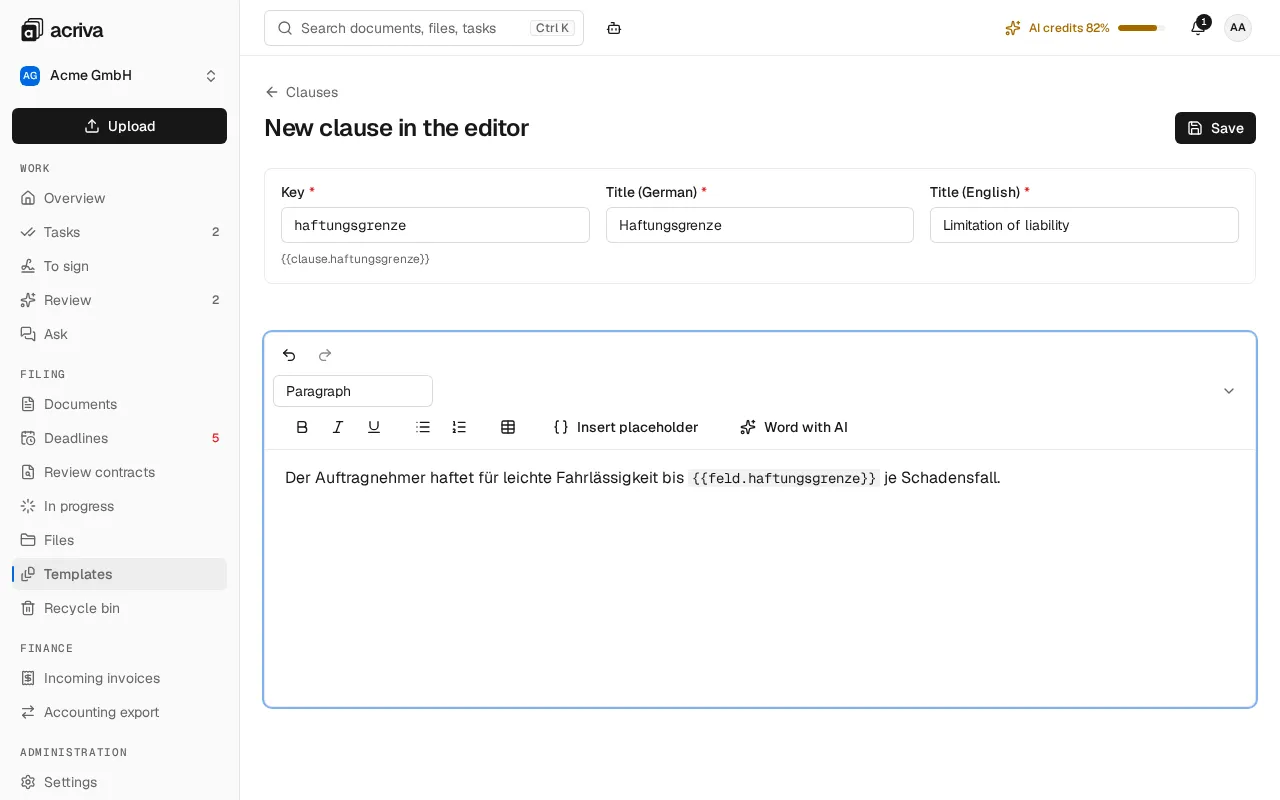
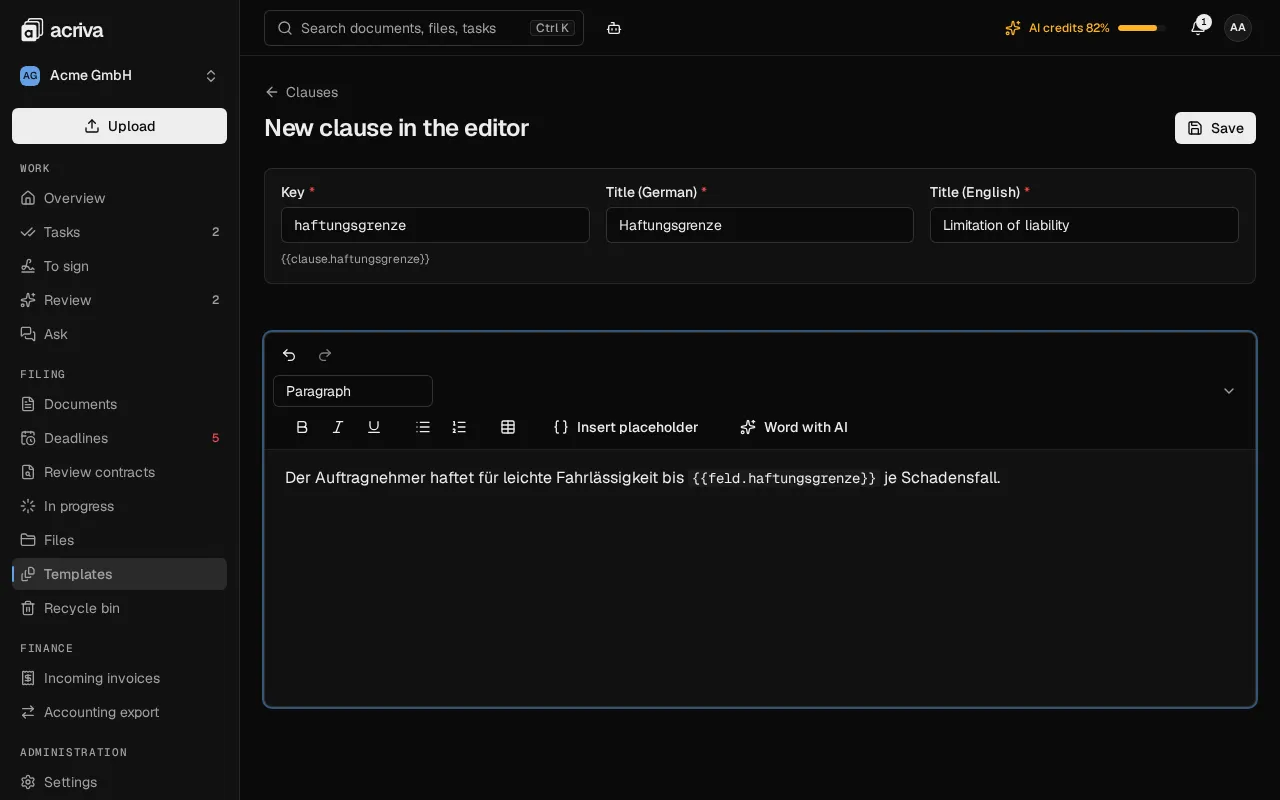
The editor offers what a clause can carry into every template:
- Paragraph format: a paragraph or Heading 1 to Heading 3.
- Bold, Italic and Underline, a Bulleted list and a Numbered list (lists inside lists, up to four levels), and Insert table for a simple table: in a table you can add and delete rows and columns. Merged cells, colours, fonts and images aren’t possible; for those, write the clause in Word.
- Insert placeholder inserts a value that templates fill in, such as the company’s name or today’s date. With Fields of a document type you see the fields of a document type too; a clause’s placeholders are filled from each template’s document type. Under Other placeholder you can type one, such as
feld.contractNumber. Conditional blocks and other clauses can’t be inserted in a clause.
When you paste text from Word or a web page, the editor keeps the text, bold, italic, underline, headings, lists and simple tables. It leaves out the rest and says what under Not everything was pasted, such as images, links (pasted as plain text), fonts and colours, or tracked changes.
Save stores the text as the clause’s next version, as a Word file, and checks it as an upload. What the check refuses is listed above the text; The text can’t be saved like this: names the block it concerns. Preview fills the placeholders with sample values you type and shows the text as a template would insert it. Compare versions lists the paragraphs that were added, removed or changed between two versions.
A clause whose current version was uploaded from Word opens read-only in the editor (This clause comes from Word): edit it in Word and upload it again with Edit in Word and upload again. A clause from the editor that gets a version from Word is read-only from then on.
Word with AI
Section titled “Word with AI”Word with AI in the toolbar writes a text with AI when your workspace uses the contract analysis. Choose Write from a description and describe the clause, such as “limit liability to intent and gross negligence”, or Rewrite this clause: Stricter, Friendlier to the customer, Shorter, Plainer or In the other language. The proposal first appears in the dialog; only Take the text replaces the text in the editor, and Undo brings the old one back. Nothing is saved until you choose Save. Each proposal costs one credit and is not legal advice.
Use a clause in a template
Section titled “Use a clause in a template”Type the clause’s placeholder in the template in a paragraph of its own, with nothing else in that paragraph, or copy it with Copy placeholder on the clause’s page. A clause can stand in the body of the template, in a table cell and in a text box, not in a header, a footer or a footnote, and not inside a repeated table row. A template may name up to 50 clauses. How to show a clause only in some documents is under Show text only when a condition holds.
When a document is created, the clause’s paragraphs replace the placeholder. They keep their formatting: a style the template also has (by its name, such as “Heading 2”) takes the template’s look, and a numbered list in the clause starts at 1 each time.
Placeholders inside a clause. A clause may hold the template’s placeholders, such as {{feld.contractValue}} or {{partner.name}}. They are filled like the template’s own after the clause is inserted, and the template’s check lists them with the clause’s key (in the clause haftung): each must exist in the template’s target type, or the template can’t be released.
Versions and when they take effect
Section titled “Versions and when they take effect”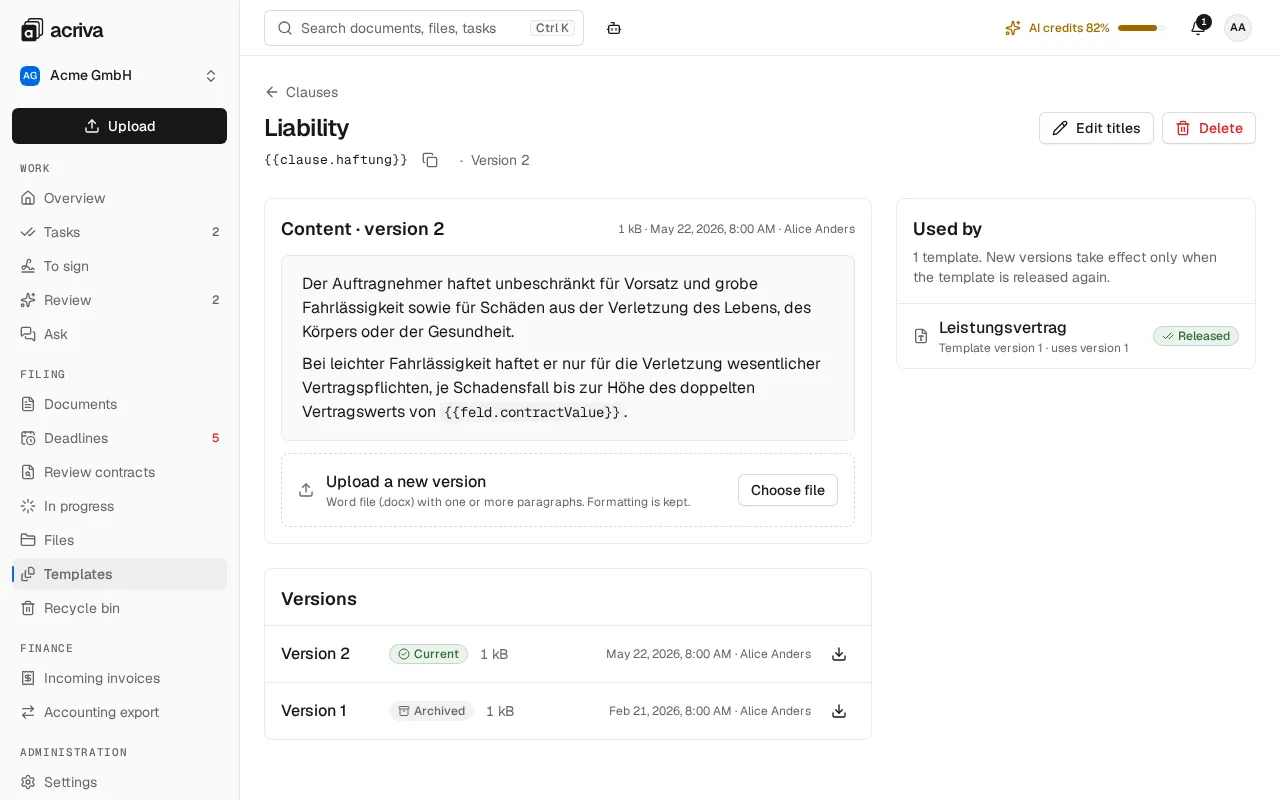
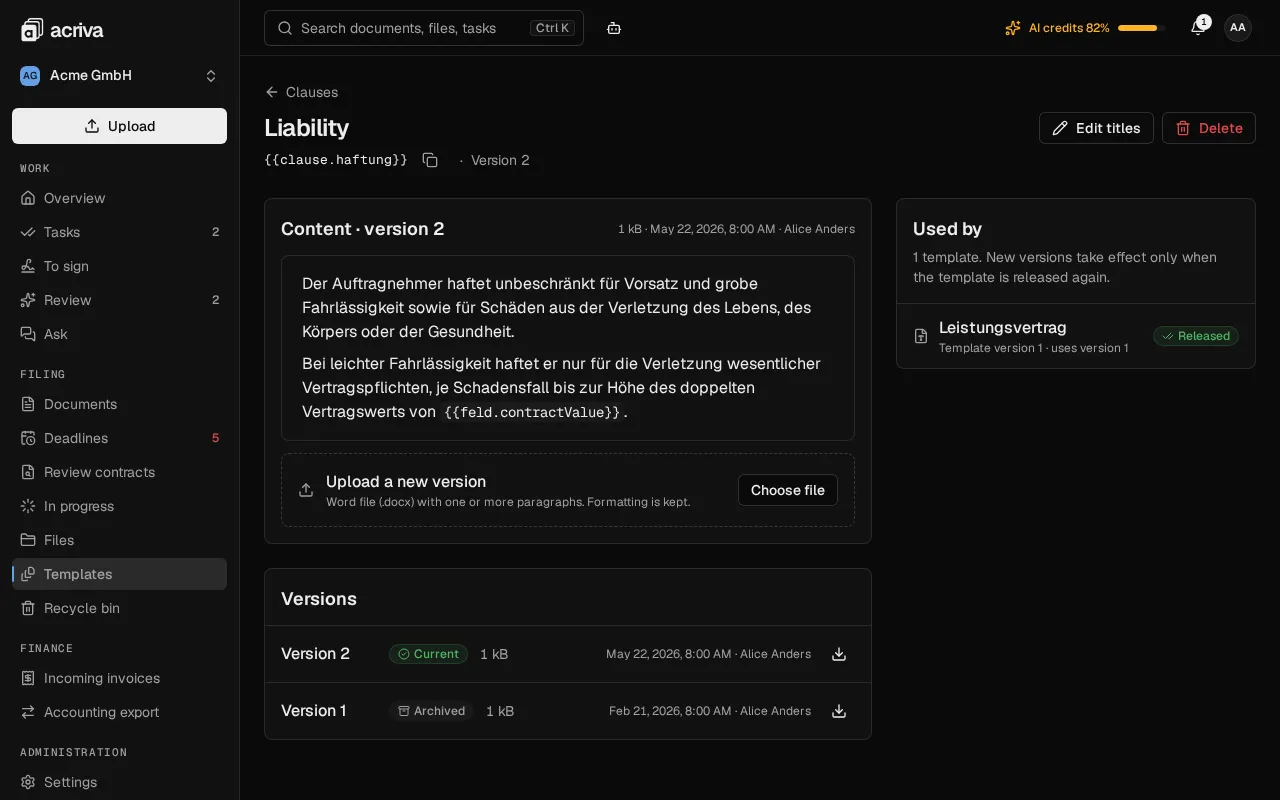
The clause’s page shows its content under Content · version …, its Versions (the newest Current, the older ones Archived, each with a download button), and under Used by the templates that use it. To change the text, select Choose file under Upload a new version and pick the corrected Word file: Acriva checks it and adds it as the next version. Edit titles changes the titles without a new version.
A new version takes effect only when a template is released again. When a template version is released, Acriva notes the version of each clause it uses, and every document created from that release uses exactly those clause versions, even after a clause gets a new version. The template’s check shows which version a release would use. To bring a new clause version into the documents, check the template again (upload a new version of it) and release it. Used by shows, for each template, which clause version it uses (Template version 1 · uses version 1) and whether that template version is Released.
When someone else changed the clause while you edited it, Someone changed the clause in the meantime – reload appears: select Reload and make your change again.
Delete a clause
Section titled “Delete a clause”Select Delete on the clause’s page and confirm. The clause is deleted with all its versions. Documents already created keep their text.
A clause that a released template uses can’t be deleted: “Liability” can’t be deleted lists the Released templates that use it, as far as you may read them. Remove the placeholder from those templates, release a new version of each, then delete the clause. When the templates that use it aren’t visible to you, Acriva says so instead of naming them.