

Connectors
A connector is a small program that runs in your network, next to the systems an importer reads. It reads a local folder, a Windows file share (SMB) or a database (PostgreSQL, SQL Server or MySQL) and sends what it read to Acriva. It only ever connects out to Acriva over HTTPS: it opens no port, and Acriva never connects into your network. Your database passwords stay in the connector’s configuration on your machine.
A connector needs data tables, so it comes with Business, Enterprise and the trial. Business and the trial have 1 connector, Enterprise 5. You need the right to manage data tables.
Create and pair a connector
Section titled “Create and pair a connector”- Open Settings › Connectors and select New connector.
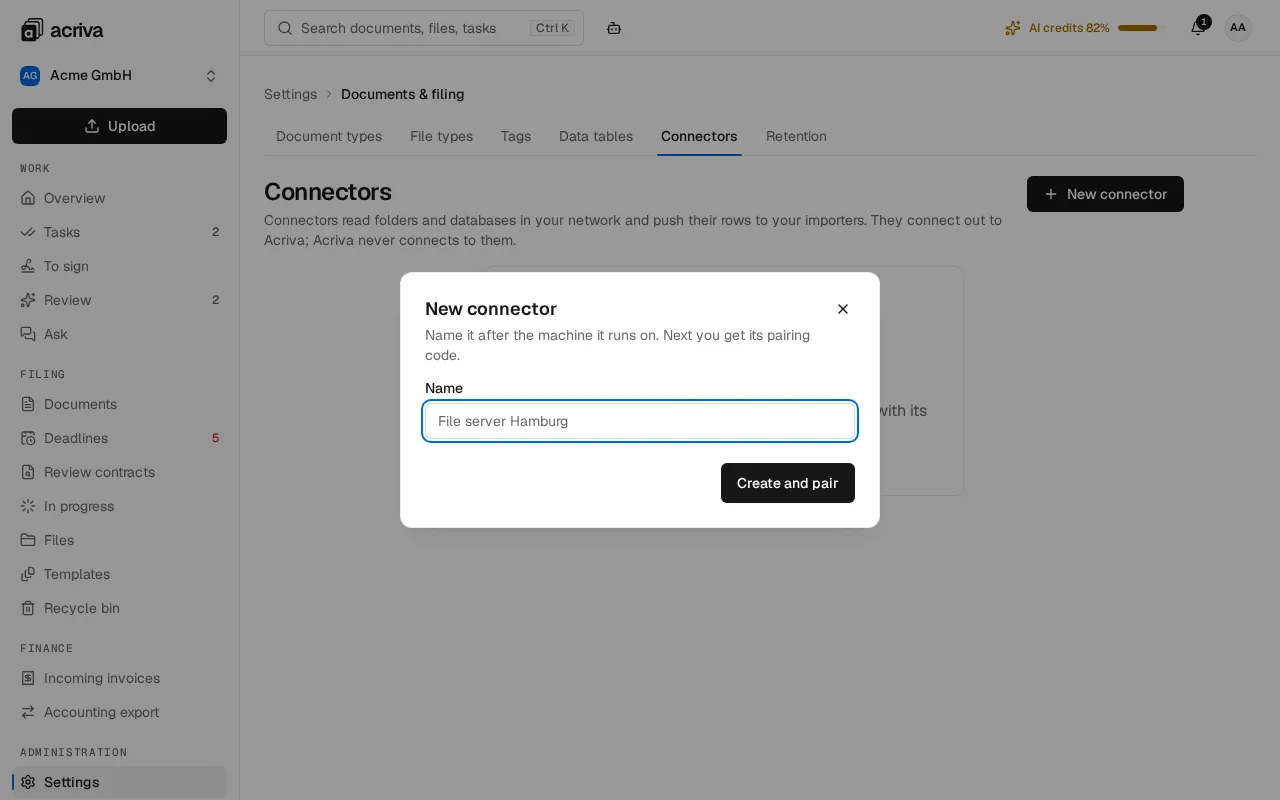
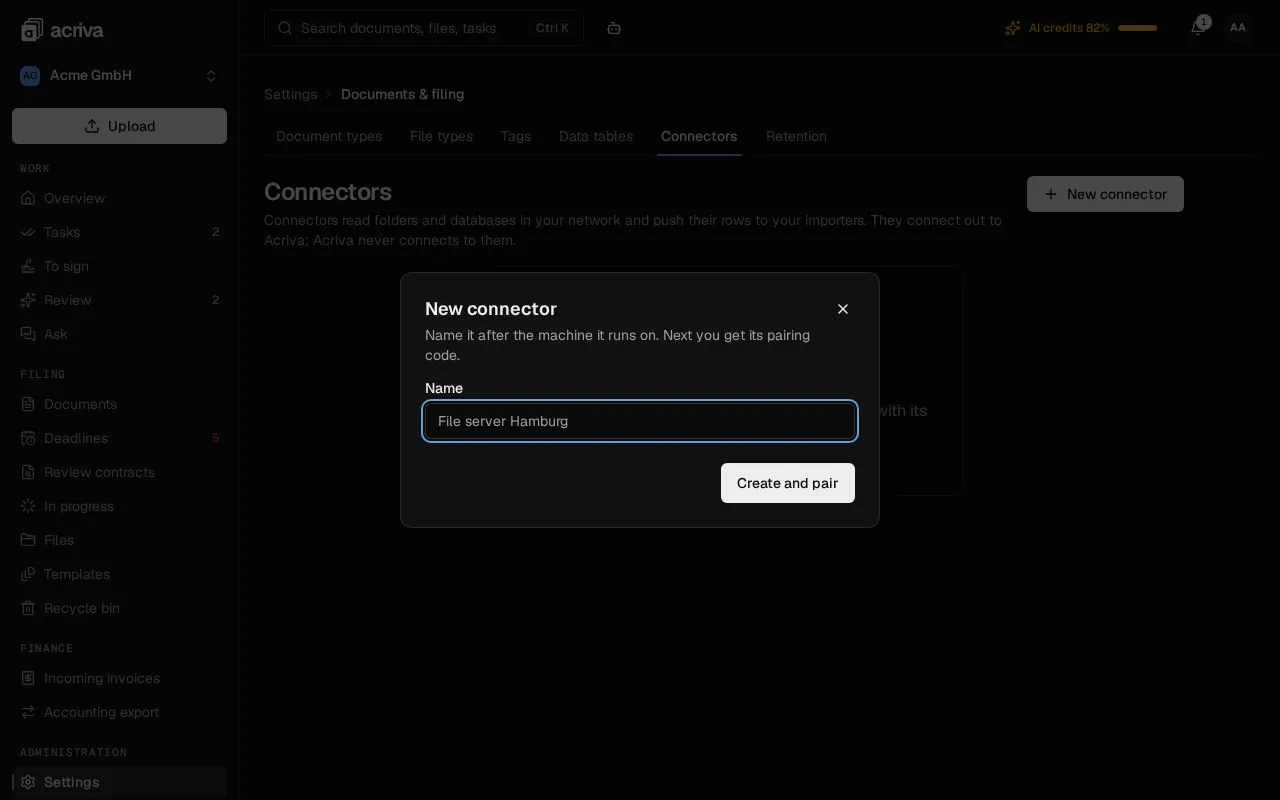
- Enter a Name, for example the machine it runs on, and select Create and pair.
- Acriva shows the Pairing code. Select Copy. The code works once and for 15 minutes, and it isn’t shown again: if it expires, select New pairing code in the connector’s menu.
- Start the connector with the code (see Install with Docker). It redeems the code, keeps its own key, and from then on reports in every minute.
The list shows each connector’s State: Waiting for pairing, Not paired (the code expired unused), Online, Offline (no report for three minutes) or Revoked, and when it was Last seen with its Version. Under its name, Paired from shows the network its key was redeemed from and when. If you don’t know that network, someone else may have used the code: revoke the connector.
Revoke in a connector’s menu stops its key at once. Its importers fail until they read from another connector. A revoked connector can’t be paired again; create a new one. Revoking also works while the workspace is read-only.
Use it in an importer
Section titled “Use it in an importer”On a table’s tab Importers, create an importer with the kind Connector (folder or database), choose the Connector, and under Reads a file in a folder or a database query (see Fill a table from another system). One connector serves any number of importers. A query runs on the importer’s schedule; a folder’s file is sent on the schedule and whenever it appears or changes. If a run fails, the tab Imports names the reason, such as a folder outside the connector’s allowed folders or a connection its configuration doesn’t name.
Install with Docker
Section titled “Install with Docker”The connector is a Docker image, ghcr.io/davidkloster/acriva-dms/connector. A Windows service follows later. The image runs without root, needs no open port, and keeps its key on a volume.
-
Write the configuration
connector.json(see The configuration). It holds your database passwords, so only the connector’s user (ID 1654 in the image) may read it:chown 1654:1654 connector.json && chmod 600 connector.json. -
Start the connector with the pairing code the first time:
Terminal window docker run -d --name acriva-connector --restart unless-stopped \--read-only --cap-drop ALL --security-opt no-new-privileges:true \-v acriva-connector:/var/lib/acriva-connector \-v /etc/acriva-connector/connector.json:/etc/acriva-connector/connector.json:ro \-v /srv/export:/data/export:ro \-e Connector__PairingCode=acv_pair_… \ghcr.io/davidkloster/acriva-dms/connector@sha256:<digest>Name the image by its digest, so the container runs exactly the image you checked.
The volume
acriva-connectorholds the key. Once the connector is paired, it no longer reads the code: you can leave it in place or start the container again without it. -
Check that the connector shows Online under Settings › Connectors.
The connector doesn’t update itself. To update it, pull the new version and start the container again with the same volume; it keeps its key.
Check the image’s signature. Acriva signs the connector’s images with cosign. Ask Acriva for its public key cosign.pub and compare its fingerprint with the one Acriva tells you, then verify the image before you run it:
cosign verify --key cosign.pub --insecure-ignore-tlog=true \ -a image=connector -a version=<version> \ ghcr.io/davidkloster/acriva-dms/connector@sha256:<digest>The signatures aren’t kept in a public transparency log, which is why the command needs --insecure-ignore-tlog=true. -a image=connector makes sure the signature is the connector’s, not another Acriva image’s.
The configuration
Section titled “The configuration”Acriva tells the connector what to read: the folder or the query of each importer that uses it. Your configuration decides what it may read, whatever Acriva sends:
{ "Connector": { "ServerUrl": "https://app.acriva.de", "AllowedFolders": ["/data/export"], "Connections": { "erp": { "Kind": "SqlServer", "ConnectionString": "Server=erp-db;Database=ERP;User Id=acriva_reader;Password=…;Encrypt=True;TrustServerCertificate=False", "AllowedQueries": ["SELECT Nr, Name, Kostenstelle FROM dbo.v_acriva_lieferanten"] } } }}ServerUrlis the address you sign in at.AllowedFolderslists the folders the connector may read. A folder outside them fails the run withconnector-folder-not-allowed.Connectionsnames each database: itsKind(PostgreSql,SqlServerorMySql) and itsConnectionString. An importer names a connection by its name (hereerp), never by its string. An unknown name fails withconnector-connection-unknown.AllowedQueries, when not empty, are the only queries the connection runs, character for character. Use it when no one in Acriva should change what is read.
Folders and file shares
Section titled “Folders and file shares”The connector reads a CSV or XLSX file when one that matches the importer’s pattern (vendors_*.csv) appears or changes, and sends it as it is; Acriva reads it with the importer’s mapping. A file that is still being written is sent once it stands still.
For a Windows file share (SMB), mount the share on the Docker host, read-only and with an account that may only read the export folder, and pass the mount into the container as in the example above. The connector also looks at the folder every minute, because a share doesn’t always report its changes.
Databases
Section titled “Databases”A database source runs one SELECT on the importer’s schedule and sends its rows. The connector refuses anything else: more than one statement, a comment, or a word that writes, runs code or reaches another server. It runs the query in a read-only transaction where the database has one, for at most 60 seconds.
These checks are a second line. Your first line is the database login. Give the connector a login of its own that may only read the views the import needs:
- PostgreSQL: grant
SELECTon the views only. The login must not havepg_read_server_files,pg_signal_backendordblink. Connect withSSL Mode=VerifyFull. - SQL Server: grant
SELECTon the views only, keep ad hoc distributed queries off, and give the login no linked servers (OPENROWSET,OPENQUERY). SQL Server has no read-only transaction, so pin the queries withAllowedQueries. Connect withEncrypt=True;TrustServerCertificate=False. - MySQL: grant
SELECTon the views only, and never theFILEprivilege. Connect withSslMode=VerifyFull.