

Deadlines
The page Deadlines collects the deadlines of all documents you can read: a contract’s notice period and its end, a date a document type reminds of, obligations and follow-ups. It shows only deadlines of documents you may read, in the list, in its counts and in the calendar. Archived documents and documents in the recycle bin don’t appear.
You need the permission to see documents. A tax auditor has no deadlines page.
Open the deadlines
Section titled “Open the deadlines”Select Deadlines in the sidebar, below Documents. The number beside the entry is about your own open deadlines and those of your role: while one of them is overdue, it shows the number of overdue ones in red, the same number as the title on the tab My deadlines, which the entry then opens. Otherwise it shows the number due in the next 7 days. Point at the number to read both, for example 2 deadlines overdue, 1 due in the next 7 days.
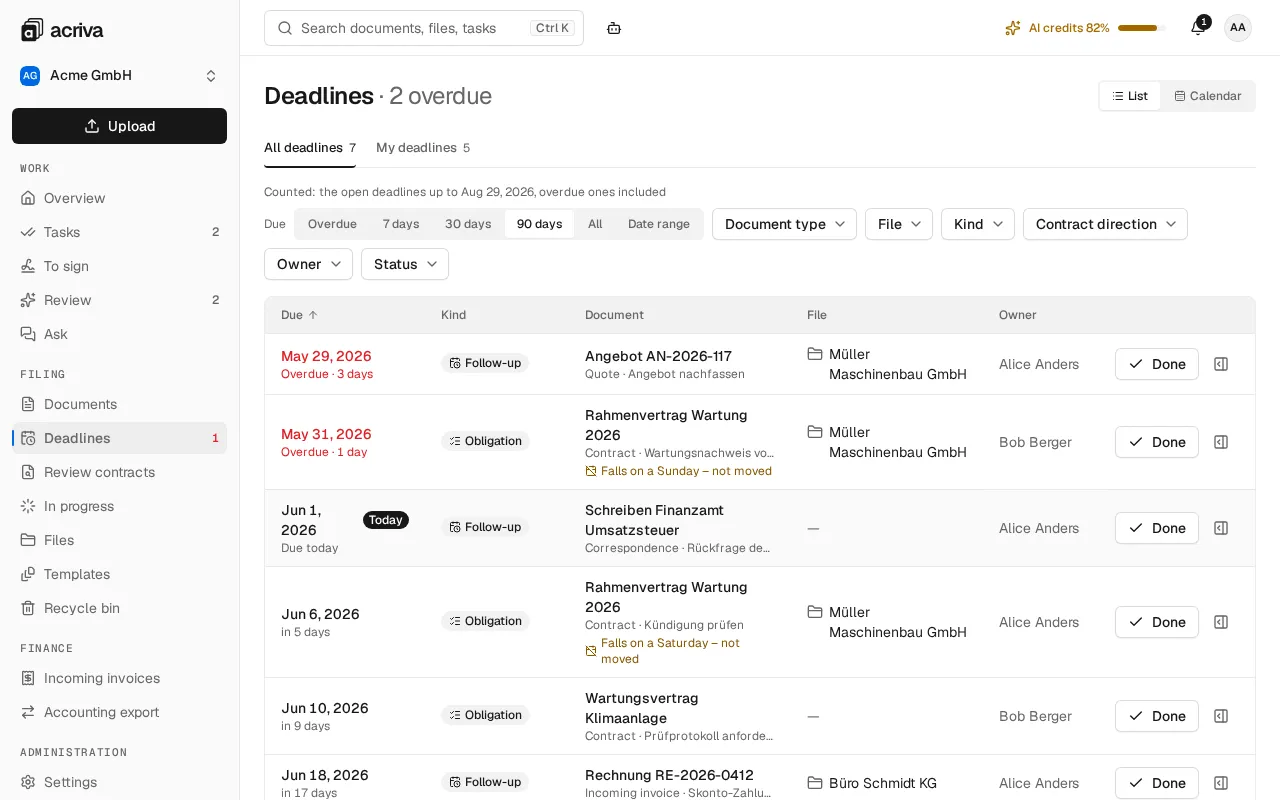
The title shows how many of the deadlines are overdue, for example Deadlines · 2 overdue.
The list
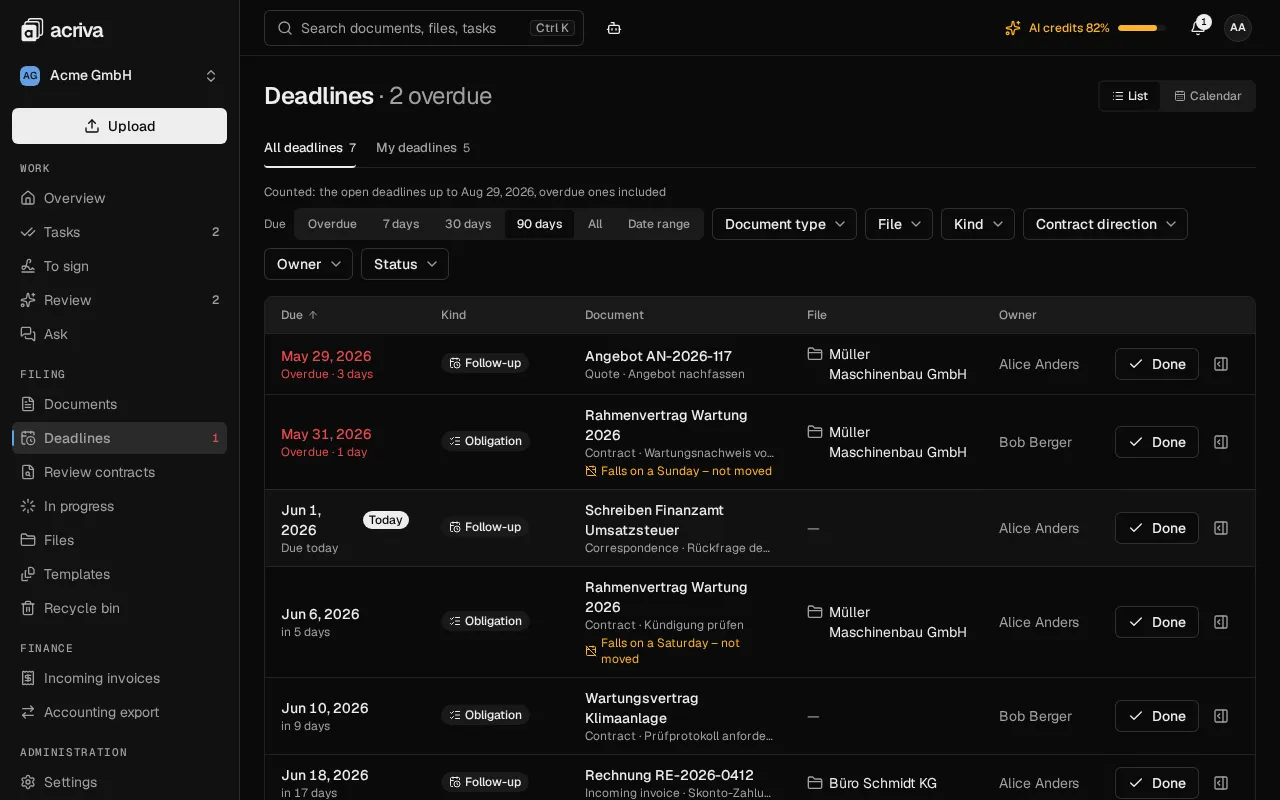
Section titled “The list”The list is sorted by the due date, the earliest first, 50 rows a page; Previous page and Next page move between the pages. Each row shows:
- Due: the date and how far away it is, for example Overdue · 2 days or in 3 days. Overdue dates are red, and today’s deadlines are marked Today.
- Kind: Notice period, Contract end, Reminder (a date field of the document type), Obligation or Follow-up.
- Document: the document’s title, its type and the deadline’s own name. A deadline on a Saturday, a Sunday or a nationwide public holiday says so, for example Falls on a Saturday – not moved. Acriva never moves a date; check whether the deadline is met the working day before.
- File, the Akte the document belongs to, and Owner, the person or role responsible.
The button Done marks the deadline done. It appears only where you may do that: when you are its owner or belong to its owner role, or when you may edit the document. The icon beside it opens the document with its details.
Filter the deadlines
Section titled “Filter the deadlines”The tabs choose whose deadlines you see: All deadlines or My deadlines, the ones you or your role are responsible for. Each tab shows its count, and the line below says what it counts: in the list the deadlines you chose under Due (7 days, 30 days and 90 days include the overdue ones), in the Calendar the deadlines of the six weeks it shows. That’s why the numbers change when you switch views.
Due narrows the dates:
- Overdue: the open deadlines whose date has passed.
- 7 days, 30 days, 90 days: everything due up to that many days ahead, overdue deadlines included. 90 days is the default.
- All: every date.
- Date range: a range of your choice, at most 62 days with both days included. The range shows as a chip that you can remove.
The buttons after it filter further: Document type, File, Kind, Contract direction (Purchase, Sale or No direction), Owner (in All deadlines, for those who may see the members) and Status (Open, Done or Open and done). Every chosen value shows as a chip; its × removes it. The filters are part of the page’s address, so you can bookmark a view or send it to someone.
When nothing matches, the page says so and offers Reset filters or Show all deadlines.
The calendar
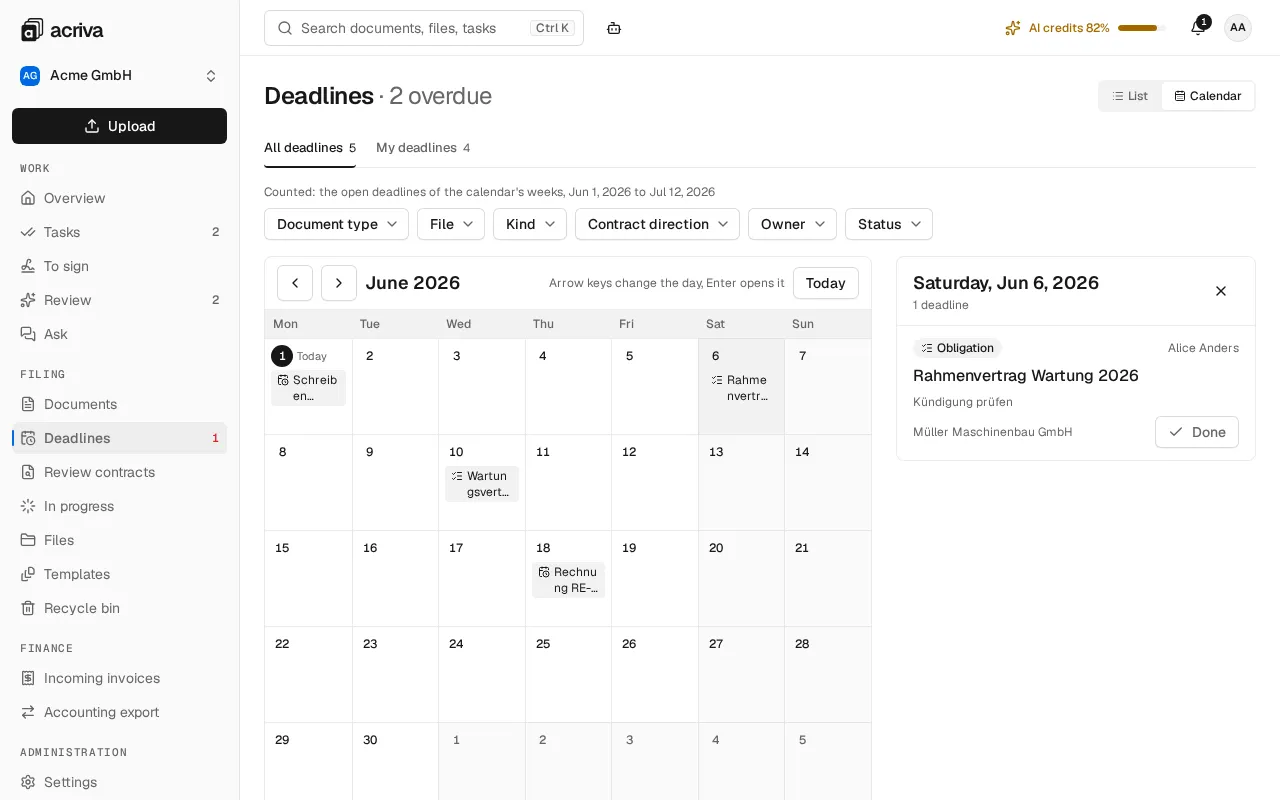
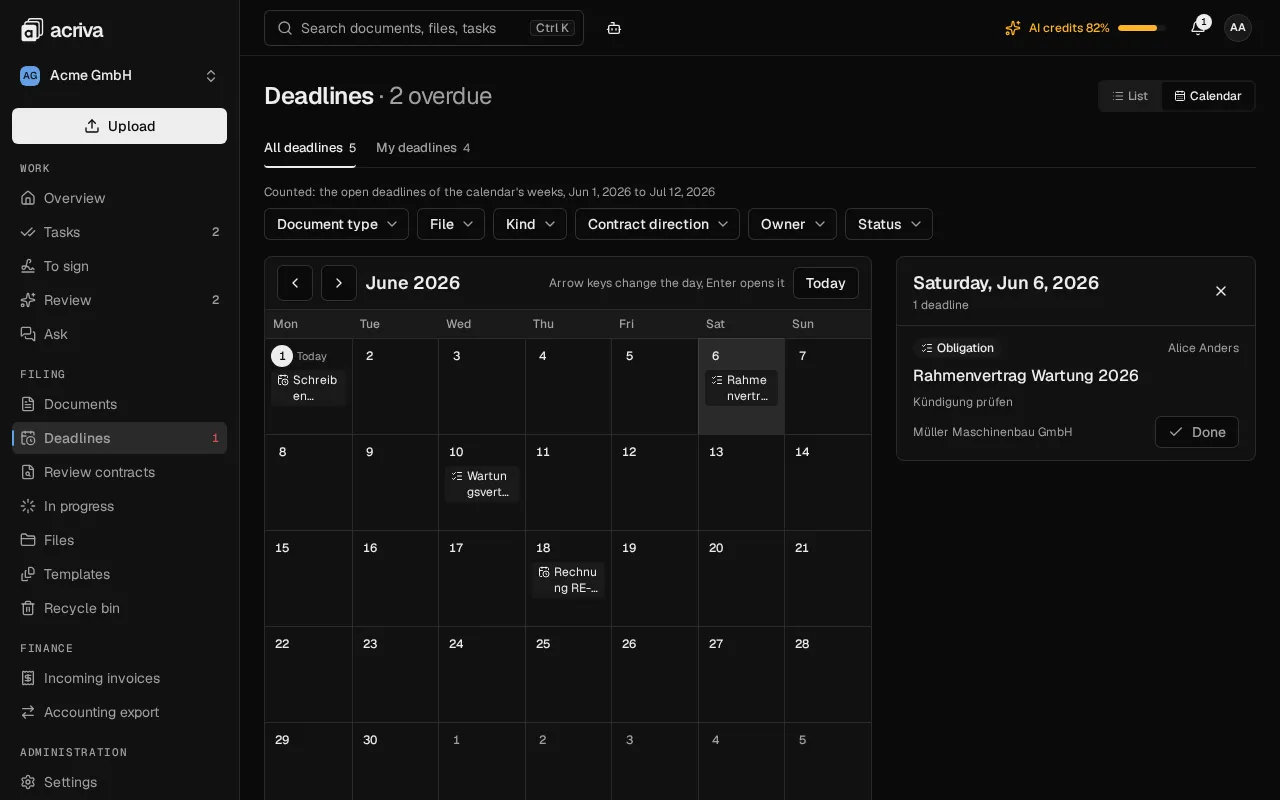
Section titled “The calendar”Switch from List to Calendar at the top right. The calendar shows a month from Monday to Sunday with the deadlines of each day, two per day and +1 more for the rest. Today is filled in. The filters above apply here too, except Due: the calendar shows its month.
- Select a day, or press Enter on it, to see its deadlines in the panel beside the month, each with Done where you may.
- The arrow keys move from day to day, also into the next or previous month; Home and End go to the start and the end of the week, Page Up and Page Down a month back or ahead.
- Today returns to the current month, and the arrows beside the month’s name page through the months.
Subscribe in your calendar
Section titled “Subscribe in your calendar”With a calendar subscription, your open deadlines also appear in your own calendar, such as Outlook, Google Calendar or Apple Calendar. An admin turns calendar subscriptions on for the workspace first (see below).
- Open the account menu (your initials at the top right), select Profile and go to the card Calendar subscription.
- Select Create link.
- Select Copy link and add the link to your calendar as a subscription, for example as a calendar from the internet. Acriva shows the link only this once.
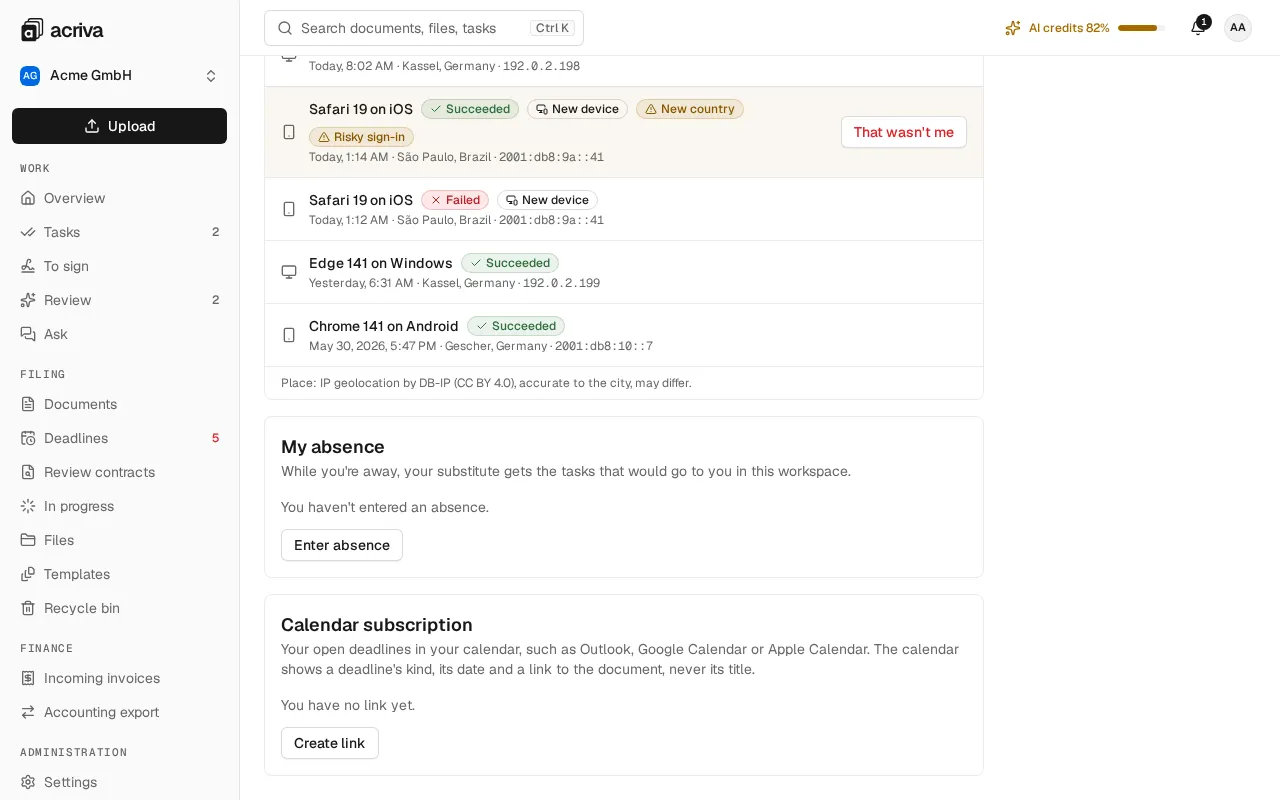
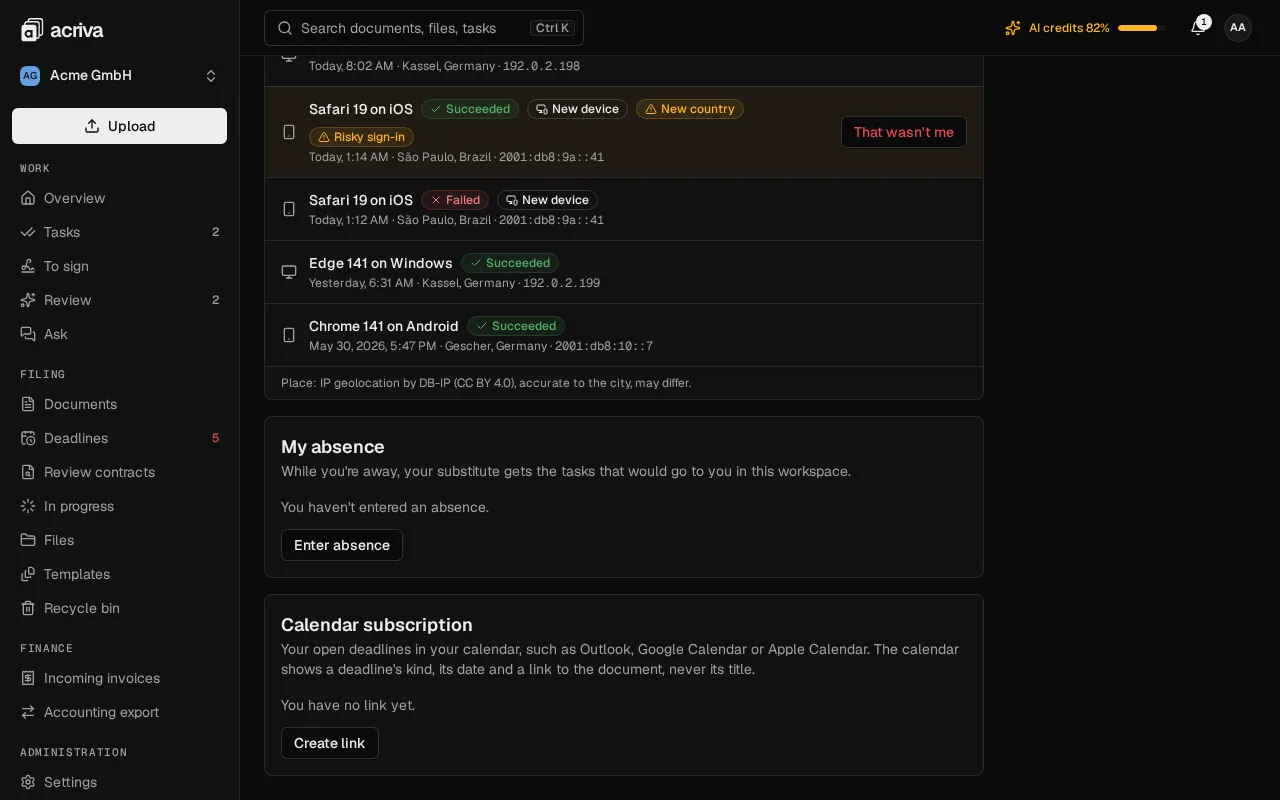
The calendar shows the open deadlines you or your role are responsible for, as My deadlines does, from one month back to twelve months ahead. Each is an all-day event with its kind, such as notice period or obligation, its date and a link to the document. The calendar never shows a document’s title, a counterparty, a note or a value, because calendar services fetch the link from their own servers. Only documents you may read at the time of the fetch count, and archived documents don’t. Your calendar service decides how often it fetches the link, so a change can take a while to show there.
Anyone who knows the link sees your deadlines. Don’t share it. The link doesn’t depend on your sign-in: signing out, ending your sessions or a second factor don’t stop it. If someone else may have seen the link, select Create new link and confirm: the current link stops working, and you add the new one to your calendar. Revoke link ends the link without a new one. Afterwards the card shows since when your link is active (Link active since …) and until when it works (Valid until …). A link works for 13 months; after that it answers nothing, and the card says that it has expired. Create new link then gives you a new one, which you add to your calendar.
Acriva also ends your link when you leave the workspace, when you get a role without the permission to see documents, and when an admin turns calendar subscriptions off. Your calendar then gets no more deadlines through it. While your role lacks that permission, the link answers nothing. The link belongs to the workspace you work in; each workspace has a link of its own, and its calendar carries the workspace’s name, such as “Acriva – Deadlines – Acme GmbH”.
Turn calendar subscriptions on
Section titled “Turn calendar subscriptions on”Calendar subscriptions are off until an admin turns them on. You need the permission to change the workspace settings, which the built-in roles Owner and Admin have.
- Open Settings and the page General.
- In the card Calendar subscription, switch on Allow calendar subscriptions.
To turn them off, switch it off again and confirm with Turn off. That revokes every member’s link; once calendar subscriptions are on again, each member creates a new link.
Related
Section titled “Related”- Contracts and deadlines: a contract’s terms and how Acriva calculates its deadlines.
- Documents and Akten: a document’s details.
- Notifications: the reminders of a deadline.