

Templates
A template is a Word file (.docx) with placeholders such as {{feld.contractNumber}}. Acriva keeps it as a document of the type Template, checks every version you upload against the fields of the document type it creates, and uses only the version you release. You find the templates in the navigation under Templates; the tab Clauses next to them holds the clauses templates insert, and a released template’s Bulk generation creates one document per row of a data table.
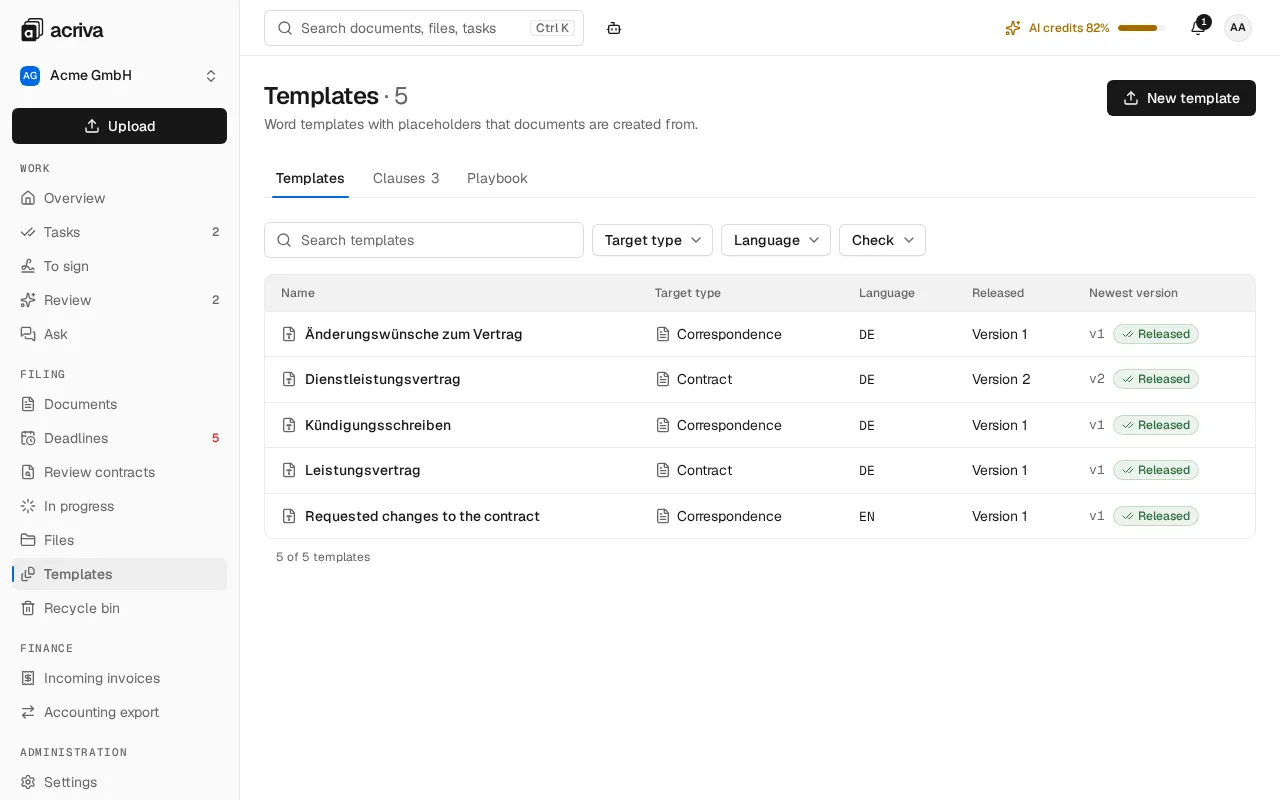
Who has templates
Section titled “Who has templates”Templates are part of the Business and Enterprise plans and of the trial, and an add-on for Starter (see Subscription). Everyone who may read documents sees the list of the templates they may read. Opening a template, changing its settings, releasing a version and creating a new template needs the permission Manage templates: a template’s settings and the release of its checked versions, which the built-in roles Owner and Admin have; a new template also needs the right to upload documents. While the document type Template is deactivated, New template is missing and the page says so; whoever may manage document types opens the type from there and activates it under Document types.
A template is a document: its access works like any document’s, by the grants on the type Template and on its files. A confidential template can’t be released, because its text would reach the readers of every document created from it.
Create a template
Section titled “Create a template”- Select New template.
- Select Choose file and pick a Word file (.docx) of at most 10 MB.
- Check the Name: Acriva suggests the file’s name.
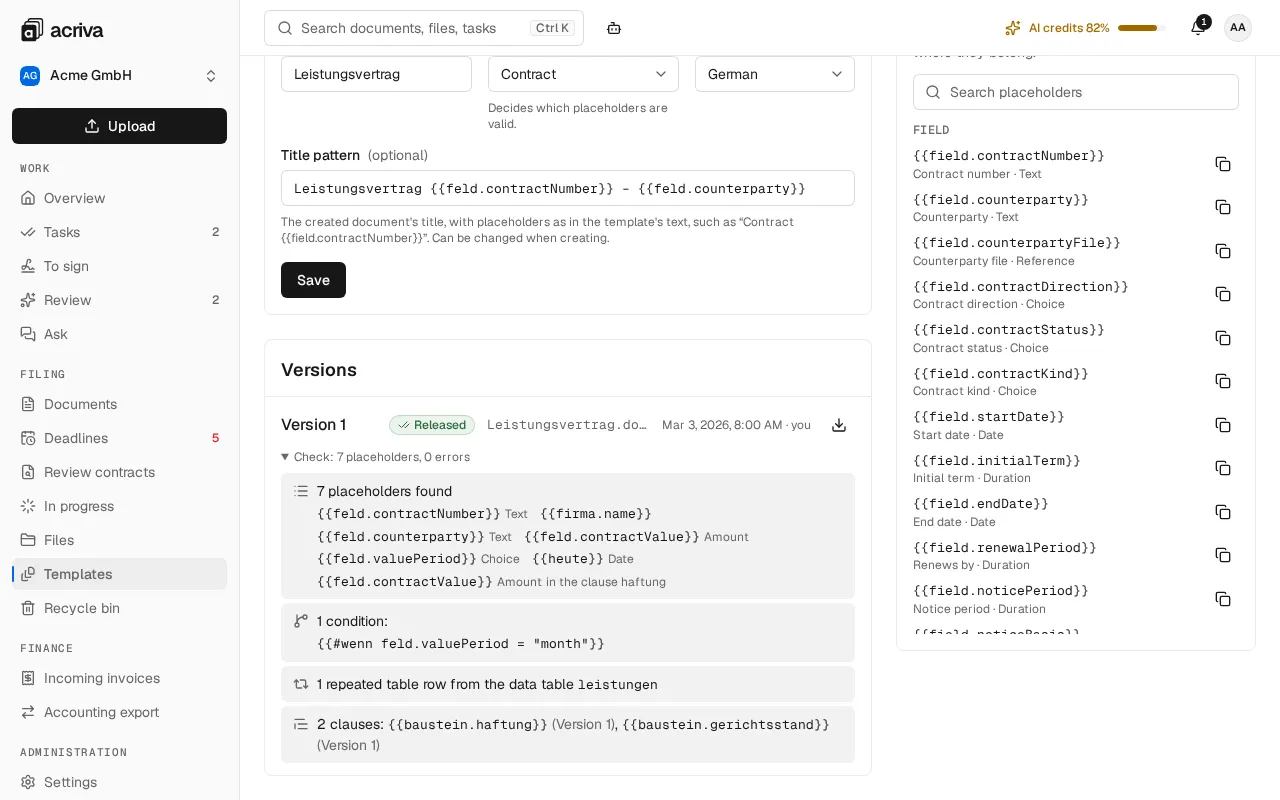
- Choose the Target type: the document type the template creates. It decides which placeholders are valid.
- Choose the Language, German or English: dates, amounts and choices are written in it.
- Select Upload and check.
The dialog shows Checking … until the check is done, then Checked – ready to release or the number of errors it found. Select Open template to see the result.
Write the placeholders
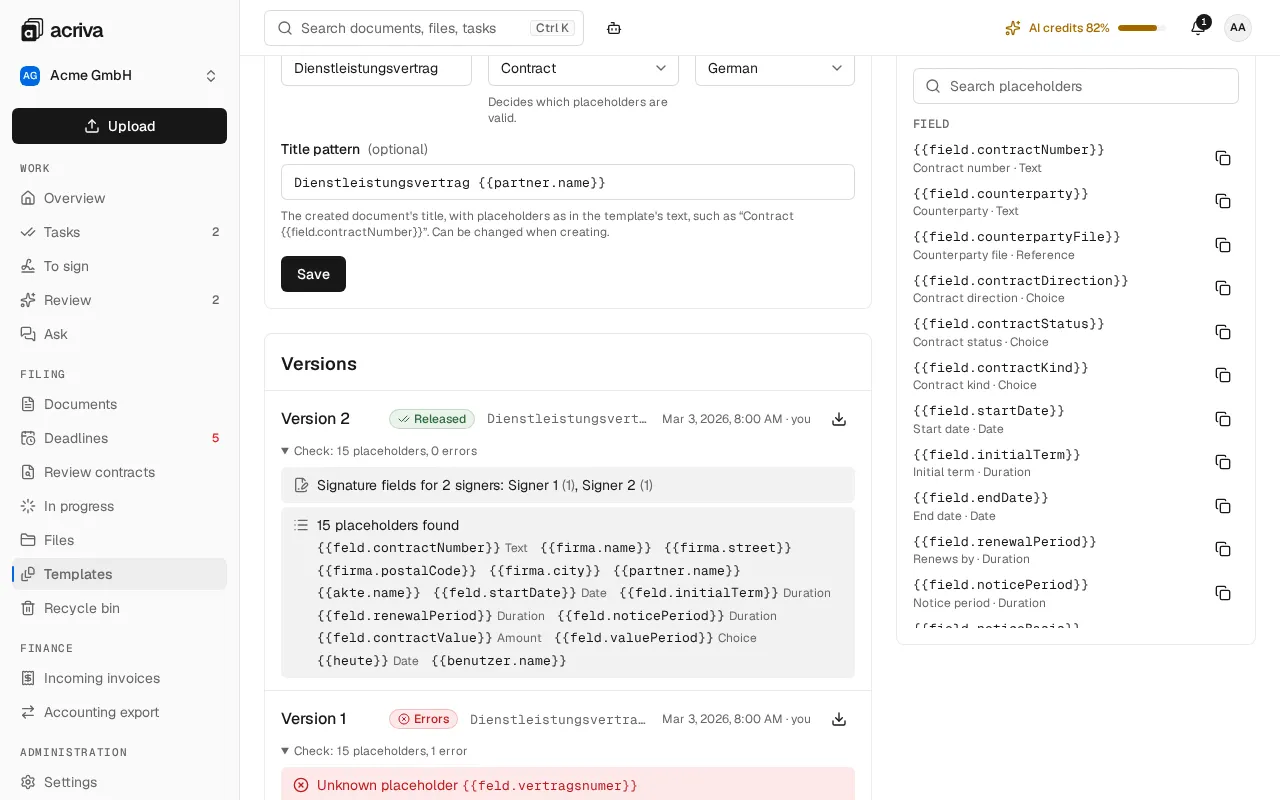
Section titled “Write the placeholders”Type a placeholder in Word where its value belongs, in double braces: a namespace, a dot and a key. The template’s page lists every placeholder its target type offers under Placeholders, with its label and its type; select the copy button next to one and paste it in Word.
| Namespace | What it fills in |
|---|---|
feld (or field) |
a field of the new document, such as {{feld.contractNumber}} |
quelle (or source) |
a field of the document the generation starts from |
akte (or file) |
the file the new document goes into: name, number, responsible and its key fields |
partner |
the partner’s name, number and vatId |
firma (or company) |
your workspace’s company name and address |
benutzer (or user) |
the person who creates the document: name, email |
heute (or today) |
the day of the generation, {{heute}} |
zeile (or row) |
in a repeated table row, a column of the data table; in a bulk generation, a column of the row |
Signature anchors such as {{acriva:unterschrift:1}} stay as they are: they mark where a signer signs when the document is sent for signature.
Write a template in Word
Section titled “Write a template in Word”- Write the document in Word or LibreOffice as usual, and save it as a Word document (.docx). A macro-enabled document (.docm) and a Word template file (.dotx) are refused.
- Type each placeholder in one go where its value belongs, or paste it from Placeholders. The value takes the placeholder’s formatting: a bold placeholder writes a bold value. Word may split what you typed into pieces inside the file, for spelling marks or a change of formatting; Acriva puts them together again. Keep a placeholder inside one paragraph, without a tab or a line break in it.
- For each signer, put an anchor where they sign:
{{acriva:unterschrift:1}}for the first signer,{{acriva:unterschrift:2}}for the second, with some space above it for the signature. To hide an anchor, colour it white: the signature field detection still finds it in the document’s text (see Signature fields). - Upload the file with New template, or a corrected file of an existing template with New version.
A value never writes a placeholder or an anchor: when a field holds text such as {{acriva:unterschrift:1}}, Acriva writes it so that it doesn’t place a signature field.
Conditional text, repeated rows and clauses
Section titled “Conditional text, repeated rows and clauses”Three kinds of markers shape what a template writes. Each marker stands in a paragraph of its own (a repeated row’s markers in a table row of their own) with nothing else in it, so type it on its own line in Word.
Show text only when a condition holds
Section titled “Show text only when a condition holds”Put the paragraphs that should appear only sometimes between {{#wenn …}} and {{/wenn}} (or {{#if …}} and {{/if}}):
{{#wenn feld.valuePeriod = "month"}}The fee is invoiced monthly in advance.{{/wenn}}The marker names a placeholder, a comparison and, for most comparisons, a value: = (equal), ≠ (not equal; != and <> work too), > (greater) and < (less), or leer (empty) and nicht leer (not empty) without a value. Write the value plainly or in quotation marks; the quotation marks Word puts in by itself („…“, “…”) work as well. A number and an amount compare as numbers, a date as a date (31.01.2026, 2026-01-31 or heute), a choice by its key or its label, a yes/no value by ja or nein. > and < work only for numbers, amounts and dates. An empty field counts as leer and is never equal to a value. Conditions can stand in the text, in table cells, in headers and footers and in footnotes, and inside one another, up to 5 levels deep.
Repeat a table row for a data table
Section titled “Repeat a table row for a data table”A table row can repeat once for each row of a data table whose column equals a value of the document, for example the services of one contract. In a Word table, write:
- a row with only
{{#jede tabelle.leistungen wo vertrag = feld.contractNumber}}(or{{#each table.leistungen where vertrag = field.contractNumber}}) in one of its cells:leistungenis the data table’s key,vertragthe column to compare, andfeld.contractNumberthe placeholder whose value it must equal; - the row or rows to repeat, with the data table’s columns as
{{zeile.<column>}}, such as{{zeile.leistung}}and{{zeile.menge}}; - a row with only
{{/jede}}(or{{/each}}) in one of its cells.
The two marker rows disappear in the document, and the rows between them are written once per matching row, in the order of the data table’s keys. When no row matches, only the marker rows and the repeated rows are left out; the table’s other rows, such as its header, stay, and a table with no other rows is left out entirely. A table repeats at most 200 rows; a document that would need more isn’t created. Repeated rows need data tables in your plan. The data table’s rows reach every document created from the template, whoever creates it, so release a template with a data table only when its rows may be read by everyone who creates documents from it.
The findings of a contract analysis
Section titled “The findings of a contract analysis”A template for a letter of requested changes repeats a table row for each accepted finding (except those rated Fine) and each accepted missing clause of a contract analysis. Write in a Word table:
- a row with only
{{#each findings}}(or{{#jede befunde}}) in one of its cells; - the row or rows that repeat, with
{{finding.topic}}(the topic),{{finding.kind}}(“Deviation” or “Missing”),{{finding.passage}}(the contract’s passage),{{finding.page}}(its page),{{finding.reason}}(the reason) and{{finding.clause}}(the chosen clause with its formatting, alone in its paragraph), in Germanbefund.thema,befund.art,befund.stelle,befund.seite,befund.grundandbefund.klausel; - a row with only
{{/each}}(or{{/jede}}) in one of its cells.
The findings need no data tables. {{finding.…}} holds only within these rows, and the findings’ rows don’t stand in another repeated row. A template without these rows can’t generate a letter of requested changes. Choose “Correspondence” as its document type.
Insert a clause
Section titled “Insert a clause”{{baustein.<key>}} (or {{clause.<key>}}) in a paragraph of its own inserts a clause, such as {{baustein.haftung}}. Put it inside a condition to insert it only sometimes. A clause can’t stand in a header, a footer, a footnote or a repeated row. A template names at most 50 clauses.
Limits
Section titled “Limits”A block or a clause marker must be alone in its paragraph or table row, a block must end where it started (not in another cell), and blocks nest at most 5 levels. A template with up to 500 placeholders can be released; the markers of blocks and clauses, the signature anchors and the clauses’ placeholders count too.
The check
Section titled “The check”Each version is checked after its upload. Under the version, the check lists:
- every Unknown placeholder, with a suggestion where a similar one exists (“did you mean …”);
- the reasons it refuses a file: macros, encryption, a link to external content (a linked image or an attached Word template), a field that loads content such as
INCLUDETEXT, a placeholder spread over several paragraphs, or more than 500 placeholders; - the conditions, the repeated table rows with their data table, and the clauses with the version a release would use;
- Condition can’t be evaluated: for a condition whose placeholder, comparison or value doesn’t fit, Repeated table row doesn’t find its data table or column: for a repeat whose data table or column doesn’t exist, and Unknown clause for a clause key no clause has;
- a clause’s placeholders that the target type doesn’t offer, as an Unknown placeholder in the clause …;
- for the markers: A block (if or each) has no matching end, or an end has no block., The blocks are nested deeper than 5 levels., A block or clause isn’t alone in its paragraph or table row., The template repeats rows of a data table, but data tables aren’t included in the plan., The template contains more than 50 clauses. and A clause contains another clause.;
- the signature fields by signer;
- the placeholders it found, with their type.
A version with an unknown placeholder or a refusal shows Errors and can’t be released: correct the file in Word and upload it as a new version.
Settings
Section titled “Settings”Under Settings you change the Name, the Target type, the Language and the Title pattern. The title pattern is the created document’s title, with placeholders as in the template, such as Contract {{feld.contractNumber}}; the person who creates a document can change it. A placeholder the target type doesn’t offer is refused when you save.
A new target type withdraws the release and checks every version again, because the valid placeholders change. When someone else changed the template while you edited it, Someone else changed the template in the meantime. appears: select Reload and make your changes again.
Release a version
Section titled “Release a version”Documents are created only from the released version. Under Versions, select Release version for the newest version once its check shows Checked. Next to the button, Acriva says why a version can’t be released yet. When someone else released a version or changed the settings in the meantime, Acriva doesn’t release the version and shows Someone else changed the template in the meantime.: select Reload, look at the new state and decide again. A new version changes nothing in documents already created: they keep naming the version they came from, and the next documents use a new version only once you release it.
Select New version to upload a corrected file. The download button next to each version gives you its Word file.