

Contracts and deadlines
A contract in Acriva is a document of the type Contract (or of a type of your own with a contract rule). From its start, initial term, renewal and notice period, Acriva calculates when the current term ends and by when you must give notice, and it reminds the people responsible in time. Next to these calculated deadlines, every document can carry obligations and follow-ups that people add.
The dates are a planning aid, not legal advice. Acriva counts as §§ 187 and 188 BGB describe it: a term ends on the day before the corresponding day, and a notice period counts back from the end in the same way. A deadline that falls on a weekend or a public holiday is not moved.
The tab “Contract & deadlines”
Section titled “The tab “Contract & deadlines””Open a document and select the tab Contract & deadlines next to Metadata. A type without a contract rule names the tab Deadlines. The tab is there for a type with deadline rules, for a document that has deadlines, and for everyone who may change the document, so that they can add the first one.
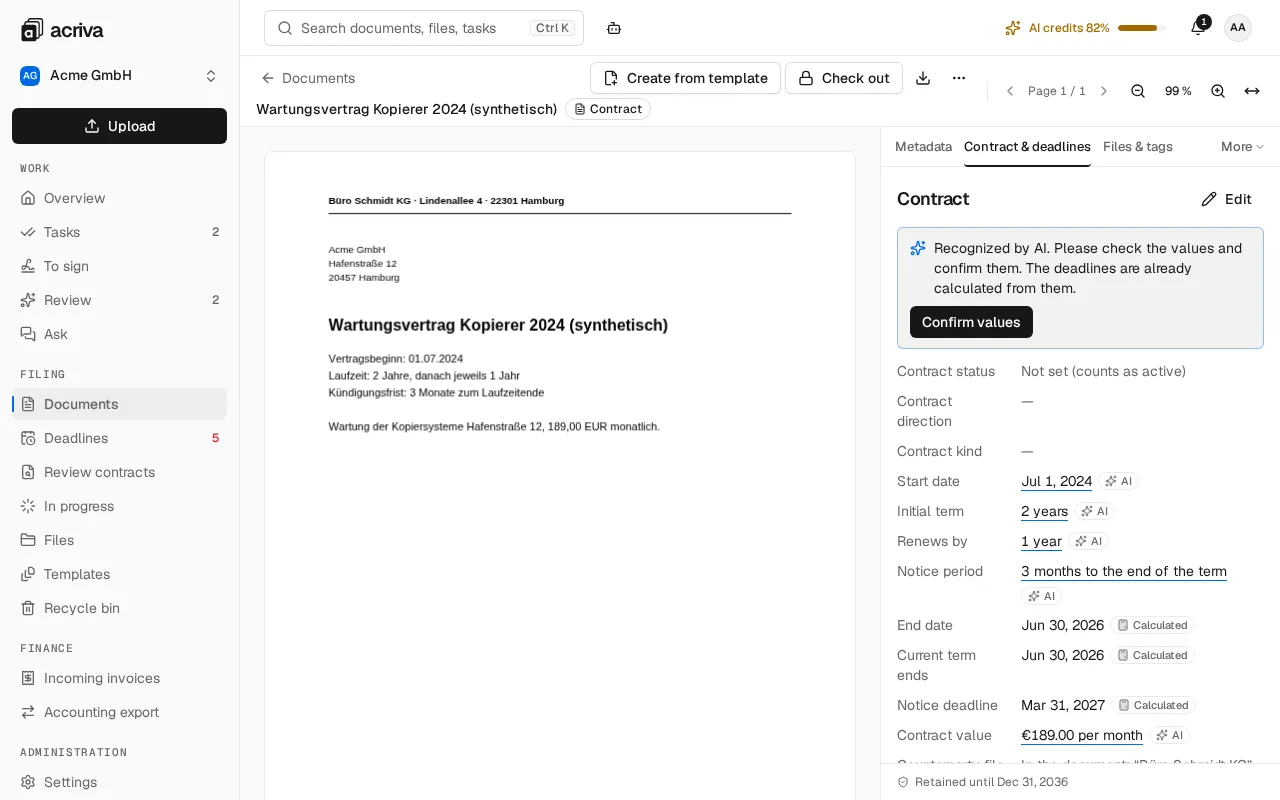
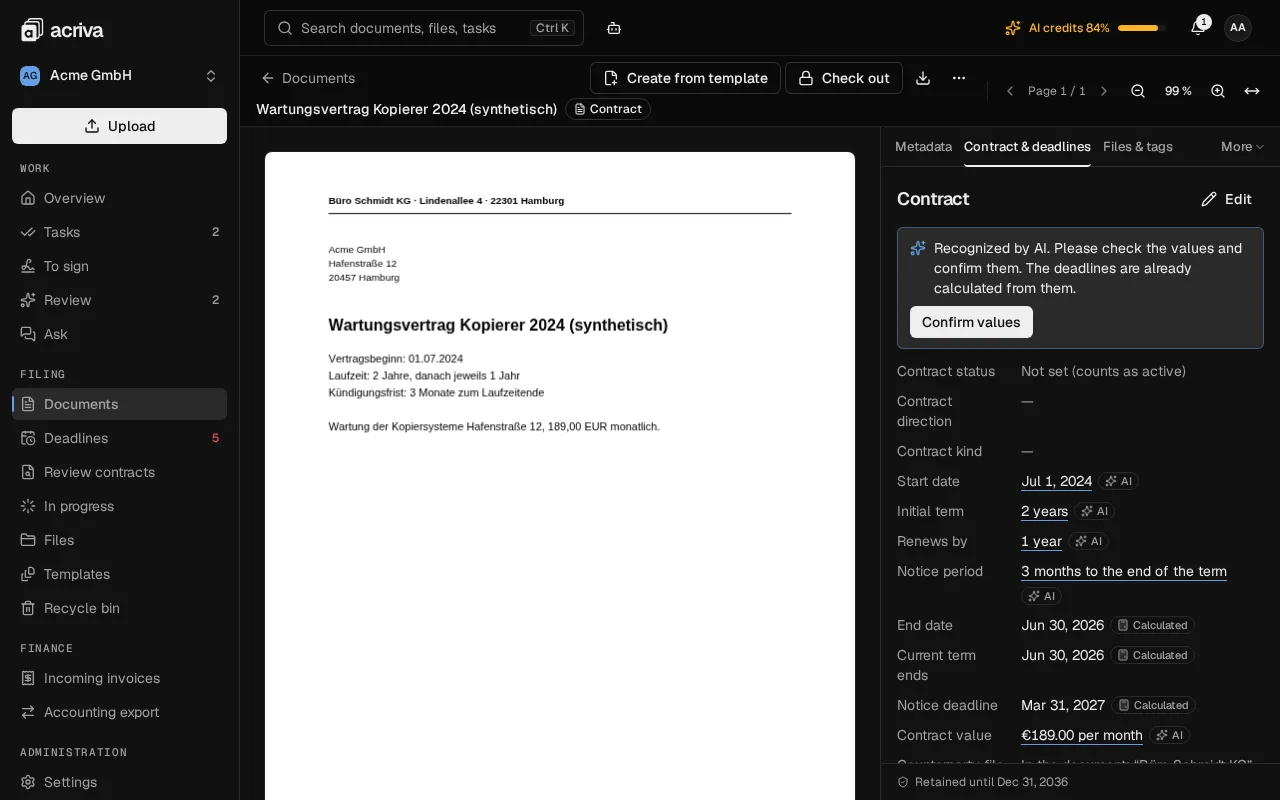
The section Contract shows the contract’s status, direction, kind, start, terms, notice period, end, current end, notice deadline, value and counterparty file. A small label after each value says where it comes from:
- Calculated: Acriva calculated it from the contract’s other values. It follows them when they change, and when the contract renews.
- Manual: a person entered it. Acriva keeps it, also where its own calculation would give a different date.
- AI · 96%: AI read it from the document, with how sure it was. Below 80% the value is marked with Please check.
When a person’s value differs from the calculation, Would be calculated as … names the calculated date below it; for the end date, it is the end of the initial term from the start and the term. When the daily calculation moved a current end or a notice deadline after a renewal, Recalculated after a renewal on … says so below it. Select Use the calculation to make the calculated value apply again. The same applies to a calculated value a person cleared. With the end of the term as the basis, the notice deadline also names the end it reaches, for example “31 Dec 2026, effective 31 Mar 2027”.
To change a value, select Edit: the values are edited on the tab Metadata.
Values that AI read
Section titled “Values that AI read”When AI read the contract’s values, a note says so. The deadlines are already calculated from these values. Check them, and select Confirm values to make them your own. If the document changed in the meantime, Acriva confirms nothing and says so; check the values as they are now and confirm again.
Link the counterparty file
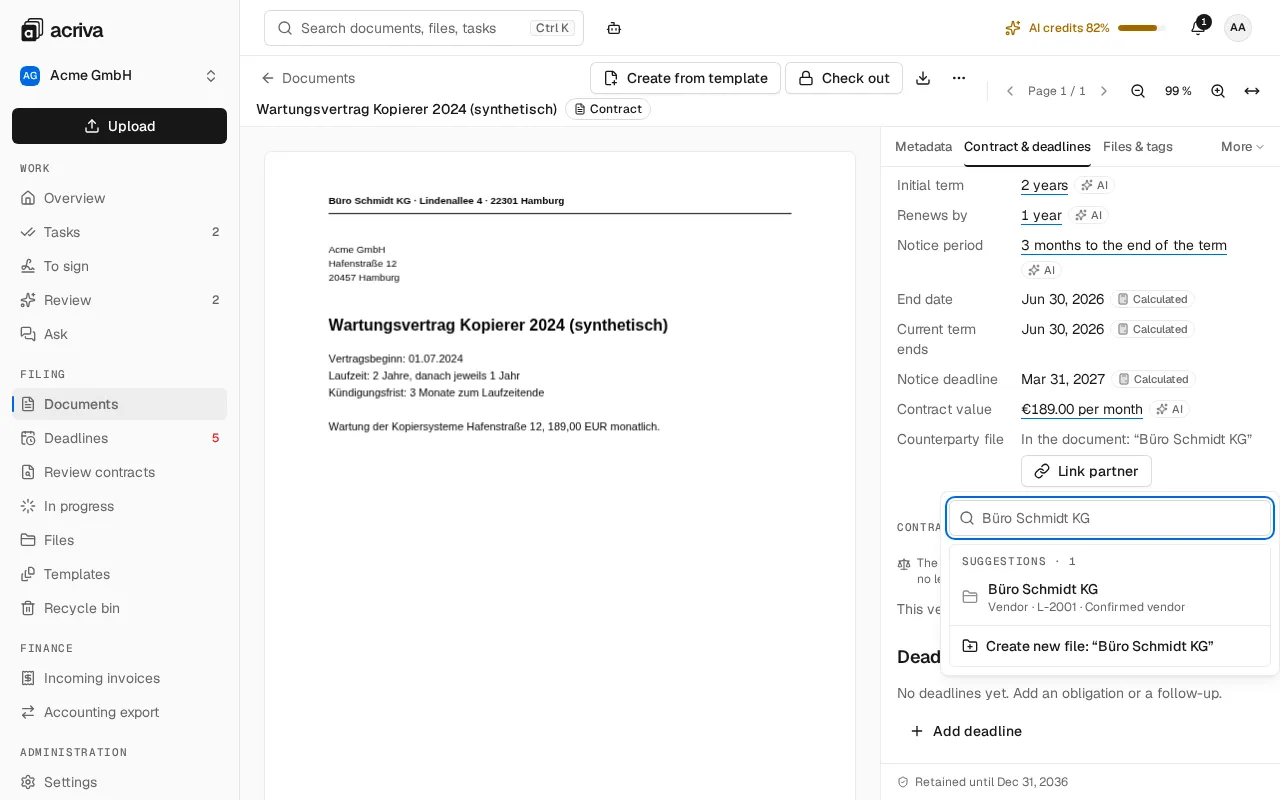
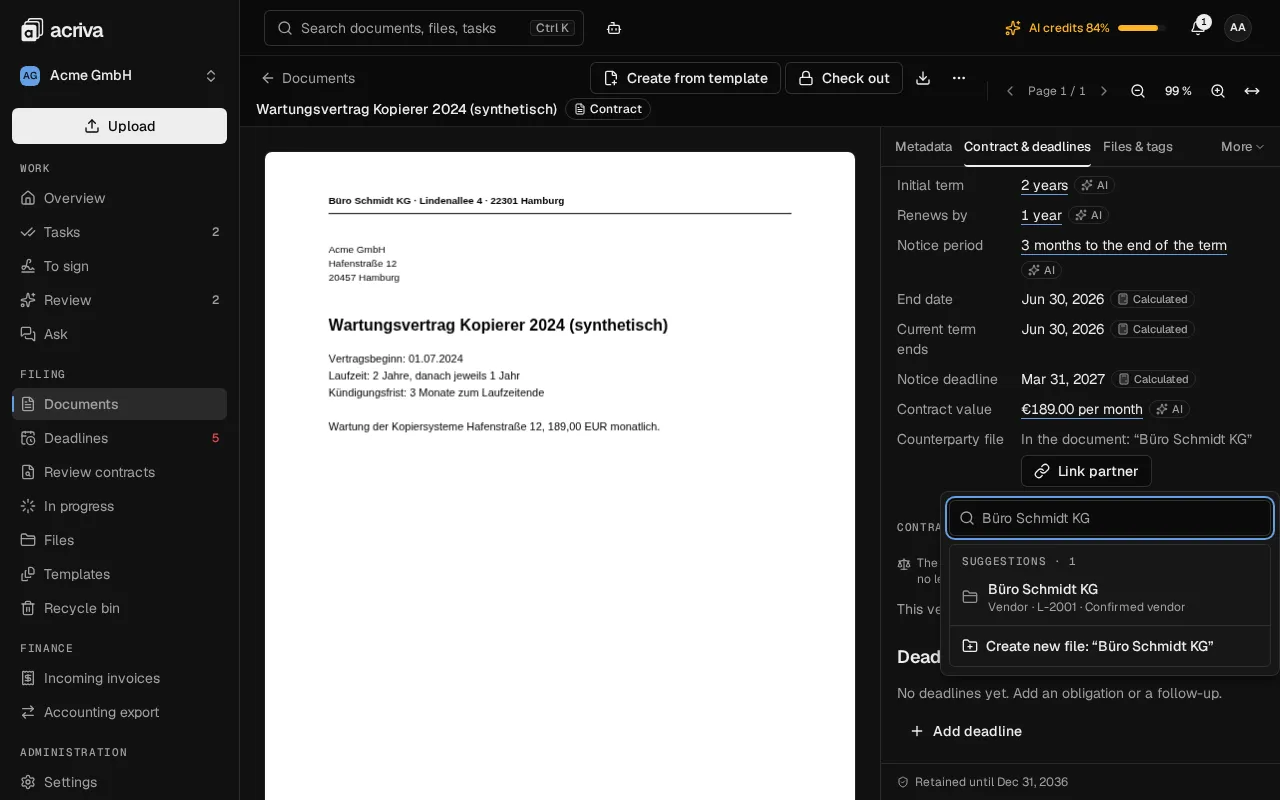
Section titled “Link the counterparty file”The counterparty file is the Akte of the contract’s partner, a customer or a vendor. When none is linked, the section shows the partner’s name as it stands in the document. Select Link partner: Acriva suggests up to five open customer and vendor Akten whose name or key field matches the partner, and the Akte of a confirmed vendor with that name, each with why it matches. You can search all open Akten or create a new one with Create new file: “…”. Acriva never links an Akte on its own; a person chooses it.
The contract direction
Section titled “The contract direction”The Contract direction says which side your company is on: Purchase when you are the customer (such as maintenance, rent or supply), Sale when you provide the goods or services (such as customer contracts). The field is optional. AI reads the direction from the roles the contract gives the parties, such as “Auftraggeber” (client) or “Vermieter” (landlord).
When a contract has no direction but a counterparty file, Acriva suggests one: Purchase for a vendor file, Sale for a customer file. The section then shows “Suggested by the partner file: …”. Apply enters the direction; Acriva never enters it on its own.
The check Check invoice against contract compares an incoming invoice only with purchase contracts and contracts without a direction, never with a sale contract of the same partner. In Deadlines, in Review contracts and in the document list’s saved views you can filter by the contract direction.
The contract kind
Section titled “The contract kind”The Contract kind says what the contract is about: Purchase, Service (such as maintenance, consulting or software with its support), NDA (a non-disclosure agreement), Rental (lease included) or Other. AI reads the kind from the contract’s title and subject. Like the other values, it carries a label until you confirm it, for example with Confirm values in Review contracts, where the kind shows under the contract direction.
Contract analysis
Section titled “Contract analysis”Below Contract, the tab “Contract & deadlines” holds the contract analysis. It compares the version on screen with your workspace’s playbook: the positions your company takes on topics such as liability, place of jurisdiction or payment terms. The analysis is no legal advice; the section always says so.
Analyze contract starts it. The findings appear one by one while the AI reads the contract:
- Each finding names the topic, a rating, the reason and the quoted passage. Critical means the clause goes beyond your red line. Check means it lies within your fallback. Fine means it lies within your accepted position. Critical findings come first.
- Show passage opens the contract on the page of the quoted passage and marks the passage there. Acriva checks each quote against the contract’s text. When the words aren’t in it, the finding is listed under Passage not found, without a link.
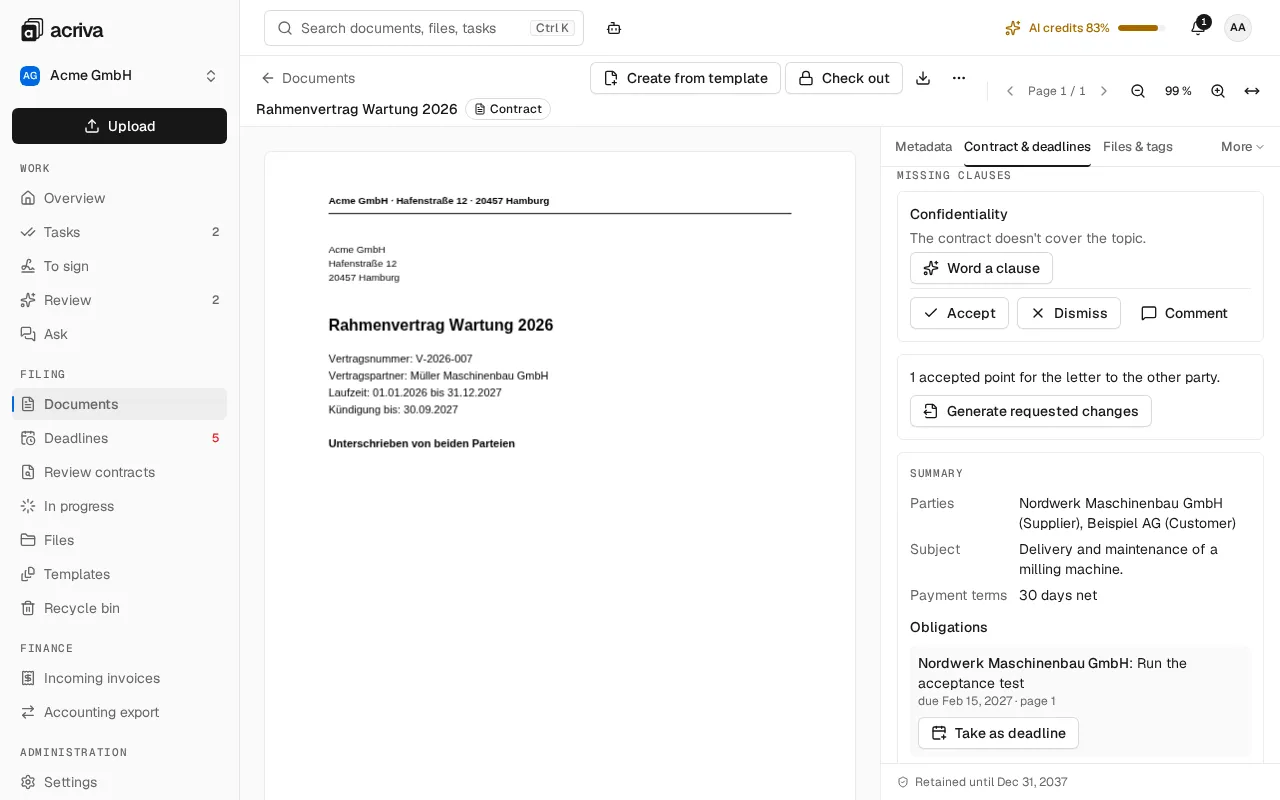
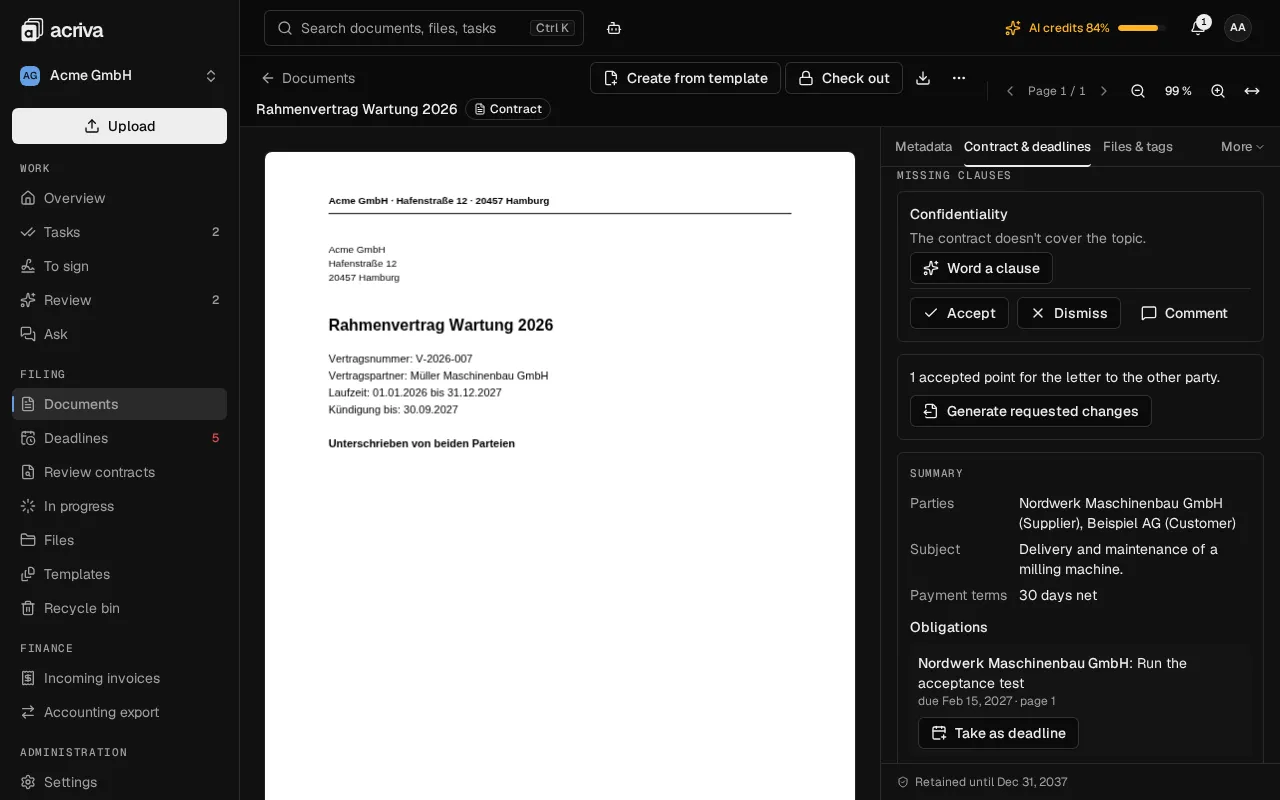
- Missing clauses names topics a contract of this kind should cover and this one doesn’t, such as “no place of jurisdiction”.
- The summary names the parties, the subject, the payment terms, each party’s obligations, special termination rights and penalties. Take as deadline turns a dated obligation into a deadline under Deadlines & obligations; afterwards it says “Is a deadline”.
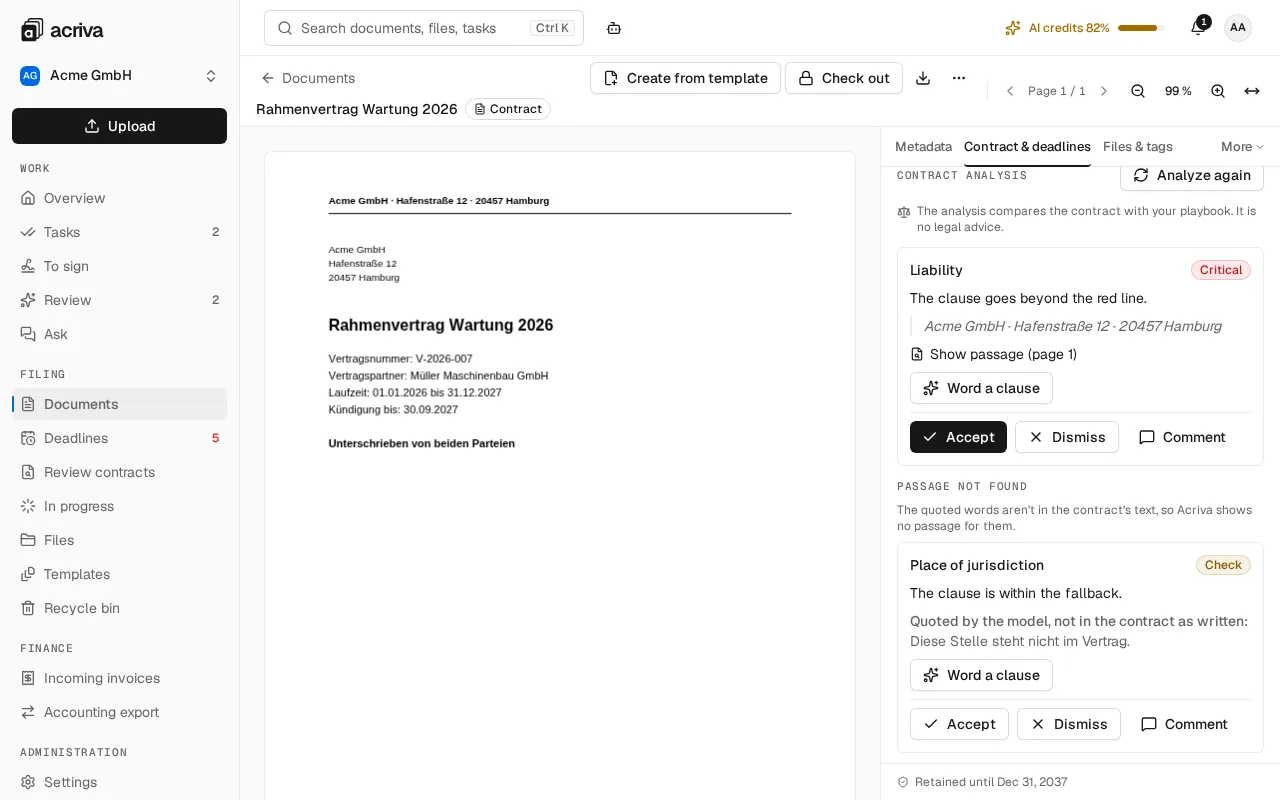
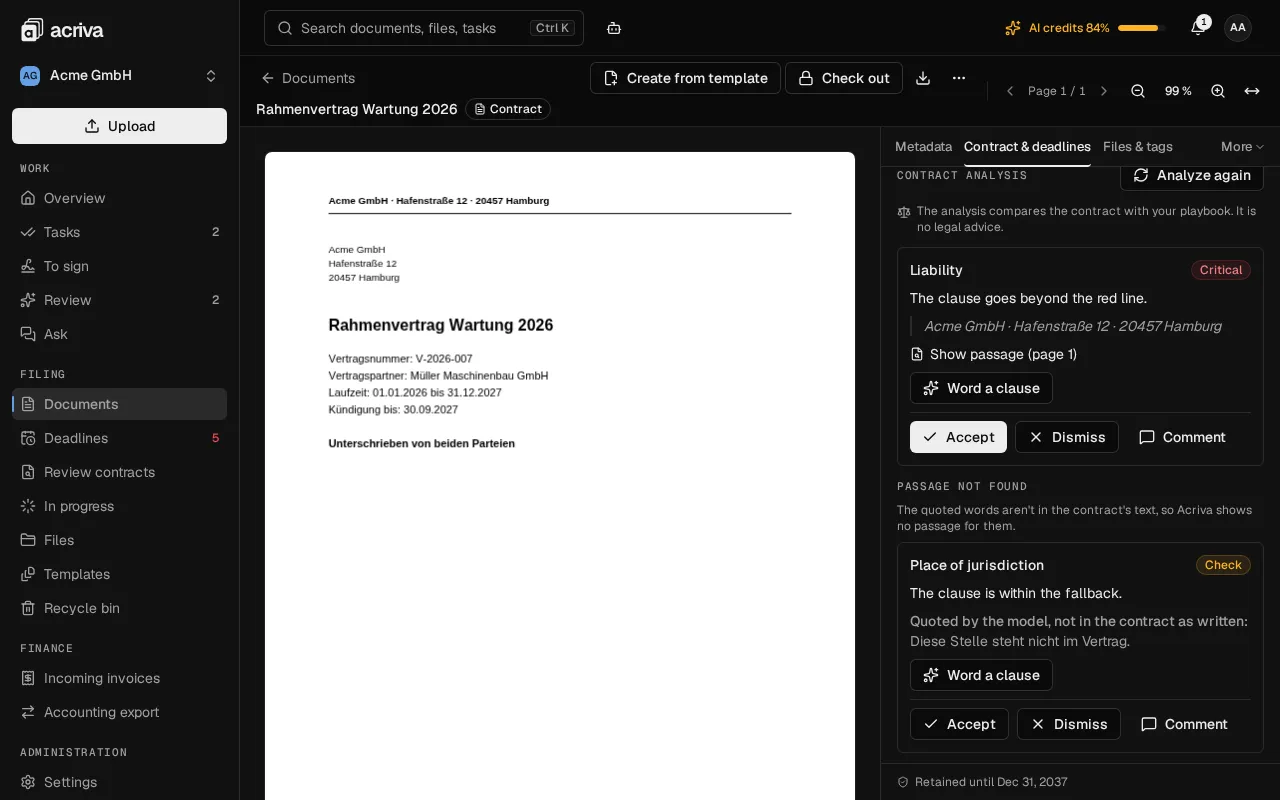
A person who may edit the document reviews each finding and missing clause: Accept, Dismiss or Comment. Acriva stores who decided what and when, and records it in the audit log without the contract’s text.
The analysis needs the contract kind (purchase, service, NDA, rental or other) to choose the playbook’s topics. When it is missing, the section asks for it; Save and analyze sets it and starts the analysis.
Each analysis stays stored with the version and the playbook it read. When there is a newer version or the playbook changed, the section says so (“This analysis refers to version 1”) and offers Analyze again. An analysis costs credits: 3 for a contract of up to about 60,000 characters, 5 for a longer one. When an analysis of the same version is already running, the section says so and shows its findings once it is done.
Word a clause
Section titled “Word a clause”An amber or red finding and a missing clause show Word a clause when you may edit the contract. It opens a Clause draft: AI writes a clause from the topic’s accepted position and fallback in the playbook, your standard clause on the topic and the counterparty’s quoted passage. It gets no other part of the contract. The text appears in the editor paragraph by paragraph; then you adjust it. When you open a clause draft from a link, such as a shared one, AI writes only once you choose Word.
The proposal is an AI proposal – not legal advice. Nothing is saved until Save draft: the draft belongs to the analysis, not to your clauses, and everyone who may read the contract can read it. Saving again adds the next version; a draft keeps its last 20 versions. Each proposal costs one credit; one that breaks off costs nothing.
Generate requested changes
Section titled “Generate requested changes”The accepted findings and missing clauses become a letter to the other party. A finding rated Fine already meets your position and stays out, even when you accepted it. A person who may edit the document chooses Generate requested changes below the analysis:
- Under Template, choose a released template with the table of findings (see Templates). The letter is in the template’s language.
- For each point, choose the clause: the draft saved for this finding, the topic’s clause from the playbook, or No clause. Acriva first proposes a clause in the letter’s language. When a clause is only available in the other language, the letter notes this in the point.
- Choose Generate. The new document of the kind “Correspondence” opens; it is filed in the contract’s files. Its title and Subject are “Requested changes to the contract” followed by the contract’s title in quotes, for example: Requested changes to the contract “Maintenance agreement”.
For each point, the letter holds the topic, the contract’s passage with its page, the analysis’s reason (or your comment, when you tick Put my comment in the letter instead of the analysis’s reason below the point) and your clause with its formatting. Dismissed or unreviewed findings stay out, and so does a passage Acriva didn’t find in the contract. When the contract is in files you may not file into, no letter is generated. The template that comes with Acriva says in its footer that the letter is no legal advice; have a lawyer check it before you send it. Generating it costs no credits.
Compare versions
Section titled “Compare versions”When a contract has two versions or more, Compare versions stands below the contract analysis. Choose two versions under From and With and click Compare. Acriva finds the changes itself, paragraph by paragraph and within them word by word; lines wrapped differently don’t count as a change. The changes show at once, and the AI weighs them one after the other:
- Material means the change concerns a right, an obligation, an amount, a period, the liability or the term. Cosmetic means only the wording changes and the meaning stays.
- When the passage falls under a topic of the playbook, the change says how it stands against your positions after the change, such as “Liability: Critical”.
- Each change shows the paragraph Before and After with its page; removed words are struck through, new ones highlighted. A new or removed paragraph shows on one side only.
- Material changes only hides the cosmetic ones.
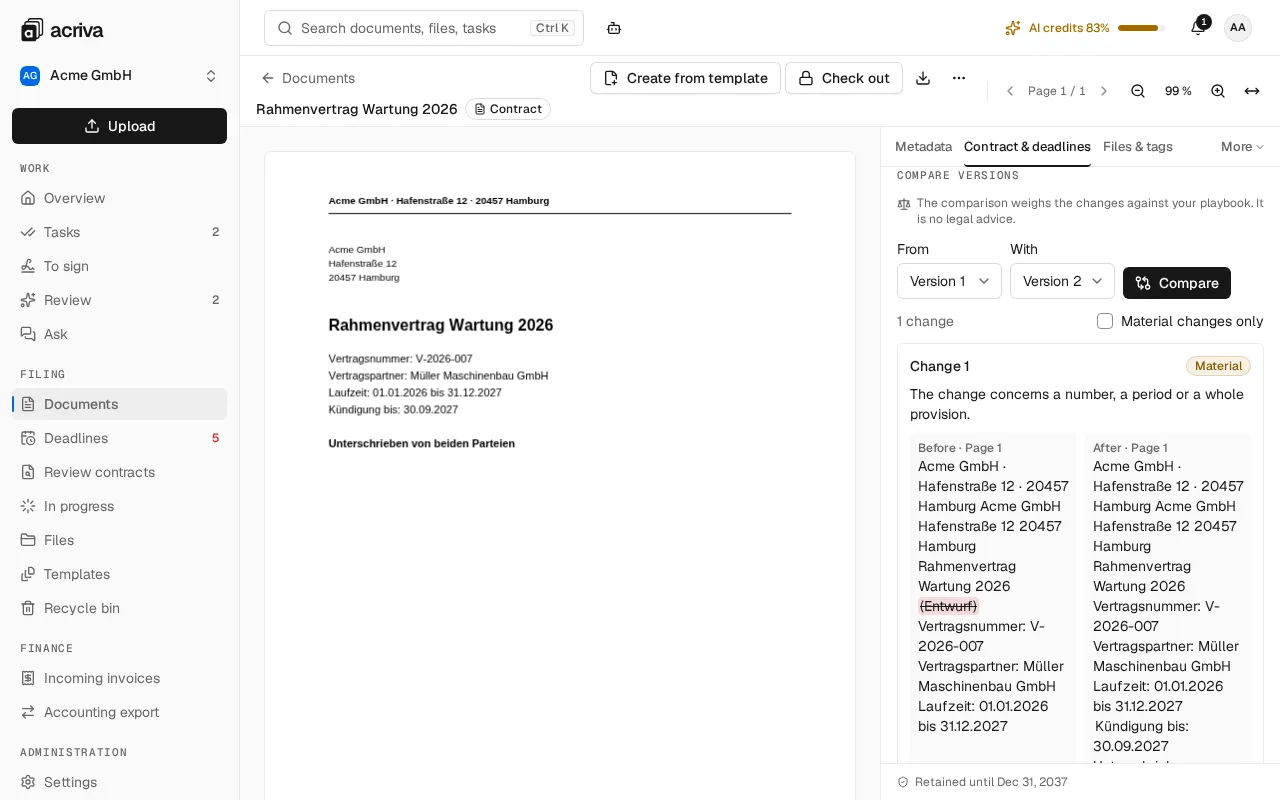
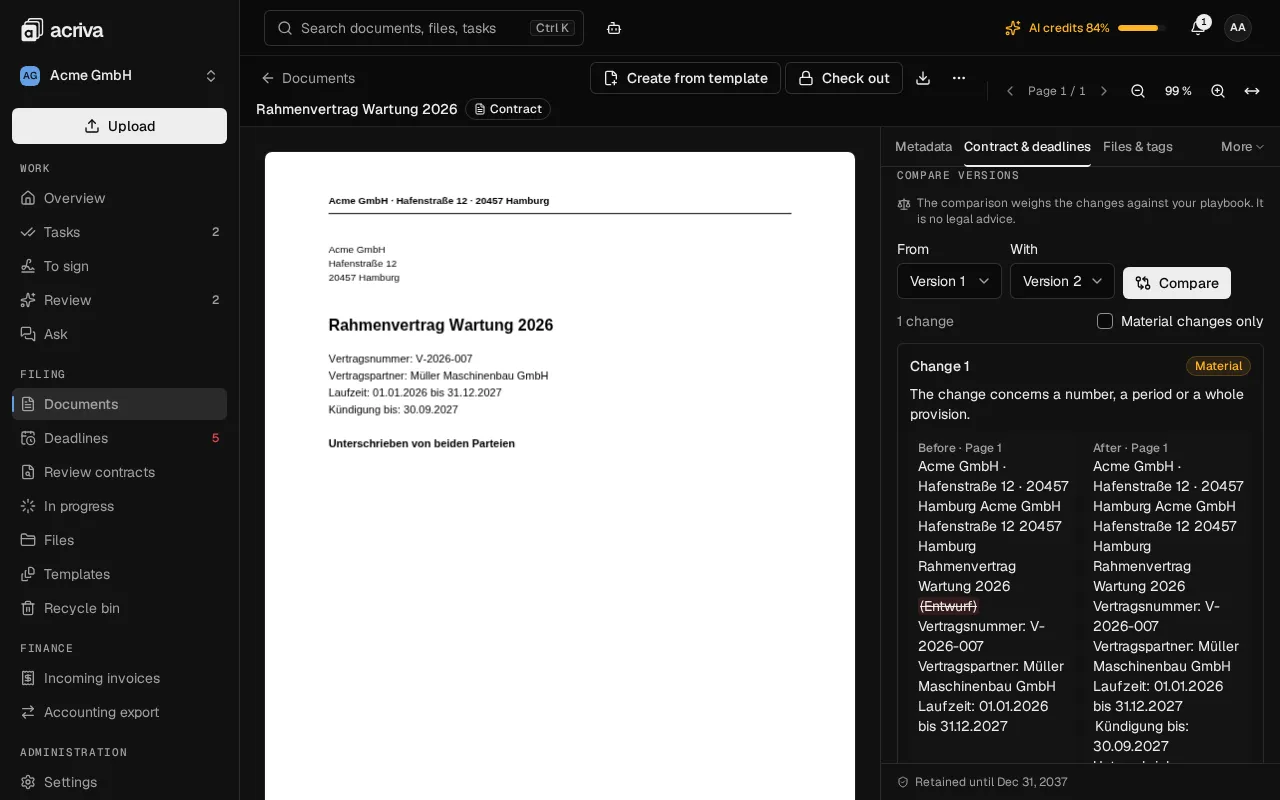
The AI reads only the changed paragraphs, never the rest of the contract. A comparison costs 2 credits; two versions with the same text cost nothing. When a comparison breaks off, the section shows nothing of it and books nothing. Like the analysis, the comparison is no legal advice.
Deadlines and obligations
Section titled “Deadlines and obligations”Deadlines & obligations lists the document’s deadlines, the open ones first by their due date, the done ones after them. Each row shows its name, its due date, its kind, who is responsible and how many days before the reminder comes. An open deadline whose day has passed shows in red with “Overdue · 2 days”, as in the cockpit Deadlines. A deadline on a Saturday or a Sunday says so (“Falls on a Sunday – not moved”), and so does one on a public holiday of every German state (“Falls on a public holiday – not moved”).
The kinds are:
- Notice period and Contract end: calculated from the contract rule.
- Deadline: calculated from a date field of the type, such as a warranty end.
- Obligation: something to do by a date, such as requesting a maintenance log. An obligation can repeat monthly, quarterly or yearly; marking it done adds the next one.
- Follow-up: a date on which you want to look at the document again.
The responsible person, or each member of the responsible role, gets a reminder in the app and by email on the reminder day, and another one on the due date. Only people who may read the document are told.
Add an obligation or a follow-up
Section titled “Add an obligation or a follow-up”- Select Add deadline.
- Choose the Kind: Obligation or Follow-up.
- Choose who is Responsible: yourself, a person or a role.
- Enter the Name and the date it is Due on.
- For an obligation, choose whether to Repeat it.
- Enter how many days before Acriva should Remind. The reminder can’t lie before today.
- Select Add deadline.
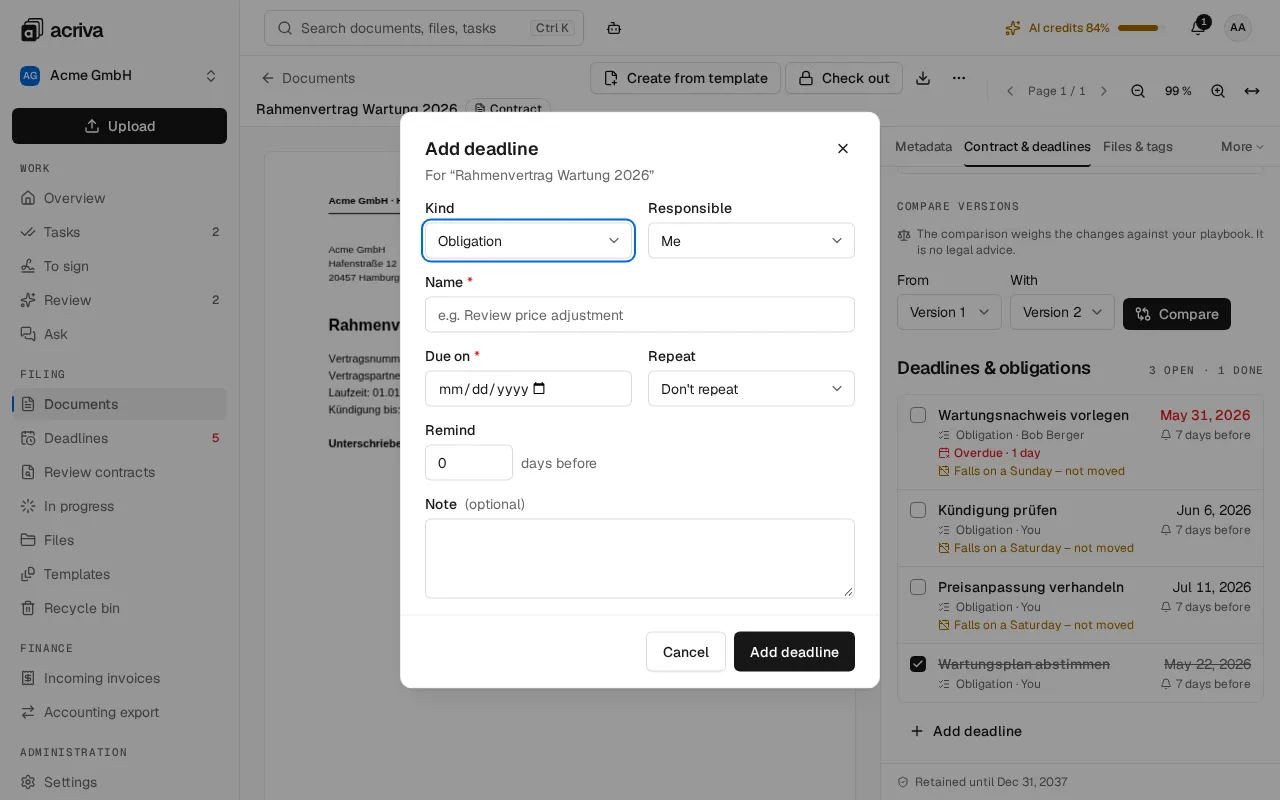
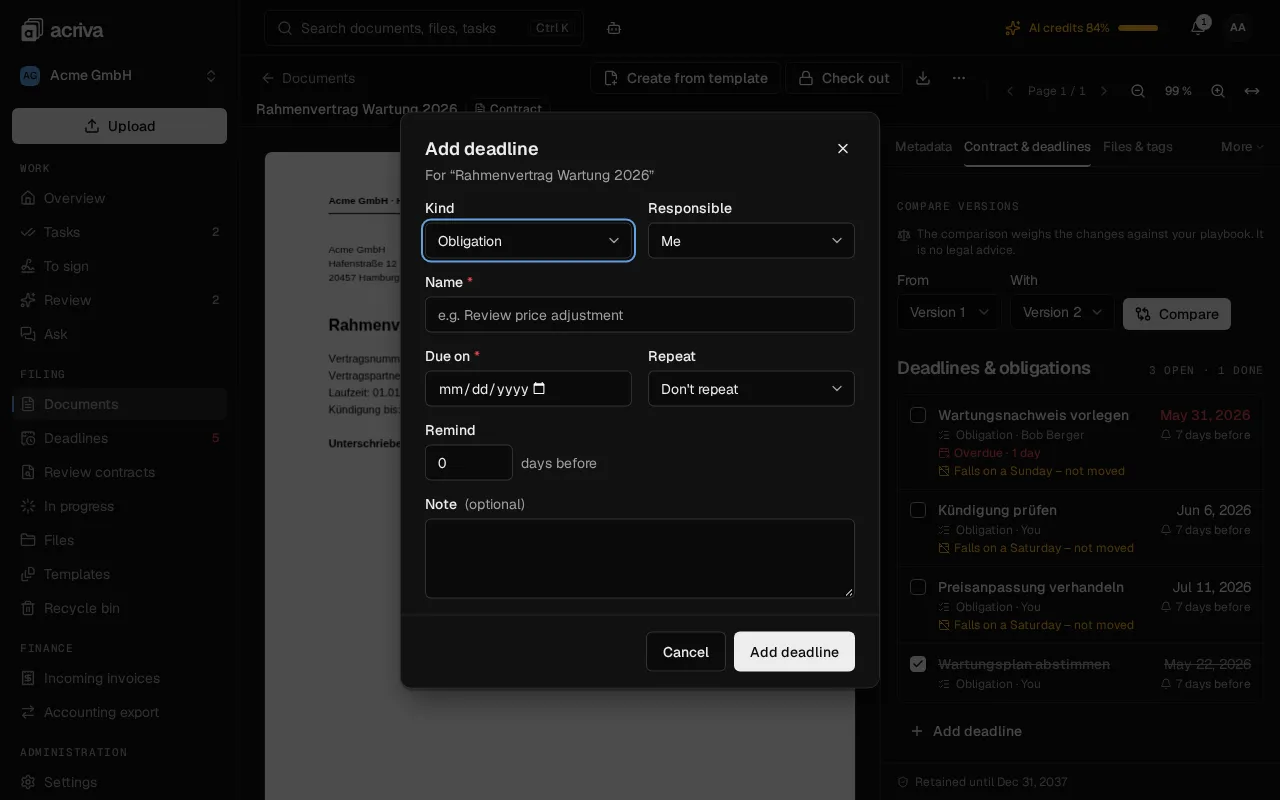
To change a deadline, select its name. A calculated deadline takes only another reminder and another responsible person; its date comes from its field, which you change on the tab Metadata. An obligation or a follow-up can also be deleted there with Delete deadline.
Mark a deadline done
Section titled “Mark a deadline done”Select the box before a deadline to mark it done, and select it again to open it once more. Everyone who may change the document can do so, and the responsible person can mark their own deadline done also with read access only.
How Acriva calculates the dates
Section titled “How Acriva calculates the dates”Acriva calculates from the fields that the type’s contract rule names; on the standard type Contract they are these:
- End date, the end of the initial term: the Start date plus the Initial term, unless a value was entered. One year from 1 April 2026 ends on 31 March 2027.
- Current term ends: the end date until it has passed. While the Contract status is Active, Renewed or empty (an empty status counts as active) and the term has ended, Renews by moves the current end on, as often as needed, and the status becomes Renewed. Without a renewal the status becomes Expired. A Terminated contract runs until its current end and then becomes Expired. A contract without an end, such as one for an indefinite time, has no current end. When a person entered the current end, for example after an amendment, the term counts from it.
- Notice deadline, by Notice to:
- End of term, also when Notice to is empty: the Notice period counted back from the current end. Once that deadline has passed and a renewal follows, Acriva counts back from the end after the next renewal, so the deadline shown is always the next one you can still meet.
- End of month, End of quarter or End of year: the first such end that lies at least the notice period after today, and not before the start or the end of a minimum term, and the notice period counted back from it. Three months to the end of a quarter, counted on 10 November 2026, give the end 31 March 2027 and the notice deadline 31 December 2026.
- Any day: no notice deadline; the contract can end any day once the notice period has run.
A terminated or expired contract has no notice deadline left. Every morning Acriva calculates again, so the current end, the notice deadline and the status follow when a term ends or renews. The calculation keeps an end, a current end or a notice deadline that a person entered, and Would be calculated as … shows where it would differ. Two things follow time all the same: the status (an Active contract whose term ended becomes Renewed or Expired), and, after a renewal, a person’s notice deadline for the term that has ended goes back to the calculation.
AI reads a contract’s terms as the document states them: the start, the terms, the notice period and its basis, the renewal, the value with its period and the counterparty. It never reads the current end, the notice deadline or the status; Acriva calculates those. To check what AI read for many contracts at once, such as after an import, use Review contracts.
Deadline rules of a document type
Section titled “Deadline rules of a document type”Which fields of a type calculate deadlines, and whom they remind, is set in the type’s settings. See Document types: Deadlines.
Related
Section titled “Related”- Deadlines: every deadline of the documents you can read, in a list and a calendar, and the calendar subscription.
- Review contracts: check and confirm what AI read from a stock of contracts, and link their partners.
- What AI does with a document: how AI reads a document’s fields.
- Workflow designer: Start at a deadline: workflows that start when a deadline comes near.
- Recipes of the workflow cookbook: Contract closing, Decide before the notice deadline, Obligation reminder and Check invoice against contract.