

Playbook
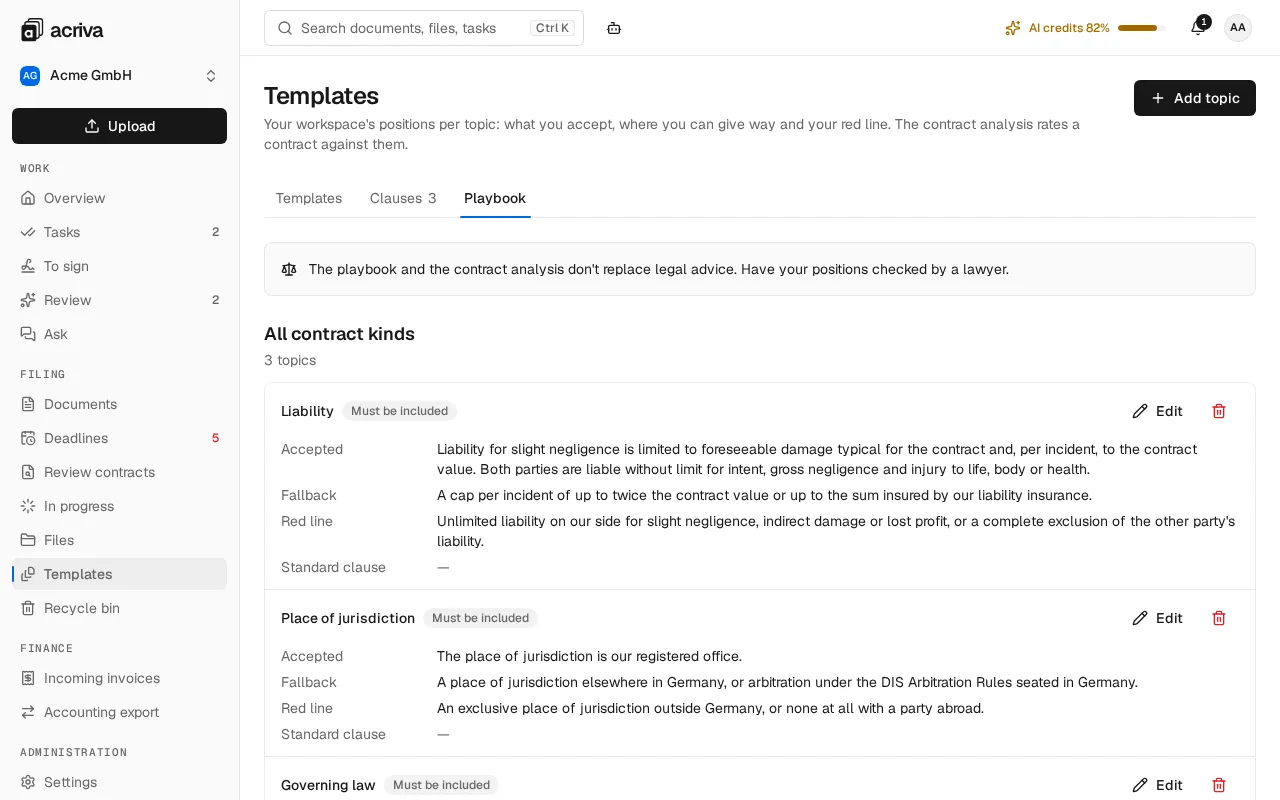
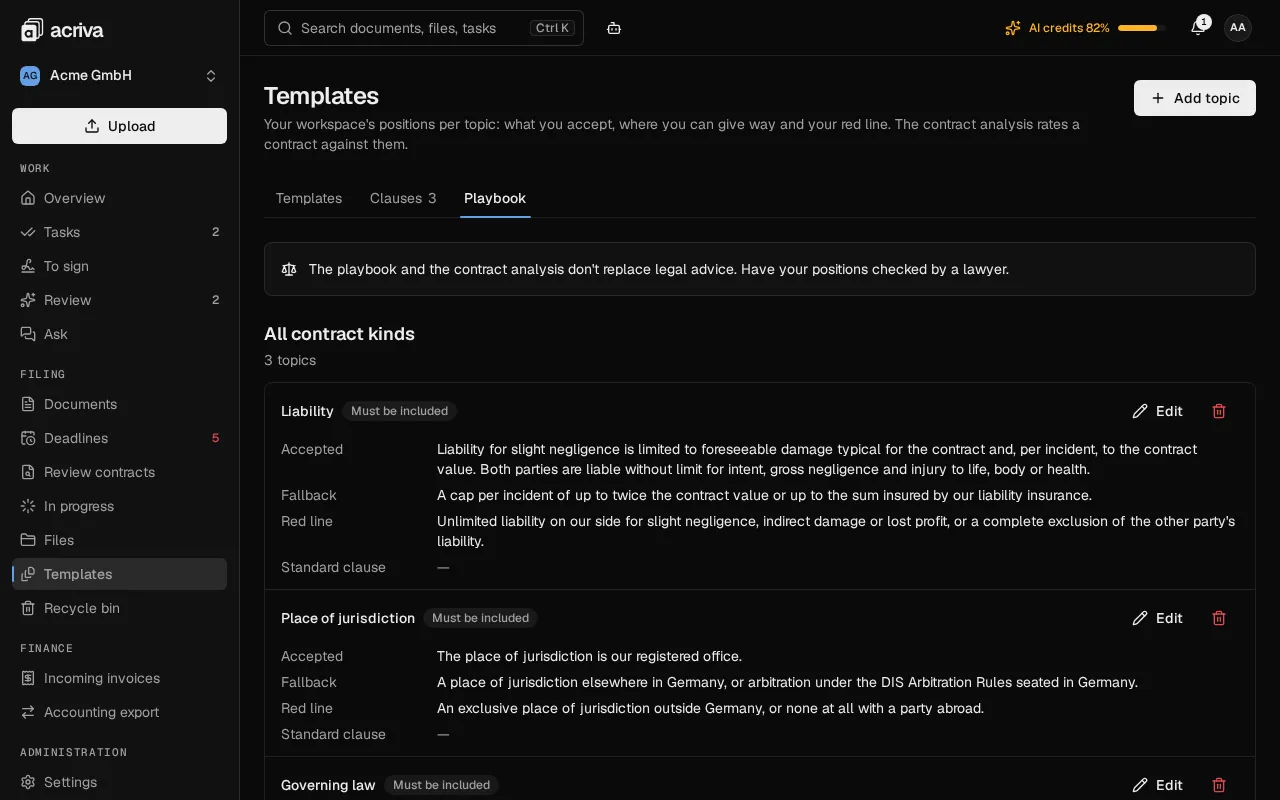
The playbook holds your workspace’s positions per topic, such as liability, place of jurisdiction or payment terms: what you accept as it is, how far you go if you must, and what you never accept. The contract analysis rates a contract’s clauses against these positions. You find the playbook under Templates, on the tab Playbook.
Who has the playbook
Section titled “Who has the playbook”The playbook belongs to the contract analysis: the Business and Enterprise plans, the trial, and Starter with the add-on “Templates” (see Subscription). Without it the page shows Needs Business. Everyone who may read documents (See documents and document types) sees the playbook. Adding, editing and removing topics needs the permission Manage templates: a template’s settings and the release of its checked versions, which the built-in roles Owner and Admin have. Without it the page shows the topics without these buttons and says Only people who may manage templates change the playbook.
The starter playbook
Section titled “The starter playbook”Every workspace starts with eleven topics: liability, place of jurisdiction, governing law, termination, term and renewal, payment terms, warranty, contractual penalty, data protection and DPA, confidentiality, and intellectual property. They are a starting point: change them to your workspace’s positions.
What a topic holds
Section titled “What a topic holds”The page groups the topics by contract kind (the field Contract kind of a contract, see Contracts): first All contract kinds, then Purchase, Service, NDA, Rental and Other. A topic for two kinds shows in both groups. Each topic shows:
- Accepted: what you accept as it is. A finding within it is green.
- Fallback: how far you go if you must. A finding within it is amber.
- Red line: what you never accept. A finding beyond or against it is red.
- Standard clause: the clause that words your position, in the language of the interface.
- Must be included: a contract of these kinds must contain the topic. If it doesn’t, the analysis lists it under the missing clauses.
The page shows the texts in the language of the interface. Each topic keeps them in German and English, and the analysis uses the language of the person who starts it.
Edit a topic
Section titled “Edit a topic”- Select Edit on the topic.
- Change the Title (German) and the Title (English).
- Under Contract kinds, tick the kinds the topic applies to. None selected: the topic applies to every contract kind.
- Switch Must be included on or off.
- On the tabs German and English, write the Accepted, Fallback and Red line texts, at most 2,000 characters each, and choose a Standard clause from your library, or No clause.
- Select Save.
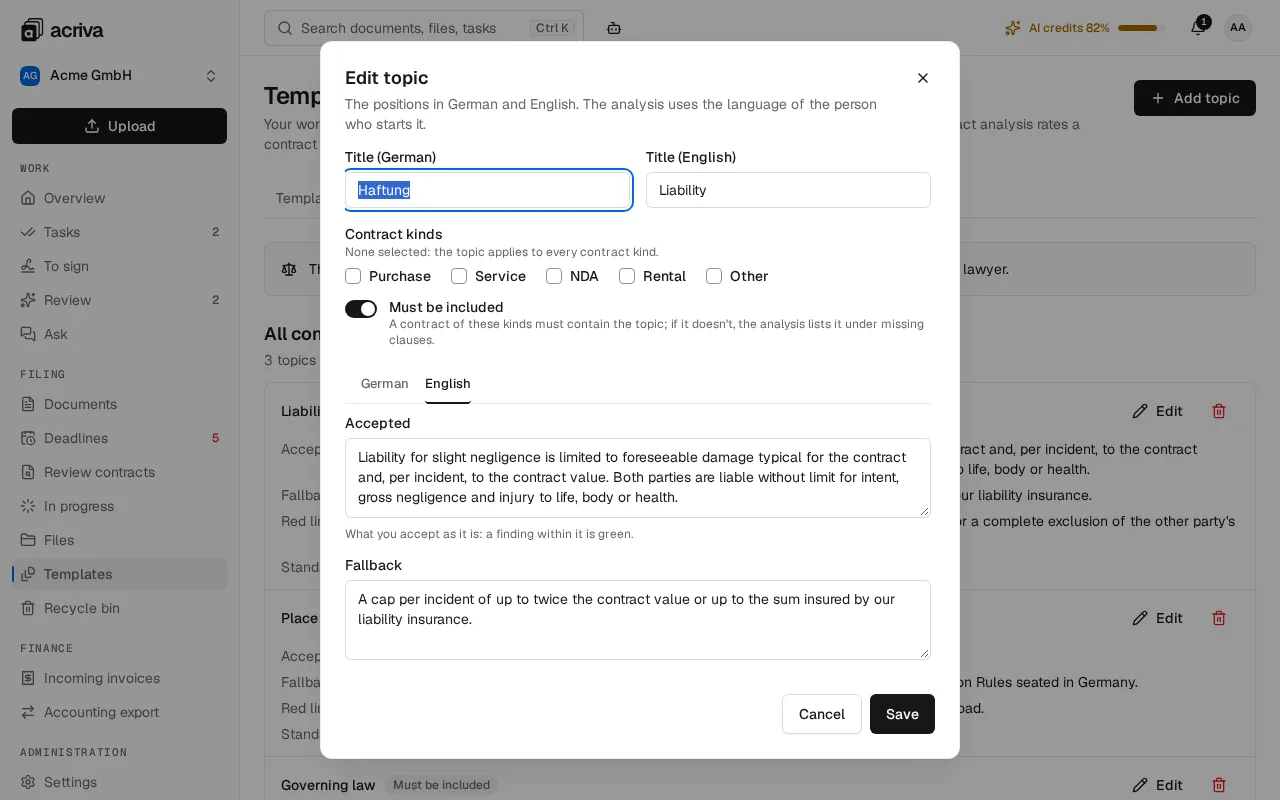
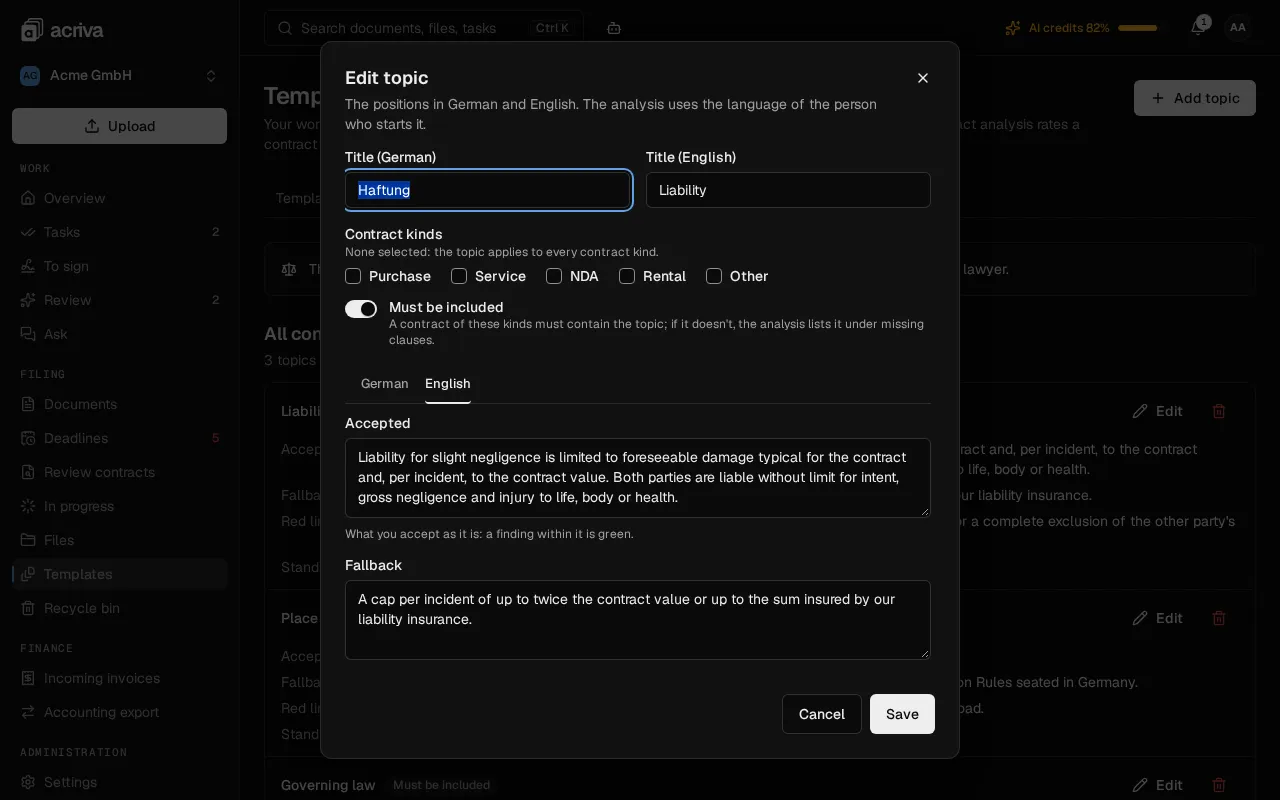
Every text is needed in both languages: the dialog says Enter this text. and opens the tab where one is missing.
To add a topic, select Add topic. The Key follows from the German title, such as hoehereGewalt; you can change it until you save, and not later. A playbook holds at most 60 topics: then the page says so, and Add topic stays disabled. To remove a topic, select the bin next to Edit and confirm with Remove.
Changes and earlier analyses
Section titled “Changes and earlier analyses”Each save makes a new revision of the playbook. An analysis records the revision it read, so an earlier analysis keeps the positions it rated against. If someone else saved the playbook while you edited it, Acriva saves nothing and says The playbook was changed in the meantime: the page is reloaded, and you make your change again.
A clause that a topic uses as its standard clause can’t be deleted while the topic uses it: the clause’s page names the topic.